
1.2.7 Resetting your password
1. Click on your account name
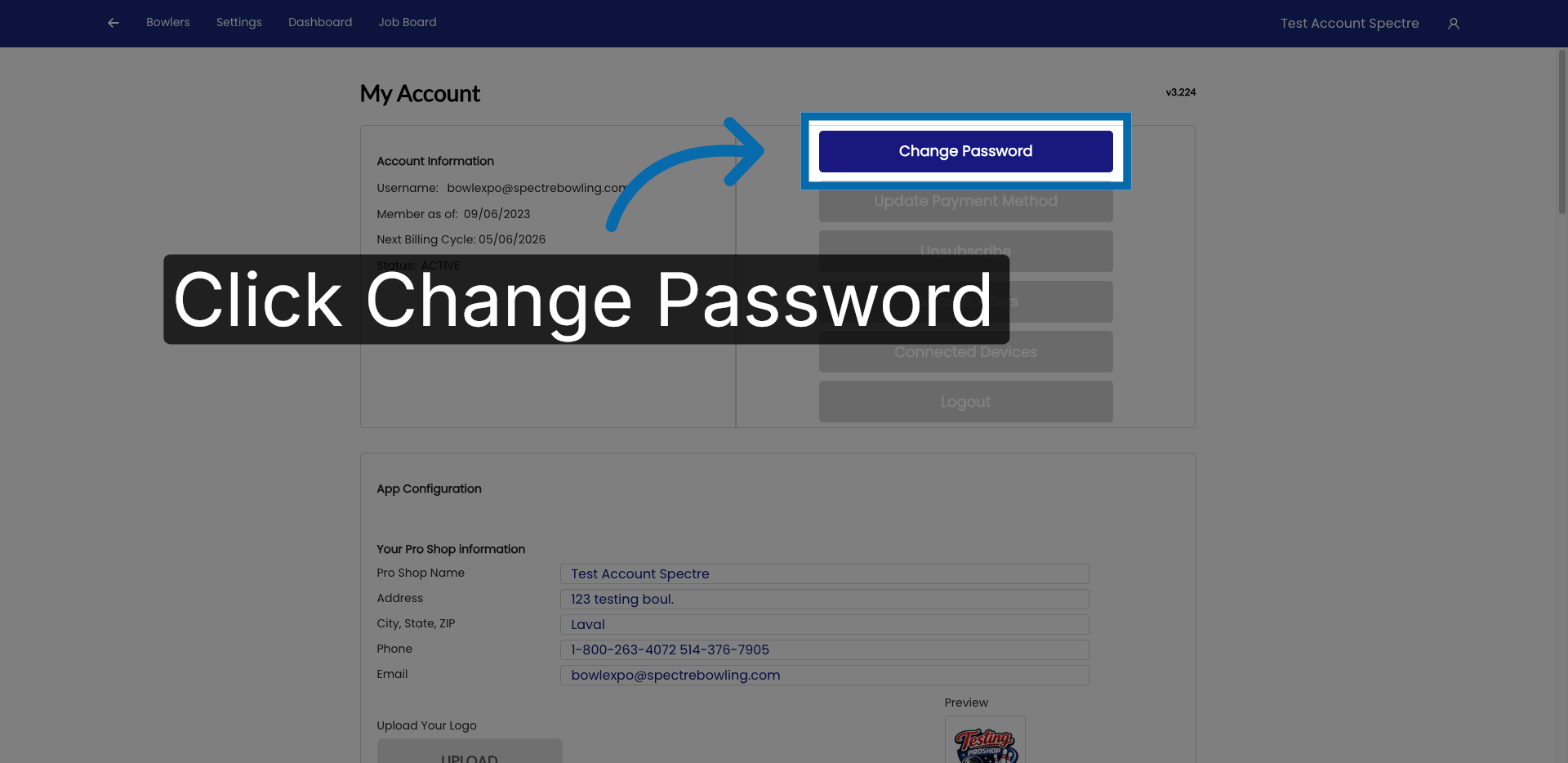
2. Access Change Password Section
Click "Change Password" to begin updating your account credentials.
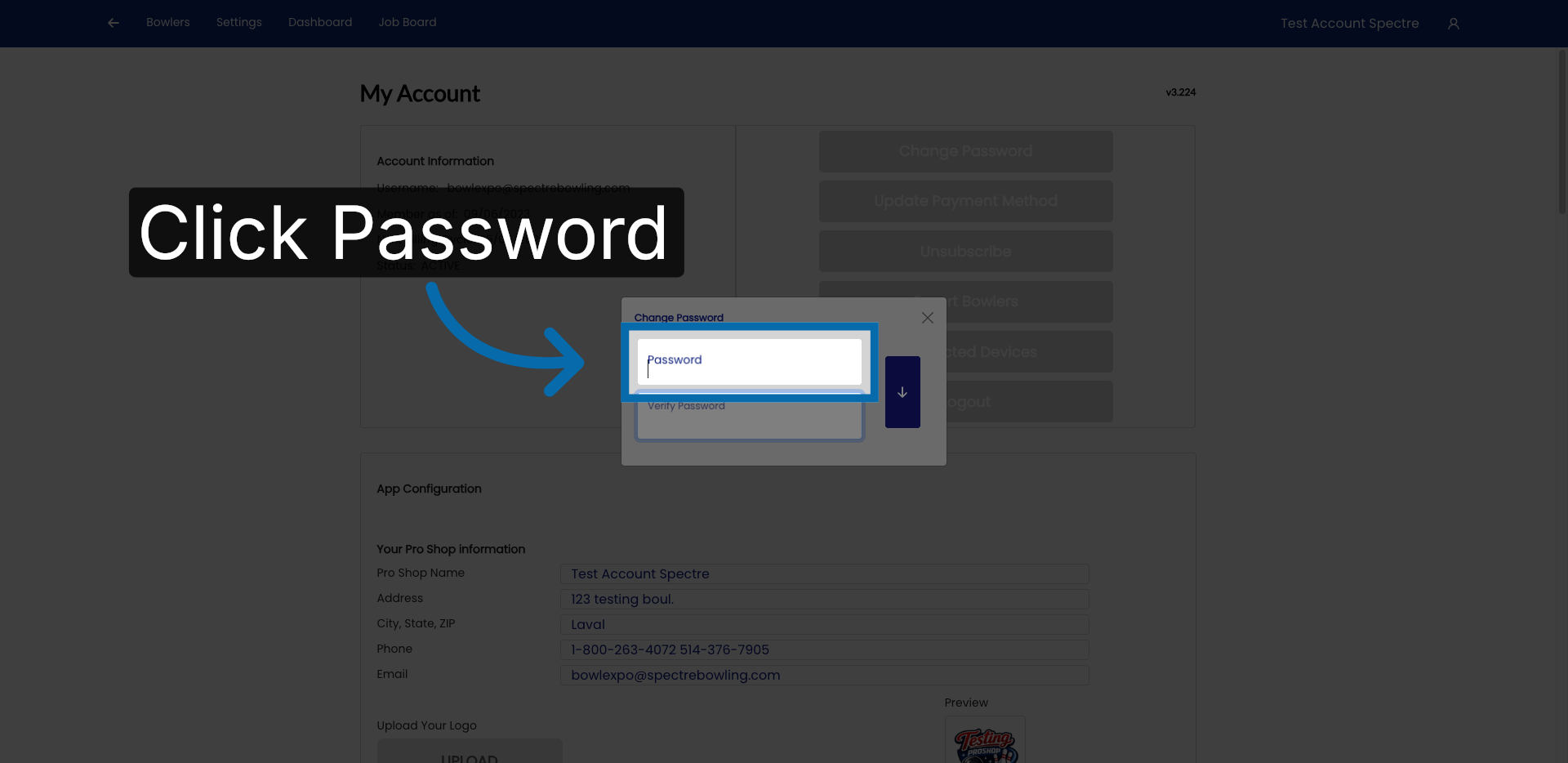
3. Open Password Settings
Click "Password" to access the password modification options.
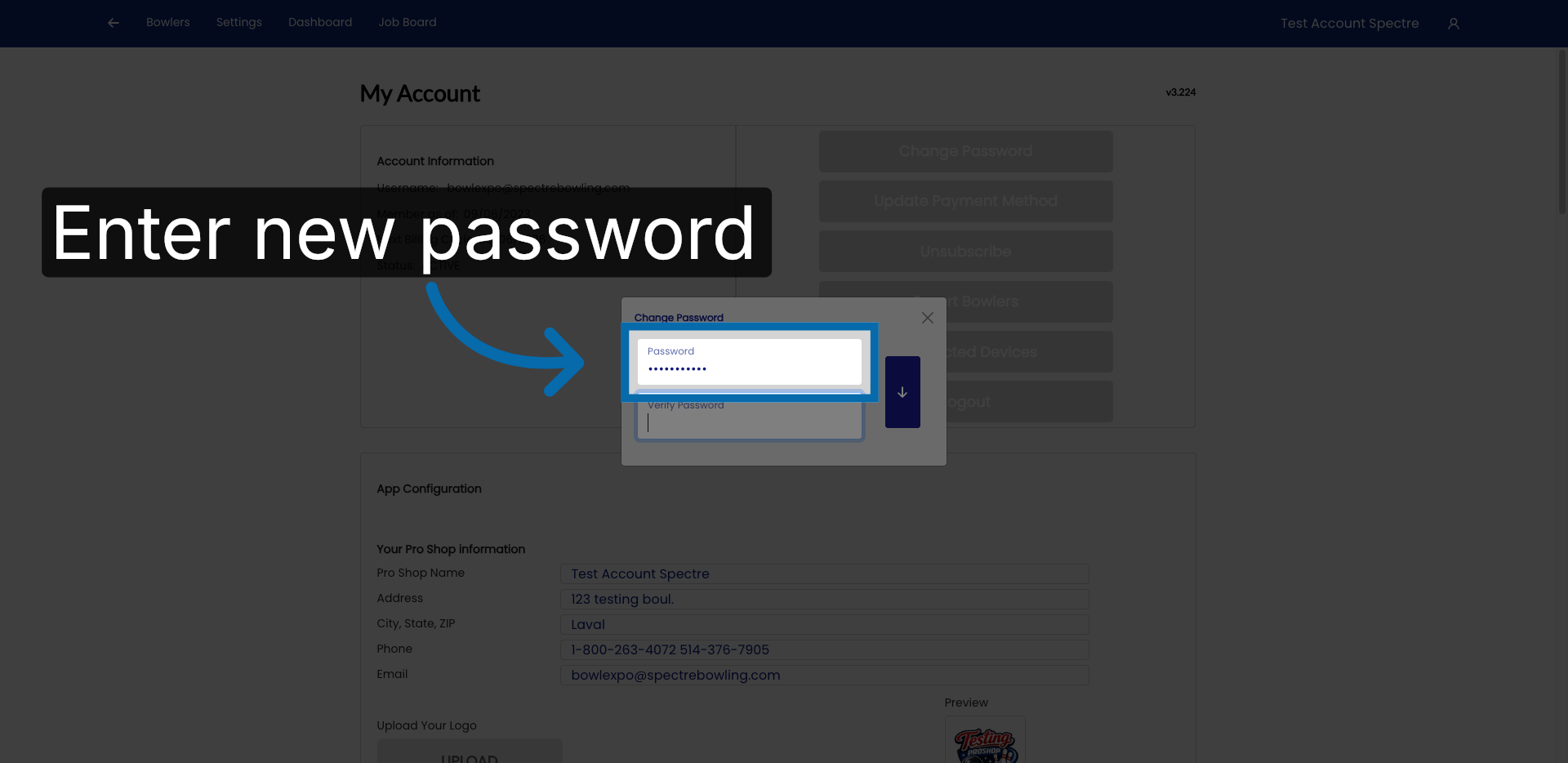
4. Enter New Password
Enter your new password in the provided field to set your updated login credentials.
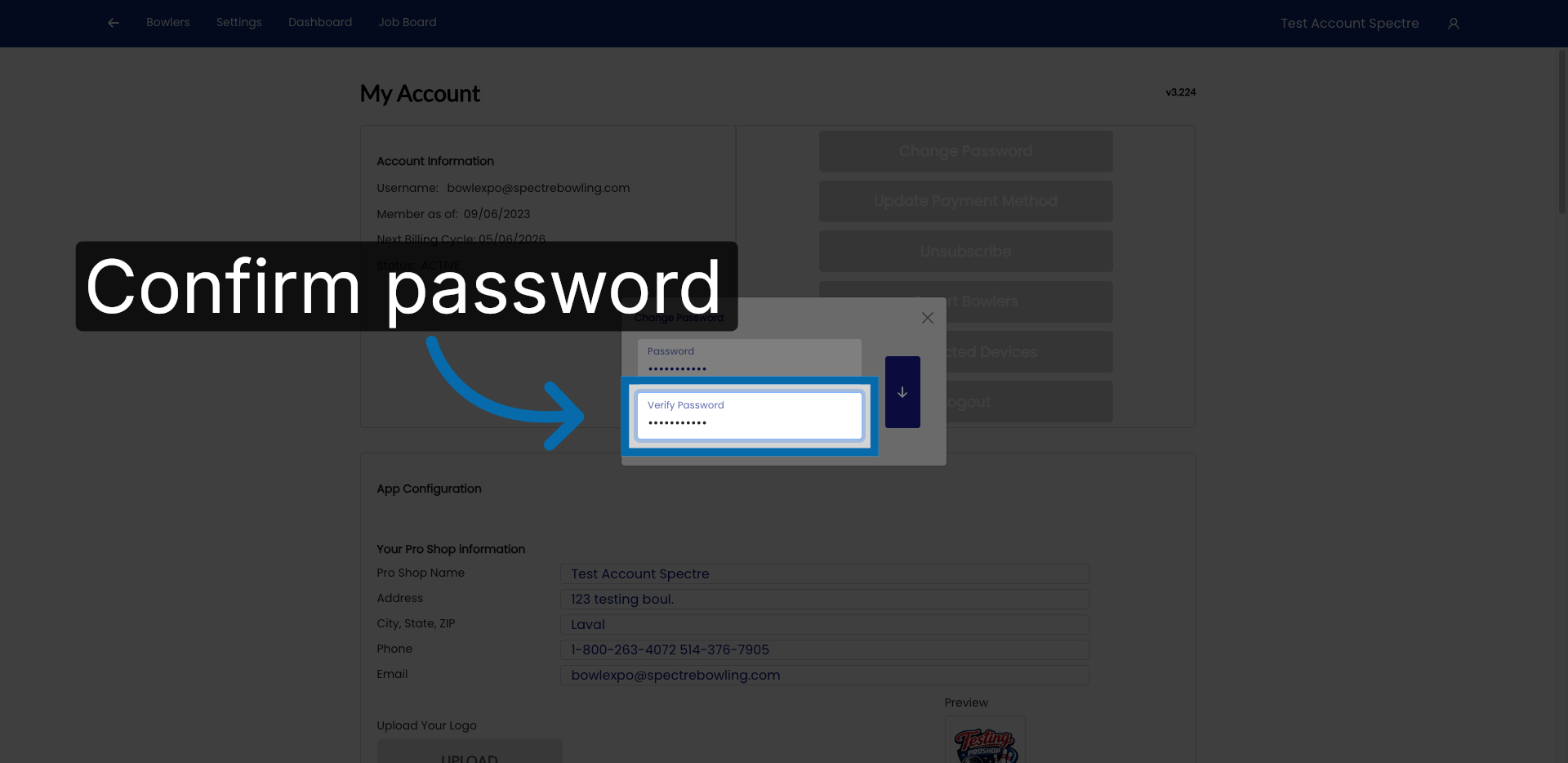
5. Confirm New Password
Re-enter your new password to confirm it matches the first entry.
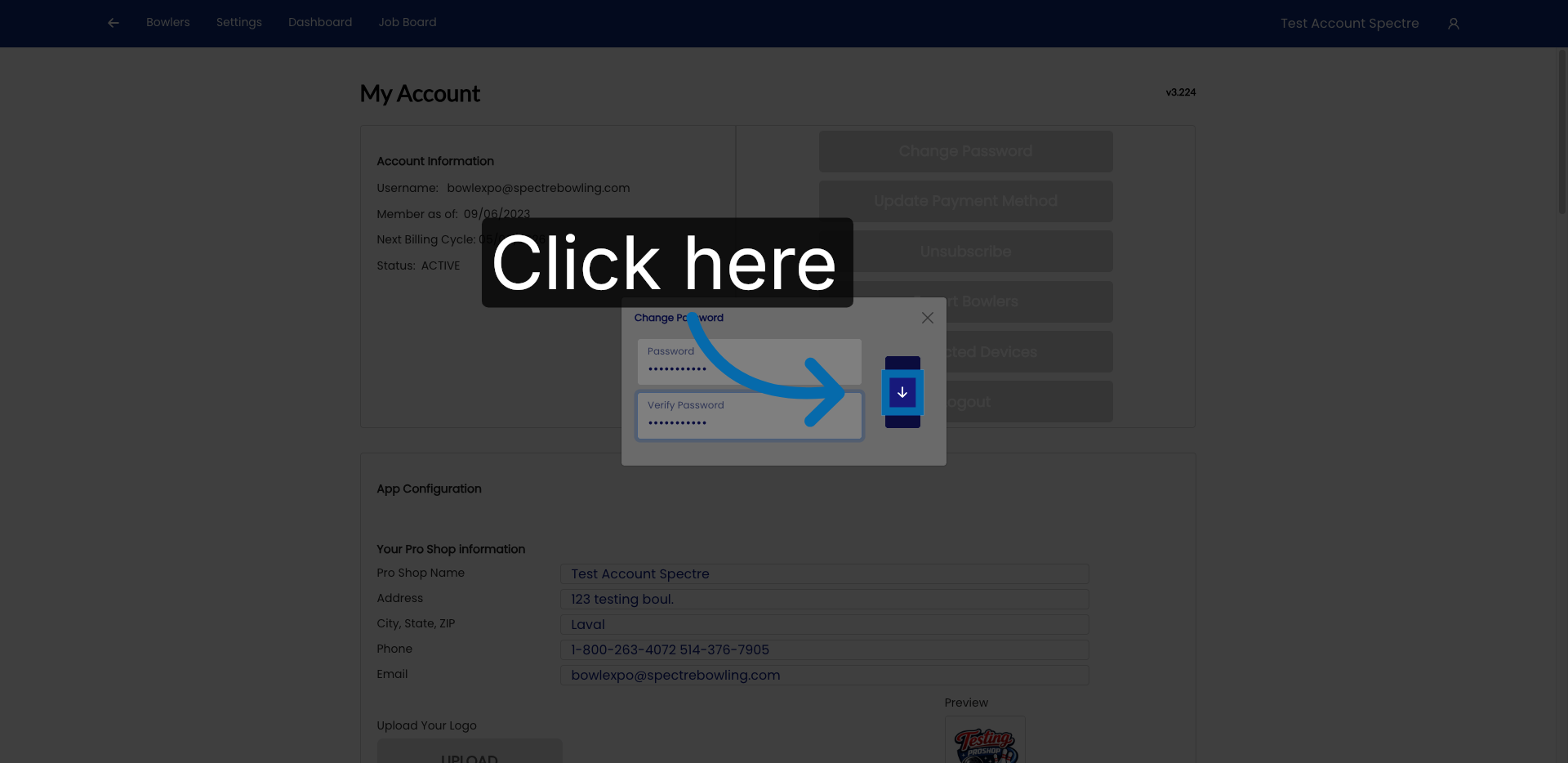
6. Proceed To Next Step
Click here to continue to the next step in the password change process.
7. Fill Current Password
Enter your current password to verify your identity before saving changes.

8. Submit Login Credentials
Click "LOGIN" to finalize the password update and access your account with the new credentials.

You have successfully changed your password in Spectre Proshop Management. Your account is now secured with the updated credentials, and you can log in using your new password.