
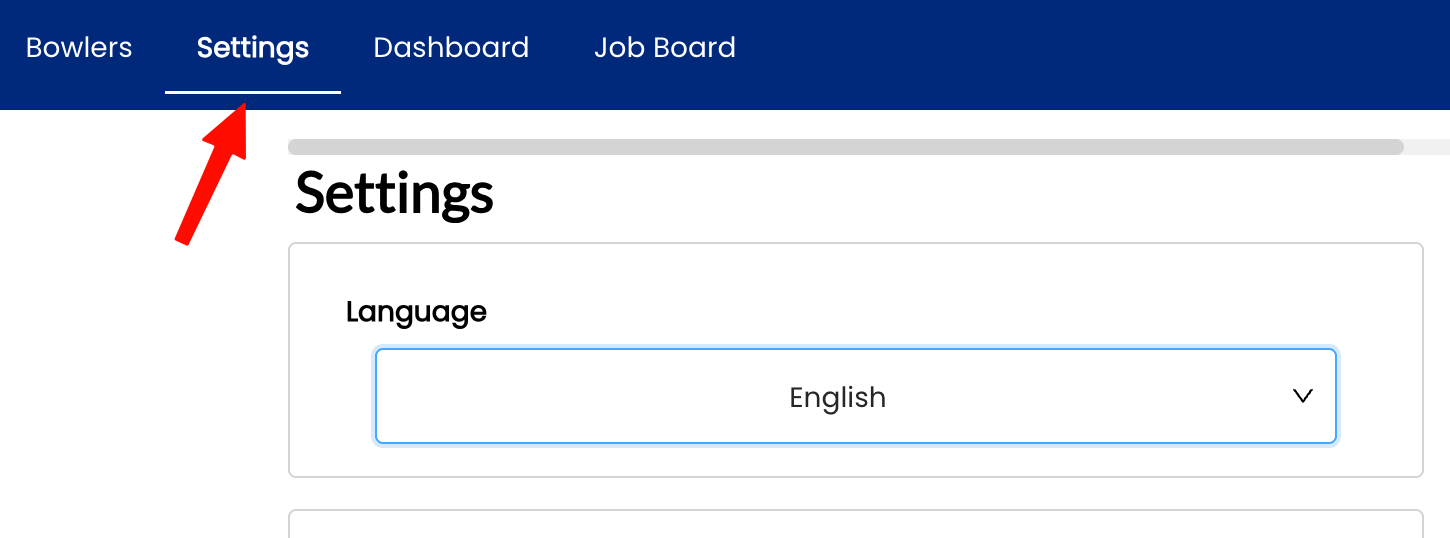
2.1.1 Changing the display language
2.1.1 setting
Spectre Cloud is available in nine display languages. Changing your display language updates all menus, labels, and interface text across the app — your bowler data and spec sheet content are not affected.
🌍 Available Languages
| Language | Code | Coverage |
|---|---|---|
| English | en |
Full interface |
| French | fr |
Full interface |
| Spanish | es |
Full interface |
| German | de |
Full interface |
| Italian | it |
Full interface |
| Japanese | ja |
Full interface |
| Korean | ko |
Full interface |
| Portuguese | pt |
Full interface |
| Simplified Chinese | zh-Hans |
Full interface |
🖥️ Changing the Language — Desktop
ClickOpenyourSpectreproCloudshopatnamecloud.spectrebowling.cominandthelogtop-right corner of the screen to open the Profile menu.in.- Select Settings from the
dropdown.menu. UnderNavigate to theGeneralSystem Defaultstab,section.- Locate the Display Language
field.field Chooseand select your preferredlanguage from the dropdown.language.ClickChangesSaveareChanges.saved automatically. The interface will reloadautomaticallyin the selected language.
📱 Changing the Language — Mobile
- Open Spectre Cloud at
cloud.spectrebowling.comand log in. - Tap the avatar icon in the top-right corner to open the Profile menu.
- Tap Settings.
UnderNavigate to theGeneralSystem Defaults,tapsection.- Tap the Display Language
. Selectfield and select your preferred language.TapChangesSaveareChanges.saved automatically. The app will reload in the selected language.

☁️ Does the Language Setting Sync Across Devices?
Yes — your display language preference is saved to your Spectre Cloud account, so it stays consistent whether you log in from a desktop browser, tablet, or mobile device.
Related Sections
Tip: If a teammate on the same account prefers a different language, each user can set their own language independently — it does not affect other users on the account.