4.3 — Span
- 4.3.1 Entering span measurements (F, C, O, H)
- 4.3.2 The four span types: F, C, O, H
- 4.3.3 Ring finger 5/16" rule
4.3.1 Entering span measurements (F, C, O, H)
4.3.1 step-by-step
Span measurements define the distance between the thumb hole and each finger hole. Spectre Cloud supports four span types, and it's important to enter values under the correct one — the number only means what it's supposed to when it's paired with the right span type.
📐 The Four Span Types (Summary)
Spectre Cloud uses four span measurement types. Each is explained in full — including how it's measured and when to use it — in 4.3.2. In brief:
- ✅ Full Span (F) — the complete measured span, everything included, inserts and all.
- ✅ Cut to Cut (C) — Full Span minus the insert thickness; used when drilling thumb-first.
- ✅ Outer to Cut (O) — for interchangeable thumbs; inside of the female interchangeable to the cut of the finger OD hole.
- ✅ Hole to Hole (H) — biggest hole to biggest hole (what the PBA truck calls "Cut-to-Cut").
For the full detail on each type, see 4.3.2 — Span types. This page covers how to enter the values once you know which type you're working in.
🎳 The Span Fields on the Spec Sheet
The two span boxes sit at the center of the spec sheet, directly below the finger holes. For a right-handed bowler:
- ✅ The left box is the middle finger.
- ✅ The right box is the ring finger.
Enter each finger's span in its box. The values are almost always different from one another, so confirm you're entering each in the correct field.
Note: The middle and ring finger boxes flip when you change the bowler's dominant hand. Because handedness mirrors the layout, switching a bowler from right-handed to left-handed (or vice versa) swaps which box is the middle finger and which is the ring — so always confirm the bowler's hand is set correctly before reading or entering span values.
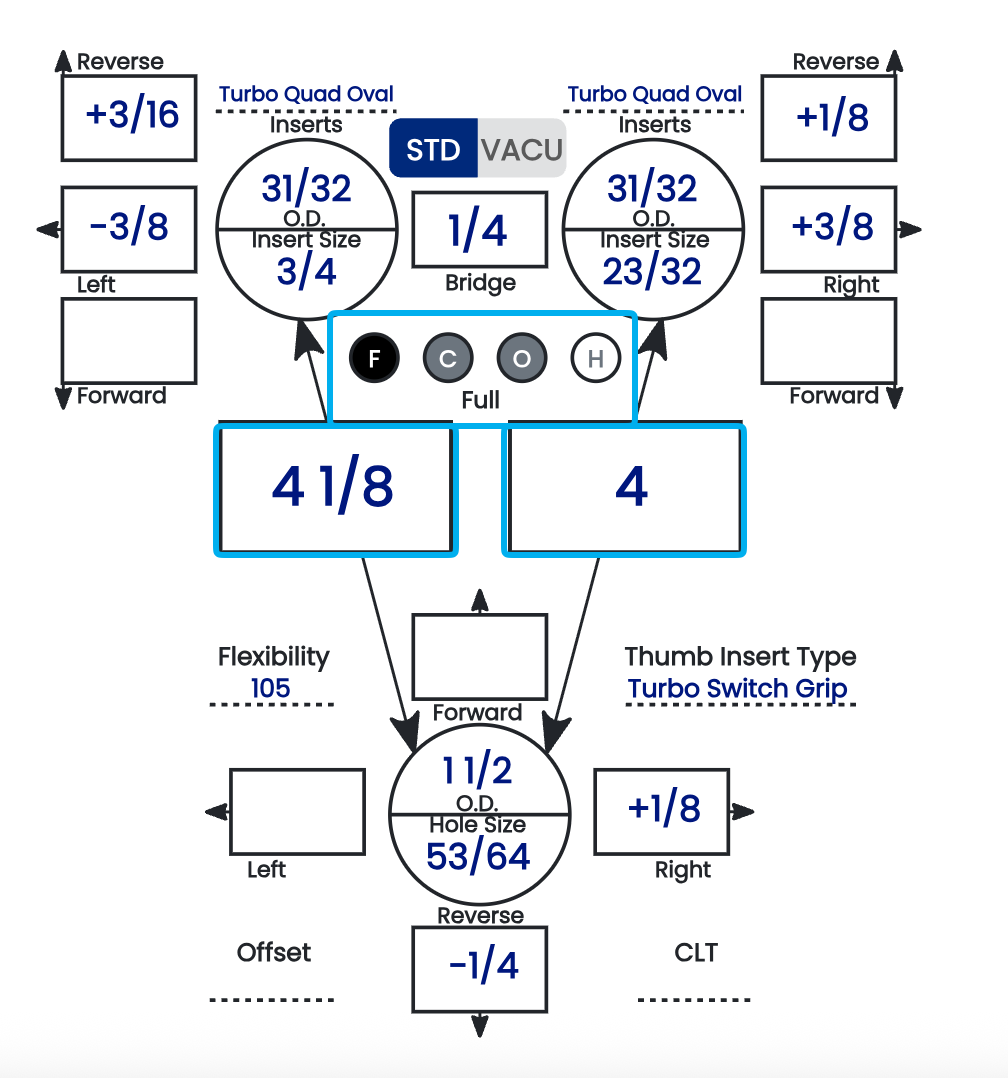
🔘 Reading the F / C / O / H Bubbles
Between the two span boxes is a row of four bubbles — F, C, O, H — one for each span type. Their shading tells you, at a glance, which span type is currently displayed and which ones already hold a value:

| Bubble state | Meaning |
|---|---|
| Black background | This is the span type currently being displayed in the span boxes. |
| Grey background | A value is present for this span type (but it's not the one currently displayed). |
| White background | Nothing is present — the value for this span type is blank or incomplete. |
The bubbles let you switch which span type is shown and immediately see which types are already filled in. A grey bubble means that span exists on the sheet; a white bubble means it doesn't yet.
⚙️ Only Cut to Cut Is Automated
This is the key thing to understand about span entry: Cut to Cut is the only span type with any automation behind it.
- ✅ Cut to Cut (C) has an automated toggle in the settings — Autofill Cut to Cut (2.6.9) — which derives the value from the Full Span and insert dimensions.
- ❌ Full Span, Outer to Cut, and Hole to Hole are manual entry only. There is no automation behind them — whatever you type is what's recorded.
- ❌ None of the span types have error validation. Spectre Cloud will not flag a value that's out of range, transposed, or entered under the wrong span type — the entry is taken exactly as given.
Because there's no validation catching mistakes, the responsibility for a correct value sits entirely with the person entering it. Confirm the span type and re-check the numbers before saving.
🔢 Adjusting Span Increments
The values available when entering a span come from a drop-down, and the increment of that drop-down is adjustable in the settings (see 2.2.7). If the default steps are finer or coarser than you like to work in, change the increment so the drop-down offers the values that match your shop's habits.
📋 Entering Span — Step by Step
- Confirm the bowler's dominant hand is set correctly — this determines which box is the middle finger and which is the ring.
- Confirm the span type is set correctly (see 4.3.2) — check that the intended bubble (F, C, O, or H) is the one with the black background.
- Enter the middle finger span in its box.
- Enter the ring finger span in its box.
- Double-check both values against your fitting source before moving on.
Related Sections
- 4.3.2 — The four span types: F, C, O, H
- 2.2.7 — Adjusting span measurement increments
- 4.2.4 — Identifying grip type from a measurement sheet
- 2.6.9 — Autofill Cut to Cut: the one automated span toggle
- 4.4.5 — Inputting pitches
Tip: Glance at the bubble row before you save. A black bubble tells you which span you're looking at, and the grey ones tell you which other spans are already on file — an easy way to confirm nothing you meant to enter was left white and blank.
4.3.2 The four span types: F, C, O, H
4.3.2 concept
Spectre Cloud supports four span types — Full Span (F), Cut to Cut (C), Outer to Cut (O), and Hole to Hole (H). All four measure the distance between the finger holes and the thumb hole, but they differ in where the measurement begins and ends and whether the inserts are included. This page defines each; for entering them on the sheet, see 4.3.1.
📐 Full Span (F)
The complete measured span — everything included, inserts and all. Also called the complete span.
- ✅ The most common convention; IBPSIA fitting charts generally assume Full Span.
- ✅ Describes the bowler's actual reach with their grips installed.
- ✅ Required input for the Cut to Cut auto-suggestion (needed on both fingers).
-

📐 Cut to Cut (C)
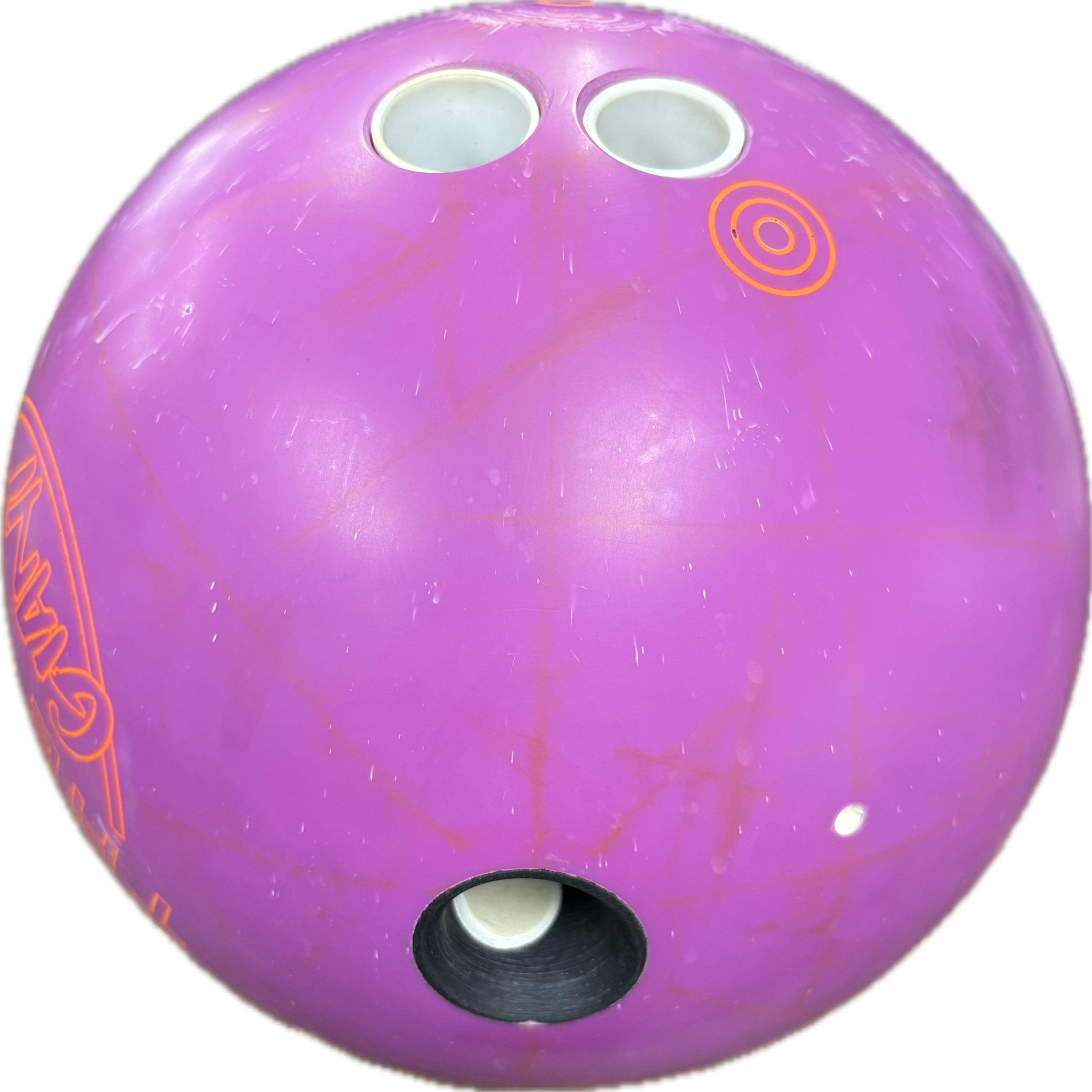
Full Span minus the thickness of the insert — the span measured to the actual drilled cut, before the inserts are accounted for. Useful when drilling thumb-first, so you don't subtract the grip thickness by hand.
- ✅ The one span type with an auto-suggestion — Autofill Cut to Cut (2.6.9).
- ⚠️ Not the same as the PBA truck's "Cut-to-Cut" — that is Hole to Hole (H), below.

📐 Outer to Cut (O)
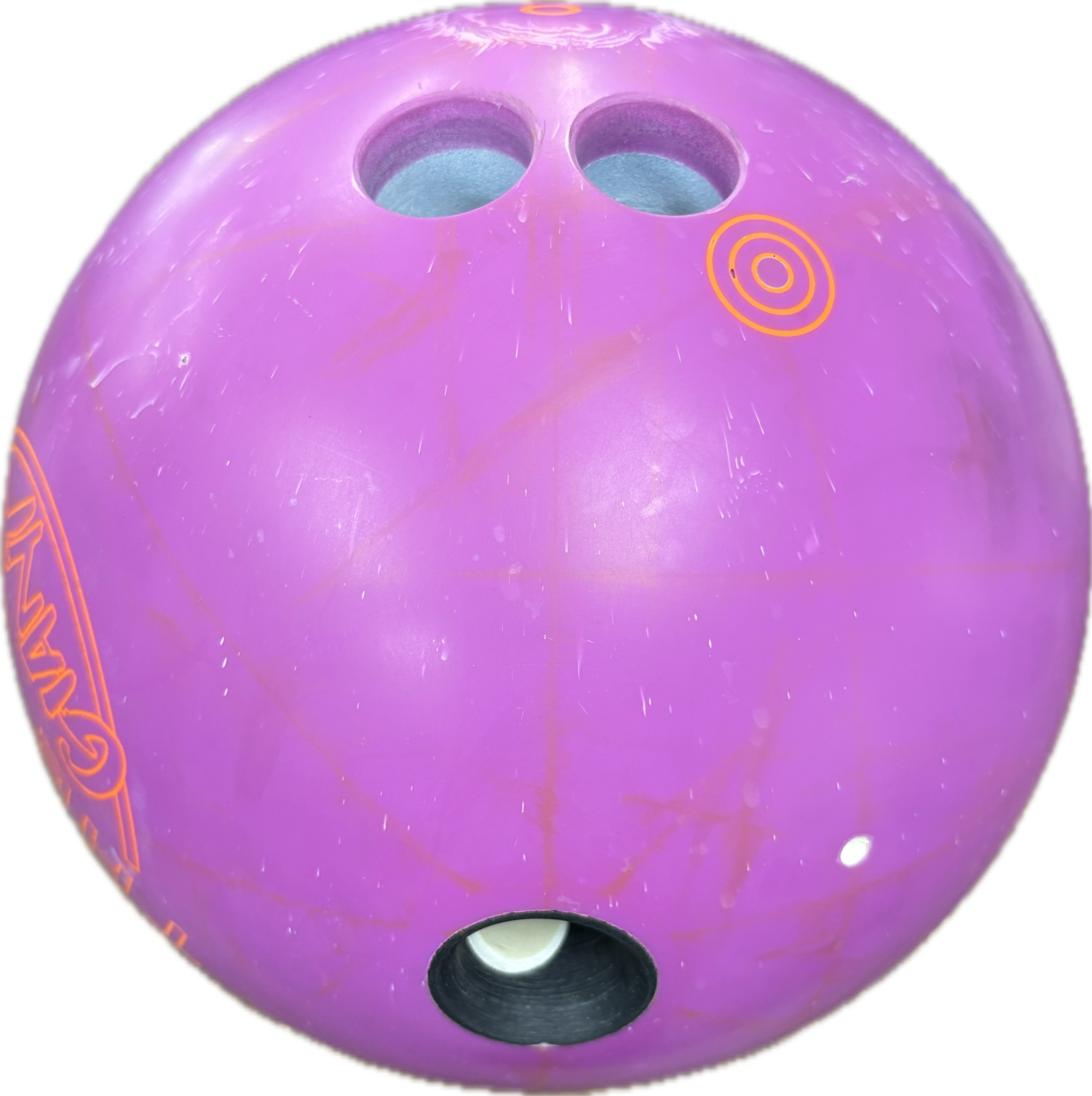
For interchangeable thumbs — measured from the inside of the female portion of the interchangeable to the cut of the finger's outer-diameter hole.
- ✅ Lets a bowler with an interchangeable thumb use a new ball by locking in their own male inner sleeve — no new thumb to drill.
- ❌ "O" is Outer to Cut, not Oval — an oval is a hole shape (Book 05), a separate concept.

📐 Hole to Hole (H)
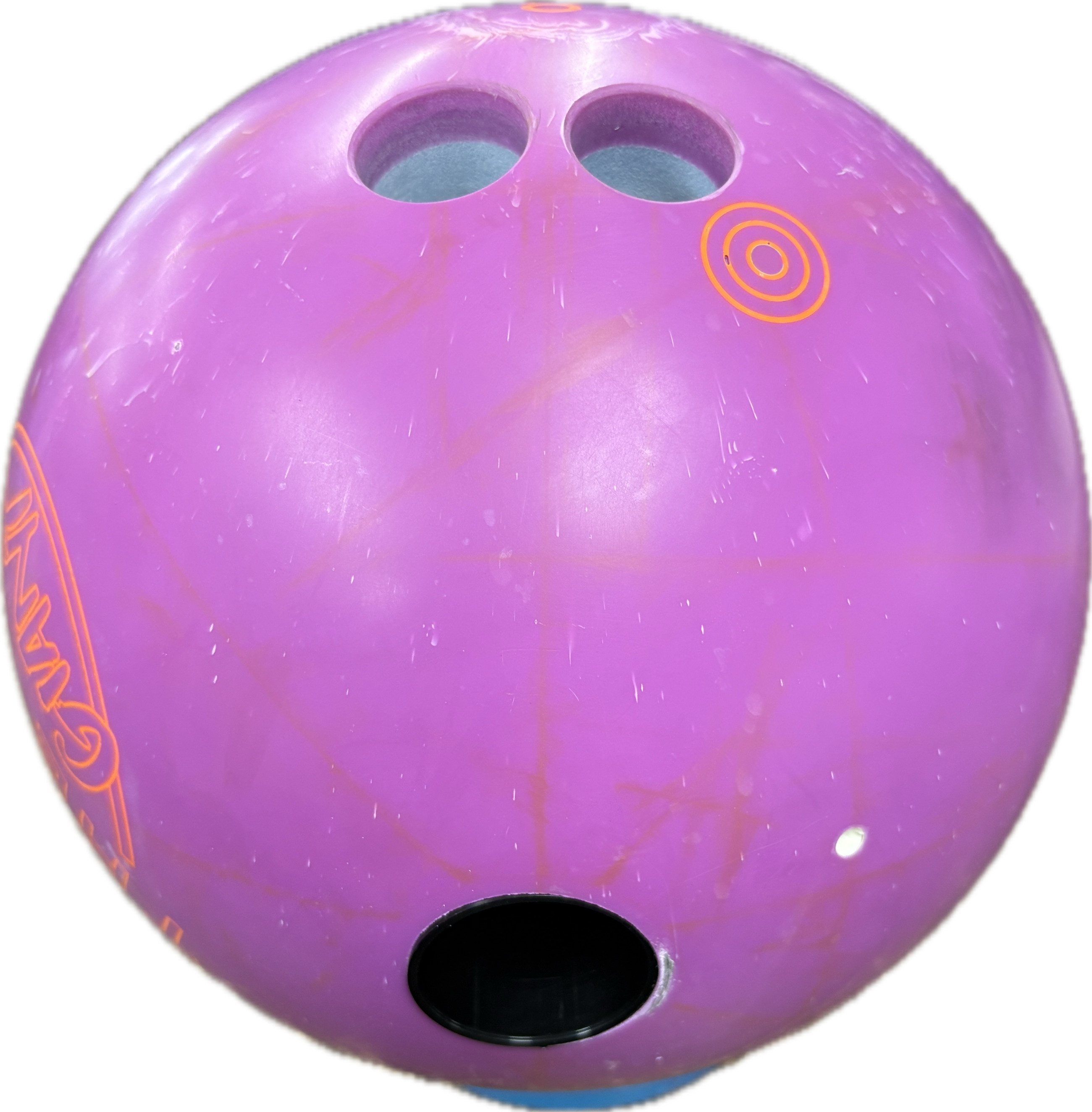
Biggest hole to biggest hole — for example, a 1 1/2" thumb to a 31/32" finger. A purely physical, edge-to-edge measurement of the largest openings.
- ✅ This is what the PBA services truck calls "Cut-to-Cut."

📊 The Four Span Types
| Full Span (F) | Cut to Cut (C) | Outer to Cut (O) | Hole to Hole (H) | |
|---|---|---|---|---|
| What it measures | Complete span, inserts and all | Full Span minus insert thickness | Inside of the female interchangeable to the cut of the finger OD hole | Biggest hole to biggest hole (e.g. 1½" to 31/32") |
| Inserts included? | Yes | No | Interchangeable sleeve | N/A — hole edge to hole edge |
| Primary use | General fitting; the default reference | Thumb-first drilling | Interchangeable thumbs | Quick physical reference; PBA-truck workflows |
| Auto-suggestion | — | Yes (2.6.9) | — | — |
Related Sections
- 4.3.1 — Entering span measurements (F, C, O, H)
- 4.3.3 — Ring finger 5/16" rule
- 4.1.1 — Acronyms: F, C, O, H
- 2.6.9 — Autofill Cut to Cut
- 05 — Oval Calculator (oval hole shape — distinct from span type O)
Tip: Full Span is the lowest-friction default — it's the complete measurement most fitters work in and the input the Cut to Cut auto-fill depends on. Reach for Cut to Cut when drilling thumb-first, Outer to Cut for interchangeable thumbs, and Hole to Hole when you want the biggest-hole-to-biggest-hole reference the PBA truck calls "Cut-to-Cut."
4.3.3 Ring finger 5/16" rule
4.3.3 measurement
The ring finger span is often derived from the middle finger span rather than measured independently, using the 5/16" Ring Finger Rule. Spectre Cloud can apply this calculation for you through Auto-Calculate Ring Span (2.6.8), or you can enter the ring finger span manually.
📐 The Rule
The ring finger span is calculated as:
Ring Finger Span = Middle Finger Span + (5/16" − d)
Where d is the observed difference between the second joint lines of the middle and ring fingers, measured with the bowler's hand flat on the ball. When the joint lines are level (d = 0"), the ring span comes out 5/16" longer than the middle span; as d increases, the ring span shortens relative to the middle.
| d value | Adjustment (5/16" − d) | Effect on ring span |
|---|---|---|
0" | +5/16" | Ring span 5/16" longer than middle |
5/16" | 0" | Ring span equals middle span |
> 5/16" | Negative | Ring span shorter than middle |
⚙️ Auto Calculation in Spectre Cloud
When Auto-Calculate Ring Span is used:
- Enter the middle finger span as measured.
- Enter the d measurement in its field.
- Spectre Cloud calculates and displays the ring finger span using
Middle Span + (5/16" − d). - Review the result before saving.
⚠️ Verify with your Spectre team: confirm the exact field label for the d input and whether the calculated ring span is read-only or an editable value the operator can still override.
✏️ Manual Entry
If you measure the ring finger span directly, you can enter it manually instead of using the calculation — appropriate when you have independent measurements of both fingers, or when transferring an explicit ring span from a legacy sheet.
Related Sections
- 4.3.1 — Entering span measurements
- 4.4.5 — Inputting pitches
- 2.6.8 — Auto-Calculate Ring Span (the 5/16" rule)
- 05 — Oval Calculator
Tip: The 5/16" rule produces a starting span, not a fixed prescription. If a bowler reports the ring finger feels consistently tighter or looser than the middle despite a correct-looking sheet, re-check the d measurement first — it takes under a minute and often explains the complaint.