4.2 — Creating a Spec Sheet
- 4.2.1 Creating a blank spec sheet for a bowler
- 4.2.2 Naming a spec sheet
- 4.2.3 Selecting grip type on the spec sheet
- 4.2.4 How to identify the type of grip from measurement sheet
- 4.2.5 Cloning a spec sheet
- 4.2.6 Printing a spec sheet
4.2.1 Creating a blank spec sheet for a bowler
1. Access Bowler Profiles
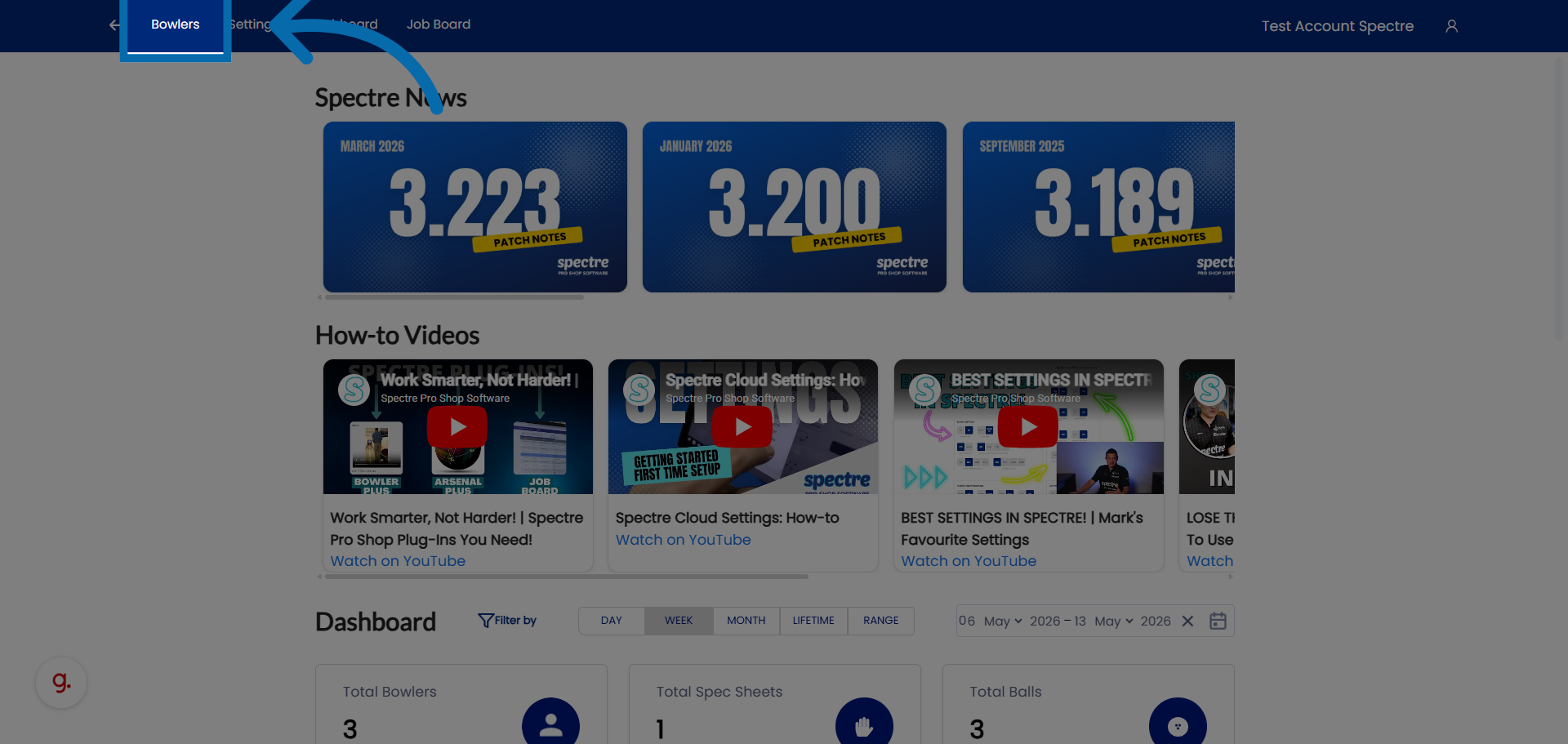
2. Select Bowler
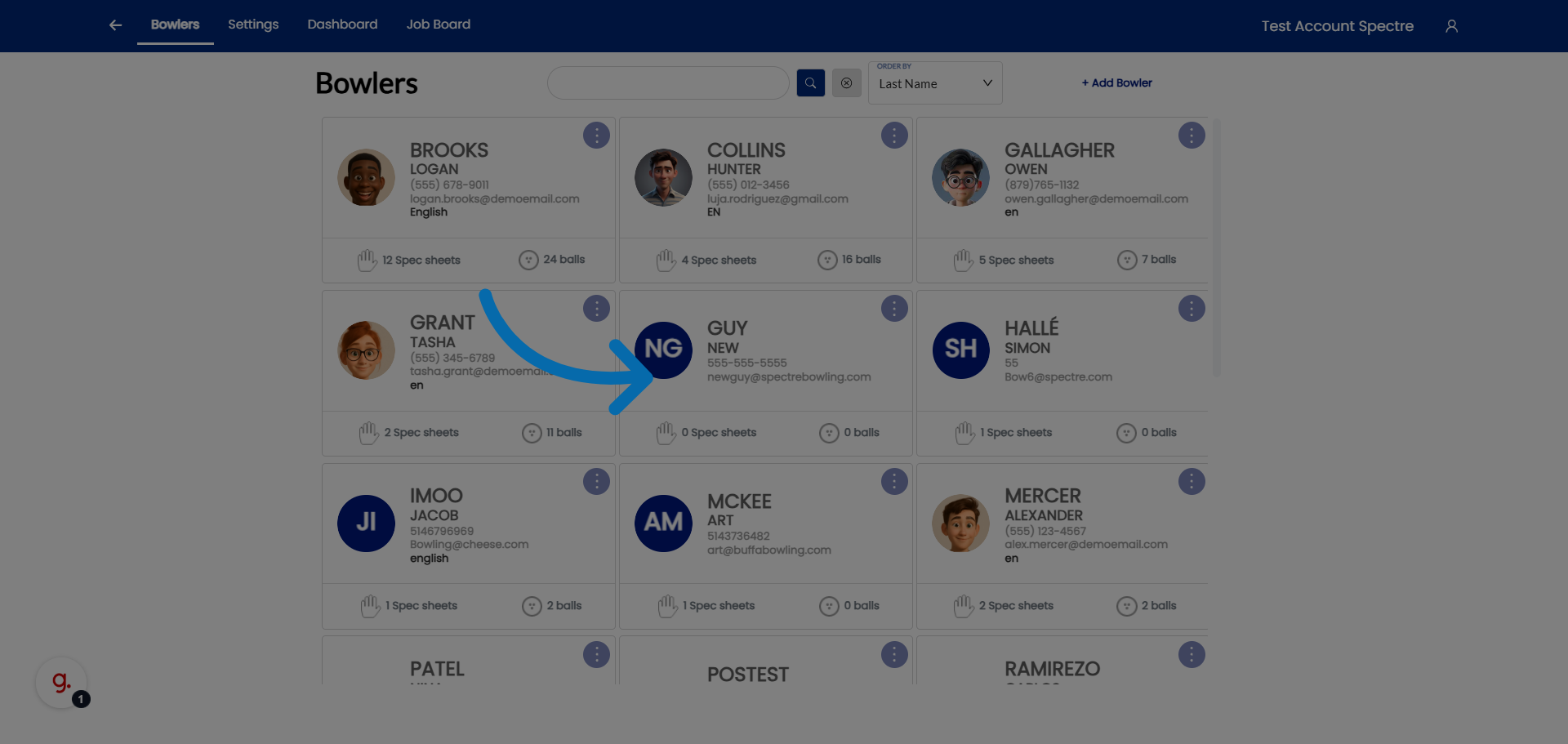
3. Open Spec Sheets Addition
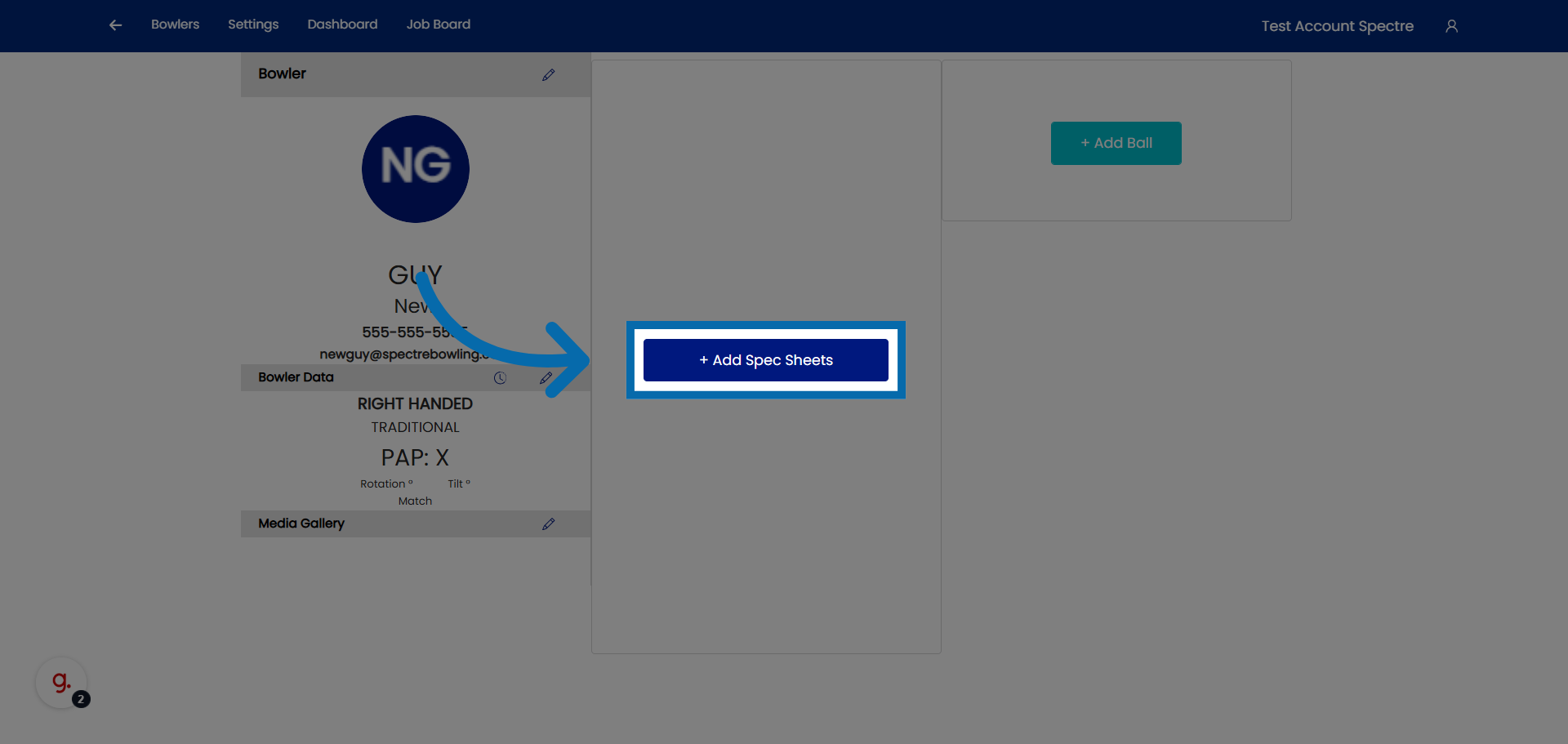
4. Lets create a new spec sheet for an already existing profile.
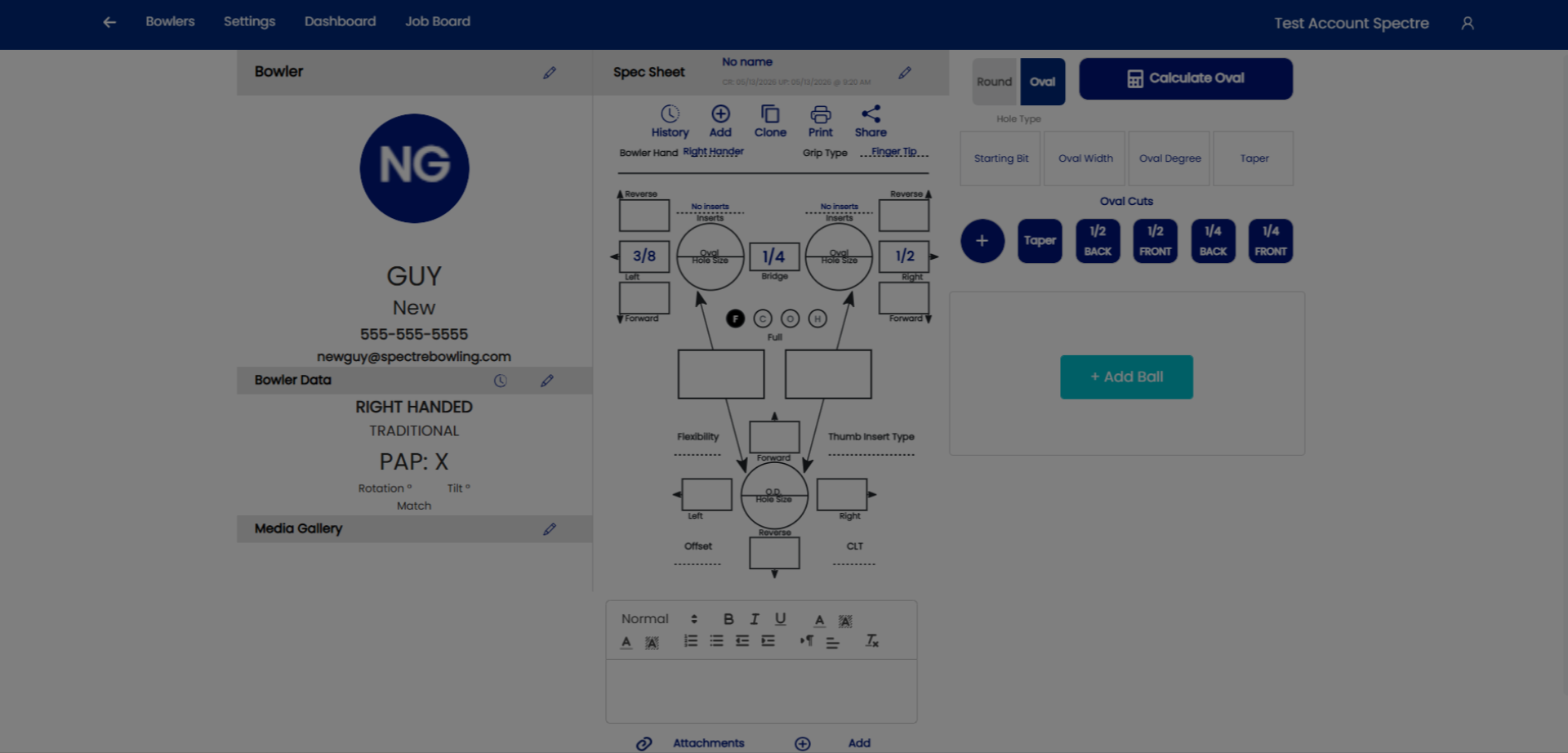
5. Select a bowler
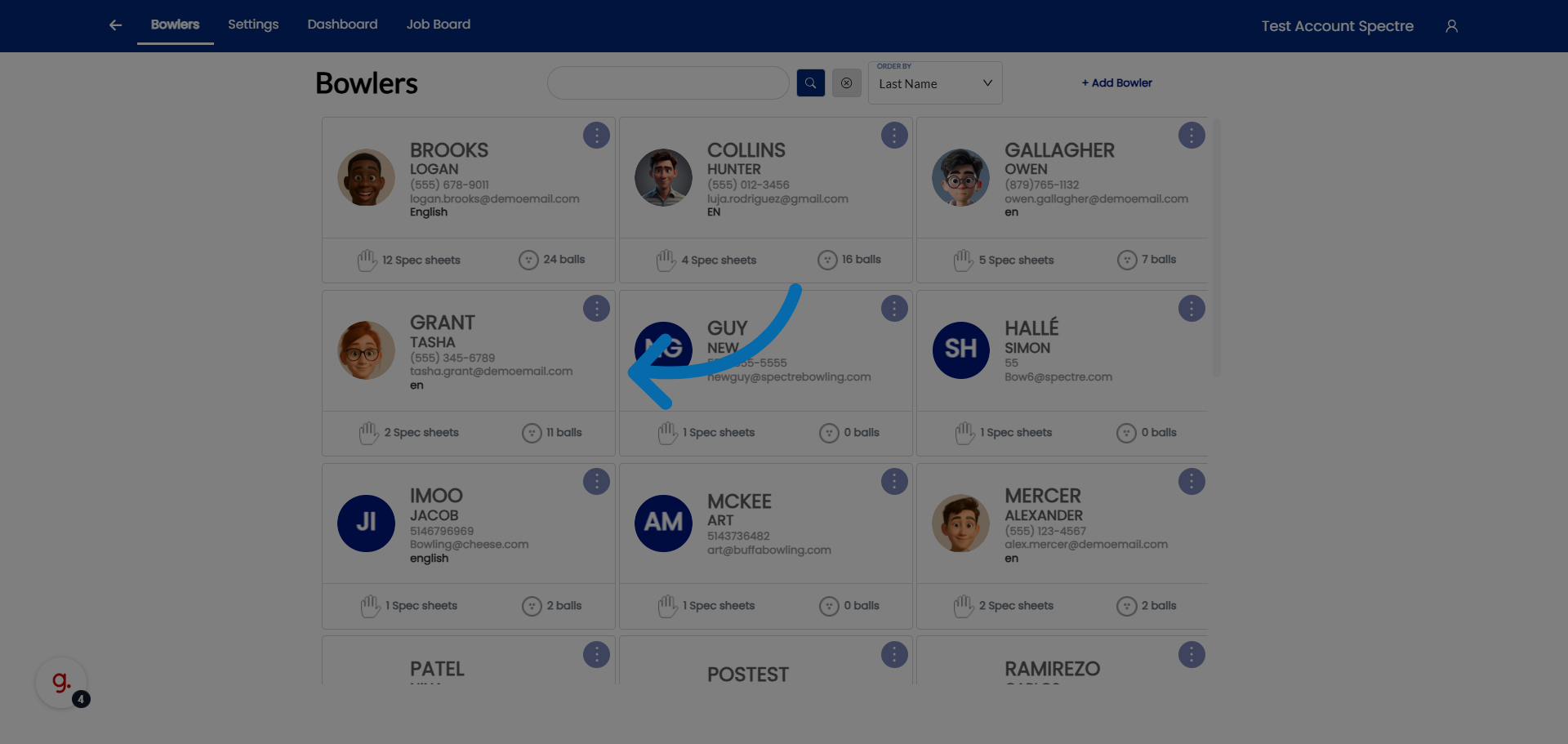
6. Open Additional Options
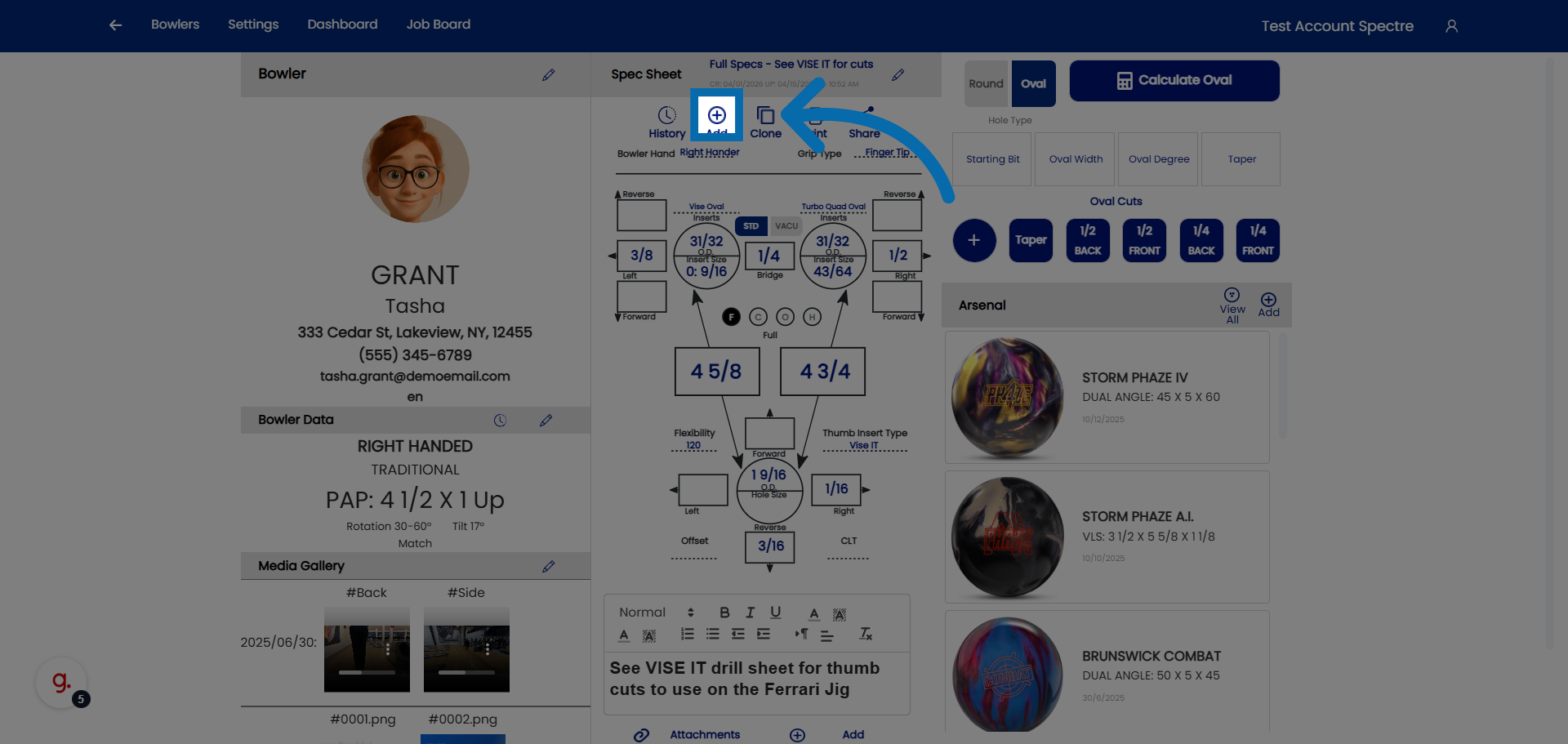
7. Access Further Spec Sheet Settings
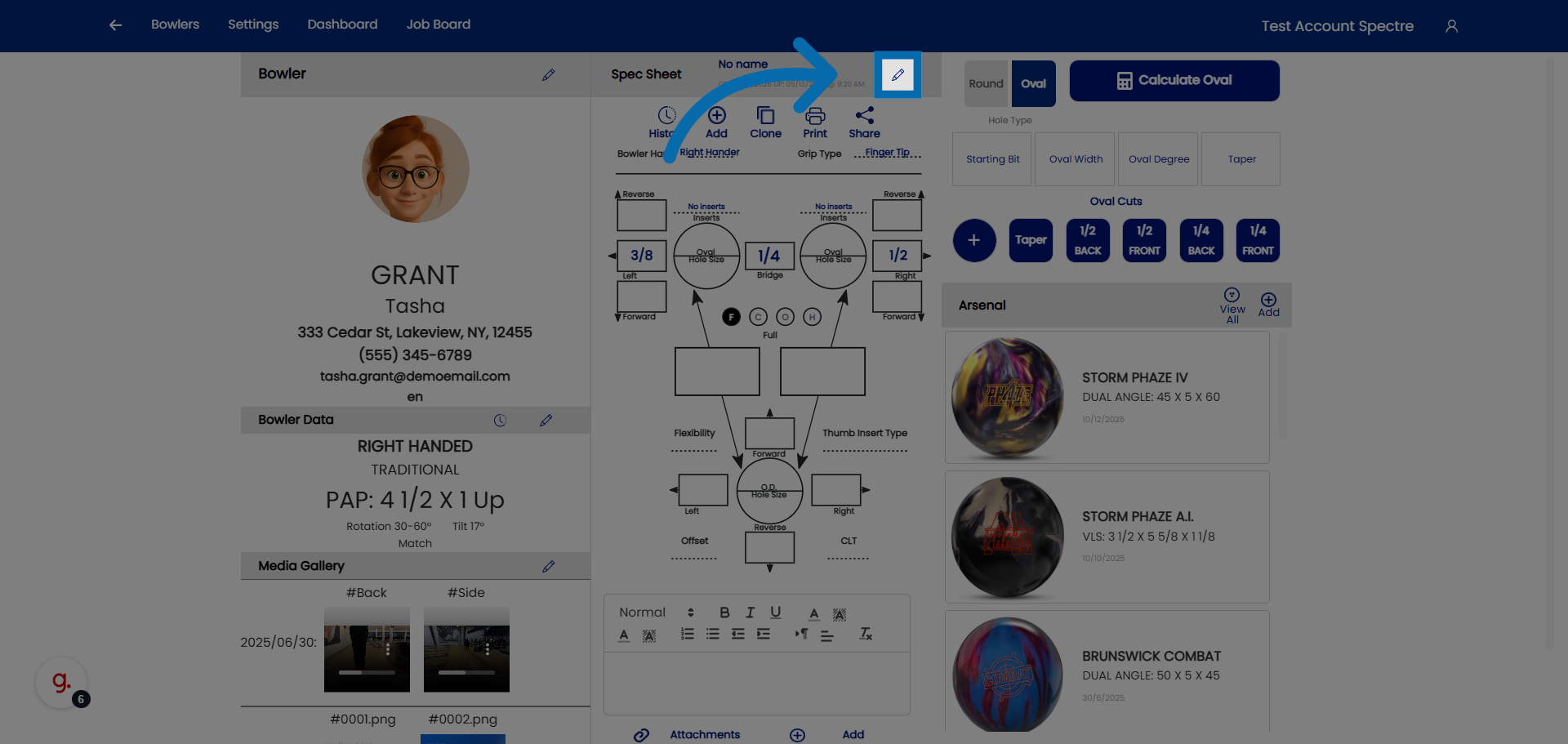
8. Select Spec Sheet Name Field
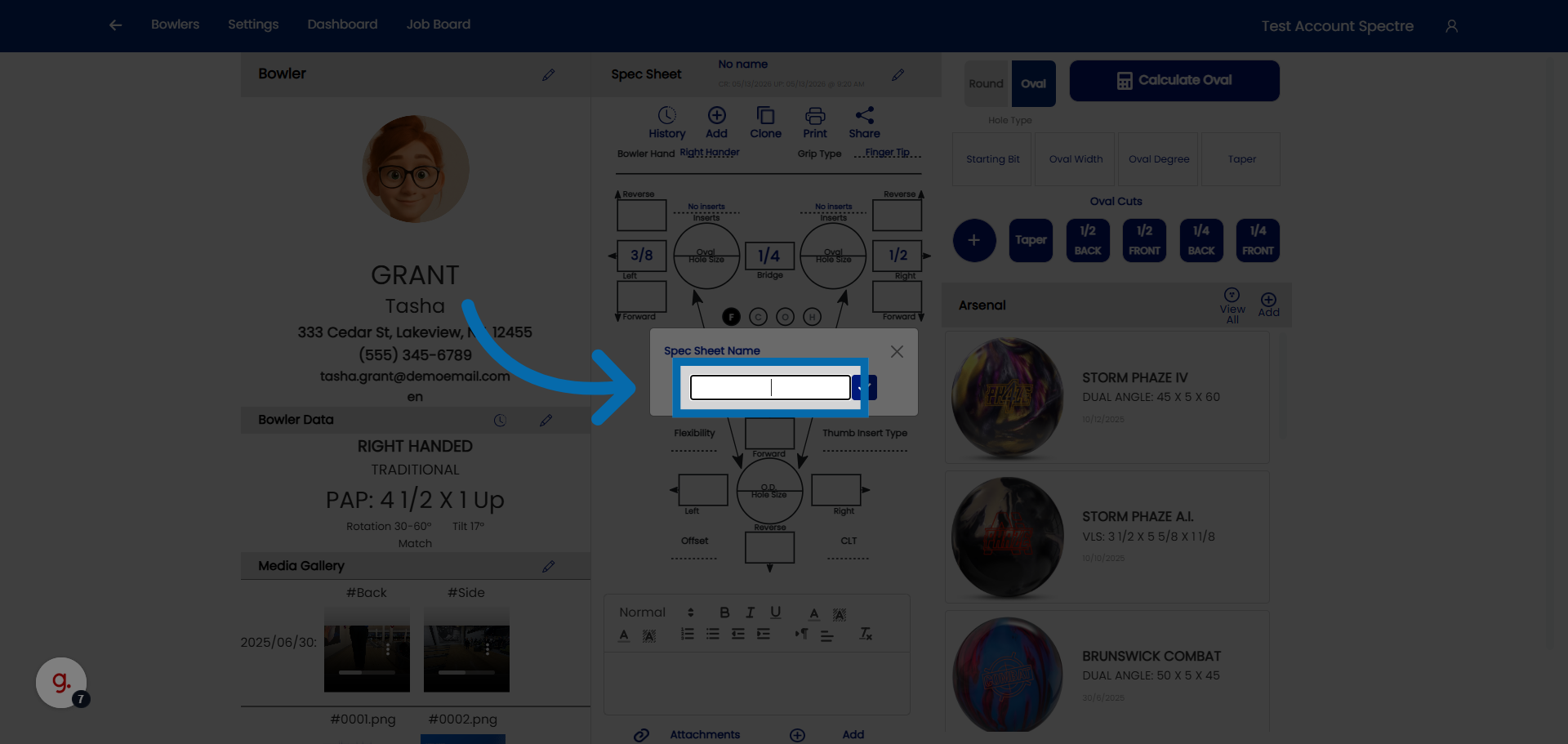
9. Confirm Spec Sheet Addition
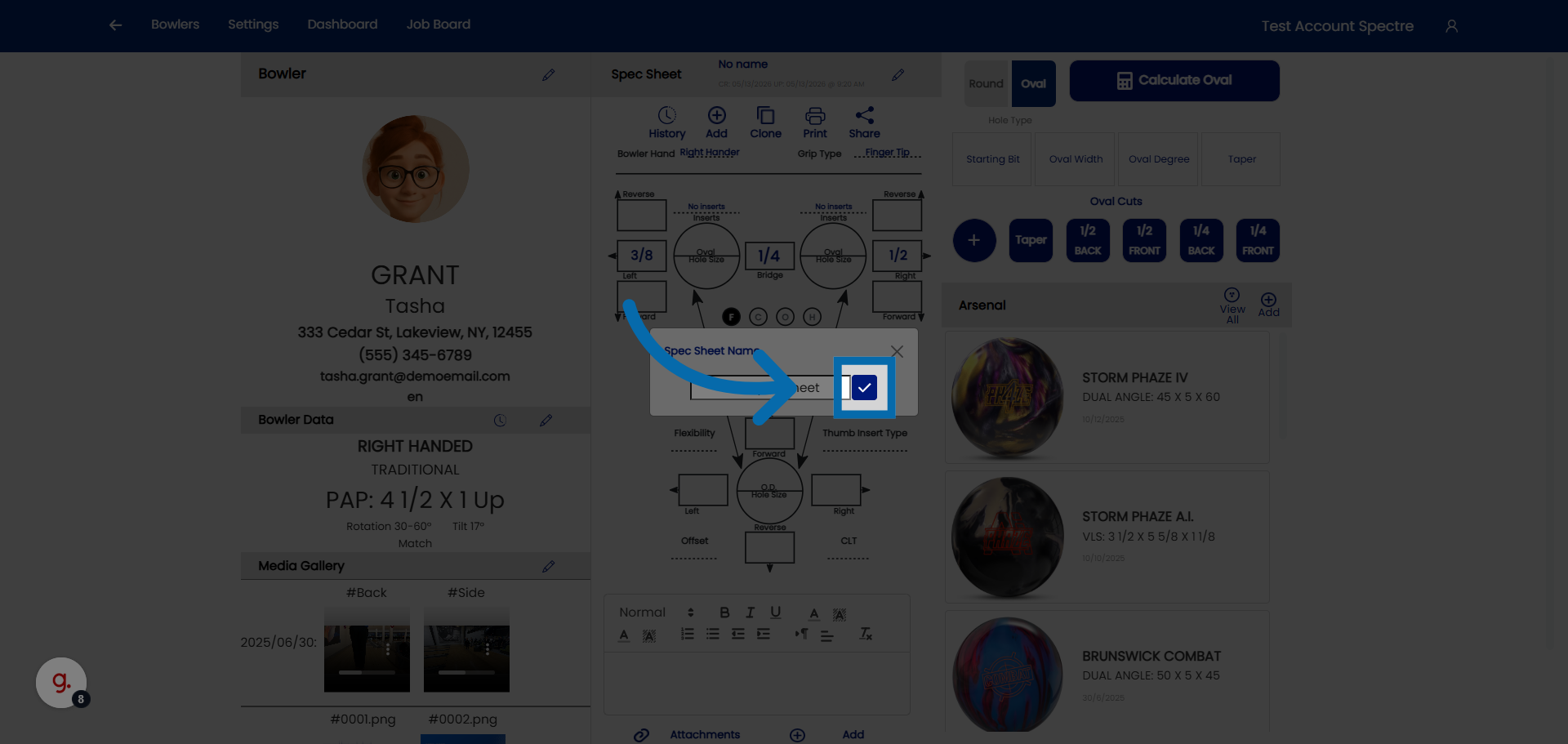
4.2.2 Naming a spec sheet
4.2.2 step-by-step
When you create a new spec sheet, Spectre Cloud lets you give it a plain-English name at the top of the sheet. This name is how you identify the sheet later — a far more useful label than relying on the created and modified dates alone.
🎳 Naming the Spec Sheet
The name field sits at the top of the spec sheet when it's created. Use it to describe, in your own words, what the sheet is for — so anyone opening the bowler's history can tell at a glance what each sheet represents.
- ✅ Give the sheet a name that describes what was done or why — for example,
Refit pain ring finger 2026. - ✅ A descriptive name makes a sheet easy to find without hunting through dates.
- ✅ Be consistent so other staff can immediately understand which sheet is which.
- ❌ Avoid relying on the created/modified dates alone to tell sheets apart — they don't tell you what changed or why.
🔄 Naming When You Clone a Sheet
Spectre Cloud's Clone feature creates a copy of an existing spec sheet in the bowler's history. It's the right way to make a small change and log it properly — the original stays intact, and the copy records the new work.
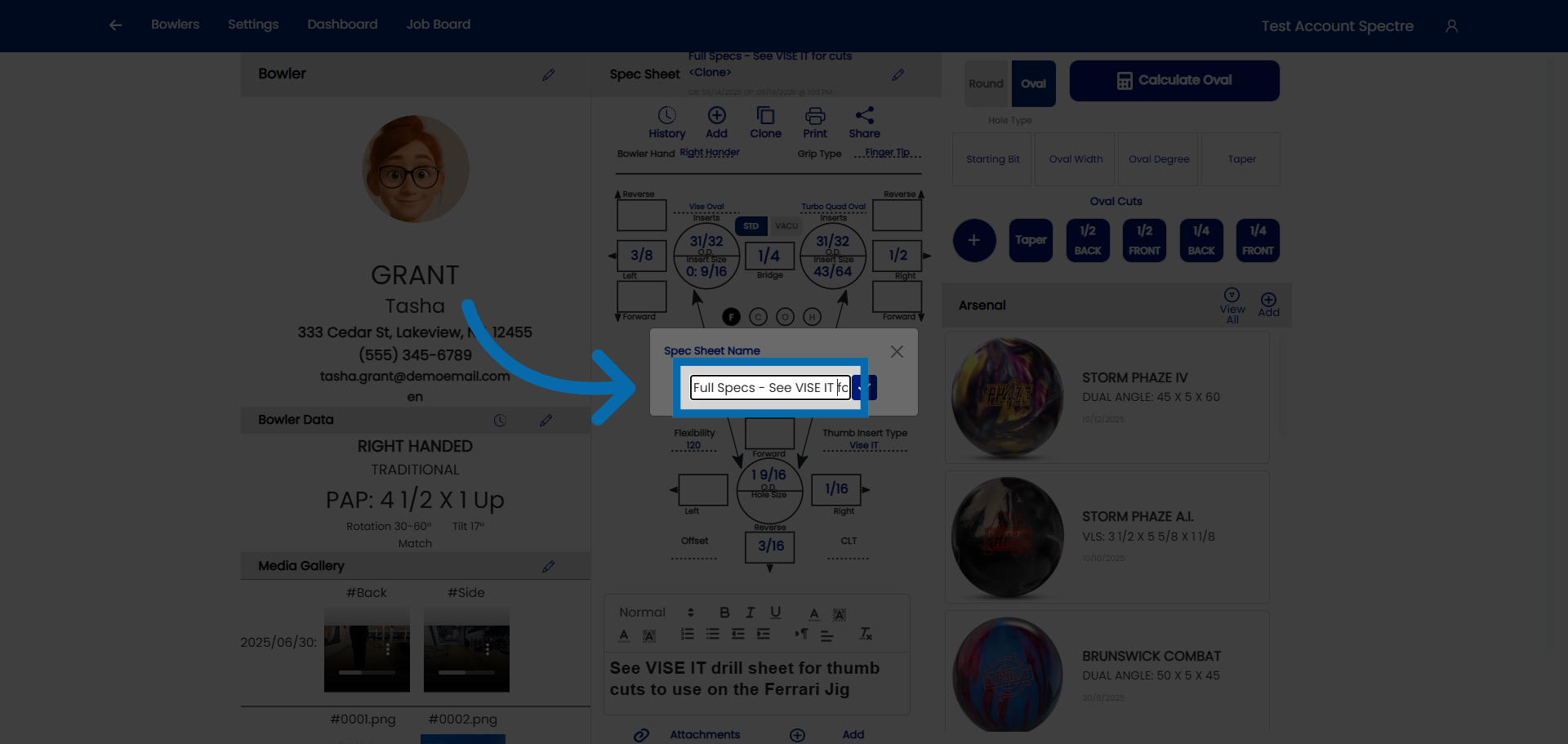
When you clone a sheet, Spectre Cloud prompts you to rename it before the copy loads. This is your chance to describe the change you're about to make.
- ✅ Rename the clone to reflect what's different about it — for example, the reason for the refit or the adjustment being made.
- ✅ A clear name on each clone turns the bowler's history into a readable record of what was done and when.
- ❌ Keeping the default or duplicate name defeats the purpose — you lose the ability to tell one sheet from the next.
Note: Naming is the key to a useful drilling history. A good name identifies what was done on that sheet — without it, a list of near-identical sheets and dates is hard to interpret later.
Related Sections
- 4.2.1 — Creating a new spec sheet
- 4.2.3 — Selecting span type (F, C, O, H)
- 4.3 — Cloning a spec sheet
- 7.1 — Arsenal overview (linking balls to spec sheets)
Tip: Think of the sheet name as a one-line summary of the work. Refit pain ring finger 2026 tells you everything at a glance; "Spec Sheet 3" tells you nothing. When you clone to make a change, take the extra few seconds at the rename prompt — future you, reviewing the history, will be glad you did.
4.2.3 Selecting grip type on the spec sheet
1. Access Bowler Section
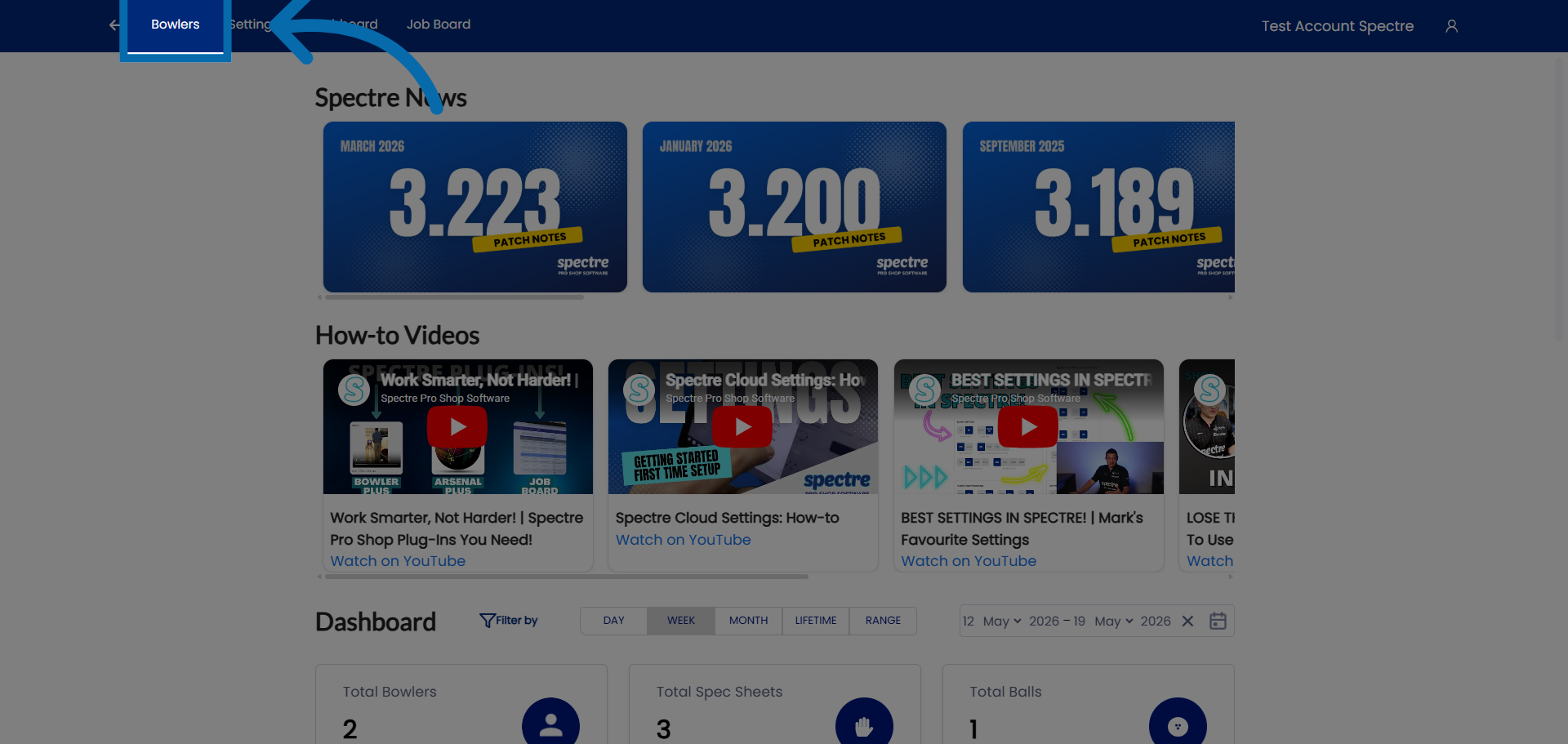
2. Select Bowler
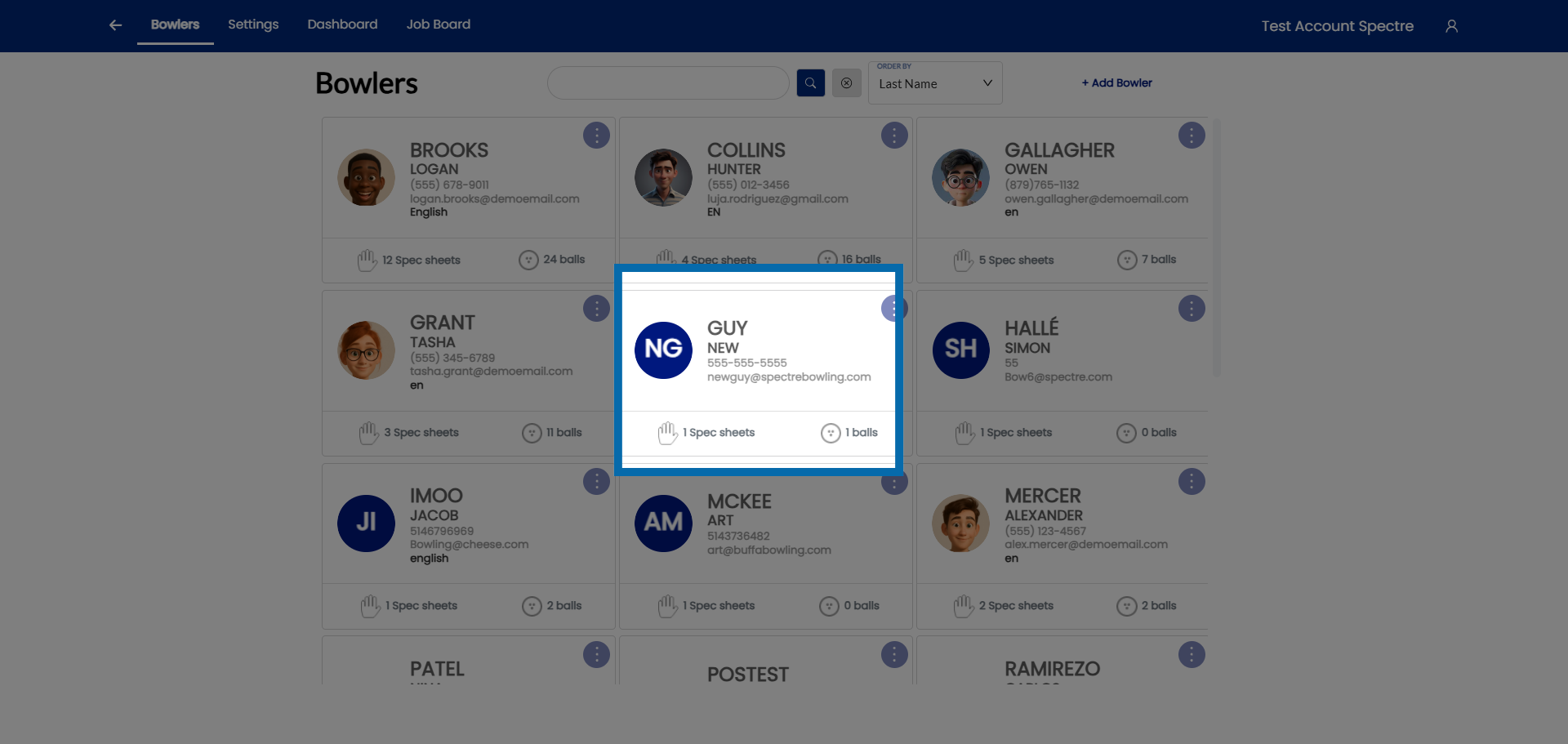
3. Click on grip type
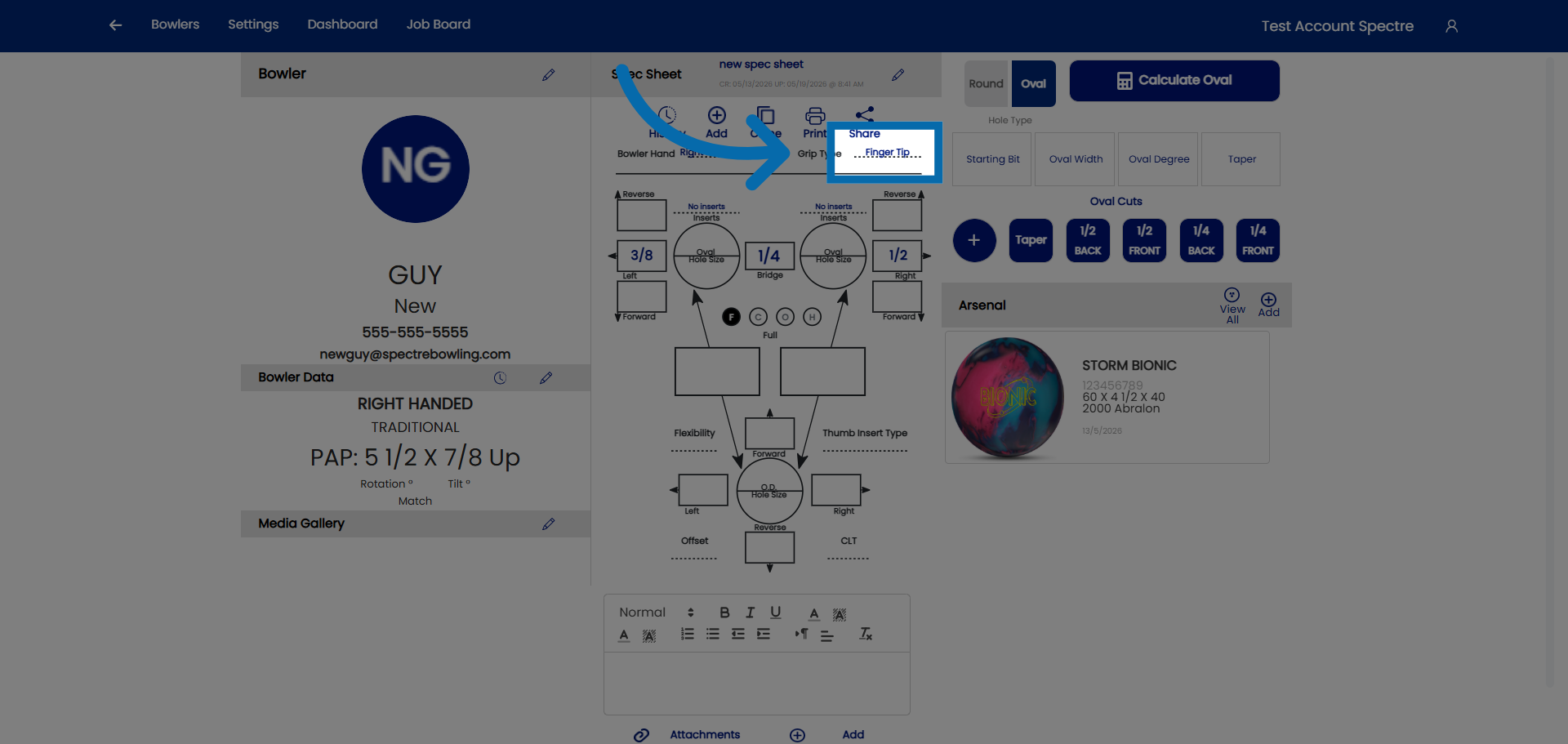
4. Click on the drop down
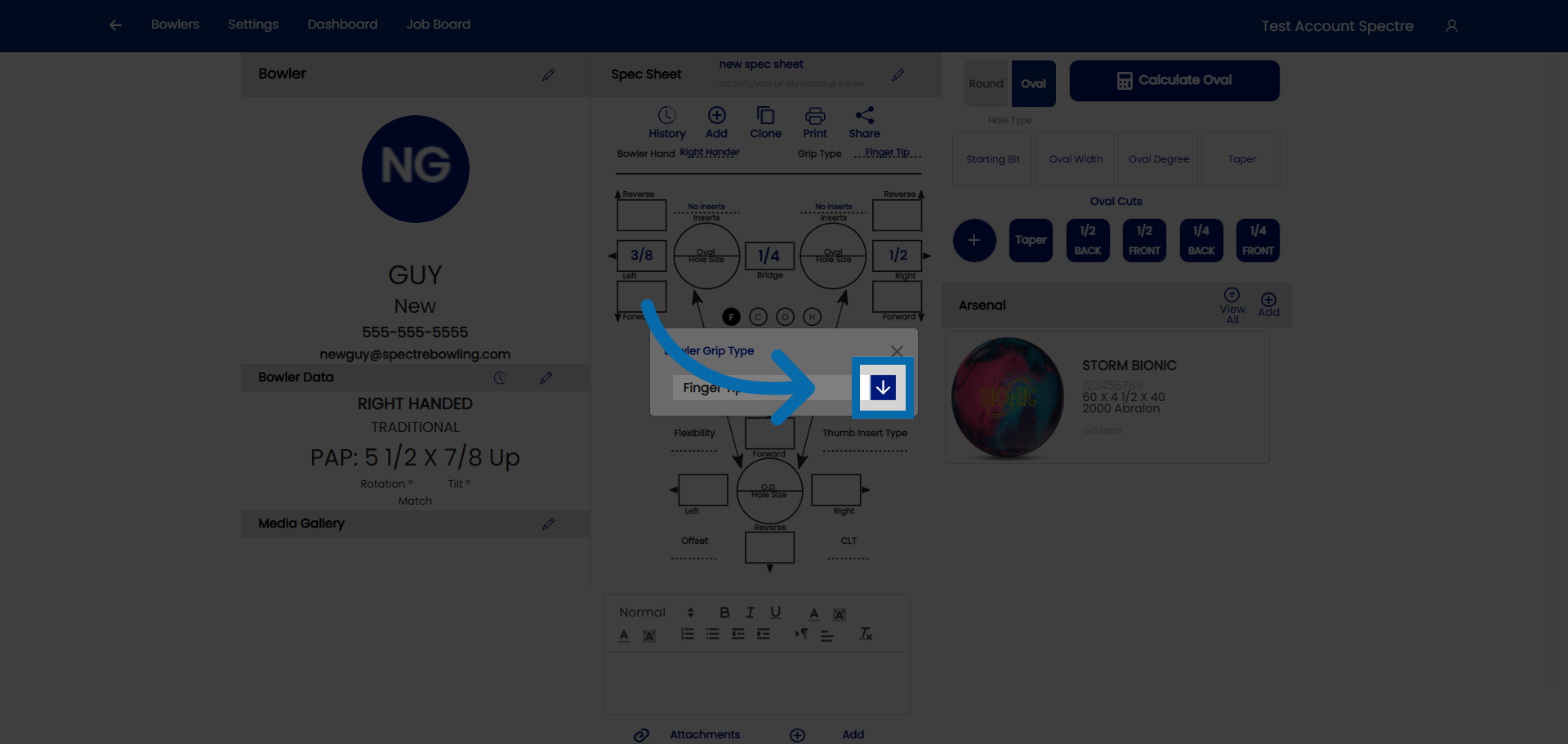
5. Select grip type
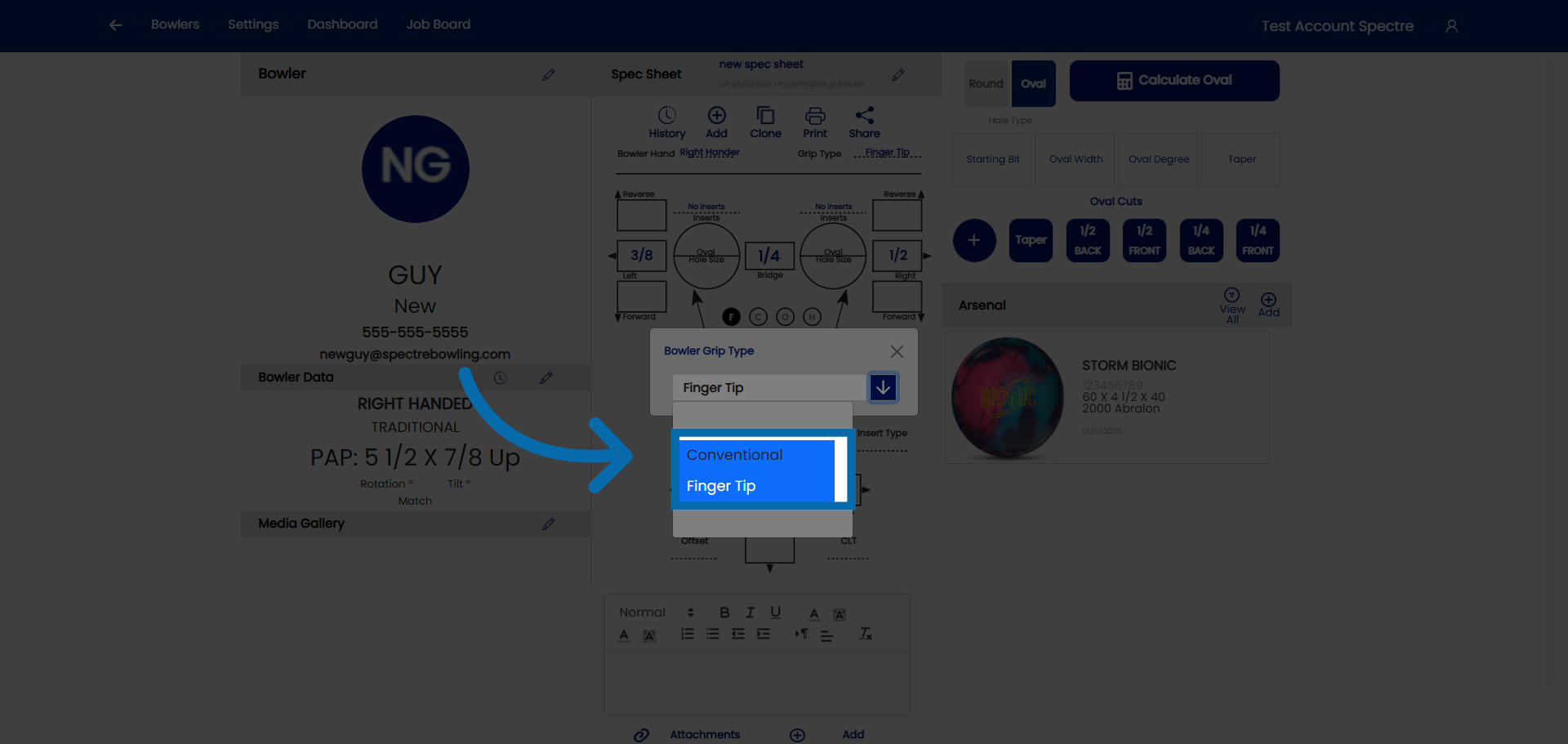
4.2.4 How to identify the type of grip from measurement sheet
4.2.4 step-by-step
Before entering span and pitch measurements, you need to identify which grip type the bowler uses. The grip type determines how the fingers sit in the ball and which measurements are relevant. Most fitting sheets — handwritten, printed, or from a previous system — record grip type either explicitly or implicitly through the measurements themselves.
🎳 The Two Grip Types
Spectre Cloud supports the two IBPSIA-standard grip types. Understanding how each is defined helps you read any fitting sheet accurately.
| Grip Type | Finger insertion depth | Typical bowler profile |
|---|---|---|
| Conventional | Fingers inserted to the second knuckle (middle joint) | Beginners, recreational bowlers, seniors, youth |
| Fingertip | Fingers inserted to the first knuckle (tip joint only) | Most competitive and league bowlers; the most common adult grip |
Note: The overwhelming majority of adult league and competitive bowlers use a fingertip grip. If a fitting sheet doesn't state a grip type, fingertip is the most likely default for an adult bowler — but always confirm with the bowler directly.
🛠️ Selecting Grip Type in Spectre Cloud
- Open the spec sheet you're creating or editing.
- Locate the Grip Type selector in the spec sheet header or measurement section.
- Choose Conventional or Fingertip based on your reading of the fitting sheet.
- Spectre Cloud adjusts the available span fields and IBPSIA auto-suggestion logic to match the selected grip type.
Important: Selecting the wrong grip type will cause span fields to mismatch the bowler's actual measurements and may produce incorrect IBPSIA auto-suggestions. If you're unsure, choose Fingertip as the default for adults and confirm with the bowler at their next visit.
Related Sections
- 4.1.3 — Grip type definitions: Fingertip vs. Conventional
- 4.3.1 — Entering span measurements (F, C, O, H)
- 4.4.5 — Inputting finger pitch
- 2.6.x — IBPSIA auto-suggestions (Book 02 settings)
Tip: Not sure which grip a new walk-in bowler uses? Fingertip bowlers often have calluses or grooving at the first knuckle from years of fingertip use — a quick look at the hand usually tells you.
4.2.5 Cloning a spec sheet
4.2.5 TIP step-by-step
When you need to make an adjustment to an existing fit, and you want to document the change in the spec sheet history, cloning a spec sheet saves time and prevents transcription errors. Instead of re-entering every measurement from scratch, you duplicate an existing sheet and change only what's different for the new fit. The original spec sheet is never altered.
🔄 What Cloning Does
- ✅ Creates a complete copy of the selected spec sheet — span, pitch, grip type, layout, and notes.
- ✅ Prompts you to rename the sheet before the copy loads — so you can describe the new drilling right away (e.g.,
Refit pain ring finger 2026). - ✅ Saves the clone as a separate, independent record — changes to the clone never affect the original.
- ❌ Does not automatically link the clone to an arsenal ball — that's done separately.
🛠️ How to Clone a Spec Sheet
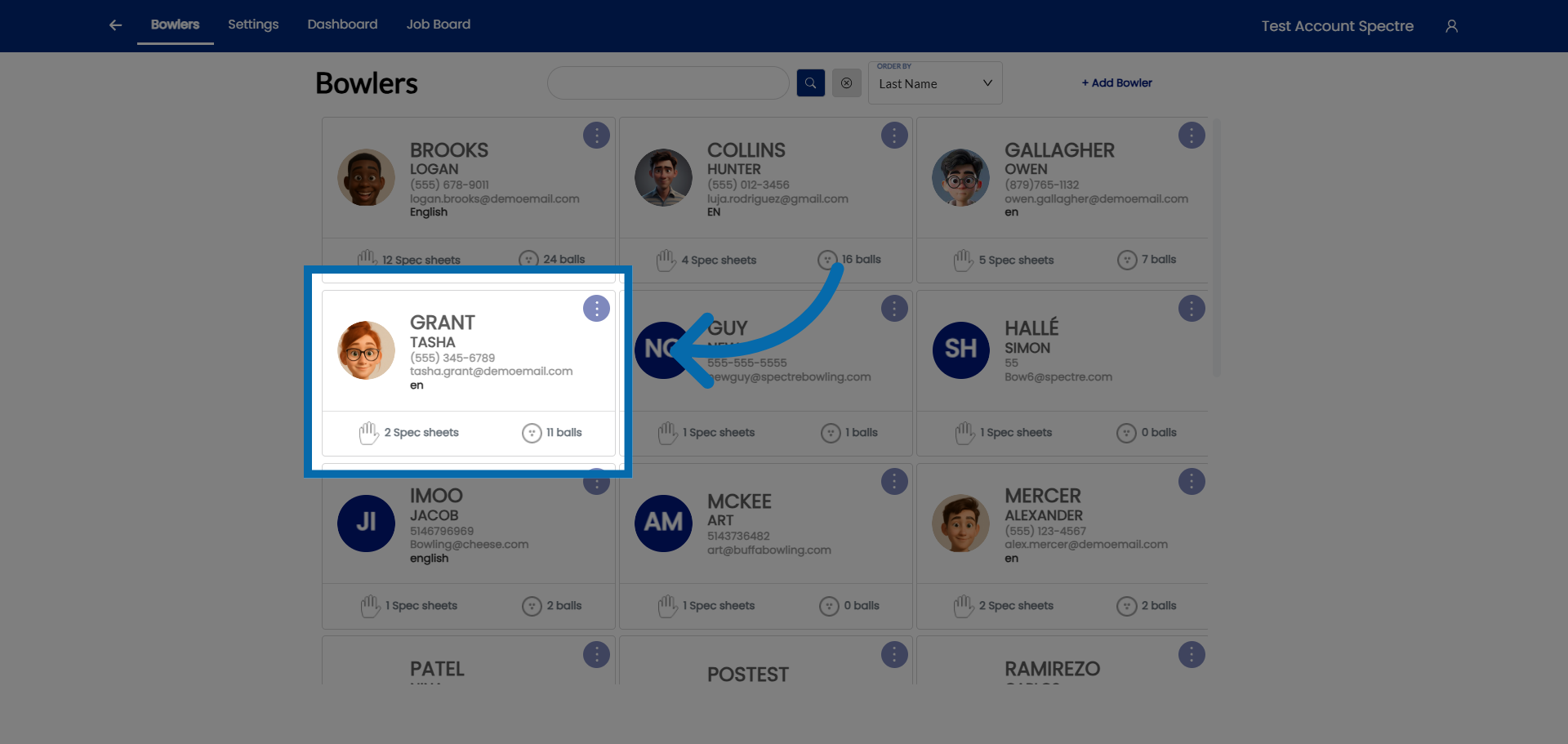
- Open the bowler's profile from the Bowlers list.
- Go to the Spec Sheets tab for that bowler.
- Find the sheet you want to clone — use the name and date to confirm you have the right record.
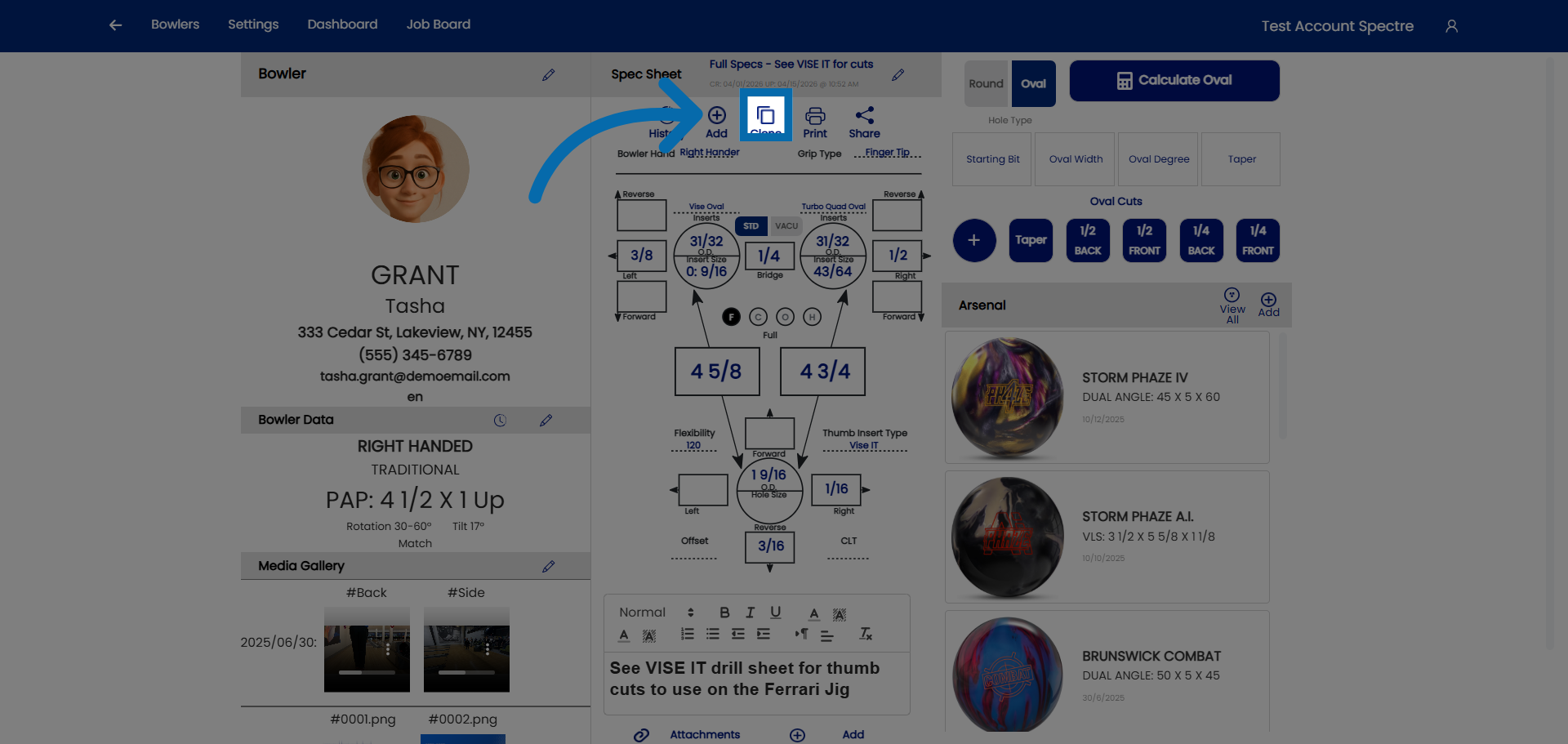
- Open the sheet and select the Clone option.
- When prompted, give the clone a new name that reflects the new ball or the change you're making.
- Spectre Cloud opens the renamed copy for editing.
- Edit any measurements, pitches, or layout details that differ from the original.
- Save the cloned spec sheet.
📸 Visual Walkthrough
- Open the bowler profile — select the bowler whose spec sheet you want to clone.
- Hit the CLONE button — create a clone of the spec sheet.
- Name the cloned sheet — click "Spec Sheet Name" to rename the clone at the prompt.
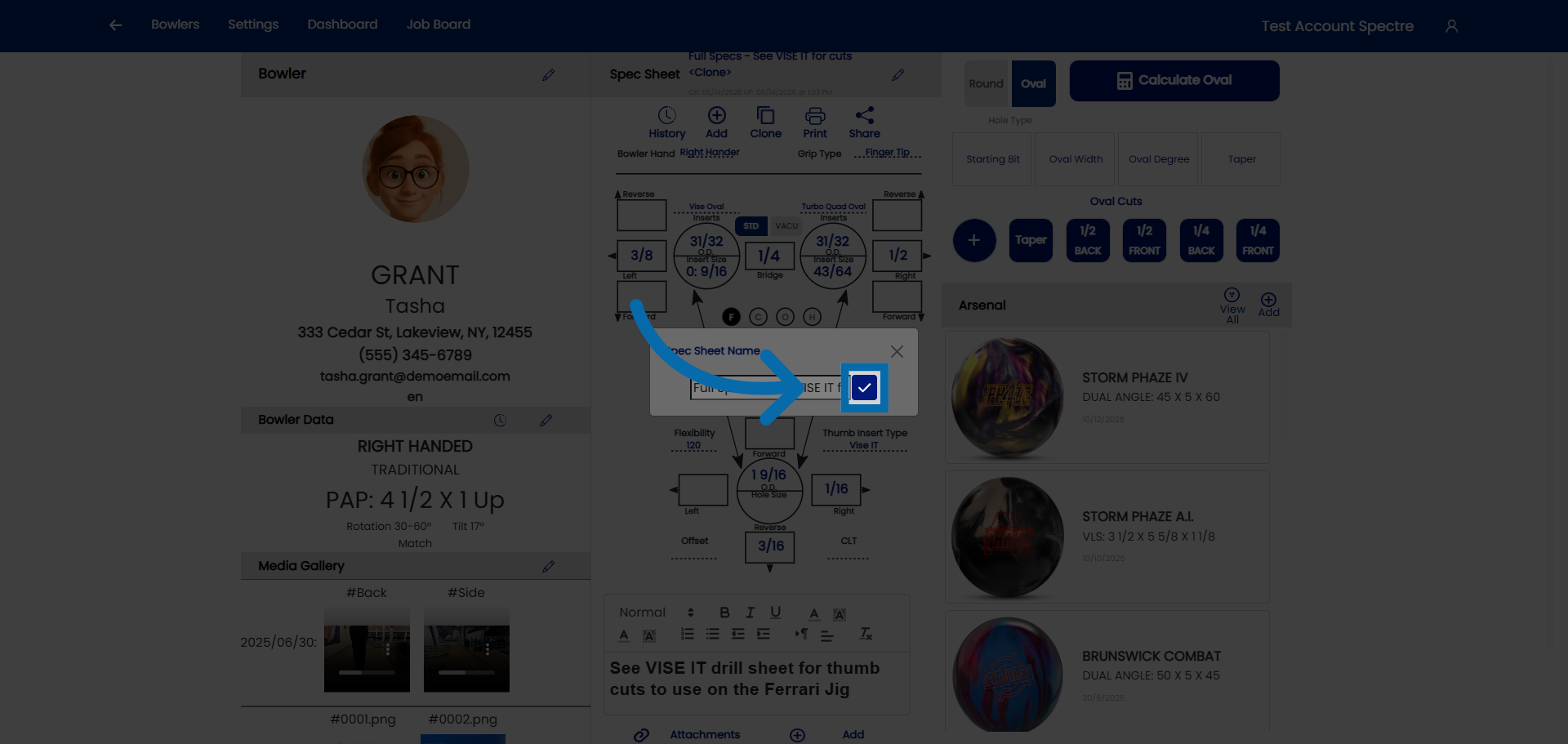
- Confirm the name.
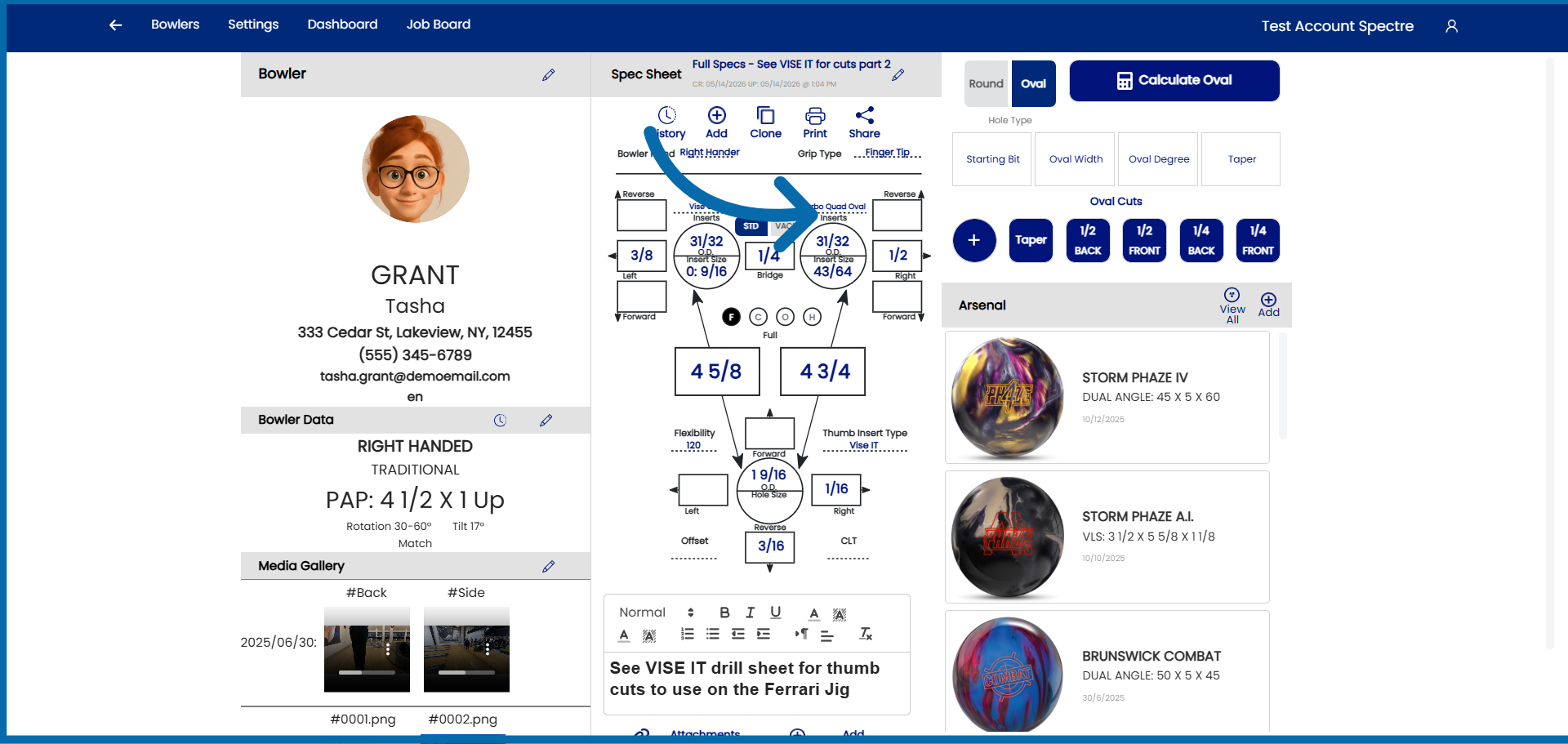
- Modify the necessary fields — proceed to adjust the bowler's specs on the cloned sheet.
Related Sections
- 4.2.2 — Naming a spec sheet
- 4.2.1 — Creating a new spec sheet
- 4.4 — Viewing spec sheet history for a bowler
- 7.1 — Arsenal overview (linking cloned spec sheets to arsenal balls)
Tip: The rename prompt at clone time is the moment your history earns its value. A quick, descriptive name on every clone turns a bowler's spec sheet list into a readable record of their equipment evolution — and makes future ball conversations much easier.
4.2.6 Printing a spec sheet
4.2.6 TIP step-by-step
Once a spec sheet is complete, you can print it directly from Spectre Cloud to use at the drill press, hand to a colleague, or file for your records. Spectre Cloud generates a clean, formatted printout that includes all measurements, layout details, and notes for the selected spec sheet.
🖥️ How to Print a Spec Sheet
- Open the bowler's profile and navigate to their Spec Sheets tab.
- Open the spec sheet you want to print.
- Select the Print option — look for the print icon or button in the spec sheet action menu.
- Spectre Cloud opens a print-ready view of the spec sheet in your browser.
- Your browser's standard print dialog will open. Select your printer, adjust page size if needed, and confirm.
Related Sections
- 4.2.2 — Naming a spec sheet (ball name, date, notes)
- 4.2.5 — Cloning a spec sheet to preserve old measurements
- 4.4 — Viewing spec sheet history for a bowler
- 8.1 — Profile settings (pro shop name and logo)
- Book 07 — Job Board plugin
Tip: Saving spec sheets as PDFs and storing them in a shared folder (Google Drive, Dropbox, or a network drive) gives your whole team instant access to drilling records even when Spectre Cloud is not open in front of them.
```