# 2.3.6 Flip V/H on oval cuts — matching your drill press DRO display order
2.3.6 oval
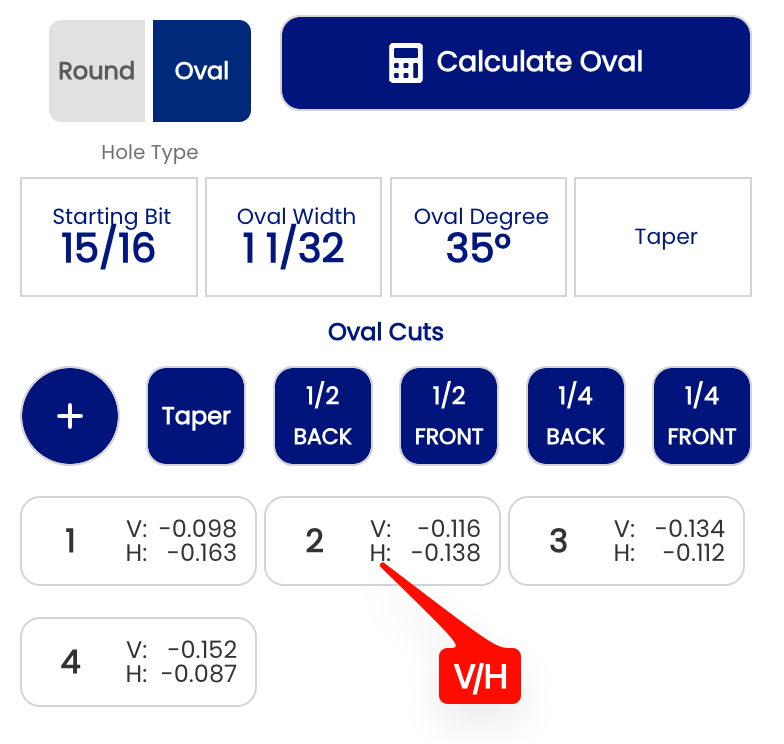
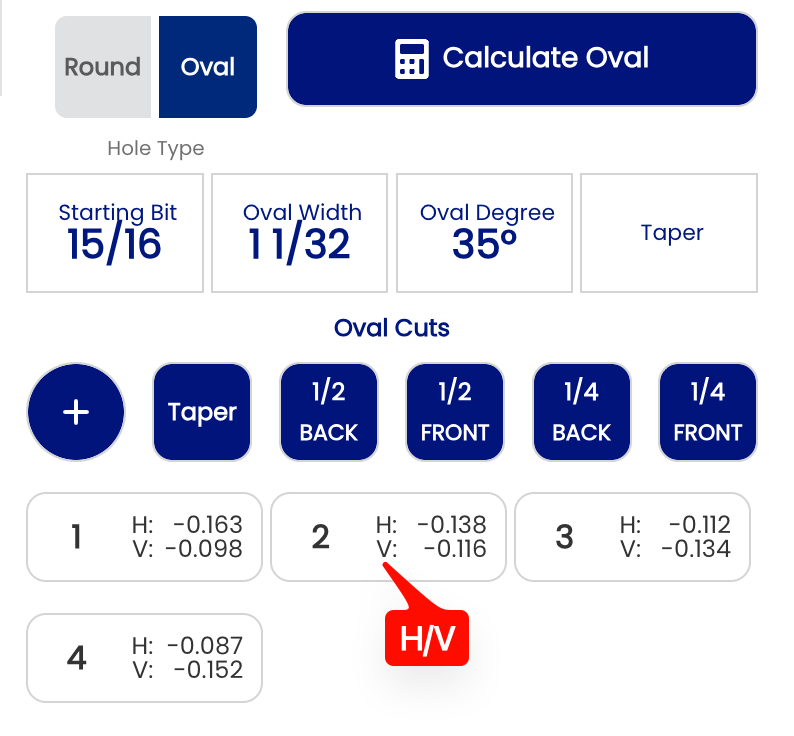
The **Flip V/H on oval cuts** setting controls the **display order** of the vertical and horizontal values in the oval cut cards shown by the Spectre Cloud oval calculator. This setting should match the order your drill press digital readout (DRO) displays its axes — so that what you read on screen matches exactly what you see on the press. This is a display-only preference — the underlying oval calculations, cut values, and spec sheet data are completely unaffected.
## 🖥️ What Changes
Each oval cut is displayed as a numbered card showing the V and H movement values for that step. This setting controls which value appears on top within each card:
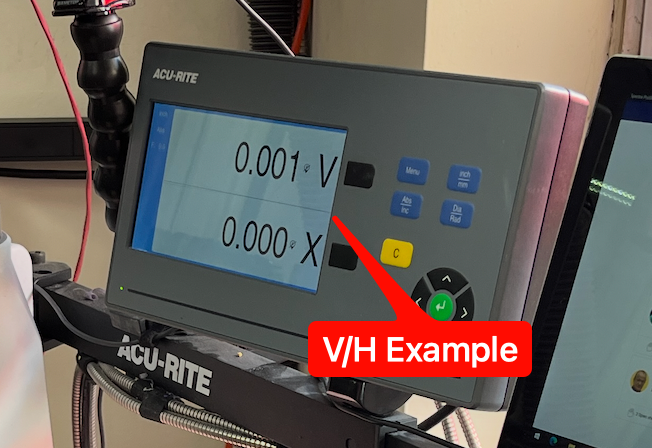
- ✅ **V/H** — V on top of H. Use this if your DRO displays the vertical axis first.
[](https://wiki.spectrebowling.com/uploads/images/gallery/2026-05/CIEimage.png)
[](https://wiki.spectrebowling.com/uploads/images/gallery/2026-05/bS4image.png)
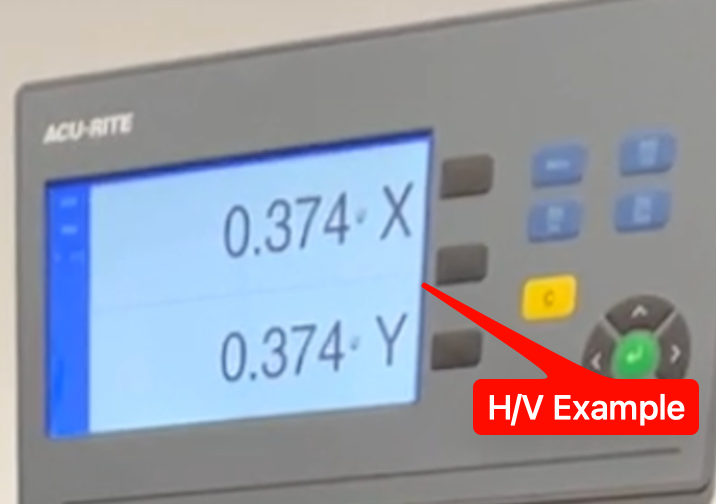
- ✅ **H/V** — H on top of V. Use this if your DRO displays X on top of Y — the standard configuration for new DROs from **Jayhawk** and **Innovative**.
[](https://wiki.spectrebowling.com/uploads/images/gallery/2026-05/tjnimage.png)
[](https://wiki.spectrebowling.com/uploads/images/gallery/2026-05/SWaimage.png)
**Note:** This setting only changes the order in which V and H are displayed in the cut cards. The values themselves — and the oval hole they produce — are identical regardless of which option is selected.
## ⚙️ Changing This Setting
1. Open Spectre Cloud at `cloud.spectrebowling.com` and log in.
2. Select **Settings** from the menu.
3. Navigate to the **Thumb Hole Preferences** section.
4. Locate the **Flip V/H on oval cuts** field and select either **V/H** or **H/V**.
5. Changes are saved automatically.
[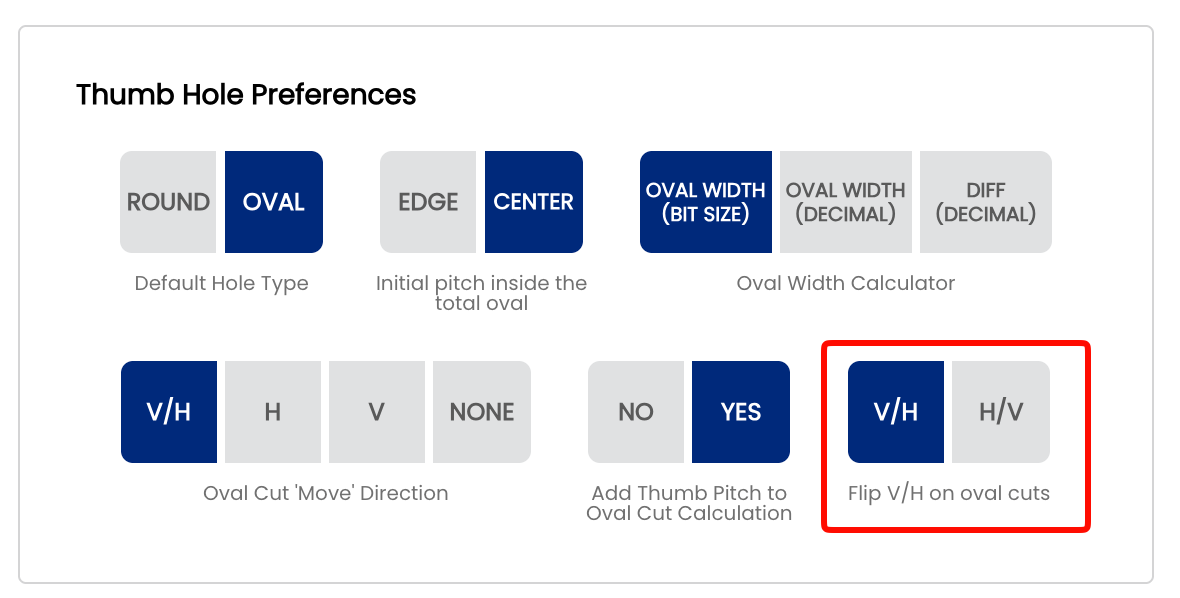](https://wiki.spectrebowling.com/uploads/images/gallery/2026-05/KmIimage.png)
### Related Sections
- 2.3.5 — Oval Cut Move Direction: V/H, H only, V only, None
- 2.3.2 — Initial pitch inside the total oval — Edge vs. Center & Pitch Included Yes/No
- 2.3.3 — Oval Width Calculator — Bit Size, Decimal, or Difference input method
- 05 — Oval Calculator (full book dedicated to oval hole measurement)
**Tip:** Match this setting to the axis order on your drill press DRO. If your readout displays X on top of Y — as is the case with new DROs from **Jayhawk** and **Innovate** — select **H/V** to keep the display consistent between Spectre and your press. Eliminating the mental transposition between screen and press reduces errors during the cutting sequence.