# 02 Settings

Configuration · Preferences · Calibration

# 2.1 — Language

# 2.1.1 Changing the display language

<span style="font-family: monospace; color: #6b7280;">2.1.1</span> <span style="border: 1px solid #d1d5db; color: #4b5563; padding: 2px 8px; border-radius: 3px; font-size: 0.85em;">setting</span>

Spectre Cloud is available in nine display languages. Changing your display language updates all menus, labels, and interface text across the app — your bowler data and spec sheet content are not affected.

## 🌍 Available Languages

<table id="bkmrk-language-code-covera"><thead><tr><th>Language</th><th>Code</th><th>Coverage</th></tr></thead><tbody><tr><td>English</td><td>`en`</td><td>Full interface</td></tr><tr><td>French</td><td>`fr`</td><td>Full interface</td></tr><tr><td>Spanish</td><td>`es`</td><td>Full interface</td></tr><tr><td>German</td><td>`de`</td><td>Full interface</td></tr><tr><td>Italian</td><td>`it`</td><td>Full interface</td></tr><tr><td>Japanese</td><td>`ja`</td><td>Full interface</td></tr><tr><td>Korean</td><td>`ko`</td><td>Full interface</td></tr><tr><td>Portuguese</td><td>`pt`</td><td>Full interface</td></tr><tr><td>Simplified Chinese</td><td>`zh-Hans`</td><td>Full interface</td></tr></tbody></table>

## 🖥️ Changing the Language — Desktop

1. Open Spectre Cloud at `cloud.spectrebowling.com` and log in.
2. Select **Settings** from the menu.
3. Navigate to the **System Defaults** section.
4. Locate the **Display Language** field and select your preferred language.
5. Changes are saved automatically. The interface will reload in the selected language.

[![image.png](https://wiki.spectrebowling.com/uploads/images/gallery/2026-05/scaled-1680-/4dYimage.png)](https://wiki.spectrebowling.com/uploads/images/gallery/2026-05/4dYimage.png)

## 📱 Changing the Language — Mobile

1. Open Spectre Cloud at `cloud.spectrebowling.com` and log in.
2. Tap the **avatar icon** in the top-right corner to open the Profile menu.
3. Tap **Settings**.
4. Navigate to the **System Defaults** section.
5. Tap the **Display Language** field and select your preferred language.
6. Changes are saved automatically. The app will reload in the selected language.

[![image.png](https://wiki.spectrebowling.com/uploads/images/gallery/2026-05/scaled-1680-/tmUimage.png)](https://wiki.spectrebowling.com/uploads/images/gallery/2026-05/tmUimage.png)

## ☁️ Does the Language Setting Sync Across Devices?

Yes — your display language preference is saved to your Spectre Cloud account, so it stays consistent whether you log in from a desktop browser, tablet, or mobile device.

### Related Sections

- 2.1.2 — How Language Affects Measurement Labels and UI Text
- 2.2 — Account &amp; Profile Settings

**Tip:** If a teammate on the same account prefers a different language, each user can set their own language independently — it does not affect other users on the account.

# 2.1.2 How language affects measurement labels and UI text

<span style="font-family: monospace; color: #6b7280;">2.1.2</span> <span style="border: 1px solid #d1d5db; color: #4b5563; padding: 2px 8px; border-radius: 3px; font-size: 0.85em;">setting</span>

When you change the display language in Spectre Cloud, more than just menu text changes. Button labels, field names, span type abbreviations, measurement unit labels, and instructional text throughout the interface all update to reflect the selected language. This page explains exactly what changes — and what stays the same.

## 🌍 What Changes When You Switch Languages

<table id="bkmrk-ui-element-what-chan"><thead><tr><th>UI Element</th><th>What changes</th></tr></thead><tbody><tr><td>Navigation menus</td><td>All top-menu and sidebar labels translate (e.g. `Bowlers` → `Quilleurs` / `Bolicheros`)</td></tr><tr><td>Button labels</td><td>Save, Cancel, Delete, Edit, Clone, and all action buttons translate</td></tr><tr><td>Field names &amp; placeholders</td><td>Form field labels and input placeholder text translate on spec sheets, bowler profiles, and settings</td></tr><tr><td>Span type labels</td><td>Full Span, Cut to Cut, Oval and their abbreviations (F, C, O) remain consistent across languages — these are industry-standard abbreviations</td></tr><tr><td>Measurement unit labels</td><td>Unit abbreviations (`in`, `mm`, `oz`) do not change — they are universal. Surrounding descriptive text does translate.</td></tr><tr><td>Error &amp; validation messages</td><td>All form validation messages and error alerts translate</td></tr><tr><td>Tooltips &amp; help text</td><td>Inline tips and hover tooltips translate</td></tr><tr><td>IBPSIA suggestion labels</td><td>Suggestion category names translate where applicable</td></tr></tbody></table>

## 🔒 What Does NOT Change

- ✅ **Bowler names and data** — all client records, spec sheet values, and notes you have entered remain exactly as typed.
- ✅ **Measurement units** — inches, millimeters, ounces, and degrees are universal abbreviations and do not translate.
- ✅ **Span type abbreviations** — F, C, and O are consistent across all languages.
- ✅ **Ball brand and model names** — product names from bowlingdatabase.com are displayed as-is.
- ✅ **Your pro shop name** — displayed exactly as entered in your account settings.

## 📋 Side-by-Side Label Reference

Key interface terms across all three supported languages:

<table id="bkmrk-english-french-spani"><thead><tr><th>English</th><th>French</th><th>Spanish</th></tr></thead><tbody><tr><td>Bowlers</td><td>Quilleurs</td><td>Bolicheros</td></tr><tr><td>Spec Sheet</td><td>Fiche technique</td><td>Hoja de especificaciones</td></tr><tr><td>Arsenal</td><td>Arsenal</td><td>Arsenal</td></tr><tr><td>Settings</td><td>Paramètres</td><td>Configuración</td></tr><tr><td>Save Changes</td><td>Enregistrer</td><td>Guardar cambios</td></tr><tr><td>Full Span</td><td>Envergure complète</td><td>Envergadura completa</td></tr><tr><td>Cut to Cut</td><td>Coupe à coupe</td><td>Corte a corte</td></tr><tr><td>Oval</td><td>Ovale</td><td>Óvalo</td></tr><tr><td>Clone</td><td>Cloner</td><td>Clonar</td></tr><tr><td>Dashboard</td><td>Tableau de bord</td><td>Panel principal</td></tr></tbody></table>

**📌 Verify with Spectre team:** The French and Spanish UI terms above are representative translations. Confirm exact in-app label wording against the live interface at `cloud.spectrebowling.com` before publishing.

## ✨ Tips for Multi-Language Shops

- Each user account stores its own language preference — staff members can each work in their preferred language on the same shop account.
- Spec sheets and bowler records entered in one language display the same data regardless of which language a colleague uses — only the surrounding UI labels change.
- If you switch languages mid-session, the page reloads automatically and you will land back on the dashboard.

### Related Sections

- 2.1.1 — Changing the display language
- 2.2 — Account &amp; profile settings
- 3.1 — Creating and managing bowler profiles

**Tip:** Not sure which language a teammate has set? Their language setting is personal to their login and does not affect what you see in your own session.

# 2.2 — System Defaults

# 2.2.1 Bowler Hand — setting your default (RH / LH)

<span style="font-family: monospace; color: #6b7280;">2.2.1</span> <span style="border: 1px solid #d1d5db; color: #4b5563; padding: 2px 8px; border-radius: 3px; font-size: 0.85em;">setting</span>

The **Bowler Hand** default setting controls whether new bowler profiles and new spec sheets are pre-filled as right-handed or left-handed. It is a time-saving convenience — nothing more. You can always change the handedness on any individual bowler or spec sheet after the fact.

## 🎳 What This Setting Does

When you create a new bowler profile or a new spec sheet, Spectre Cloud pre-fills the **Bowler Hand** field with your default. That's all it affects. It does not change anything on existing profiles or existing spec sheets — only on records you create after changing the default.

## 🛠️ Changing the Default

1. Select **Settings**
2. Under the **System Defaults** tab, locate the **Bowler Hand** field.
3. Select `Right Hand` or `Left Hand`.
4. **Changes will save automatically**.  
    [![image.png](https://wiki.spectrebowling.com/uploads/images/gallery/2026-05/scaled-1680-/image.png)](https://wiki.spectrebowling.com/uploads/images/gallery/2026-05/image.png)

## 📌 Important: Handedness Exists in Two Separate Places

This is one of the most common points of confusion in Spectre Cloud. Handedness is stored independently in **two places**:

- ✅ The **bowler profile** — the hand setting for that client.
- ✅ The **spec sheet** — the hand setting for that specific drilling record.

These two values are **not linked**. Changing a bowler's hand in their profile will **not** update any spec sheets that already exist for that bowler.

[![image.png](https://wiki.spectrebowling.com/uploads/images/gallery/2026-05/scaled-1680-/o35image.png)](https://wiki.spectrebowling.com/uploads/images/gallery/2026-05/o35image.png)

## ⚠️ Why This Matters — The Oval Calculator

The oval calculator uses the handedness stored on the **spec sheet itself**, not the bowler profile. This is a frequent source of confusion.

A common scenario:

1. You create a bowler profile as **Right Hand**.
2. You create a new spec sheet — it inherits **Right Hand** at the time of creation.
3. You later correct the bowler profile to **Left Hand**.
4. The existing spec sheet still reads **Right Hand** — and the oval calculator will calculate accordingly.

If you notice the oval calculator producing unexpected results, check the handedness field directly on the spec sheet, not just on the bowler profile. Update the spec sheet itself if needed.

### Related Sections

- 2.2.2 — Setting Your Default Span Type
- 2.2.3 — Setting Your Default Ball Weight
- 5.x — Oval Calculator Overview

**Tip:** If you switch a bowler from right-handed to left-handed in their profile, take a moment to open any existing spec sheets and update the hand field there too — especially if you plan to use the oval calculator on those sheets.

# 2.2.2 Grip Type — Finger Tip vs. Conventional as default

<span style="font-family: monospace; color: #6b7280;">2.2.2</span> <span style="border: 1px solid #d1d5db; color: #4b5563; padding: 2px 8px; border-radius: 3px; font-size: 0.85em;">default</span>

The **Grip Type** setting controls which grip style is pre-selected when you create a new spec sheet. Choosing the right default for your shop saves time — your drillers won't need to manually switch the grip type for every new client.

## 🤚 What Is Grip Type?

Grip type describes how deeply a bowler's fingers are inserted into the ball:

- **Fingertip** — fingers inserted to the **first knuckle**. Produces higher rev rates and more hook potential. The most common grip for league and sport bowlers, and the most frequently used grip in a typical pro shop.
- **Conventional** — fingers inserted to the **second knuckle**. Offers more control with less hook. Common for beginners, recreational bowlers, and some senior bowlers.

**Note:** The grip type setting affects only the default pre-selection on new spec sheets — you can always override it on a per-bowler or per-sheet basis.

## ⚙️ Setting Your Default Grip Type

1. Open Spectre Cloud at `cloud.spectrebowling.com` and log in.
2. Select **Settings** from the menu.
3. Navigate to the **System Defaults** section.
4. Locate the **Grip Type** field and select either **Fingertip** or **Conventional** from the dropdown.
5. Changes will be saved automatically.  
    [![image.png](https://wiki.spectrebowling.com/uploads/images/gallery/2026-05/scaled-1680-/1iNimage.png)](https://wiki.spectrebowling.com/uploads/images/gallery/2026-05/1iNimage.png)

From this point forward, all new spec sheets will open with the selected grip type pre-filled. Existing spec sheets are not affected.

## 🎳 Which Default Should You Choose?

<table id="bkmrk-shop-type-recommende"><thead><tr><th>Shop Type</th><th>Recommended Default</th><th>Reason</th></tr></thead><tbody><tr><td>Competitive / league-focused shop</td><td>Fingertip</td><td>Majority of sport bowlers use fingertip grip</td></tr><tr><td>Family or recreational shop</td><td>Conventional</td><td>Beginners and casual bowlers typically use conventional</td></tr><tr><td>Mixed clientele</td><td>Fingertip</td><td>Fingertip is the Spectre Cloud factory default and suits most shops</td></tr></tbody></table>

## 🔄 Overriding the Default on a Spec Sheet

Even after setting a shop-wide default, the grip type can be changed on any individual spec sheet:

- Open or create a spec sheet for a bowler.
- Locate the **Grip Type** field near the top of the sheet.
- Select the appropriate grip from the dropdown — **Fingertip** or **Conventional**.
- The change applies to that sheet only and does not affect your shop default.  
    [![image.png](https://wiki.spectrebowling.com/uploads/images/gallery/2026-05/scaled-1680-/lR8image.png)](https://wiki.spectrebowling.com/uploads/images/gallery/2026-05/lR8image.png)

**Tip:** If you notice your drillers frequently overriding the default, it may be worth revisiting your shop default setting to better match your typical clientele.

### Related Sections

- 2.2.1 — Span Type Defaults (Full Span, Cut to Cut, Oval)
- 2.2.3 — Insert Defaults
- 4.1 — Creating a New Spec Sheet
- 4.2 — Understanding Span Types

# 2.2.3 Display in Decimal vs. Fraction (0.000 vs. fractions)

<span style="font-family: monospace; color: #6b7280;">2.2.3</span> <span style="border: 1px solid #d1d5db; color: #4b5563; padding: 2px 8px; border-radius: 3px; font-size: 0.85em;">display</span>

The **Measurement Display** setting controls whether span, oval, bridge, and depth measurements appear throughout Spectre Cloud in **decimal** format (e.g. `4.25"`) or **fractional** format (e.g. `4 ¼"`). This is a display-only preference — the underlying values are the same either way.

## 📐 Decimal vs. Fractional — What's the Difference?

Both formats represent the same physical measurements. The choice comes down to your shop's convention and what your drillers are most comfortable reading at a glance:

- ✅ **Decimal** — displays measurements as a number with up to three decimal places (e.g. `0.250"`). Easier to use on the drill press when using a digital display that is always in decimal.
- ✅ **Fractional** — displays measurements using traditional fractions (e.g. `1/4"`). The longtime standard in the pro shop industry and widely used when writing spec sheets by hand.

**Note:** This setting applies across **all pitches** in the spec sheet.

## ⚙️ Changing the Display Format

1. Open Spectre Cloud at `cloud.spectrebowling.com` and log in.
2. Select **Settings** from the menu.
3. Navigate to the **System Defaults** section.
4. Locate the **Display in Decimal/Fraction** field and select either **Fractional(0.000)** or **Decimal(X/Y)**.
5. Changes are saved automatically.

## 📏 Which Format Should You Use?

The right choice depends on how your shop works at the drill press.

If your drill press has digital readouts and you run them in fractional mode, stick with fractional — it keeps Spectre consistent with what you're already reading on the machine. If your readouts are in decimal, set Spectre to decimal for the same reason.

Decimal is also a solid choice for shops without digital readouts. A decimal value maps directly to your drill press handle — `0.500"` means 5 full turns on the axis wheel, which makes it easy to translate from screen to press without any mental conversion.

[![image.png](https://wiki.spectrebowling.com/uploads/images/gallery/2026-05/scaled-1680-/m39image.png)](https://wiki.spectrebowling.com/uploads/images/gallery/2026-05/m39image.png)

## 🖨️ Effect on Printed Spec Sheets &amp; Exports

When you print a spec sheet or export bowler records, the measurements will appear in whichever format is currently active in your settings. If you share spec sheets with another pro shop or a ball manufacturer, confirm which format they prefer before printing.

- ✅ Printed spec sheets reflect the active display format at the time of printing.
- ❌ There is no per-sheet override — the setting is shop-wide.

**Tip:** If you switch formats mid-season, nothing in your saved data changes — only how it's displayed. You can switch back at any time without affecting stored spec sheet values.

### Related Sections

- 2.2.2 — Grip Type: Fingertip vs. Conventional as the Default
- 4.1 — Creating a New Spec Sheet
- 5.1 — Overview of the Oval Calculator

# 2.2.4 Oval Degree Increments — 1° vs. 5° increments

<span style="font-family: monospace; color: #6b7280;">2.2.4</span> <span style="border: 1px solid #d1d5db; color: #4b5563; padding: 2px 8px; border-radius: 3px; font-size: 0.85em;">display</span>

The **Oval Degree Increments** setting controls the step size of the degree selector in the Oval Calculator. You can choose between **1° increments** for fine-grained precision, or **5° increments** for faster, broader selections. The right choice depends on how precisely your shop fits oval thumb holes and how quickly your drillers need to move through the calculator.

## 🔵 What Are Oval Degree Increments?

When calculating an oval hole, Spectre Cloud asks for the **oval angle** — the rotational degree at which the oval is oriented relative to the center line. The degree selector steps through available angles one click (or tap) at a time. This setting determines the size of each step:

- ✅ **1° increments** — the selector advances one degree at a time (e.g. `30°, 31°, 32°, 33°…`). Gives maximum control over oval orientation, ideal for fitters who dial in angles precisely for each bowler.
- ✅ **5° increments** — the selector jumps five degrees at a time (e.g. `20°, 25°, 30°, 35°…`). Faster to navigate and sufficient for shops where oval angles are rounded to the nearest 5° as standard practice.

**Note:** This setting only affects the degree selector in the Oval Calculator. It does not change how oval measurements are stored, calculated, or displayed on spec sheets.

## ⚙️ Changing the Oval Degree Increment

1. Open Spectre Cloud at `cloud.spectrebowling.com` and log in.
2. Select **Settings** from the menu.
3. Navigate to the **System Defaults** section.
4. Locate the **Oval Degree Increments** field and select either **1°** or **5°**.
5. Changes are saved automatically.  
    [![image.png](https://wiki.spectrebowling.com/uploads/images/gallery/2026-05/scaled-1680-/I45image.png)](https://wiki.spectrebowling.com/uploads/images/gallery/2026-05/I45image.png)

## 🎳 Which Increment Should You Use?

<table id="bkmrk-situation-recommende"><thead><tr><th>Situation</th><th>Recommended Setting</th><th>Reason</th></tr></thead><tbody><tr><td>Precision fitting for competitive bowlers</td><td>1° increments</td><td>Allows exact oval angles when bowler fit requires it</td></tr><tr><td>High-volume shop, recreational clientele</td><td>5° increments</td><td>Speeds up entry — most recreational ovals land on a 5° boundary anyway</td></tr><tr><td>New driller learning the oval workflow</td><td>5° increments</td><td>Fewer options reduces decision fatigue during training</td></tr><tr><td>Shop that copies angles from legacy paper sheets</td><td>1° increments</td><td>Legacy sheets may record non-round angles that need exact matching</td></tr></tbody></table>

### Related Sections

- 2.2.3 — Display in Decimal vs. Fractional
- 5.1 — Overview of the Oval Calculator
- 5.2 — Using the Oval Calculator Step by Step
- 4.3 — Adding an Oval Span to a Spec Sheet

# 2.2.5 Insert Installation — STD vs. VACU grip default

<span style="font-family: monospace; color: #6b7280;">2.2.5</span> <span style="border: 1px solid #d1d5db; color: #4b5563; padding: 2px 8px; border-radius: 3px; font-size: 0.85em;">default</span>

The **Insert Installation** default controls which installation method is pre-selected when creating a new spec sheet — either **STD** (standard glued) or **VACU Grip** (vacuum-style). Setting the correct default for your shop means your drillers spend less time adjusting this field on every new sheet.

## 🔩 STD vs. VACU Grip — What's the Difference?

Both methods describe how finger inserts are secured inside the drilled finger holes. The key distinction is in how the insert is held in place and how the finger hole is prepared:d

- ✅ **STD (Standard)** — the finger hole is drilled to a single diameter and the insert is glued directly into place using bowling ball insert adhesive. The most widely used installation method across pro shops worldwide.
- ✅ **VACU Grip** — a two-tier drilling technique where the finger hole is drilled in two stages: the upper portion is bored larger than the insert's outer diameter, and the lower portion is drilled tighter so the insert is glued in only at the base. Because the insert is only secured at the bottom, the rubber body is free to expand outward when the bowler inserts their finger, creating a snug, adaptive fit that accommodates finger swelling during play. The insert used must be several sizes smaller than the bowler's standard fingertip size to allow for this expansion.

**Note:** The VACU Grip method requires a specific two-stage drilling sequence at the press. See Mark Buffa's full walkthrough on the Spectre YouTube channel: [How To Drill For A Vacu Fit!](https://youtu.be/0Ly7uLznCoM)

## ⚙️ Changing the Insert Installation Default

1. Open Spectre Cloud at `cloud.spectrebowling.com` and log in.
2. Select **Settings** from the menu.
3. Navigate to the **System Defaults** section.
4. Locate the **Insert Installation** field and select either `STD` or `VACU`.
5. Changes are saved automatically.

**Note:** This setting controls only the default pre-selection on new spec sheets. The installation method can always be changed on any individual spec sheet without affecting your shop default.

[![image.png](https://wiki.spectrebowling.com/uploads/images/gallery/2026-05/scaled-1680-/NOPimage.png)](https://wiki.spectrebowling.com/uploads/images/gallery/2026-05/NOPimage.png)

## 🎳 Which Default Should You Choose?

<table id="bkmrk-which-default-table"><thead><tr><th>Shop Situation</th><th>Recommended Default</th><th>Reason</th></tr></thead><tbody><tr><td>Most pro shops — general clientele</td><td>STD</td><td>Standard glue installation is the industry norm for the majority of fittings</td></tr><tr><td>Shop specialising in VACU Grip fittings</td><td>VACU Grip</td><td>Saves time if VACU is your predominant installation method</td></tr><tr><td>Mixed clientele — both methods used regularly</td><td>STD</td><td>STD is more common; override to VACU on a per-sheet basis when needed</td></tr></tbody></table>

## 📋 Important: Select Insert Type Before Insert Size

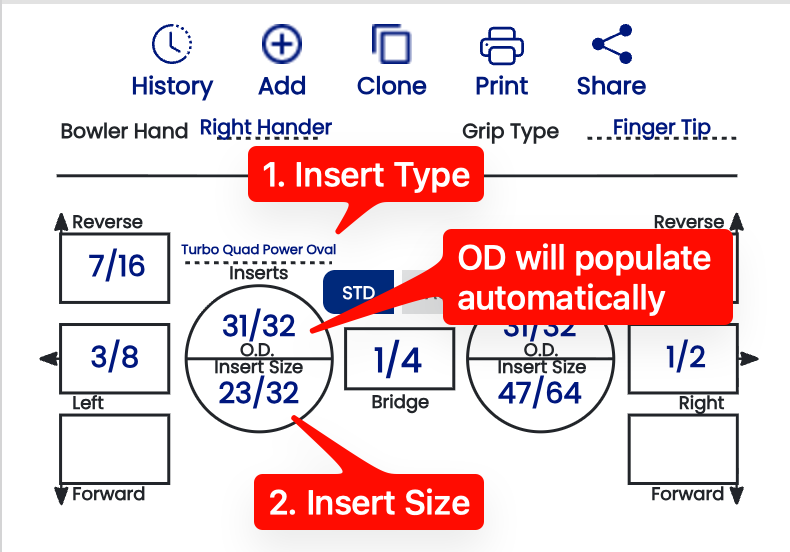
When entering insert details on a spec sheet, always select the **Insert Type** first, then the **Insert Size**. If the **Auto Insert OD** suggestion is enabled in your settings, Spectre will automatically populate the outer diameter field based on the insert type and size selected.

<table border="1" id="bkmrk--1" style="border-collapse: collapse; width: 100%;"><colgroup><col style="width: 35.1786%;"></col><col style="width: 64.9405%;"></col></colgroup><tbody><tr><td>[![image.png](https://wiki.spectrebowling.com/uploads/images/gallery/2026-05/scaled-1680-/gPhimage.png)](https://wiki.spectrebowling.com/uploads/images/gallery/2026-05/gPhimage.png)</td><td>[![image.png](https://wiki.spectrebowling.com/uploads/images/gallery/2026-05/scaled-1680-/L0Oimage.png)](https://wiki.spectrebowling.com/uploads/images/gallery/2026-05/L0Oimage.png)

</td></tr></tbody></table>

## 🖨️ How It Appears on a Spec Sheet

The installation method is recorded on every spec sheet and appears in the insert details section. This ensures your shop's drilling history accurately reflects how each ball was fitted — useful when a bowler returns for an insert replacement or a re-drill.

- ✅ The installation method is saved with the spec sheet and visible in historical records.
- ✅ Printed and exported spec sheets include the installation method field.
- ❌ Changing the shop default does not retroactively update the installation method on existing spec sheets.

**Tip:** If you stock and sell VACU Grip inserts, noting the installation method clearly on printed spec sheets is good practice — bowlers who use VACU inserts often need to know their exact insert size when purchasing replacements.

### Related Sections

- 2.2.2 — Grip Type: Fingertip vs. Conventional as the Default
- 2.2.3 — Display in Decimal vs. Fractional
- 4.1 — Creating a New Spec Sheet
- 4.4 — Insert Fields on a Spec Sheet

# 2.2.6 Vacu Installation Increment from O.D. (1/32, 1/16…)

<span style="font-family: monospace; color: #6b7280;">2.2.6</span> <span style="border: 1px solid #d1d5db; color: #4b5563; padding: 2px 8px; border-radius: 3px; font-size: 0.85em;">default</span>

When fitting a bowler with **VACU Grip inserts**, Spectre Cloud calculates the two hole sizes required for the two-tier drill based on the insert's **outer diameter (O.D.)**. The lower hole matches the insert O.D. so the insert seats and glues at the base. The upper hole is drilled *larger* than the insert O.D. — this is what gives the rubber room to expand when the bowler's finger is inserted. This setting controls the increment used when selecting how much larger that upper hole is drilled above the insert O.D.

**Note:** This setting only applies if your shop uses VACU Grip installation. If your shop drills exclusively STD (glued) inserts, this setting has no effect on your workflow.

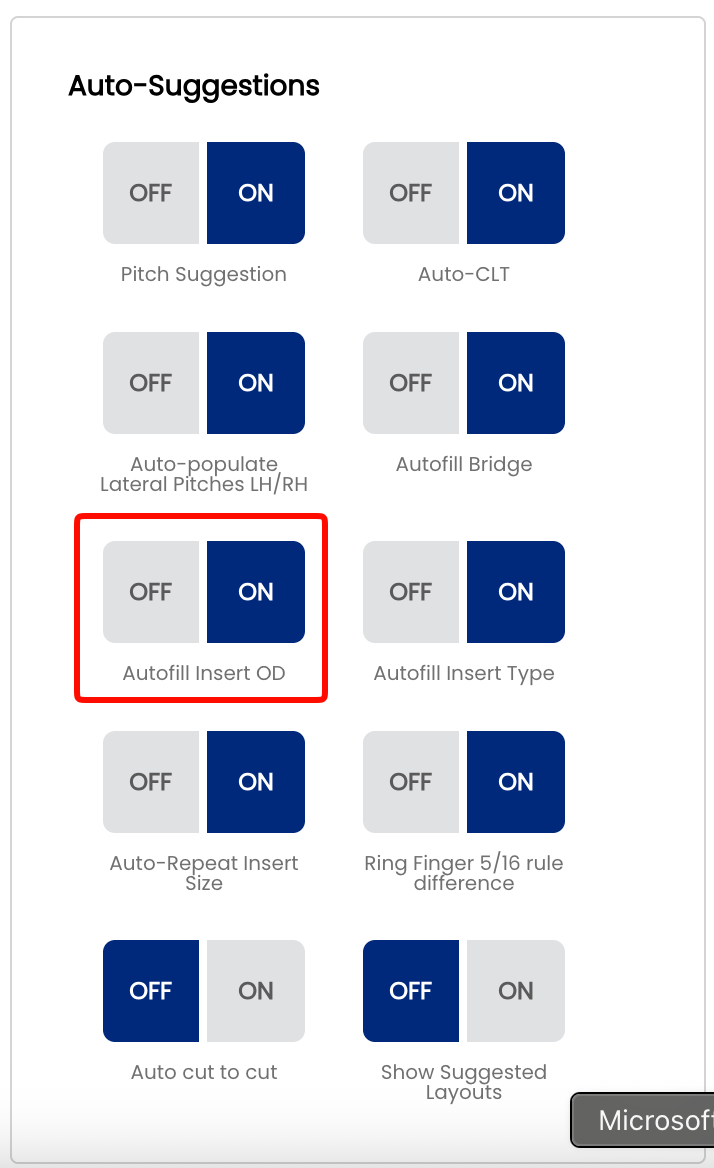
**Important:** This setting requires the **Auto Insert OD** auto-suggestion to be enabled in order to work correctly. If Auto Insert OD is turned off, Spectre Cloud will not automatically calculate the upper hole size and this increment setting will have no effect. See **Settings → Auto-Suggestions** to confirm it is enabled.

## 📐 What Is the O.D. Increment?

The **O.D. increment** is the step size used when selecting how much larger the upper hole is drilled relative to the insert O.D. — the amount by which that value increases or decreases with each click or tap. Spectre Cloud offers four options:

- ✅ **1/16"** — the standard increment for VACU installation. Gives the insert a full 1/16" of expansion room per side — for example, a `31/32"` insert O.D. produces a `1 1/32"` upper hole. This is the correct starting point for most bowlers and the increment most shops will use day-to-day.
- ✅ **3/64"** — slightly less expansion room than the standard 1/16". Used for bowlers who want a more controlled feel with less rubber springiness.
- ✅ **1/32"** — reduced expansion room. The insert rubber has less room to flex, producing a firmer, tighter feel when the finger is inserted.
- ✅ **1/64"** — the tightest fit. Minimal expansion room — suited to bowlers who prefer very little springiness from their insert rubber.

## ⚙️ Changing the VACU O.D. Increment

1. Open Spectre Cloud at `cloud.spectrebowling.com` and log in.
2. Select **Settings** from the menu.
3. Navigate to the **System Defaults** section.
4. Locate the **Vacu Installation Increment from O.D.** field and select **1/16"**, **3/64"**, **1/32"**, or **1/64"**.
5. Changes are saved automatically.

[![image.png](https://wiki.spectrebowling.com/uploads/images/gallery/2026-05/scaled-1680-/IxVimage.png)](https://wiki.spectrebowling.com/uploads/images/gallery/2026-05/IxVimage.png)

**Note:** Like all system defaults, this setting controls only the pre-selection on new spec sheets. The increment — and the resulting upper hole size — can always be adjusted on a per-bowler, per-sheet basis directly on the spec sheet, the same way auto-suggestion values can be overridden after they populate.

## 🎳 Which Increment Should You Choose?

<table id="bkmrk-situation-recommende"><thead><tr><th>Situation</th><th>Recommended Increment</th><th>Reason</th></tr></thead><tbody><tr><td>Most bowlers — standard VACU fitting</td><td>1/16"</td><td>The industry standard for VACU installation — full expansion room, natural rubber feel</td></tr><tr><td>Bowler wants slightly less springiness</td><td>3/64"</td><td>Marginally tighter fit with a more controlled feel</td></tr><tr><td>Bowler prefers a firmer insert feel</td><td>1/32"</td><td>Reduced expansion room, noticeably less rubber flex</td></tr><tr><td>Bowler wants minimal rubber springiness</td><td>1/64"</td><td>Tightest fit — the insert has very little room to expand</td></tr></tbody></table>

## 📌 Important: O.D. vs. Hole Size

The insert O.D. and the two drilled hole sizes work together in a VACU fitting:

- The **insert O.D.** is the published outer diameter of the VACU insert — a fixed measurement from the manufacturer.
- The **lower hole** is drilled to match the insert O.D. — this is where the insert seats and is glued at the base.
- The **upper hole** is drilled larger than the insert O.D. by the selected increment — this gives the rubber body room to expand outward when the bowler's finger is inserted.
- The O.D. increment setting controls how finely you can step through that upper hole size in Spectre Cloud.
- ❌ Do not confuse the O.D. increment with the finger hole size itself — they are different measurements.

**Tip:** If you switch insert brands, check the new brand's recommended upper hole size specification. Some brands require more or less expansion room than others — switching brands is a good time to revisit this increment setting.

### Related Sections

- 2.2.5 — Insert Installation: STD vs. VACU Grip as the Default
- 2.2.3 — Display in Decimal vs. Fractional
- 4.4 — Insert Fields on a Spec Sheet
- 6.1 — Drilling Your First Ball: Step-by-Step Overview

# 2.2.7 Display Measurements in — 16S+, 32ND, Decimal options

<span style="font-family: monospace; color: #6b7280;">2.2.7</span> <span style="border: 1px solid #d1d5db; color: #4b5563; padding: 2px 8px; border-radius: 3px; font-size: 0.85em;">display</span>

When entering a span measurement on a spec sheet, Spectre Cloud presents a dropdown list of selectable values. This setting controls the **spacing and precision** of the values in that list — coarser settings show fewer values and less scrolling, finer settings show more values with greater precision. The available options are **16S**, **16S+**, **32ND**, and **64TH**.

**Note:** This setting applies specifically to **span measurements**. It controls what appears in the span dropdown list on a spec sheet — it does not affect how other measurements such as bridge width, oval dimensions, or hole sizes are displayed.

## 📏 Understanding the Four Options

### 16S — Sixteenths

The dropdown lists span values spaced in sixteenth-inch increments (e.g. `4"`, `4 1/16"`, `4 1/8"`, `4 3/16"`, `4 1/4"`…). Values are displayed as simplified fractions. The fewest values in the list — fastest to scroll through. Suitable for shops that measure and record spans to sixteenth precision.

### 16S+ — Sixteenths with half-sixteenth notation

The dropdown lists the same sixteenth-inch values as 16S, but adds a `+` value between each pair — representing a half-sixteenth (one thirty-second). For example: `4 1/16"`, `4 1/16+"`, `4 1/8"` — where `4 1/16+` is a shorthand way of expressing `4 3/32"`. This gives 32nd-level precision in a format that is easier to read and say out loud than a thirty-second fraction.

### 32ND — Thirty-seconds

The dropdown lists pitch values spaced in thirty-second-inch increments — the same resolution as 16S+, but displayed as simplified fractions throughout rather than using the `+` shorthand notation. The list will contain the same number of values as 16S+, just expressed differently. Choose this option if your drillers prefer to read standard 32nd fractions over the `+` notation.

### 64TH — Sixty-fourths

The dropdown lists span values spaced in sixty-fourth-inch increments, again displayed as simplified fractions. The most values in the list, requiring the most scrolling. Best suited to shops that fit to sixty-fourth precision or work with bowlers who require very fine span adjustments.

## ⚙️ Changing the Span Display Format

1. Open Spectre Cloud at `cloud.spectrebowling.com` and log in.
2. Select **Settings** from the menu.
3. Navigate to the **System Defaults** section.
4. Locate the **Display Measurements in** field and select **16S**, **16S+**, **32ND**, or **64TH**.
5. Changes are saved automatically.

[![image.png](https://wiki.spectrebowling.com/uploads/images/gallery/2026-05/scaled-1680-/zlAimage.png)](https://wiki.spectrebowling.com/uploads/images/gallery/2026-05/zlAimage.png)

## 🎳 Which Format Should You Use?

<table id="bkmrk-situation-recommende"><thead><tr><th>Situation</th><th>Recommended Format</th><th>Reason</th></tr></thead><tbody><tr><td>Shop measuring to sixteenth precision, minimal scrolling preferred</td><td>16S</td><td>Fewest values in the list — fast to navigate</td></tr><tr><td>Shop wanting 32nd precision in a readable format</td><td>16S+</td><td>32nd-level precision expressed in a shorthand that is easier to read and communicate than thirty-second fractions</td></tr><tr><td>Shop recording spans in thirty-seconds, prefer standard fractions</td><td>32ND</td><td>32nd increment with values shown as simplified fractions — familiar and clean</td></tr><tr><td>Precision fitting, competitive bowlers, very fine adjustments</td><td>64TH</td><td>Maximum precision — use when sixty-fourth resolution is needed</td></tr></tbody></table>

## 🔄 Relationship to the Global Measurement Format Setting

This setting works alongside the global **Decimal vs. Fractional** display preference set in **2.2.3**. The option you choose here controls the spacing and values in the span dropdown list. If your global format in 2.2.3 is set to **Decimal**, span values will be shown in decimal form regardless of which option is selected here.

- ❌ There is no per-sheet override for this setting — it applies shop-wide to all span dropdowns.
- ✅ Changing this setting is non-destructive — stored span values do not change, only the dropdown list presentation.

**Tip:** If your drillers find the span dropdown list too long to scroll through comfortably, switch to a coarser setting. You can always fine-tune an individual span value on the spec sheet after selecting the nearest available value from the list.

### Related Sections

- 2.2.3 — Display in Decimal vs. Fractional
- 2.2.8 — Display Pitches in
- 4.1 — Creating a New Spec Sheet
- 4.2 — Understanding Span Types

# 2.2.8 Display Pitches in — 16S+, 64TH, Decimal options

<span style="font-family: monospace; color: #6b7280;">2.2.8</span> <span style="border: 1px solid #d1d5db; color: #4b5563; padding: 2px 8px; border-radius: 3px; font-size: 0.85em;">display</span>

When entering a pitch value on a spec sheet, Spectre Cloud presents a dropdown list of selectable values. This setting controls the **spacing and precision** of the values in that list — coarser settings show fewer values and less scrolling, finer settings show more values with greater precision. The available options are **16S+**, **32ND**, **64TH**, and **Decimal**.

**Note:** This setting applies specifically to **pitch measurements** on spec sheets (forward, reverse, lateral, and combination pitches for finger and thumb holes). It does not affect span measurements or any other values. Span measurements have their own display setting — see **2.2.7**.

## 📐 What Is Pitch?

Pitch describes the angular tilt of a drilled hole relative to the centre of the bowling ball. It is expressed as a distance measurement — the amount of offset at the surface — rather than as a degree angle. Pitch values are typically small and must be recorded precisely, since even a small difference in pitch can noticeably affect a bowler's feel and release.

- **Forward pitch** — hole tilts toward the bowler's palm.
- **Reverse pitch** — hole tilts away from the bowler's palm.
- **Lateral pitch** — hole tilts toward or away from the thumb hole.

## 📏 Understanding the Four Options

### 16S+ — Sixteenths with half-sixteenth notation

The dropdown lists pitch values spaced in sixteenth-inch increments, with a `+` value added between each pair representing a half-sixteenth (one thirty-second). For example: `3/16"`, `3/16+"`, `1/4"` — where `3/16+` is a shorthand way of expressing `7/32"`. Values are displayed as simplified fractions. This gives 32nd-level precision in a format that is easier to read and say out loud than a thirty-second fraction.

### 32ND — Thirty-seconds

The dropdown lists pitch values spaced in thirty-second-inch increments — the same resolution as 16S+, but displayed as simplified fractions throughout rather than using the `+` shorthand notation. The list will contain the same number of values as 16S+, just expressed differently. Choose this option if your drillers prefer to read standard 32nd fractions over the `+` notation.

### 64TH — Sixty-fourths

The dropdown lists pitch values spaced in sixty-fourth-inch increments, displayed as simplified fractions. The most values in the list, requiring the most scrolling. Pitch tolerances are finer than span tolerances, which is why 64TH is available here but not for span measurements. Best suited to shops fitting high-performance or highly customised bowlers where small pitch differences are intentional and meaningful.

### Decimal

The dropdown lists pitch values in decimal format (e.g. `0.1875"`). No fractions are used. Preferred by shops using digital pitch gauges or calipers that output decimal readings, and by Canadian and international shops where decimal measurement is standard practice.

## ⚙️ Changing the Pitch Display Format

1. Open Spectre Cloud at `cloud.spectrebowling.com` and log in.
2. Select **Settings** from the menu.
3. Navigate to the **System Defaults** section.
4. Locate the **Display Pitches in** field and select **16S+**, **32ND**, **64TH**, or **Decimal**.
5. Changes are saved automatically.

[![image.png](https://wiki.spectrebowling.com/uploads/images/gallery/2026-05/scaled-1680-/MNbimage.png)](https://wiki.spectrebowling.com/uploads/images/gallery/2026-05/MNbimage.png)

## 🎳 Which Format Should You Use?

<table id="bkmrk-situation-recommende"><thead><tr><th>Situation</th><th>Recommended Format</th><th>Reason</th></tr></thead><tbody><tr><td>Shop wanting 32nd precision in a readable format</td><td>16S+</td><td>32nd-level precision expressed in a shorthand that is easier to read and communicate than thirty-second fractions</td></tr><tr><td>Shop recording pitches in thirty-seconds, prefer standard fractions</td><td>32ND</td><td>32nd increment with values shown as simplified fractions — familiar and clean</td></tr><tr><td>Precision fitting, competitive or high-performance bowlers</td><td>64TH</td><td>Maximum fractional precision — captures intentional small pitch adjustments accurately</td></tr><tr><td>Shop using digital pitch gauges or calipers</td><td>Decimal</td><td>Enter and read the same format your measuring tool outputs — no conversion needed</td></tr></tbody></table>

## 🔄 Relationship to Other Display Settings

This setting works alongside the other measurement display settings in Spectre Cloud but applies only to pitch values on spec sheets:

- ✅ **2.2.3** — sets the global Decimal vs. Fractional preference. If set to Decimal, pitches display in decimal regardless of what is selected here.
- ✅ **2.2.7** — controls span dropdown precision independently. Your pitch and span display formats do not need to match.
- ❌ There is no per-sheet override — this setting applies shop-wide to all pitch dropdowns.
- ✅ Changing this setting is non-destructive — stored pitch values do not change, only the dropdown list presentation.

**Tip:** If your drillers work from a printed pitch reference card or pitch gauge that uses a specific format, match this setting to that format. Eliminating the mental conversion between the card and the screen reduces errors during fitting.

### Related Sections

- 2.2.7 — Display Measurements in
- 2.2.3 — Displ

# 2.3 — Thumb Hole Preferences

# 2.3.1 Default Hole Type — Round vs. Oval

<span style="font-family: monospace; color: #6b7280;">2.3.1</span> <span style="background: #206ea7; color: #fff; padding: 2px 8px; border-radius: 3px; font-size: 0.85em; font-weight: 600; letter-spacing: 0.05em;">KEY</span> <span style="border: 1px solid #d1d5db; color: #4b5563; padding: 2px 8px; border-radius: 3px; font-size: 0.85em;">setting</span>

The **Default Hole Type** setting controls which hole type is pre-selected when you start a new spec sheet. Spectre Cloud supports two options: **Round** and **Oval**. Like all system defaults, this setting simply pre-populates the field — it can always be overridden on a per-sheet basis without affecting your shop default.

## 🕳️ Understanding Hole Types

### Round Holes

Round holes are the standard hole type used in the majority of drilling layouts. Drilled at a fixed diameter with a standard bit, they are the most common choice for recreational and league bowlers.

- ✅ Used for most conventional and fingertip drilling styles
- ✅ Compatible with standard inserts and slugs
- ✅ Faster to drill and fit for most customers

### Oval Holes

Oval holes are an elongated hole type used when a specific release technique, extra grip surface, or custom fit requires it. Spectre Cloud includes a dedicated **Oval Calculator** to determine the correct oval dimensions for each bowler — see Book 05 for full coverage.

- ✅ Provides additional contact area for certain release styles
- ✅ Often used for bowlers with grip issues or specific fit requirements
- ✅ Oval dimensions are automatically calculated by the Oval Calculator
- ❌ Requires additional measurement steps compared to round holes
- ❌ Not suitable for standard insert sizing

## 📋 Choosing Your Default

<table id="bkmrk-shop-type-recommende"><thead><tr><th>Shop Type</th><th>Recommended Default</th><th>Reason</th></tr></thead><tbody><tr><td>General / recreational pro shop</td><td>Round</td><td>Most customers receive standard round holes — saves time on every new sheet</td></tr><tr><td>Competitive / performance-focused shop</td><td>Round or Oval</td><td>Depends on your typical customer base; oval may be more common at high-level shops</td></tr><tr><td>Shop specialising in custom fitting</td><td>Oval</td><td>If the majority of your drilling involves oval holes, setting this as default reduces manual selection on every sheet</td></tr></tbody></table>

## ⚙️ Changing the Default Hole Type

1. Open Spectre Cloud at `cloud.spectrebowling.com` and log in.
2. Select **Settings** from the menu.
3. Navigate to the **Thumb Hole Preferences** section.
4. Locate the **Default Hole Type** field and select either `Round` or `Oval`.
5. Changes are saved automatically.

[![image.png](https://wiki.spectrebowling.com/uploads/images/gallery/2026-05/scaled-1680-/k8Jimage.png)](https://wiki.spectrebowling.com/uploads/images/gallery/2026-05/k8Jimage.png)

**Note:** Changing the default hole type only affects new spec sheets created after the setting is changed. Existing spec sheets are not modified.

### Related Sections

- 2.3.2 — Default Span Type (F, C, or O)
- 05 — Oval Calculator (full book dedicated to oval hole measurement)
- 04 — Spec Sheets (creating and editing spec sheets)

**Tip:** Not sure which to pick? Start with `Round` — it's the right default for the vast majority of pro shops. You can always switch to Oval on a per-sheet basis for bowlers who need it, or update the default later as your shop's workflow evolves.

# 2.3.2 Initial pitch inside the total oval — Edge vs. Center & Pitch Included Yes/No

<span style="font-family: monospace; color: #6b7280;">2.3.2</span> <span style="border: 1px solid #d1d5db; color: #4b5563; padding: 2px 8px; border-radius: 3px; font-size: 0.85em;">oval</span>

When drilling an oval hole, Spectre Cloud needs a reference point from which to calculate the initial pitch of that hole. Because an oval opening has width — unlike a round hole, which has a single center point — there are two valid ways to define that reference. This page covers two related settings that work together: **Initial pitch inside the total oval** (Edge vs. Center) and **Add Thumb Pitch to Oval Cut Calculation** (Yes vs. No). The combination of these two settings determines how Spectre Cloud displays your oval cut values on screen.

**Not sure which to pick?** Ask yourself two questions before setting these up in Spectre: (1) When you cut an oval, is the intended pitch of the hole at the **edge (top)** of the total oval cut, or in the **center**? (2) Do you **zero out your digital readouts** when starting to cut your oval, or do you **keep the desired pitch** on the readout? Your answers will identify exactly which scenario applies to your shop.

## 📐 Setting 1 — Initial Pitch Inside the Total Oval

This setting defines the reference point Spectre Cloud uses when calculating the pitch offset for an oval hole.

### Edge

The Edge method measures initial pitch from the near edge of the oval opening — the edge closest to the bowler's palm. Your starting point on the press is always the **top of the oval hole**, with digital readouts initialized to `0/0` at that position. This is the traditional approach that mirrors how most drillers learned to cut ovals using charts or ratios.

- ✅ Consistent with how round hole pitch has historically been measured
- ✅ Familiar to operators trained on conventional pitch measurement techniques
- ✅ Use this setting if you **zero out your digital readouts** each time you start an oval cut
- ❌ Can introduce slight inconsistency as oval width increases, since the near edge shifts further from the hole's geometric center

### Center

The Center method measures initial pitch from the geometric center of the oval opening. Your starting point on the press is always the **center of the oval hole**, with digital readouts initialized to `0/0` at that position. This is a mathematically consistent reference point regardless of oval width, and makes it straightforward to properly center a slug or interchangeable.

- ✅ Consistent reference regardless of oval width
- ✅ The oval will always be perfectly geometrically centered — no need to touch the press to re-center
- ✅ The easiest method to teach a novice ball driller how to cut ovals
- ✅ Use this setting if you **keep the desired pitch on the readout** rather than zeroing out
- ❌ Less intuitive for operators accustomed to traditional edge-based measurement

**Mark's preference:** Center is Mark Buffa's preferred method for measuring and drilling oval holes. If you are following the Spectre drilling methodology or learning from the Spectre YouTube channel, `Center` is the recommended choice.

## 📋 Setting 2 — Add Thumb Pitch to Oval Cut Calculation

This setting controls whether the bowler's thumb pitch is **included in the oval cut values** that Spectre Cloud displays on screen, or whether the cut values are shown as raw oval geometry only with pitch applied separately at the press.

### No — Pitch not included

Spectre Cloud displays the oval cut values based on geometry only. The pitch offset is *not* baked into the numbers. Use this setting if you prefer to **zero out your digital readouts** before starting each oval cut and set your pitch manually on the press.

- ✅ Clean, simple cut values — pitch handled separately
- ✅ Familiar to drillers who learned using charts or ratio tables
- ✅ Works for both Edge and Center reference methods

### Yes — Pitch included

The bowler's thumb pitch is **baked directly into every cut value** that Spectre Cloud displays. There is no need to zero out the readouts or adjust the press for pitch between cuts — Spectre handles the math and the cuts already account for it. Use this setting if you prefer to **keep the desired pitch on the readout** throughout the oval cutting sequence.

- ✅ No manual pitch adjustment needed at the press
- ✅ Reduces steps during the oval cutting sequence
- ✅ Easier to teach and less prone to error for new drillers

**Mark's preference:** Mark Buffa recommends using `Yes` — pitch included — combined with the Center method. This combination (Scenario 4) is the most consistent and easiest to teach, and is what Mark uses in his own shop.

## 📊 The Four Scenarios

These two settings combine to produce four possible scenarios. All four result in the **exact same oval hole** — the difference is only in how the cuts are displayed on screen and how you set up your press. The examples below use a Starting Bit of `3/4"`, Oval Width of `7/8"`, and a degree of `45°`.

### Scenario 1 — Edge, No Pitch

**Settings:**

<table id="bkmrk-s1-settings-table" style="width: auto; margin-bottom: 16px;"><thead><tr><th>Initial pitch inside the total oval</th><th>Add Thumb Pitch to Oval Cut Calculation</th></tr></thead><tbody><tr><td>`Edge`</td><td>`No`</td></tr></tbody></table>

Your starting point is always the **top of the oval hole** at `0/0`. This is the traditional method — how most drillers learned to cut ovals using charts or ratios. Zero out your readouts before every cut and set your pitch manually on the press.

- ✅ Traditional method — most familiar to experienced drillers
- ✅ Clean cut values with no pitch offset applied
- ✅ Best if you prefer to dial in pitch manually on the press

[![image.png](https://wiki.spectrebowling.com/uploads/images/gallery/2026-05/scaled-1680-/0ITimage.png)](https://wiki.spectrebowling.com/uploads/images/gallery/2026-05/0ITimage.png)

<span style="color: rgb(34, 34, 34); font-family: -apple-system, 'system-ui', 'Segoe UI', Oxygen, Ubuntu, Roboto, Cantarell, 'Fira Sans', 'Droid Sans', 'Helvetica Neue', sans-serif; font-size: 2.333em; font-weight: 400;">Scenario 2 — Center, No Pitch</span>

**Settings:**

<table id="bkmrk-s2-settings-table" style="width: auto; margin-bottom: 16px;"><thead><tr><th>Initial pitch inside the total oval</th><th>Add Thumb Pitch to Oval Cut Calculation</th></tr></thead><tbody><tr><td>`Center`</td><td>`No`</td></tr></tbody></table>

Your starting point is always the **center of the oval hole** at `0/0`. The oval is always geometrically centered. Use this if you zero out your readouts at the center of the oval and prefer to set pitch manually on the press. A great method for learning to center slugs and interchangeables.

- ✅ Oval is always geometrically centered — consistent results every time
- ✅ Excellent for learning to center slugs and interchangeables
- ✅ Clean cut values — pitch handled separately on the press

[![image.png](https://wiki.spectrebowling.com/uploads/images/gallery/2026-05/scaled-1680-/aoUimage.png)](https://wiki.spectrebowling.com/uploads/images/gallery/2026-05/aoUimage.png)

### Scenario 3 — Edge, Pitch Included

**Settings:**

<table id="bkmrk-s3-settings-table" style="width: auto; margin-bottom: 16px;"><thead><tr><th>Initial pitch inside the total oval</th><th>Add Thumb Pitch to Oval Cut Calculation</th></tr></thead><tbody><tr><td>`Edge`</td><td>`Yes`</td></tr></tbody></table>

Same geometry as Scenario 1, but the bowler's thumb pitch is **baked into the cut values** from the first cut. In the example below, a pitch of `1/8" reverse` / `0 lateral` is included. Use this if you do not want to zero out your readouts — the pitch offset is already built into every value Spectre displays.

- ✅ No need to zero out readouts — pitch is included in every cut
- ✅ Familiar edge-based starting point for experienced drillers
- ✅ Reduces manual press adjustments during the oval cutting sequence

<table id="bkmrk-s3-cuts"><thead><tr><th>Cut</th><th>V</th><th>H</th><th>Note</th></tr></thead><tbody><tr><td>1</td><td>`-0.125`</td><td>`0.000`</td><td>Pitch offset applied at first cut</td></tr><tr><td>2</td><td>`-0.147`</td><td>`0.022`</td><td> </td></tr><tr><td>3</td><td>`-0.169`</td><td>`0.044`</td><td> </td></tr><tr><td>4</td><td>`-0.191`</td><td>`0.066`</td><td> </td></tr><tr><td>5</td><td>`-0.213`</td><td>`0.088`</td><td> </td></tr></tbody></table>

[![image.png](https://wiki.spectrebowling.com/uploads/images/gallery/2026-05/scaled-1680-/at5image.png)](https://wiki.spectrebowling.com/uploads/images/gallery/2026-05/at5image.png)

### Scenario 4 — Center, Pitch Included

**Settings:**

<table id="bkmrk-s4-settings-table" style="width: auto; margin-bottom: 16px;"><thead><tr><th>Initial pitch inside the total oval</th><th>Add Thumb Pitch to Oval Cut Calculation</th></tr></thead><tbody><tr><td>`Center`</td><td>`Yes`</td></tr></tbody></table>

Your starting point is the **center of the oval hole** with pitch already included in every cut value. There is no need to touch the press at all between cuts — the oval will be perfectly geometrically centered and the pitch offset is built into everything Spectre displays. This is by far the easiest method to teach a novice ball driller how to cut ovals.

- ✅ No press adjustment needed — oval is perfectly geometrically centered automatically
- ✅ Pitch is baked in — no manual offset required at the press
- ✅ The easiest combination for training new drillers
- ✅ Produces a perfectly consistent oval every time with minimal room for error

<table id="bkmrk-s4-cuts"><thead><tr><th>Cut</th><th>V</th><th>H</th><th>Note</th></tr></thead><tbody><tr><td>1</td><td>`-0.081`</td><td>`-0.044`</td><td>Center + pitch offset combined</td></tr><tr><td>2</td><td>`-0.103`</td><td>`-0.022`</td><td> </td></tr><tr><td>3</td><td>`-0.125`</td><td>`0.000`</td><td>Center point — pitch only</td></tr><tr><td>4</td><td>`-0.147`</td><td>`0.022`</td><td> </td></tr><tr><td>5</td><td>`-0.169`</td><td>`0.044`</td><td> </td></tr></tbody></table>

[![image.png](https://wiki.spectrebowling.com/uploads/images/gallery/2026-05/scaled-1680-/eldimage.png)](https://wiki.spectrebowling.com/uploads/images/gallery/2026-05/eldimage.png)

**Mark's preference:** Scenario 4 — Center + Pitch Included — is what Mark Buffa uses in his own shop and recommends above all others. The oval is always perfectly geometrically centered, pitch is handled automatically, and there is nothing to adjust on the press between cuts. This is the recommended starting point for any shop adopting the Spectre drilling methodology.

**Note:** All four scenarios above use the same base values (Starting Bit `3/4"`, Oval Width `7/8"`, Degree `45°`) and produce the exact same physical oval hole. The only difference is the reference point and whether pitch is included in the displayed cut values.

## 📐 Quick Reference — Which Scenario Are You?

<table id="bkmrk-method-comparison"><thead><tr><th>Do you zero out readouts?</th><th>Is pitch at the edge or center?</th><th>Your Scenario</th></tr></thead><tbody><tr><td>Yes — zero out at top of oval</td><td>Edge</td><td>Scenario 1 — Edge, No Pitch</td></tr><tr><td>Yes — zero out at center of oval</td><td>Center</td><td>Scenario 2 — Center, No Pitch</td></tr><tr><td>No — keep pitch on readout</td><td>Edge</td><td>Scenario 3 — Edge, Pitch Included</td></tr><tr><td>No — keep pitch on readout</td><td>Center</td><td>Scenario 4 — Center, Pitch Included ⭐</td></tr></tbody></table>

## ⚙️ Changing These Settings

1. Open Spectre Cloud at `cloud.spectrebowling.com` and log in.
2. Select **Settings** from the menu.
3. Navigate to the **Thumb Hole Preferences** section.
4. Locate the **Initial pitch inside the total oval** field and select either `Edge` or `Center`.
5. Locate the **Add Thumb Pitch to Oval Cut Calculation** field and select either `No` or `Yes`.
6. Changes are saved automatically.  
    [![image.png](https://wiki.spectrebowling.com/uploads/images/gallery/2026-05/scaled-1680-/vqCimage.png)](https://wiki.spectrebowling.com/uploads/images/gallery/2026-05/vqCimage.png)

**Note:** Like all system defaults, these settings control only the pre-selection on new spec sheets. They can always be changed on a per-sheet basis without affecting your shop defaults.

## 🎬 See It in Action

Watch Mark Buffa walk through the full oval thumb cutting process step by step using Spectre Pro Shop Software: [How to Cut an Oval Thumb! | Full Pro Shop Tutorial!](https://youtu.be/5-EACYj7sBU)

For a deeper dive into the oval drilling process including the tapering method, watch Mark Buffa and Jacob Imoo from Jr Pro Shop walk through measuring for bit size, determining oval width and degree, and using the Spectre Oval Calculator step by step: [Oval Calculator — Tapering Process](https://youtu.be/YxS6kyipazk)

A full reference presentation covering all four scenarios, the math behind the oval calculator, and cut direction explanations is attached to this page: [CUTTING OVALS.pdf](https://wiki.spectrebowling.com/attachments/1)

### Related Sections

- 2.3.1 — Default Hole Type: Round vs. Oval
- 2.3.3 — Oval Width Calculator — Bit Size vs. Decimal Display
- 2.3.4 — DIFF (Decimal) — Auto-calculating the Difference from Starting Bit to Oval Width
- 2.3.5 — Oval Cut Move Direction: V/H, H only, V only, None
- 2.3.6 — Flip V/H on Oval Cuts
- 05 — Oval Calculator (full book dedicated to oval hole measurement)

**Tip:** If you are new to oval drilling or setting up Spectre for the first time, select `Center` and `Yes` — Scenario 4. It is the most consistent, the most forgiving, and the method Mark Buffa recommends above all others.

# 2.3.3 Oval Width Calculator — Bit Size, Decimal, or Difference input method

<span style="font-family: monospace; color: #6b7280;">2.3.3</span> <span style="border: 1px solid #d1d5db; color: #4b5563; padding: 2px 8px; border-radius: 3px; font-size: 0.85em;">oval</span>

When calculating an oval thumb hole, Spectre Cloud needs to know the **oval width** — the final size of the opening the bowler's thumb will sit in. This setting controls how you input that measurement. There are three options: **Oval Width (Bit Size)**, **Oval Width (Decimal)**, and **Diff (Decimal)**. All three produce the exact same oval hole — the difference is only in how you measure and enter the value.

**The math behind it:** Spectre calculates the oval cuts using the formula `Oval Width – Starting Bit = Difference`. The difference is the hypotenuse of the triangle that determines the V and H moves on your press. Depending on which input method you choose, Spectre either calculates this difference for you or accepts it directly.

## 📐 The Three Input Options

### Oval Width (Bit Size)

You enter the oval width as a **drill bit size** — for example, `7/8"`. Spectre Cloud then subtracts the starting bit size from the oval width to calculate the difference internally. This is the most common method for shops that size oval widths using standard drill bits and do not own a caliper.

- ✅ The most widely used method in pro shops
- ✅ No caliper required — drill bits are the measuring tool
- ✅ Input matches the physical bit you used to determine the oval width
- ✅ Spectre calculates the difference automatically — no manual math needed

**Example:** Starting Bit `3/4"`, Oval Width `7/8"` → Spectre calculates Difference as `0.125"` and uses that to determine the V/H cut moves.

### Oval Width (Decimal)

You enter the oval width as a **decimal value** measured directly with a caliper — for example, `0.875"`. Spectre Cloud then subtracts the starting bit from this decimal value to calculate the difference. This method is preferred by shops that measure oval widths using a digital caliper rather than sizing with drill bits.

- ✅ Precise — caliper measurements capture exact thumb dimensions
- ✅ No conversion needed between bit sizes and decimal values
- ✅ Common in Canadian and international shops where decimal measurement is standard
- ✅ Spectre still calculates the difference automatically from the decimal oval width

**Example:** Starting Bit `3/4"` (`0.750"`), Oval Width measured by caliper as `0.875"` → Spectre calculates Difference as `0.125"`.

### Diff (Decimal)

Instead of entering the oval width at all, you enter the **difference directly** as a decimal value in thousandths — for example, `0.125`. This is equivalent to performing the subtraction `Oval Width – Starting Bit` yourself before entering anything into Spectre. This method is used by experienced drillers who measure the difference directly with a caliper rather than measuring the full oval width.

- ✅ Fastest input method for experienced drillers who already know their difference
- ✅ Useful when measuring the difference directly with a caliper at the thumb hole
- ✅ Skips the oval width field entirely — one less value to enter
- ❌ Requires the driller to already know or calculate the difference before entering Spectre
- ❌ Less intuitive for newer drillers unfamiliar with the underlying math

**Example:** You measure directly with a caliper and determine the difference is `0.125"`. Enter `0.125` into Spectre — no oval width or starting bit calculation needed.

## 📊 Which Method Should You Use?

<table id="bkmrk-comparison-table"><thead><tr><th>Situation</th><th>Recommended Option</th><th>Reason</th></tr></thead><tbody><tr><td>Shop sizes ovals using drill bits</td><td>Oval Width (Bit Size)</td><td>Enter the bit you used — Spectre does the math</td></tr><tr><td>Shop measures oval width with a digital caliper</td><td>Oval Width (Decimal)</td><td>Enter the caliper reading directly — no conversion needed</td></tr><tr><td>Experienced driller who measures the difference directly</td><td>Diff (Decimal)</td><td>Fastest entry — skip the oval width field entirely</td></tr><tr><td>New to oval drilling</td><td>Oval Width (Bit Size)</td><td>Most intuitive — matches the physical tool you use to size the hole</td></tr></tbody></table>

## 🧮 Understanding the Math

Regardless of which input method you choose, Spectre Cloud always uses the same underlying calculation to determine the oval cut moves:

1. **Oval Width – Starting Bit = Difference** — the difference is the hypotenuse of the triangle formed by the oval cut path.
2. The **oval degree** is used as the angle of that triangle.
3. Spectre applies trigonometry (`sin` and `cos`) to the difference and degree to calculate the precise **V and H displacement** needed for each cut.
4. Cuts are displayed in **32nds at most** — cutting in 32nds produces a smooth oval hole with minimal chatter.

<span style="text-decoration: underline;"><span style="background-color: rgb(251, 238, 184);">**Note:** No matter which input method you use, all three options produce the exact same oval hole when the underlying values are equivalent. The choice is purely about how you prefer to measure and enter the data.</span></span>

## ⚙️ Changing This Setting

1. Open Spectre Cloud at `cloud.spectrebowling.com` and log in.
2. Select **Settings** from the menu.
3. Navigate to the **Thumb Hole Preferences** section.
4. Locate the **Oval Width Calculator** field and select **Oval Width (Bit Size)**, **Oval Width (Decimal)**, or **Diff (Decimal)**.
5. Changes are saved automatically.

[![image.png](https://wiki.spectrebowling.com/uploads/images/gallery/2026-05/scaled-1680-/3Gcimage.png)](https://wiki.spectrebowling.com/uploads/images/gallery/2026-05/3Gcimage.png)

**Note:** Like all system defaults, this setting controls only the pre-selection on new spec sheets. It can always be changed on a per-sheet basis without affecting your shop default.

## 🎬 See It in Action

Watch Mark Buffa demonstrate the full oval measurement process using drill bits and Spectre Pro Shop Software: [How to Measure Ovals | Bowling Pro Shop Tutorial](https://youtu.be/LDr_r5jI5fM)

For the caliper method specifically, watch Mark Buffa walk through measuring an oval thumb using a digital caliper and entering the value directly into Spectre: [How To Measure An Oval Thumb | Caliper Method](https://youtu.be/t9iI0QSE_90)

For the full oval cutting process including how these measurements feed into the Spectre Oval Calculator, see: [How to Cut an Oval Thumb! | Full Pro Shop Tutorial!](https://youtu.be/5-EACYj7sBU)

A full reference presentation covering the oval calculator math, all four Edge/Center + Pitch scenarios, and cut direction explanations is attached to page 2.3.2: **Cutting Ovals — Spectre Pro Shop Software**.

### Related Sections

- 2.3.2 — Initial pitch inside the total oval — Edge vs. Center &amp; Pitch Included Yes/No
- 2.3.4 — DIFF (Decimal) — Auto-calculating the difference from starting bit to oval width
- 2.3.5 — Oval Cut Move Direction: V/H, H only, V only, None
- 05 — Oval Calculator (full book dedicated to oval hole measurement)

**Tip:** If you are new to oval drilling, start with **Oval Width (Bit Size)** — it is the most intuitive method and matches the physical tool you use at the press. As your workflow develops and you start using a caliper for more precise measurements, switching to **Oval Width (Decimal)** or **Diff (Decimal)** is a natural progression.

# 2.3.5 Oval Cut 'Move' Direction — V/H, H only, V only, or None

<span style="font-family: monospace; color: #6b7280;">2.3.5</span> <span style="border: 1px solid #d1d5db; color: #4b5563; padding: 2px 8px; border-radius: 3px; font-size: 0.85em;">oval</span>

The **Oval Cut Move Direction** setting controls which directional components Spectre Cloud calculates and displays when outputting oval cut values. Depending on your drill press type and how you cut ovals, you may work with both vertical and horizontal movement, one direction only, or prefer to enter the values manually without the calculator's guidance. This setting ensures the oval calculator output matches exactly what your press needs.

## 🔄 The Four Options Explained

### V/H — Vertical and Horizontal

Spectre Cloud calculates and displays **both the vertical (V) and horizontal (H)** movement values needed to cut the oval along the hypotenuse of the desired triangle. This is the standard method for most drill presses with independent X/Y axis digital readouts. The V and H values are the two sides of the right triangle formed by the oval cut path — together they define the full shape and direction of the cut.

- ✅ The most common setting for standard drill presses with digital readouts
- ✅ Full oval specification — both axes displayed for every cut
- ✅ Required when your press needs both figures to execute the cut sequence
- ✅ Matches the cut tables shown in the four scenarios on page 2.3.2

### H — Horizontal only

Spectre Cloud calculates and displays both values, but only the **horizontal (H) axis** will have movement calculated. The vertical (V) value will display as `0.000` — or as the pitch value if **Add Thumb Pitch to Oval Cut Calculation** is set to `Yes` — since no vertical movement is needed. Used mostly when you have an **Ovalmatic press** or similar equipment where you can swing the ball to a desired degree on the vertical axis. From there, you cut in one direction only — horizontal — and the oval shape is achieved through the combination of the swing angle and the single-axis cut.

- ✅ Designed for Ovalmatic-style presses that swing the ball to set the vertical component
- ✅ V value still displays — shows `0.000` or the pitch offset if pitch is included
- ✅ No vertical movement is calculated — only horizontal cuts are needed at the press

### V — Vertical only

Spectre Cloud calculates and displays both values, but only the **vertical (V) axis** will have movement calculated. The horizontal (H) value will display as `0.000` — or as the pitch value if **Add Thumb Pitch to Oval Cut Calculation** is set to `Yes` — since no horizontal movement is needed. The mirror of H only — used for presses that cut ovals on a single vertical axis where the horizontal component is handled by swinging or rotating the ball.

- ✅ For presses that cut ovals on a single vertical axis
- ✅ H value still displays — shows `0.000` or the pitch offset if pitch is included
- ✅ No horizontal movement is calculated — only vertical cuts are needed at the press

### None — Manual input

No directional movement values are displayed by the oval calculator. This option allows you to **manually input your cuts** and bypass the oval calculator's directional output entirely. The oval width and degree are still used for reference, but Spectre Cloud does not output V or H values — you determine and enter the cuts yourself.

- ✅ For experienced drillers who prefer to work from their own calculated values
- ✅ Useful for shops using external reference charts or custom cut tables
- ❌ You do not benefit from Spectre's automatic V/H calculation in this mode

## 📊 Quick Reference

<table id="bkmrk-quick-ref-table"><thead><tr><th>Press Type / Workflow</th><th>Recommended Setting</th><th>Reason</th></tr></thead><tbody><tr><td>Standard drill press with X/Y digital readouts</td><td>V/H</td><td>Both axes needed — Spectre calculates the full V and H move sequence</td></tr><tr><td>Ovalmatic or swing-style press</td><td>H or V</td><td>Ball is swung to set one axis — only one directional value needs movement calculated</td></tr><tr><td>Manual entry, external charts, or custom cut tables</td><td>None</td><td>Bypass the calculator output and enter your own values</td></tr></tbody></table>

## 📐 The Math Behind the Cut Directions

Spectre Cloud uses the **oval difference** (Oval Width – Starting Bit) as the hypotenuse of a right triangle, and the **oval degree** as the angle. It then applies trigonometry to determine the precise V and H displacement for each cut:

- The **V value** is calculated using the `sin` of the oval degree applied to the difference.
- The **H value** is calculated using the `cos` of the oval degree applied to the difference.
- Spectre displays cuts in **32nds at most** — cutting in 32nd increments produces a smooth oval hole with minimal chatter on the ball surface.
- No matter which direction setting you use, Spectre always cuts in a **linear direction from the top of the oval moving toward the bottom**, minimizing table movement for greater time savings and consistency.

**Note:** All four direction settings produce the exact same physical oval hole. The setting only controls what is displayed on screen — the underlying calculation is always performed in full.

## ⚙️ Changing This Setting

1. Open Spectre Cloud at `cloud.spectrebowling.com` and log in.
2. Select **Settings** from the menu.
3. Navigate to the **Thumb Hole Preferences** section.
4. Locate the **Oval Cut 'Move' Direction** field and select **V/H**, **H**, **V**, or **None**.
5. Changes are saved automatically.

[![image.png](https://wiki.spectrebowling.com/uploads/images/gallery/2026-05/scaled-1680-/4pximage.png)](https://wiki.spectrebowling.com/uploads/images/gallery/2026-05/4pximage.png)

**Note:** Like all system defaults, this setting controls only the pre-selection on new spec sheets. It can always be changed on a per-sheet basis without affecting your shop default.

## 🎬 See It in Action

Watch Mark Buffa walk through the full oval cutting process including how V and H cut values are used at the press: [How to Cut an Oval Thumb! | Full Pro Shop Tutorial!](https://youtu.be/5-EACYj7sBU)

For the complete tapering process and a deeper look at how the oval calculator generates cut values: [Oval Calculator — Tapering Process](https://youtu.be/YxS6kyipazk)

A full reference presentation covering all four oval cut scenarios, the math behind the calculator, and detailed cut direction diagrams is attached to page 2.3.2: **Cutting Ovals — Spectre Pro Shop Software**.

### Related Sections

- 2.3.2 — Initial pitch inside the total oval — Edge vs. Center &amp; Pitch Included Yes/No
- 2.3.3 — Oval Width Calculator — Bit Size, Decimal, or Difference input method
- 2.3.6 — Flip V/H on oval cuts — configuring your drill press orientation
- 05 — Oval Calculator (full book dedicated to oval hole measurement)

**Tip:** Not sure which option your press needs? Start with **V/H** — it gives you the full picture. Once you have confirmed which axis or axes your press uses for oval cuts, you can narrow the display to keep the calculator output clean and unambiguous at the press.

# 2.3.6 Flip V/H on oval cuts — matching your drill press DRO display order

<span style="font-family: monospace; color: #6b7280;">2.3.6</span> <span style="border: 1px solid #d1d5db; color: #4b5563; padding: 2px 8px; border-radius: 3px; font-size: 0.85em;">oval</span>

The **Flip V/H on oval cuts** setting controls the **display order** of the vertical and horizontal values in the oval cut cards shown by the Spectre Cloud oval calculator. This setting should match the order your drill press digital readout (DRO) displays its axes — so that what you read on screen matches exactly what you see on the press. This is a display-only preference — the underlying oval calculations, cut values, and spec sheet data are completely unaffected.

## 🖥️ What Changes

Each oval cut is displayed as a numbered card showing the V and H movement values for that step. This setting controls which value appears on top within each card:

- ✅ **V/H** — V on top of H. Use this if your DRO displays the vertical axis first.  
    [![image.png](https://wiki.spectrebowling.com/uploads/images/gallery/2026-05/scaled-1680-/CIEimage.png)](https://wiki.spectrebowling.com/uploads/images/gallery/2026-05/CIEimage.png)
    
      
    [![image.png](https://wiki.spectrebowling.com/uploads/images/gallery/2026-05/scaled-1680-/bS4image.png)](https://wiki.spectrebowling.com/uploads/images/gallery/2026-05/bS4image.png)
- ✅ **H/V** — H on top of V. Use this if your DRO displays X on top of Y — the standard configuration for new DROs from **Jayhawk** and **Innovative**.  
    [![image.png](https://wiki.spectrebowling.com/uploads/images/gallery/2026-05/scaled-1680-/tjnimage.png)](https://wiki.spectrebowling.com/uploads/images/gallery/2026-05/tjnimage.png)
    
    [![image.png](https://wiki.spectrebowling.com/uploads/images/gallery/2026-05/scaled-1680-/SWaimage.png)](https://wiki.spectrebowling.com/uploads/images/gallery/2026-05/SWaimage.png)

**Note:** This setting only changes the order in which V and H are displayed in the cut cards. The values themselves — and the oval hole they produce — are identical regardless of which option is selected.

## ⚙️ Changing This Setting

1. Open Spectre Cloud at `cloud.spectrebowling.com` and log in.
2. Select **Settings** from the menu.
3. Navigate to the **Thumb Hole Preferences** section.
4. Locate the **Flip V/H on oval cuts** field and select either **V/H** or **H/V**.
5. Changes are saved automatically.

[![image.png](https://wiki.spectrebowling.com/uploads/images/gallery/2026-05/scaled-1680-/KmIimage.png)](https://wiki.spectrebowling.com/uploads/images/gallery/2026-05/KmIimage.png)

### Related Sections

- 2.3.5 — Oval Cut Move Direction: V/H, H only, V only, None
- 2.3.2 — Initial pitch inside the total oval — Edge vs. Center &amp; Pitch Included Yes/No
- 2.3.3 — Oval Width Calculator — Bit Size, Decimal, or Difference input method
- 05 — Oval Calculator (full book dedicated to oval hole measurement)

**Tip:** Match this setting to the axis order on your drill press DRO. If your readout displays X on top of Y — as is the case with new DROs from **Jayhawk** and **Innovate** — select **H/V** to keep the display consistent between Spectre and your press. Eliminating the mental transposition between screen and press reduces errors during the cutting sequence.

# 2.4 — Drill Press Calibration

# 2.4.1 Does your machine display Right Pitch Positive? (YES / NO)

# Does your machine display Right Pitch Positive? (YES / NO)

<span style="font-family: monospace; color: #6b7280;">2.4.1</span> <span style="border: 1px solid #d1d5db; color: #4b5563; padding: 2px 8px; border-radius: 3px; font-size: 0.85em;">calibration</span>

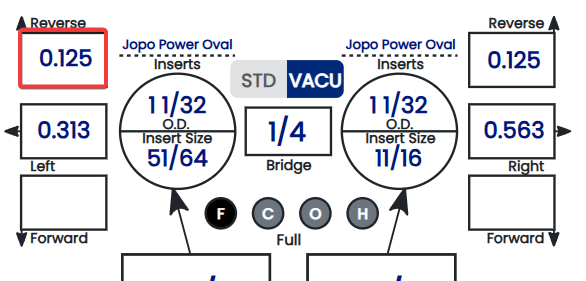
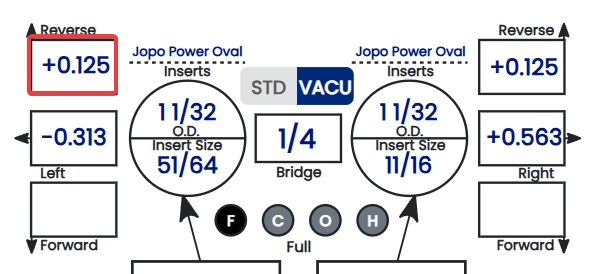
Different drill presses use different sign conventions when displaying pitch values — some treat **right pitch as positive**, others treat it as negative. This setting tells Spectre Cloud how your machine reads pitch so that the values displayed in spec sheets and the oval calculator match what your press expects. Getting this right eliminates sign-reversal errors at the drill head.

## 📐 Why Sign Convention Matters

Pitch direction — whether a value is positive or negative — is not universal across drill press manufacturers. If Spectre Cloud and your press use opposite conventions, a spec sheet showing `+1/8"` right pitch would need to be mentally reversed to `-1/8"` before drilling. Over time, that kind of manual correction introduces risk. This setting removes it entirely.

- ✅ When set correctly, pitch values in Spectre Cloud match your press readout exactly — no sign reversal needed at the machine.
- ✅ Reduces drilling errors caused by misread or mentally inverted pitch values.
- ✅ Particularly important in multi-staff shops where not every driller may know to apply a sign correction.
- ❌ If set incorrectly, every pitch value displayed will be the inverse of what the press expects — check this setting first if your drilled pitch is consistently opposite to the spec.

**Note:** This setting affects how pitch values are *displayed* throughout Spectre Cloud — it does not change the physical pitch recorded during a bowler fitting. The underlying measurement is preserved; only the sign used to represent it on screen is adjusted to match your machine.

## 🛠️ Configuring the Right Pitch Sign Convention

1. Navigate to **Settings** from the top menu.
2. Locate the relevant settings section. ⚠️ *Verify with your Spectre team: confirm which chapter or section of Settings this option lives in — likely Drill Press or Pitch Settings rather than Bit/Edge Settings.*
3. Find the **Right Pitch as Positive** option.
4. Select **Yes** if your press displays right pitch as a positive number, or **No** if your press displays right pitch as a negative number. ⚠️ *Verify with your Spectre team: confirm whether this is a Y/N toggle, a Yes/No dropdown, or a checkbox.*
5. The change takes effect immediately across all pitch displays in Spectre Cloud. ⚠️ *Verify with your Spectre team: confirm auto-save behavior, consistent with other settings in this chapter.*

## 📊 How the Setting Affects Displayed Pitch Values

<table id="bkmrk-physical-pitch-direc"><thead><tr><th>Physical Pitch Direction</th><th>Right Pitch as Positive: Yes</th><th>Right Pitch as Positive: No</th></tr></thead><tbody><tr><td>Right pitch</td><td>`+1/8"`</td><td>`-1/8"`</td></tr><tr><td>Left pitch</td><td>`-1/8"`</td><td>`+1/8"`</td></tr><tr><td>No lateral pitch</td><td>`0`</td><td>`0`</td></tr></tbody></table>

**Note:** Zero pitch is unaffected by this setting — a value of `0` is the same regardless of sign convention.

## 🔍 How to Determine Your Machine's Convention

If you are unsure how your press represents right pitch, the quickest way to confirm is to consult your press manual or run a known-pitch test drill and compare the readout to the spec. Common conventions by press type include:

- ✅ Many **dedicated bowling drill presses** (e.g. Jayhawk, Innovative) display right pitch as positive — but always verify with your specific model's documentation.
- ✅ Some **general-purpose milling machines** adapted for bowling use may follow a different convention depending on table orientation.
- ✅ When in doubt, drill a small test on a scrap plug with a known right pitch value and check the result against the spec before committing to a bowler's ball.

**Tip:** Check your press manual under "axis convention," "coordinate system," or "pitch direction" — these terms are commonly used in drill press documentation to describe sign behavior.

## 🏢 Multi-Press and Multi-Location Shops

If your shop runs more than one drill press, or manages multiple locations, different machines may use different sign conventions. ⚠️ *Verify with your Spectre team: confirm whether this setting can be configured independently per device or location, or whether it applies account-wide — consistent with the open question raised in 2.3.6.*

- ✅ Single-press shops: set once, leave alone.
- ✅ Multi-press shops: confirm each machine's convention and configure accordingly.
- ✅ Multi-location chains: coordinate with location managers before applying or changing this setting to avoid inconsistent pitch display across sites.

## ☁️ Scope of This Setting

This setting is stored at the account level and syncs across all devices. ⚠️ *Verify with your Spectre team: confirm per-user vs. per-account/shop scope, and whether per-device overrides are possible for multi-press environments — consistent with findings from 2.3.5 and 2.3.6.*

### Related Sections

- 2.3.6 — Configuring your milling machine orientation: flipping H/V for oval cuts
- 2.3.5 — Oval cut movement direction: V &amp; H, V only, H only, None
- 2.4.2 — Next setting in this chapter *(if applicable)*
- 4.x — Spec Sheet: entering and reviewing pitch values
- 5.x — Oval Calculator: pitch interaction with oval cuts

**Tip:** This is one of the first settings to configure when installing Spectre Cloud in a new shop. Get it right on day one and pitch values will be unambiguous for every driller on your team from the start.

```

# 2.4.2 Does your machine display Forward Thumb Pitch Positive? (YES / NO)

# Does your machine display Forward Thumb Pitch Positive? (YES / NO)

<span style="font-family: monospace; color: #6b7280;">2.4.2</span> <span style="border: 1px solid #d1d5db; color: #4b5563; padding: 2px 8px; border-radius: 3px; font-size: 0.85em;">calibration</span>

Just as drill presses vary in how they represent lateral (right/left) pitch direction, they also differ in how they display **forward and reverse thumb pitch**. This setting tells Spectre Cloud whether your machine treats forward thumb pitch as a positive or negative value, ensuring that pitch figures on spec sheets match your press readout without any manual sign correction at the drill head.

## 📐 Why Forward Thumb Pitch Sign Convention Matters

Forward pitch tilts the thumb hole opening toward the fingers — it is one of the most commonly applied pitch adjustments in pro shop fitting. If Spectre Cloud and your press disagree on whether forward pitch is positive or negative, every thumb pitch value on every spec sheet will need to be mentally inverted before drilling. This setting eliminates that friction.

- ✅ When set correctly, forward and reverse thumb pitch values display exactly as your press expects — no sign conversion required.
- ✅ Reduces risk of drilling the wrong pitch direction, particularly for less experienced staff.
- ✅ Works in tandem with the right pitch sign setting (2.4.1) to give a fully consistent pitch sign convention across both axes.
- ❌ If set incorrectly, forward pitch will display as a negative value (or vice versa) — the first sign of a problem is drilled pitch that is consistently the mirror of the spec.

**Note:** This setting adjusts how forward/reverse thumb pitch is *displayed* throughout Spectre Cloud. The physical pitch value recorded during a bowler fitting is preserved — only the sign used to represent it on screen changes to match your machine's convention.

## 📊 How the Setting Affects Displayed Pitch Values

<table id="bkmrk-physical-pitch-direc"><thead><tr><th>Physical Pitch Direction</th><th>Forward as Positive: Yes</th><th>Forward as Positive: No</th></tr></thead><tbody><tr><td>Forward pitch</td><td>`+1/4"`</td><td>`-1/4"`</td></tr><tr><td>Reverse pitch</td><td>`-1/4"`</td><td>`+1/4"`</td></tr><tr><td>Zero pitch</td><td>`0`</td><td>`0`</td></tr></tbody></table>

**Note:** As with the right pitch setting, a value of `0` is unaffected — zero pitch is zero pitch regardless of sign convention.

## 🛠️ Configuring Forward Thumb Pitch Sign Convention

1. Navigate to **Settings** from the top menu.
2. Locate the relevant settings section. ⚠️ *Verify with your Spectre team: confirm the exact section name, consistent with the navigation path confirmed for 2.4.1.*
3. Find the **Forward Thumb Pitch as Positive** option.
4. Select **Yes** if your press displays forward thumb pitch as a positive number, or **No** if your press displays it as a negative number. ⚠️ *Verify with your Spectre team: confirm whether this is a Y/N toggle, a Yes/No dropdown, or a checkbox — consistent with 2.4.1.*
5. The change takes effect immediately across all thumb pitch displays in Spectre Cloud. ⚠️ *Verify with your Spectre team: confirm auto-save behavior, consistent with other settings in this chapter.*

## 🔍 How to Determine Your Machine's Convention

If you are unsure how your press represents forward thumb pitch, consult your press manual or run a known-pitch test before drilling a bowler's ball:

1. Set up a scrap ball or plug on the press.
2. Dial in a small, known forward pitch value on the machine.
3. Check the sign your press displays for that value.
4. If the press shows a **positive** number — set this option to **Yes**.
5. If the press shows a **negative** number — set this option to **No**.

**Tip:** If you have already confirmed your press convention for right pitch (2.4.1), check whether the same sign logic applies to your forward/reverse axis — many presses use a consistent coordinate system across all axes, meaning both settings will be the same. However, do not assume this without verifying.

## ⚙️ 2.4.1 and 2.4.2 Together — Full Pitch Sign Configuration

Settings 2.4.1 and 2.4.2 work as a pair to fully define the pitch sign convention for your machine across both axes:

<table id="bkmrk-setting-axis-covered"><thead><tr><th>Setting</th><th>Axis Covered</th><th>Values Affected</th></tr></thead><tbody><tr><td>**2.4.1** — Right pitch as positive</td><td>Lateral (left/right)</td><td>Right and left pitch on all spec sheets</td></tr><tr><td>**2.4.2** — Forward thumb pitch as positive</td><td>Forward/reverse</td><td>Forward and reverse thumb pitch on all spec sheets</td></tr></tbody></table>

Configure both settings together when setting up Spectre Cloud for the first time, or whenever a new drill press is introduced to the shop. Once both are confirmed against your machine, pitch values throughout the app will be immediately usable at the press without translation.

## 🏢 Multi-Press and Multi-Location Shops

As raised in 2.4.1, different machines may use different sign conventions. The same considerations apply here — if this question is resolved for 2.4.1, apply the same answer to 2.4.2. ⚠️ *Verify with your Spectre team: confirm whether this setting can be configured independently per device or location, or whether it applies account-wide.*

- ✅ Single-press shops: configure both 2.4.1 and 2.4.2 once during initial setup.
- ✅ Multi-press shops: verify both axes on each machine before drilling.
- ✅ Multi-location chains: treat this as part of the new-location onboarding checklist alongside 2.4.1.

## ☁️ Scope of This Setting

This setting is stored at the account level and syncs across all devices, consistent with 2.4.1 and other settings in this chapter. ⚠️ *Verify with your Spectre team: confirm per-user vs. per-account/shop scope and whether per-device overrides are possible.*

### Related Sections

- 2.4.1 — Does your machine display right pitch as positive? Y/N
- 2.4.3 — Next setting in this chapter *(if applicable)*
- 2.3.6 — Configuring your milling machine orientation: flipping H/V for oval cuts
- 4.x — Spec Sheet: entering and reviewing pitch values
- 5.x — Oval Calculator: pitch interaction with oval cuts

**Tip:** Make 2.4.1 and 2.4.2 part of your new-staff onboarding checklist. A driller who understands the shop's pitch sign convention — and knows where to find these settings — will produce consistent results from day one rather than discovering a sign mismatch after a ball has already been drilled.

```

# 2.4.3 Display +/- in pitch tiles — showing direction arrows to avoid errors

# Display +/- in pitch tiles — showing direction arrows to avoid errors

<span style="font-family: monospace; color: #6b7280;">2.4.3</span> <span style="border: 1px solid #d1d5db; color: #4b5563; padding: 2px 8px; border-radius: 3px; font-size: 0.85em;">calibration</span>

Even with sign conventions correctly configured in 2.4.1 and 2.4.2, a raw `+` or `-` symbol on a pitch tile can be easy to miss at a glance — especially under shop lighting or on a small screen. The **Display +/- in Pitch Tiles** setting adds a visible directional indicator to each pitch tile, making forward, reverse, right, and left pitch unmistakable without requiring the driller to interpret a sign.

## 🔍 What Are Pitch Tiles?

Pitch tiles are the individual display blocks within a spec sheet that show each pitch value — thumb forward/reverse, thumb lateral, and finger pitch. When this setting is enabled, each tile gains a directional arrow or symbol alongside the numeric value, giving the driller an immediate visual cue about pitch direction rather than relying on the `+` or `-` sign alone.

- ✅ Directional indicators are especially helpful for less experienced drillers who may not yet have sign conventions fully internalized.
- ✅ Useful in high-volume shops where spec sheets are read quickly under pressure.
- ✅ Reduces the risk of a misread sign causing a pitch to be drilled in the wrong direction.
- ❌ Experienced drillers who are fully comfortable with sign notation may prefer to leave this off for a cleaner spec sheet display.

**Note:** This is a display preference only — enabling or disabling it has no effect on the pitch values stored in spec sheets or transmitted to a tethered drill press. ⚠️ *Verify with your Spectre team: confirm the exact visual form of the directional indicator — whether it is an arrow (e.g. ↑ ↓ ← →), a word label (e.g. "Forward," "Right"), or a combined symbol+label.*

## 📋 How Pitch Tiles Appear With and Without This Setting

<table id="bkmrk-pitch-value-display-"><thead><tr><th>Pitch Value</th><th>Display Off</th><th>Display On</th></tr></thead><tbody><tr><td>Forward thumb pitch</td><td>`+1/4"`</td><td>`↑ +1/4"` *(Forward)*</td></tr><tr><td>Reverse thumb pitch</td><td>`-1/4"`</td><td>`↓ -1/4"` *(Reverse)*</td></tr><tr><td>Right lateral pitch</td><td>`+1/8"`</td><td>`→ +1/8"` *(Right)*</td></tr><tr><td>Left lateral pitch</td><td>`-1/8"`</td><td>`← -1/8"` *(Left)*</td></tr><tr><td>Zero pitch</td><td>`0`</td><td>`0` *(no indicator needed)*</td></tr></tbody></table>

**Note:** The examples above illustrate the concept — the exact arrow style and label wording may differ in the app. ⚠️ *Verify with your Spectre team: confirm the precise visual format and whether zero pitch tiles display any indicator at all.*

## 🛠️ Enabling or Disabling Direction Indicators

1. Navigate to **Settings** from the top menu.
2. Locate the relevant settings section. ⚠️ *Verify with your Spectre team: confirm the exact section name, consistent with the navigation path confirmed for 2.4.1 and 2.4.2.*
3. Find the **Display +/- in Pitch Tiles** option.
4. Toggle the setting on or off according to your shop's preference. ⚠️ *Verify with your Spectre team: confirm whether this is a toggle, checkbox, or other control.*
5. Open any spec sheet to confirm the pitch tiles now display as expected.
6. The change takes effect immediately. ⚠️ *Verify with your Spectre team: confirm auto-save behavior, consistent with other settings in this chapter.*

## ⚙️ How This Setting Relates to 2.4.1 and 2.4.2

Settings 2.4.1, 2.4.2, and 2.4.3 form a complete pitch display configuration set. Each addresses a different layer of how pitch values are communicated to the driller:

<table id="bkmrk-setting-what-it-cont"><thead><tr><th>Setting</th><th>What It Controls</th><th>Primary Benefit</th></tr></thead><tbody><tr><td>**2.4.1** — Right pitch as positive</td><td>Sign convention for lateral pitch</td><td>Matches press readout on the lateral axis</td></tr><tr><td>**2.4.2** — Forward thumb pitch as positive</td><td>Sign convention for forward/reverse pitch</td><td>Matches press readout on the forward/reverse axis</td></tr><tr><td>**2.4.3** — Display +/- in pitch tiles</td><td>Visual directional indicator on each tile</td><td>Makes direction unmistakable at a glance</td></tr></tbody></table>

Configure all three together during initial shop setup for the most consistent and error-resistant pitch display experience.

## 📱 Mobile and Tablet Considerations

On smaller screens — particularly smartphones near the recommended 8" minimum — pitch tiles are more compact and individual characters can be harder to read. Enabling direction indicators is especially worthwhile in these environments, where a `+` and `-` may be visually similar at a glance.

- ✅ Tablet and desktop: directional indicators add useful clarity without significantly increasing tile size.
- ✅ Mobile / small screen: strongly recommended — the visual indicator is more scannable than a sign character alone.

## ☁️ Scope of This Setting

This setting is stored at the account level and syncs across all devices, consistent with 2.4.1, 2.4.2, and other settings in this chapter. ⚠️ *Verify with your Spectre team: confirm per-user vs. per-account/shop scope, consistent with the open question carried across all 2.4.x pages.*

### Related Sections

- 2.4.2 — Does your machine display forward thumb pitch as positive? Y/N
- 2.4.1 — Does your machine display right pitch as positive? Y/N
- 2.4.4 — Next setting in this chapter *(if applicable)*
- 4.x — Spec Sheet: entering and reviewing pitch values
- 1.x — Getting Started: initial shop setup checklist

**Tip:** If your shop trains new drillers regularly, leave this setting enabled by default. The directional indicators act as a built-in reminder of pitch direction until sign conventions become second nature — and they cost nothing for experienced drillers who already know what the signs mean.

```

# 2.4.4 Matching Spectre output to your specific drill press brand/model

# Matching Spectre output to your specific drill press brand/model

<span style="font-family: monospace; color: #6b7280;">2.4.4</span> <span style="background: #f5a623; color: #fff; padding: 2px 8px; border-radius: 3px; font-size: 0.85em; font-weight: 600; letter-spacing: 0.05em;">TIP</span> <span style="border: 1px solid #d1d5db; color: #4b5563; padding: 2px 8px; border-radius: 3px; font-size: 0.85em;">calibration</span>

Spectre Cloud includes a **drill press brand and model selector** that automatically configures the pitch sign convention and axis orientation settings to match your machine. For supported presses, this replaces the need to manually work through 2.4.1, 2.4.2, and 2.4.3 individually. A reference table of known conventions is also provided for presses not yet in the selector, or for shops that prefer to configure settings manually.

## 🛠️ Using the Brand / Model Selector

Selecting your drill press from the list automatically applies the correct values for the following settings in one step:

- ✅ **2.4.1** — Right pitch as positive (Y/N)
- ✅ **2.4.2** — Forward thumb pitch as positive (Y/N)
- ✅ **2.4.3** — Display +/- in pitch tiles
- ✅ **2.3.6** — H/V flip for oval cut movement direction

**Note:** After applying a preset, you can still override any individual setting manually if your machine has been modified, mounted non-standardly, or differs from the factory default for that model. The preset is a starting point — your manual configuration always takes precedence. ⚠️ *Verify with your Spectre team: confirm the full list of settings that a brand/model preset configures, and whether overrides persist if the preset is reapplied later.*

## 📋 Selecting Your Drill Press

1. Navigate to **Settings** from the top menu.
2. Locate the relevant settings section. ⚠️ *Verify with your Spectre team: confirm the exact section name, consistent with the navigation path confirmed for 2.4.1–2.4.3.*
3. Find the **Drill Press Brand / Model** selector.
4. Choose your press manufacturer from the brand dropdown. ⚠️ *Verify with your Spectre team: confirm whether brand and model are separate dropdowns or a single combined selector.*
5. Select your specific model from the model list.
6. Spectre Cloud will apply the known settings for that press automatically. A confirmation message or summary of applied values should appear. ⚠️ *Verify with your Spectre team: confirm whether a confirmation dialog or settings summary is shown after selection.*
7. Review the individual settings in 2.4.1–2.4.3 and 2.3.6 to confirm the applied values look correct for your machine.
8. If anything looks wrong — for example, your machine is a non-standard variant of the selected model — adjust the affected settings manually.

## 📊 Known Drill Press Conventions Reference Table

If your press is not listed in the selector, or if you prefer to configure settings manually, use the table below as a starting point. Always verify against your press documentation or a test drill before committing to a bowler's ball. ⚠️ *Verify with your Spectre team: confirm all entries in this table, add any missing brands/models, and remove any that are inaccurate or no longer supported.*

<table id="bkmrk-brand-model-right-pi"><thead><tr><th>Brand</th><th>Model</th><th>Right Pitch Positive</th><th>Fwd Thumb Pitch Positive</th><th>H/V Flip</th></tr></thead><tbody><tr><td>Jayhawk</td><td>Standard</td><td>Yes</td><td>Yes</td><td>No</td></tr><tr><td>Innovative</td><td>Standard</td><td>Yes</td><td>Yes</td><td>No</td></tr><tr><td>*Additional brands*</td><td>*—*</td><td>*—*</td><td>*—*</td><td>*—*</td></tr></tbody></table>

**Note:** The table above contains placeholder entries only — all values must be verified with the Spectre team before publishing. Do not rely on these figures for drilling without confirmation.

## 🔌 My Press Isn't Listed — What Do I Do?

If your drill press brand or model does not appear in the selector, configure the relevant settings manually using the guidance in 2.4.1, 2.4.2, 2.4.3, and 2.3.6. You can also request that your press be added to the selector:

- ✅ Contact the Spectre Cloud support team at `spectrebowling.com` with your press brand, model, and known axis conventions.
- ✅ The BowlDevs team reviews submissions and adds verified presses to the selector in future updates.
- ✅ In the meantime, manual configuration works identically to a preset — there is no functional difference once the settings are correctly applied.

**Tip:** When submitting a press for addition, include your press manual's axis convention diagram if possible — this speeds up verification and reduces the chance of an incorrect entry being published.

## 🔄 When to Revisit This Setting

Once configured, the brand/model selector does not need to be revisited unless something changes in your shop setup. Revisit this page if:

- ✅ You acquire a new or replacement drill press.
- ✅ Your press is serviced, remounted, or physically reoriented.
- ✅ You notice pitch values drilling consistently in the wrong direction after a shop change.
- ✅ A Spectre Cloud update adds a previously unlisted model for your existing press.

## 🏢 Multi-Press and Multi-Location Shops

If your shop operates multiple presses — or multiple locations each with their own machine — each press may require a different preset. ⚠️ *Verify with your Spectre team: confirm whether the brand/model selector can be configured independently per device or location, consistent with the open question carried across 2.3.5 through 2.4.3. This page is the most important place to resolve that question, as the selector directly sets multiple downstream values simultaneously.*

- ✅ Single-press shops: select your model once during initial setup.
- ✅ Multi-press shops: confirm each machine's brand and model separately, and note any that require manual overrides.
- ✅ Multi-location chains: treat brand/model selection as a mandatory step in new-location onboarding alongside account and billing setup.

## ☁️ Scope of This Setting

The brand/model selection and all settings it configures are stored at the account level and sync across devices, consistent with other settings in this chapter. ⚠️ *Verify with your Spectre team: confirm per-user vs. per-account/shop scope, and whether the selector result can be overridden per device for multi-press environments — this is the definitive place to resolve the scope question carried across 2.3.5 through 2.4.3.*

### Related Sections

- 2.4.3 — Display +/- in pitch tiles: showing direction arrows to avoid errors
- 2.4.2 — Does your machine display forward thumb pitch as positive? Y/N
- 2.4.1 — Does your machine display right pitch as positive? Y/N
- 2.3.6 — Configuring your milling machine orientation: flipping H/V for oval cuts
- 2.4.5 — Next setting in this chapter *(if applicable)*
- 1.x — Getting Started: initial shop setup checklist

**Tip:** The brand/model selector is the fastest way to get Spectre Cloud aligned with your press — but always spot-check the applied settings against your machine before your first drill session. A two-minute review of 2.4.1–2.4.3 after selecting a preset is cheap insurance against a misdrilled ball.

```

# 2.5 — Layout Preferences

# 2.5.1 Default Layout Type — VLS, 2LS, PAL (Mo Pinel), or NONE

# Default Layout Type — VLS, 2LS, PAL (Mo Pinel), or NONE

<span style="font-family: monospace; color: #6b7280;">2.5.1</span> <span style="border: 1px solid #d1d5db; color: #4b5563; padding: 2px 8px; border-radius: 3px; font-size: 0.85em;">layout</span>

The **Default Layout Type** setting controls which layout system Spectre Cloud pre-selects when a new spec sheet is created. Rather than choosing a layout method from scratch every time, your preferred system is ready to go from the moment a sheet is opened. This setting can be changed at any time and overridden on individual spec sheets without affecting the default.

## 🎳 The Four Layout Types

Spectre Cloud supports three active layout systems plus a no-layout option. Each system represents a different method for determining where a bowling ball's pin and mass bias are positioned relative to the bowler's track and grip center.

### 📐 VLS — Vertical Line System

The **Vertical Line System** positions the pin along a vertical line relative to the grip center, with the mass bias placed at a specified distance below the fingers. VLS is widely used in the industry and is the default layout method for many pro shops.

- ✅ Simple, widely understood, and IBPSIA-endorsed.
- ✅ Well-suited for shops serving a broad range of bowler skill levels.
- ✅ Pin distance and VAL (Vertical Axis Line) angle are the primary inputs.

### 📐 2LS — Two-Layout System

The **Two-Layout System** uses two measurements — typically pin-to-PAP (Positive Axis Point) distance and pin buffer — to define ball motion. 2LS is popular among coaches and advanced bowlers who want a more precise relationship between ball dynamics and the bowler's PAP.

- ✅ More precise control over ball motion characteristics.
- ✅ Preferred by competitive bowlers and coaches working with PAP-based fitting.
- ✅ Requires accurate PAP measurement for reliable results.

### 📐 Dual Angle

The **Dual Angle** layout system defines ball position using three values: drilling angle, pin distance, and VAL angle. It offers the most granular control over ball motion and is favored by advanced fitters and coaches who want to fine-tune skid, flip, and continuation independently.

- ✅ Highest level of precision — three input values fully define the layout.
- ✅ Widely used in competitive and coaching environments.
- ✅ Best suited for experienced fitters comfortable with all three input values.
- ❌ More complex than VLS or 2LS — not recommended as a default for shops serving primarily recreational bowlers.

### 📐 None

Selecting **None** means no layout system is pre-selected when a new spec sheet is created. The layout section of the spec sheet is left blank until the driller chooses a method manually.

- ✅ Suits shops that use different layout methods depending on the bowler or ball.
- ✅ Prevents any single method from being applied by default when the shop has no consistent preference.
- ❌ Requires a manual selection on every spec sheet — adds a step to each fitting session.

## 📊 Layout Type Comparison

<table id="bkmrk-layout-type-primary-"><thead><tr><th>Layout Type</th><th>Primary Inputs</th><th>Best For</th><th>Complexity</th></tr></thead><tbody><tr><td>**VLS**</td><td>Pin distance, VAL angle, MB position</td><td>General pro shop use; mixed skill levels</td><td>Low</td></tr><tr><td>**2LS**</td><td>Pin-to-PAP distance, pin buffer</td><td>PAP-based fitting; competitive bowlers</td><td>Medium</td></tr><tr><td>**Dual Angle**</td><td>Drilling angle, pin distance, VAL angle</td><td>Advanced fitters; competitive and coaching</td><td>High</td></tr><tr><td>**None**</td><td>—</td><td>Mixed-method shops; manual selection each time</td><td>—</td></tr></tbody></table>

**Tip:** Not sure which to set as your default? If the majority of your bowlers are recreational or beginner, **VLS** is the most accessible starting point. If you work primarily with league or competitive bowlers, consider **2LS** or **Dual Angle** based on your fitting philosophy.

## 🛠️ Setting the Default Layout Type

1. Navigate to **Settings** from the top menu.
2. Locate the relevant settings section. ⚠️ *Verify with your Spectre team: confirm the exact section name for 2.5.x settings.*
3. Find the **Default Layout Type** option.
4. Select **VLS**, **2LS**, **Dual Angle**, or **None** from the available options. ⚠️ *Verify with your Spectre team: confirm whether this is a dropdown, radio button group, or segmented control.*
5. The change takes effect immediately for all new spec sheets created going forward. ⚠️ *Verify with your Spectre team: confirm auto-save behavior, consistent with other settings in Book 02.*

**Note:** Changing the default layout type does not affect any existing spec sheets — previously saved layouts remain exactly as they were recorded.

## 🔄 Overriding the Default on Individual Spec Sheets

The default layout type is a convenience setting — it does not lock every spec sheet to that method. On any individual spec sheet, the layout type can be changed freely before or during the fitting without affecting the account default.

- ✅ Change the layout type on a spec sheet at any time before saving.
- ✅ The account default remains unchanged — the override applies to that sheet only.
- ✅ Cloned spec sheets carry forward the layout type of the original, not the current default. ⚠️ *Verify with your Spectre team: confirm clone behavior for layout type.*

## 🔌 Arsenal Plus Plugin

Users with the **Arsenal Plus plugin** have access to additional layout features including suggested layouts, layout conversion, and 3D layout rendering. The default layout type set here determines which system those suggestions and conversions are based on. ⚠️ *Verify with your Spectre team: confirm how the default layout type interacts with Arsenal Plus suggested layouts and conversion tools.*

## ☁️ Scope of This Setting

This setting is stored at the account level and applies to all new spec sheets created on any device. ⚠️ *Verify with your Spectre team: confirm per-user vs. per-account/shop scope, consistent with the open question carried across 2.3.5 through 2.4.4.*

### Related Sections

- 2.5.2 — Next setting in this chapter *(if applicable)*
- 4.x — Spec Sheet: selecting and entering a layout
- 7.x — Arsenal: layouts and ball motion
- 7.x — Arsenal Plus: suggested layouts and layout conversion
- 1.x — Getting Started: initial shop setup checklist

**Tip:** If your shop is transitioning from one layout system to another — for example, moving from VLS to Dual Angle as your team's skills develop — update this setting to reflect the new default and leave a note in your shop's internal documentation. Bowlers with existing spec sheets will retain their original layout type in history, making it easy to compare old and new approaches side by side.

```

# 2.5.1.1 VLS — Storm system for bowlers using thumb

# VLS — Storm system for bowlers using thumb

<span style="font-family: monospace; color: #6b7280;">2.5.1a</span> <span style="border: 1px solid #d1d5db; color: #4b5563; padding: 2px 8px; border-radius: 3px; font-size: 0.85em;">layout</span>

The **VLS (Versatile Layout System)** is a ball layout method developed by **Storm Bowling** that determines pin and mass bias placement using a bowler's track, PAP (Positive Axis Point), and a small set of straightforward measurements. Spectre Cloud implements VLS as one of its four supported layout types, and this page explains how the system works and how it is represented within a Spectre Cloud spec sheet for bowlers who use their thumb.

**Note:** VLS is a Storm Bowling proprietary system. The implementation in Spectre Cloud is intended to reflect Storm's published VLS methodology. For the most current version of the VLS system, consult Storm's official fitting and drilling documentation. ⚠️ *Verify with your Spectre team: confirm that Spectre Cloud's VLS implementation is up to date with Storm's current published system.*

## 🎳 What Is VLS?

VLS is designed to make ball layouts accessible and repeatable without requiring deep knowledge of ball motion physics. It uses a bowler's track and a pin distance to position the pin relative to the VAL (Vertical Axis Line), then places the mass bias at a defined location below the fingers. The result is a layout that is easy to communicate, easy to replicate, and well-suited for pro shops serving a wide range of skill levels.

- ✅ Developed and published by Storm Bowling — widely recognised and used across the industry.
- ✅ Accessible to fitters of all experience levels — relatively few inputs required.
- ✅ Produces consistent, repeatable results when PAP and track are measured accurately.
- ✅ Suitable for the majority of thumb bowlers from recreational to competitive league level.
- ❌ Less granular than Dual Angle for fitters who need precise control over skid, flip, and continuation independently.

## 📐 VLS Inputs for Thumb Bowlers

For a bowler who uses their thumb, VLS requires the following measurements and values to be recorded in the spec sheet. Spectre Cloud will prompt for each of these when VLS is the selected layout type.

<table id="bkmrk-input-what-it-define"><thead><tr><th>Input</th><th>What It Defines</th><th>Typical Range</th></tr></thead><tbody><tr><td>**PAP Distance**</td><td>Distance from the bowler's PAP to the pin</td><td>3" – 5"</td></tr><tr><td>**VAL Angle**</td><td>Angle of the pin relative to the bowler's Vertical Axis Line</td><td>0° – 90°</td></tr><tr><td>**MB (Mass Bias) Position**</td><td>Placement of the mass bias relative to the grip center</td><td>Defined by Storm VLS chart</td></tr><tr><td>**Track**</td><td>The bowler's ball track — used to orient the layout correctly</td><td>High, medium, or low track</td></tr></tbody></table>

**Note:** Typical ranges above are general guidelines. Always refer to Storm's published VLS charts and the bowler's actual PAP measurement for precise values. ⚠️ *Verify with your Spectre team: confirm the exact input fields Spectre Cloud displays for VLS thumb bowlers, and whether any additional fields are required beyond those listed above.*

## 🖥️ VLS in a Spectre Cloud Spec Sheet

When VLS is selected as the layout type on a spec sheet — either as the account default (see 2.5.1) or chosen manually — Spectre Cloud displays the VLS input fields in the layout section of the sheet. Entering the bowler's PAP, VAL angle, MB position, and track produces a complete VLS layout record that is saved to the bowler's history alongside all other spec sheet data.

- ✅ VLS layout data is stored with the spec sheet and visible in the bowler's drilling history.
- ✅ When a spec sheet is cloned for a new ball, VLS inputs carry forward — review and update as needed for the new equipment.
- ✅ Arsenal Plus users can access suggested layouts and layout conversion tools based on the recorded VLS data. ⚠️ *Verify with your Spectre team: confirm the extent of Arsenal Plus integration with VLS-type spec sheets.*

## 📱 VLS vs. Thumbless Bowlers

This page covers VLS for bowlers who **use their thumb**. Thumbless (two-handed or one-handed no-thumb) bowlers have a different PAP location and track profile, which affects how VLS inputs are measured and entered. ⚠️ *Verify with your Spectre team: confirm whether a separate page (e.g. 2.5.1.2) covers VLS for thumbless bowlers, and whether Spectre Cloud handles thumbless VLS differently in the UI.*

- ✅ Thumb bowlers: PAP is typically located to the right of the track centerline (right-handed) with a standard positive axis tilt.
- ✅ Thumbless bowlers: PAP location and tilt differ significantly — do not use thumb-bowler VLS inputs for a thumbless bowler without adjustment.

## ✨ Tips for Accurate VLS Layouts

- ✅ Measure the bowler's PAP from a freshly thrown ball using a fresh ink or powder track — an old or smudged track will produce an inaccurate PAP and an off-target layout.
- ✅ Confirm the bowler's track type (high, medium, low) before entering layout values — track type directly affects where VLS places the pin relative to the VAL.
- ✅ Cross-reference your inputs against Storm's published VLS chart for the intended ball motion result before drilling.
- ✅ After drilling, record any observed ball motion notes in the spec sheet comments field — this builds a reference history that helps refine future layouts for the same bowler.

### Related Sections

- 2.5.1 — Default layout type: VLS, 2LS, Dual Angle, None
- 2.5.1.2 — VLS: thumbless bowlers *(if applicable)*
- 2.5.2 — Next setting in this chapter *(if applicable)*
- 4.x — Spec Sheet: selecting and entering a layout
- 7.x — Arsenal Plus: suggested layouts and layout conversion

**Tip:** VLS is an excellent default layout system for shops that serve a broad bowler base. Its simplicity and Storm's wide brand recognition mean most bowlers — and most staff — will already have some familiarity with it, making conversations about layout choices easier on the shop floor.

```

# 2.5.1.2 2LS — Storm system for two-handed bowlers

# 2LS — Storm system for two-handed bowlers

<span style="font-family: monospace; color: #6b7280;">2.5.1b</span> <span style="border: 1px solid #d1d5db; color: #4b5563; padding: 2px 8px; border-radius: 3px; font-size: 0.85em;">layout</span>

The **2LS (Two-Layout System)** is a ball layout method developed by **Storm Bowling** specifically to address the unique PAP location and track profile of **two-handed bowlers**. Where VLS was designed with traditional thumb bowlers in mind, 2LS accounts for the significantly different axis tilt and rotation that two-handed delivery produces, providing a layout framework that is purpose-built for this growing style of play. Spectre Cloud implements 2LS as one of its four supported layout types.

**Note:** 2LS is a Storm Bowling proprietary system. The implementation in Spectre Cloud is intended to reflect Storm's published 2LS methodology. For the most current version of the system, consult Storm's official fitting and drilling documentation. ⚠️ *Verify with your Spectre team: confirm that Spectre Cloud's 2LS implementation is up to date with Storm's current published system.*

## 🎳 What Is 2LS?

Two-handed bowlers generate significantly higher axis rotation and lower axis tilt than most traditional thumb bowlers, placing their PAP in a different location on the ball and producing a track that behaves differently through the front part of the lane. Standard VLS inputs designed around a traditional PAP location do not translate reliably to two-handed players. 2LS was developed to give fitters a structured, repeatable layout method that works correctly for this delivery style.

- ✅ Purpose-built for two-handed bowlers — accounts for their typically higher rotation and lower tilt.
- ✅ Developed and published by Storm Bowling — a recognised standard for fitting two-handed players.
- ✅ Provides the same repeatable, chart-driven approach as VLS but calibrated for a different PAP profile.
- ✅ Growing in relevance as two-handed bowling continues to increase in popularity at all competitive levels.
- ❌ Not appropriate for traditional thumb bowlers — use VLS or Dual Angle for those fittings.
- ❌ Requires an accurate PAP measurement from the bowler's actual delivery — an estimated or assumed PAP will produce unreliable layout results.

## 📐 2LS Inputs for Two-Handed Bowlers

Spectre Cloud displays the following input fields when 2LS is selected as the layout type on a spec sheet. As with VLS, accurate PAP measurement is the foundation of a reliable layout.

<table id="bkmrk-input-what-it-define"><thead><tr><th>Input</th><th>What It Defines</th><th>Notes</th></tr></thead><tbody><tr><td>**PAP Distance**</td><td>Distance from the bowler's PAP to the pin</td><td>Two-handed PAP location differs from thumb bowlers — measure from actual delivery</td></tr><tr><td>**VAL Angle**</td><td>Angle of the pin relative to the bowler's Vertical Axis Line</td><td>Two-handed bowlers typically have a higher VAL angle than thumb bowlers</td></tr><tr><td>**MB (Mass Bias) Position**</td><td>Placement of the mass bias relative to the grip center</td><td>Defined by Storm 2LS chart for two-handed delivery</td></tr><tr><td>**Track**</td><td>The bowler's ball track — used to orient the layout correctly</td><td>Two-handed tracks are typically lower and more consistent than traditional styles</td></tr></tbody></table>

**Note:** ⚠️ *Verify with your Spectre team: confirm the exact input fields Spectre Cloud displays for 2LS spec sheets, and whether the field set differs from VLS beyond the values entered.*

## 📊 VLS vs. 2LS — Choosing the Right System

<table id="bkmrk-%C2%A0-vls-2ls-designed-f"><thead><tr><th> </th><th>VLS</th><th>2LS</th></tr></thead><tbody><tr><td>**Designed for**</td><td>Traditional thumb bowlers</td><td>Two-handed (thumbless) bowlers</td></tr><tr><td>**PAP profile**</td><td>Standard right-of-track location (RH bowler)</td><td>Higher rotation, lower tilt — different PAP position</td></tr><tr><td>**Track type**</td><td>High, medium, or low track</td><td>Typically low and consistent</td></tr><tr><td>**Input complexity**</td><td>Low — few inputs, widely understood</td><td>Low — same structure as VLS, different calibration</td></tr><tr><td>**Published by**</td><td>Storm Bowling</td><td>Storm Bowling</td></tr></tbody></table>

**Tip:** If a bowler switches from a traditional thumb style to two-handed, create a new spec sheet using 2LS rather than modifying their existing VLS sheets. Their historical VLS records remain intact for reference, and the new 2LS sheets reflect their current delivery accurately.

## 🖥️ 2LS in a Spectre Cloud Spec Sheet

When 2LS is selected as the layout type — either as the account default (see 2.5.1) or chosen manually on an individual sheet — Spectre Cloud displays the 2LS input fields in the layout section. Completed 2LS layouts are saved to the bowler's spec sheet history alongside all other fitting data.

- ✅ 2LS layout data is stored with the spec sheet and visible in the bowler's drilling history.
- ✅ Cloned spec sheets carry forward 2LS inputs — review and update for new equipment before drilling.
- ✅ Arsenal Plus users can access suggested layouts and layout conversion tools based on recorded 2LS data. ⚠️ *Verify with your Spectre team: confirm the extent of Arsenal Plus integration with 2LS-type spec sheets, and whether suggested layouts account for the two-handed PAP profile.*

## ✨ Tips for Accurate 2LS Layouts

- ✅ Always measure the bowler's PAP from a freshly thrown ball — two-handed PAP locations are highly individual and should never be estimated.
- ✅ Be aware that two-handed bowlers often have more consistent tracks than thumb bowlers — use this to your advantage when orienting the layout.
- ✅ Cross-reference your inputs against Storm's published 2LS chart for the intended ball motion result before drilling.
- ✅ If the bowler is new to two-handed delivery, consider waiting until their PAP has stabilised before committing to a reactive resin layout — early-stage two-handed bowlers can have shifting PAP locations as their technique develops.
- ✅ Record observed ball motion notes in the spec sheet comments field after the ball has been thrown — this builds a reference history for future 2LS fittings with the same bowler.

## 🔌 Arsenal Plus Plugin

Users with the **Arsenal Plus plugin** have access to suggested layouts, layout conversion, and 3D layout rendering. For two-handed bowlers, ensure that the bowler's delivery style is correctly recorded in their profile so that Arsenal Plus suggestions are calibrated for the 2LS PAP profile rather than a standard thumb bowler baseline. ⚠️ *Verify with your Spectre team: confirm how Spectre Cloud identifies a bowler as two-handed within the system, and whether this affects Arsenal Plus suggestions automatically or requires a manual setting.*

### Related Sections

- 2.5.1.1 — VLS: Storm layout system for bowlers using their thumb
- 2.5.1.3 — Dual Angle layout system *(if applicable)*
- 2.5.1 — Default layout type: VLS, 2LS, Dual Angle, None
- 4.x — Spec Sheet: selecting and entering a layout
- 3.x — Bowlers: recording delivery style in a bowler profile
- 7.x — Arsenal Plus: suggested layouts and layout conversion

**Tip:** Two-handed bowling is no longer a niche style — many pro shops now see it regularly across all age groups and skill levels. Having 2LS configured and understood in Spectre Cloud means you are ready to fit these bowlers with the same confidence and precision as any traditional thumb bowler.

```

# 2.5.1.3 PAL / Dual Angle system

# PAL / Dual Angle system

<span style="font-family: monospace; color: #6b7280;">2.5.1c</span> <span style="border: 1px solid #d1d5db; color: #4b5563; padding: 2px 8px; border-radius: 3px; font-size: 0.85em;">layout</span>

The **PAL (Performance Axis Layout) system** — referred to in Spectre Cloud as **Dual Angle** — is a ball layout method that uses three measured values to precisely define pin and mass bias placement relative to a bowler's PAP. Where VLS and 2LS use a chart-driven approach with a small number of inputs, PAL gives fitters direct, independent control over three distinct aspects of ball motion. It is the most precise of the four layout types supported in Spectre Cloud and is widely used in competitive and coaching environments.

**Note:** The PAL system is commonly referred to as the **Dual Angle layout** within Spectre Cloud's interface and throughout this wiki. The two names refer to the same system — PAL is the full name, Dual Angle is the shorthand. Both terms are used interchangeably in the industry. ⚠️ *Verify with your Spectre team: confirm the exact label used in the Spectre Cloud UI — whether it reads "Dual Angle," "PAL," or both.*

## 🎳 What Is the PAL / Dual Angle System?

The PAL system was developed to give pro shop operators and coaches a layout method where each of the three input values maps directly and independently to a specific aspect of ball motion — skid length, flip potential, and continuation through the pins. By adjusting each value separately, a fitter can tune a ball's reaction with a level of precision that chart-based systems like VLS and 2LS do not offer.

- ✅ Three inputs provide independent control over three distinct ball motion characteristics.
- ✅ Widely used in competitive bowling, coaching programmes, and high-performance fitting environments.
- ✅ Works for both thumb and thumbless bowlers — inputs are derived from the bowler's PAP regardless of delivery style.
- ✅ Results are highly repeatable when PAP is measured accurately and consistently.
- ❌ More complex than VLS or 2LS — requires a fitter comfortable working with three interdependent angle measurements.
- ❌ Not recommended as a default for shops serving primarily recreational bowlers — the added precision is most valuable for bowlers who can feel and articulate subtle differences in ball reaction.

## 📐 The Three PAL Inputs

Each of the three PAL inputs controls a different component of the ball's motion through the lane. Spectre Cloud displays all three as input fields when Dual Angle is the selected layout type on a spec sheet.

<table id="bkmrk-input-what-it-contro"><thead><tr><th>Input</th><th>What It Controls</th><th>Effect on Ball Motion</th></tr></thead><tbody><tr><td>**Drilling Angle**</td><td>Angle from the PAP to the pin, measured relative to the VAL</td><td>Controls the flip potential and overall shape of the back-end reaction</td></tr><tr><td>**Pin Distance**</td><td>Distance from the PAP to the pin</td><td>Controls the length of skid — lower distance = earlier roll, higher = longer skid</td></tr><tr><td>**VAL Angle**</td><td>Angle of the mass bias relative to the VAL</td><td>Controls continuation through the pins and the smoothness of the transition</td></tr></tbody></table>

**Note:** The three inputs interact with each other and with the ball's RG (Radius of Gyration) and differential values. Changes to one input will influence the overall reaction shape even if the other two remain constant — always evaluate the full layout as a system rather than in isolation. ⚠️ *Verify with your Spectre team: confirm the exact field labels used in Spectre Cloud's Dual Angle layout section, as naming conventions can vary between implementations of the PAL system.*

## 📊 PAL / Dual Angle vs. VLS and 2LS

<table id="bkmrk-%C2%A0-vls-2ls-pal-%2F-dual"><thead><tr><th> </th><th>VLS</th><th>2LS</th><th>PAL / Dual Angle</th></tr></thead><tbody><tr><td>**Number of inputs**</td><td>3–4</td><td>3–4</td><td>3</td></tr><tr><td>**Input method**</td><td>Chart-driven</td><td>Chart-driven</td><td>Direct angle measurement</td></tr><tr><td>**Motion control**</td><td>Combined — one set of inputs shapes overall reaction</td><td>Combined — calibrated for two-handed delivery</td><td>Independent — each input targets a specific motion characteristic</td></tr><tr><td>**Best for**</td><td>General pro shop; recreational to league</td><td>Two-handed bowlers</td><td>Competitive, coaching, high-performance fitting</td></tr><tr><td>**Fitter experience needed**</td><td>Low to medium</td><td>Low to medium</td><td>Medium to high</td></tr></tbody></table>

## 🖥️ PAL / Dual Angle in a Spectre Cloud Spec Sheet

When Dual Angle is selected as the layout type — either as the account default (see 2.5.1) or chosen manually on an individual sheet — Spectre Cloud displays the three PAL input fields in the layout section of the spec sheet. All three values are saved to the bowler's spec sheet history alongside the rest of their fitting data.

- ✅ All three PAL inputs are stored with the spec sheet and visible in the bowler's drilling history.
- ✅ Cloned spec sheets carry forward Dual Angle inputs — always review all three values for the new equipment before drilling, as ball RG and differential will differ between models.
- ✅ Arsenal Plus users can access suggested layouts, layout conversion, and 3D layout rendering based on recorded Dual Angle data. ⚠️ *Verify with your Spectre team: confirm the extent of Arsenal Plus integration with Dual Angle spec sheets, including whether 3D rendering reflects the three PAL inputs accurately.*

## ✨ Tips for Accurate PAL / Dual Angle Layouts

- ✅ Measure PAP from a freshly thrown ball — PAL results are highly sensitive to PAP accuracy. A measurement error of even a few millimetres will shift all three motion characteristics.
- ✅ Record the ball's published RG and differential values alongside the layout in the spec sheet comments field — this context is essential when reviewing historical layouts or converting to a different ball model.
- ✅ When adjusting a layout for a new ball, change only one of the three inputs at a time where possible — this isolates the effect of each change and makes it easier to dial in the desired reaction.
- ✅ Use the spec sheet history to track how layout changes have affected ball motion over time — PAL's precision makes it especially well-suited to longitudinal fitting records.
- ✅ For bowlers new to PAL-drilled equipment, allow a few sessions before evaluating the layout — it takes time to adapt to a more precisely tuned reaction shape.

## 🔌 Arsenal Plus Plugin

The **Arsenal Plus plugin** extends Dual Angle functionality with suggested layouts, layout conversion between systems, and 3D layout rendering. For competitive bowlers with multiple balls drilled using PAL, Arsenal Plus provides a visual and analytical overview of the full arsenal's layout spread. ⚠️ *Verify with your Spectre team: confirm how Arsenal Plus handles layout conversion between PAL/Dual Angle and VLS or 2LS formats, and whether the 3D rendering reflects all three PAL input values.*

### Related Sections

- 2.5.1.2 — 2LS: Storm layout system for two-handed bowlers
- 2.5.1.1 — VLS: Storm layout system for bowlers using their thumb
- 2.5.1 — Default layout type: VLS, 2LS, Dual Angle, None
- 4.x — Spec Sheet: selecting and entering a layout
- 7.x — Arsenal Plus: suggested layouts, layout conversion, and 3D rendering
- 3.x — Bowlers: recording PAP in a bowler profile

**Tip:** PAL / Dual Angle rewards investment in accurate measurement. If your shop is moving toward PAL as a primary layout method, consider standardising how PAP is measured and recorded across your team — consistent measurement technique is the single biggest factor in getting reliable, repeatable results from the system.

```

# 2.5.1.4 NONE — Manual layout entry

# NONE — Manual layout entry

<span style="font-family: monospace; color: #6b7280;">2.5.1d</span> <span style="border: 1px solid #d1d5db; color: #4b5563; padding: 2px 8px; border-radius: 3px; font-size: 0.85em;">layout</span>

When the **None** layout type is selected in Spectre Cloud, no layout system is applied to the spec sheet. Instead of being guided through a structured set of layout inputs, the driller enters layout information freely in a manual text field. This option suits shops that use a layout method not supported by Spectre Cloud's built-in systems, prefer to record layout notes in their own format, or work with bowlers whose layouts are defined externally — by a coach or ball manufacturer's rep, for example.

## 📋 What "None" Means in Practice

Selecting None does not mean layout information is excluded from the spec sheet — it means Spectre Cloud does not enforce a specific input structure for that information. The layout section of the spec sheet becomes a free-form record rather than a guided form.

- ✅ Full freedom to record any layout system, notation, or shorthand your shop uses.
- ✅ Useful for shops that work with manufacturer's reps or coaches who provide layouts in their own format.
- ✅ Suitable for shops in transition between layout systems — layouts can be recorded consistently while the team settles on a standard method.
- ✅ Works as a catch-all for unusual or hybrid layouts that don't fit cleanly into VLS, 2LS, or Dual Angle.
- ❌ No structured data means Spectre Cloud cannot validate inputs, auto-suggest values, or cross-reference layout history in a structured way.
- ❌ Arsenal Plus layout features — suggested layouts, layout conversion, and 3D rendering — require a structured layout type and are not available when None is selected. ⚠️ *Verify with your Spectre team: confirm whether Arsenal Plus features are fully unavailable for None-type spec sheets, or whether some features remain accessible.*
- ❌ Free-form entries are harder to search, filter, and compare across a bowler's history than structured layout data.

**Note:** If your shop uses a consistent layout method that happens to not be one of Spectre Cloud's three built-in systems, consider contacting the BowlDevs team at `spectrebowling.com` to request its addition. In the meantime, None with manual entry is a practical interim solution.

## 🛠️ Using Manual Layout Entry on a Spec Sheet

1. Open or create a spec sheet for the bowler.
2. In the layout section, confirm the layout type is set to **None** — either because it is the account default (see 2.5.1) or because you have selected it manually for this sheet.
3. Enter the layout information in the free-form text field using whatever notation your shop or the bowler's coach uses. ⚠️ *Verify with your Spectre team: confirm whether the None layout section is a single open text field, multiple labeled free-form fields, or something else.*
4. Be as descriptive as needed — since there is no enforced structure, clarity in your own notation is the only safeguard against ambiguity when the sheet is reviewed later.
5. Save the spec sheet. The manual layout entry is stored in the bowler's history alongside all other spec sheet data.

## ✨ Tips for Consistent Manual Layout Records

Without a structured input format, the quality of manual layout records depends entirely on how consistently they are entered. A few simple conventions go a long way:

- ✅ Agree on a house notation standard with your team and apply it consistently — for example, always recording pin distance before drilling angle, in the same unit and format.
- ✅ Include the layout system name at the start of the entry if your shop uses more than one — for example, `CATS: 4.5 / 60 / 35` or `Coach layout: pin 4" at 45°, MB 2" below VAL`.
- ✅ Note the source of the layout if it came from outside the shop — for example, `Storm rep recommendation` or `Coach John — 2024 season`.
- ✅ Record the ball's RG and differential in the notes if they are relevant to understanding the layout — this context is easily lost when the layout is not linked to a structured system.
- ✅ If the bowler transitions to a structured layout system in future, keep the None-type spec sheets in their history — they provide a useful baseline for comparison.

## 📊 None vs. Structured Layout Types — When to Use Each

<table id="bkmrk-situation-recommende"><thead><tr><th>Situation</th><th>Recommended Layout Type</th></tr></thead><tbody><tr><td>Shop uses VLS for most bowlers</td><td>**VLS** as default — override to None for exceptions</td></tr><tr><td>Shop fits two-handed bowlers regularly</td><td>**2LS** for those bowlers; VLS or Dual Angle for others</td></tr><tr><td>Competitive / coaching environment</td><td>**Dual Angle (PAL)** for precision fitting</td></tr><tr><td>Layout provided by external coach or rep</td><td>**None** — record as provided, in the coach's notation</td></tr><tr><td>Shop uses an unsupported layout system</td><td>**None** — contact BowlDevs to request system addition</td></tr><tr><td>Mixed shop with no consistent method</td><td>**None** as default until a standard is established</td></tr><tr><td>Transitioning between layout systems</td><td>**None** during transition; update default when ready</td></tr></tbody></table>

## 🔄 Switching from None to a Structured Layout Type

If your shop decides to adopt VLS, 2LS, or Dual Angle after a period of using None, existing spec sheets with manual layout entries are not affected — they remain in the bowler's history exactly as recorded. Going forward, new spec sheets will use whichever structured type you set as the account default in 2.5.1.

- ✅ Update the account default in **Settings → 2.5.1** to the new layout type.
- ✅ Existing None-type spec sheets remain accessible in the bowler's history for reference.
- ✅ For active bowlers, consider creating a new structured spec sheet for their next ball to begin building a clean layout history going forward.

## ☁️ Scope of the None Default

As with all layout type settings, selecting None as the account default applies to all new spec sheets across all devices. Individual sheets can be set to a structured layout type at any time regardless of the account default. ⚠️ *Verify with your Spectre team: confirm per-user vs. per-account/shop scope, consistent with the open question carried across 2.3.5 through 2.5.x.*

### Related Sections

- 2.5.1 — Default layout type: VLS, 2LS, Dual Angle, None
- 2.5.1.1 — VLS: Storm layout system for bowlers using their thumb
- 2.5.1.2 — 2LS: Storm layout system for two-handed bowlers
- 2.5.1.3 — PAL / Dual Angle system
- 4.x — Spec Sheet: selecting and entering a layout
- 9.x — Tips and Troubleshooting: what to do if your layout system isn't supported

**Tip:** None is not a lesser option — it is the right choice whenever the built-in systems don't match your workflow. A clearly written manual layout entry is always preferable to forcing a bowler's fitting data into a structured system it doesn't actually fit.

```

# 2.5.2 Default Dual Angle Degree Increments — 1° vs. 5°

# Default Dual Angle Degree Increments — 1° vs. 5°

<span style="font-family: monospace; color: #6b7280;">2.5.2</span> <span style="border: 1px solid #d1d5db; color: #4b5563; padding: 2px 8px; border-radius: 3px; font-size: 0.85em;">layout</span>

When entering drilling angle and VAL angle values in a **Dual Angle (PAL)** layout, Spectre Cloud lets you choose the degree increment used when adjusting angle inputs — either **1°** for fine-grained control or **5°** for faster, coarser adjustment. This setting determines the default step size applied across all Dual Angle spec sheets, saving you from changing it manually every session.

## 🔄 The Two Increment Options

<table id="bkmrk-increment-adjustment"><thead><tr><th>Increment</th><th>Adjustment Step</th><th>Best For</th></tr></thead><tbody><tr><td>**1°**</td><td>Each step changes the angle by one degree</td><td>Competitive and coaching environments where fine layout adjustments matter; experienced fitters working with precise PAP data</td></tr><tr><td>**5°**</td><td>Each step changes the angle by five degrees</td><td>General pro shop use; shops where Dual Angle is used but high-precision tuning is not the primary goal; faster data entry</td></tr></tbody></table>

**Note:** This setting controls the *step size* when using increment/decrement controls (such as up/down arrows or a stepper) to adjust angle values. If Spectre Cloud also allows angles to be typed in directly, any value can be entered regardless of this setting. ⚠️ *Verify with your Spectre team: confirm whether angle values can be entered by direct keyboard input in addition to stepper controls, and which inputs this increment setting applies to.*

## 📐 Why Increment Size Matters for Dual Angle Layouts

The PAL / Dual Angle system uses angle measurements to independently control skid length, flip potential, and continuation. Small changes in drilling angle or VAL angle produce measurable differences in ball motion — particularly for competitive bowlers who are sensitive to subtle reaction changes.

- ✅ **1° increments** — appropriate when a bowler can perceive and articulate subtle differences in ball reaction. A 2–3° change in drilling angle can noticeably affect back-end shape for a skilled player.
- ✅ **5° increments** — appropriate when layouts are being set in broad strokes and fine-tuning is not required. Faster to navigate during a busy fitting session.
- ❌ Using 5° increments in a precision fitting context may cause overshoot — stepping past the intended angle without a clean way to land on the exact value.
- ❌ Using 1° increments in a general shop context adds unnecessary steps to data entry for bowlers where a 3–4° difference in layout would have no perceptible effect on ball motion.

## 🛠️ Setting the Default Degree Increment

1. Navigate to **Settings** from the top menu.
2. Locate the relevant settings section. ⚠️ *Verify with your Spectre team: confirm the exact section name for 2.5.x settings, consistent with other pages in this chapter.*
3. Find the **Default Dual Angle Degree Increments** option.
4. Select **1°** or **5°** according to your shop's fitting approach. ⚠️ *Verify with your Spectre team: confirm whether this is a toggle, radio button pair, or dropdown.*
5. The change takes effect immediately for all new Dual Angle spec sheets. ⚠️ *Verify with your Spectre team: confirm auto-save behavior, consistent with other settings in this chapter.*

**Note:** Changing this setting does not alter angle values already saved on existing spec sheets. It only affects the step size used when adjusting angles on new or in-progress sheets going forward.

## 🔄 Overriding the Default on Individual Spec Sheets

As with other default settings in Spectre Cloud, the degree increment default can be overridden on individual spec sheets without changing the account-wide setting. If most of your work uses 5° increments but a particular bowler warrants 1° precision, switch the increment for that session only.

- ✅ Override the increment on a per-sheet basis as needed — the account default is unchanged.
- ✅ The override applies only for the duration of that fitting session. ⚠️ *Verify with your Spectre team: confirm whether a per-sheet increment override persists if the sheet is reopened later, or whether it resets to the account default.*

## 📊 Choosing the Right Increment for Your Shop

<table id="bkmrk-shop-profile-recomme"><thead><tr><th>Shop Profile</th><th>Recommended Increment</th><th>Rationale</th></tr></thead><tbody><tr><td>Competitive / tournament pro shop</td><td>**1°**</td><td>Bowlers are sensitive to fine layout differences; precision is the priority</td></tr><tr><td>Coaching or ball fitting specialist</td><td>**1°**</td><td>Detailed layout records support longitudinal fitting analysis</td></tr><tr><td>General pro shop using Dual Angle occasionally</td><td>**5°**</td><td>Faster entry; degree-level precision not required for most bowlers</td></tr><tr><td>Mixed shop — competitive and recreational</td><td>**1°** default, override to **5°** for recreational fittings</td><td>Preserves precision for competitive bowlers without slowing recreational sessions</td></tr></tbody></table>

## ☁️ Scope of This Setting

This setting is stored at the account level and applies across all devices. ⚠️ *Verify with your Spectre team: confirm per-user vs. per-account/shop scope, consistent with the open question carried across 2.3.5 through 2.5.x — and whether individual staff members in a multi-user shop can maintain their own increment preference independently.*

### Related Sections

- 2.5.1.3 — PAL / Dual Angle system
- 2.5.1 — Default layout type: VLS, 2LS, Dual Angle, None
- 2.5.3 — Next setting in this chapter *(if applicable)*
- 4.x — Spec Sheet: selecting and entering a layout
- 7.x — Arsenal Plus: suggested layouts and layout conversion

**Tip:** If you are unsure which increment to start with, **1°** is the safer default — it gives you full precision without preventing faster entry, since you can always step through values quickly or type a value directly. Switching to 5° later if 1° feels unnecessarily granular for your workflow is easy to do at any time.

```

# 2.6 — Auto-Suggestions

# 2.6.1 Overview — why leaving all Auto-Suggestions ON saves time

# Overview — why leaving all Auto-Suggestions ON saves time

<span style="font-family: monospace; color: #6b7280;">2.6.1</span> <span style="background: #f5a623; color: #fff; padding: 2px 8px; border-radius: 3px; font-size: 0.85em; font-weight: 600; letter-spacing: 0.05em;">TIP</span> <span style="border: 1px solid #d1d5db; color: #4b5563; padding: 2px 8px; border-radius: 3px; font-size: 0.85em;">auto</span>

Spectre Cloud includes a suite of **auto-suggestion features** that automatically populate recommended values across spec sheets as you work — finger and thumb sizes, pitches, spans, surface finishes, and more. These suggestions are grounded in **IBPSIA standards** and the bowler's own fitting history. This page explains what the auto-suggestion system does, why it is designed to be left on by default, and when manual override makes sense.

## ✨ What Auto-Suggestions Do

As a spec sheet is filled in, Spectre Cloud's auto-suggestion engine monitors the values entered and surfaces recommended figures for fields that haven't been completed yet. Suggestions draw from two sources:

- ✅ **IBPSIA standards** — industry-recognised starting points for pitch, span, and sizing based on hand measurements and grip style.
- ✅ **Bowler history** — values from the bowler's previous spec sheets, weighted toward their most recently drilled equipment.

Together these sources mean that for a returning bowler, most of a new spec sheet can be populated in seconds — and for a first-time bowler, IBPSIA-based defaults give the fitter a reliable, professionally grounded starting point rather than a blank form.

## ⏱️ The Time Saving Case for Keeping Auto-Suggestions On

The cumulative time saved by auto-suggestions is significant in a busy pro shop. Consider a typical spec sheet workflow:

<table id="bkmrk-task-without-auto-su"><thead><tr><th>Task</th><th>Without Auto-Suggestions</th><th>With Auto-Suggestions</th></tr></thead><tbody><tr><td>Returning bowler — same grip style</td><td>Re-enter all values from memory or a paper record</td><td>Review pre-populated values, confirm or adjust, done</td></tr><tr><td>New bowler — first fitting</td><td>Calculate IBPSIA starting points manually</td><td>IBPSIA values suggested automatically; adjust from there</td></tr><tr><td>Cloned spec sheet — new ball</td><td>Re-enter all values from the original sheet</td><td>History-based suggestions pre-fill unchanged values</td></tr><tr><td>Multi-ball session — same bowler</td><td>Repeat full entry for each ball</td><td>Consistent values suggested across all sheets in the session</td></tr></tbody></table>

Across dozens of fittings per week, the difference between reviewing a pre-filled form and building one from scratch adds up to hours of saved time — and reduces the risk of transcription errors introduced by manual re-entry.

## 🛡️ Auto-Suggestions Are Starting Points, Not Locks

Every auto-suggested value in Spectre Cloud can be overridden manually at any time. The suggestion engine is designed to do the heavy lifting on values that are likely to be correct, so the fitter's attention can focus on the values that require judgment.

- ✅ Accept a suggestion by leaving the field as populated — no extra step needed.
- ✅ Override a suggestion by simply typing or selecting a different value — the system does not resist or warn against overrides.
- ✅ Overridden values are saved to the bowler's history and inform future suggestions — the engine learns from actual drilled values, not just IBPSIA defaults.
- ❌ Auto-suggestions are not a substitute for a physical fitting — always verify suggested values against the bowler's hand before drilling.

**Note:** A suggestion appearing in a field does not mean it has been confirmed or saved. Always review every field on a spec sheet before saving, regardless of whether the value was suggested or entered manually.

## 🔌 Which Fields Are Covered by Auto-Suggestions

Auto-suggestions apply across a range of spec sheet fields. The exact set of suggested fields is configurable — individual suggestion types can be turned off in Settings if your shop's workflow calls for it. The full list of configurable auto-suggestion settings begins at **2.6.2**. Fields that can be auto-suggested include:

- ✅ Finger hole sizes
- ✅ Thumb hole size
- ✅ Finger and thumb pitches
- ✅ Span measurements
- ✅ Surface finish recommendations
- ✅ Layout values (where a structured layout type is selected)

**Note:** ⚠️ *Verify with your Spectre team: confirm the complete list of fields covered by auto-suggestions, and whether any fields are always suggested regardless of individual toggle settings.*

## ⚙️ When Turning Off Individual Suggestions Makes Sense

While leaving all auto-suggestions on is the recommended default, there are legitimate reasons to disable specific suggestion types:

- ✅ **Training new staff** — turning off suggestions temporarily forces trainees to calculate values independently, building genuine fitting knowledge rather than relying on the system.
- ✅ **Specialist fitting styles** — shops with highly specific surface or pitch philosophies may prefer not to have IBPSIA defaults suggested, as they create an extra dismiss step in every fitting.
- ✅ **Data integrity during migration** — when importing legacy data, turning off history-based suggestions prevents old records from influencing new fittings until the imported data has been reviewed.
- ❌ Turning off all suggestions globally is not recommended for ongoing shop use — the time cost accumulates quickly and the risk of manual re-entry errors increases.

## 🌐 Auto-Suggestions Across Devices

Because Spectre Cloud is cloud-based, auto-suggestion data — including the bowler's fitting history that informs suggestions — is available on every device logged into the account. A fitting started on a desktop in the morning will inform suggestions on a tablet in the afternoon, with no manual sync required.

- ✅ History-based suggestions are consistent across all devices in real time.
- ✅ IBPSIA-based suggestions are the same regardless of device or location.
- ✅ Multi-location shops benefit from shared suggestion history across sites — a bowler fitted at one location will have their history available at any other location on the same account. ⚠️ *Verify with your Spectre team: confirm whether bowler fitting history is shared across locations on a multi-location account, or whether it is scoped per location.*

### Related Sections

- 2.6.2 — Auto-suggestion settings: finger hole sizes
- 2.6.3 — Auto-suggestion settings: thumb hole size *(if applicable)*
- 2.6.x — Individual auto-suggestion toggle pages
- 4.x — Spec Sheet: reviewing and confirming auto-suggested values
- 9.x — Tips and Troubleshooting: auto-suggestions not appearing

**Tip:** Think of auto-suggestions as a well-trained assistant who has read every spec sheet your shop has ever produced. They will pre-fill the form based on what has worked before — but you are always the fitter, and the final call is always yours.

```

# 2.6.2 Pitch Suggestion — auto forward pitch based on hand flexibility

# Pitch Suggestion — auto forward pitch based on hand flexibility

<span style="font-family: monospace; color: #6b7280;">2.6.2</span> <span style="border: 1px solid #d1d5db; color: #4b5563; padding: 2px 8px; border-radius: 3px; font-size: 0.85em;">auto</span>

The **Pitch Suggestion** setting controls whether Spectre Cloud automatically recommends a forward thumb pitch value based on the bowler's recorded **hand flexibility**. When enabled, the auto-suggestion engine uses the flexibility measurement taken during the bowler's fitting to propose a starting forward pitch — saving the fitter from consulting a reference chart manually and reducing the risk of applying an out-of-range pitch for a bowler's hand type.

## 📐 How Hand Flexibility Informs Forward Pitch

Forward pitch is one of the most directly comfort-driven measurements in a bowling fitting. Too much forward pitch restricts the thumb's exit from the ball; too little — or reverse pitch applied without justification — can cause the thumb to hang or the ball to drop early. Hand flexibility is a reliable proxy for where to start the forward pitch conversation:

- ✅ **Less flexible hands** — typically benefit from more forward pitch to accommodate the thumb's natural resting angle and ease insertion and extraction.
- ✅ **More flexible hands** — can comfortably tolerate less forward pitch or even mild reverse pitch, supporting a cleaner, faster release.
- ✅ Spectre Cloud's suggestion uses the flexibility value already recorded in the bowler's profile or spec sheet to calculate a recommended starting pitch — no separate lookup required.
- ❌ Flexibility-based suggestions are a starting point only — always verify with a physical fitting before drilling. Other factors including thumb shape, knuckle size, skin condition, and personal preference all influence the final pitch decision.

**Note:** ⚠️ *Verify with your Spectre team: confirm exactly how hand flexibility is measured and recorded in Spectre Cloud — whether it is a numeric measurement, a category selection (e.g. low/medium/high), or a derived value from another measurement — and confirm which formula or chart the auto-suggestion engine uses to translate flexibility to a forward pitch recommendation.*

## 🛠️ Enabling or Disabling Pitch Suggestion

1. Navigate to **Settings** from the top menu.
2. Locate the relevant settings section. ⚠️ *Verify with your Spectre team: confirm the exact section name for 2.6.x settings, consistent with the navigation path used in earlier chapters.*
3. Find the **Pitch Suggestion** option.
4. Toggle the setting on or off according to your shop's preference. ⚠️ *Verify with your Spectre team: confirm whether this is a toggle, checkbox, or other control.*
5. The change takes effect immediately for all new spec sheets. Existing spec sheets are not affected. ⚠️ *Verify with your Spectre team: confirm auto-save behavior, consistent with other settings in this book.*

## 📊 What the Suggestion Looks Like in Practice

When Pitch Suggestion is enabled and a bowler's flexibility value is on record, the forward pitch field on a new spec sheet will be pre-populated with the suggested value. The fitter can accept it, adjust it, or clear it entirely.

<table id="bkmrk-hand-flexibility-typ"><thead><tr><th>Hand Flexibility</th><th>Typical Suggested Forward Pitch</th><th>Rationale</th></tr></thead><tbody><tr><td>Low flexibility</td><td>3/8" – 1/2" forward</td><td>Thumb sits at a steeper natural angle; more forward pitch eases fit and exit</td></tr><tr><td>Medium flexibility</td><td>1/4" forward</td><td>IBPSIA standard starting point for average hand flexibility</td></tr><tr><td>High flexibility</td><td>0 – 1/8" forward</td><td>Flexible thumb can accommodate less pitch; supports cleaner release</td></tr></tbody></table>

**Note:** The pitch values above are general IBPSIA-informed illustrations. The exact values Spectre Cloud suggests may differ based on its internal formula. ⚠️ *Verify with your Spectre team: confirm the actual suggestion thresholds and output values used by the engine, and update this table accordingly before publishing.*

## 🔗 Relationship to Other Pitch Settings

Pitch Suggestion works alongside the pitch display settings configured in chapter 2.4. The suggested value is displayed using whichever sign convention and directional indicator format is active for your account — so the suggestion will always appear in the format your press expects, not just as a raw number.

- ✅ The suggested pitch value respects the **forward pitch as positive** sign convention set in 2.4.2.
- ✅ If directional indicators are enabled (2.4.3), the suggestion will display with the appropriate direction arrow or label.
- ✅ Overriding the suggestion is treated the same as any other manual pitch entry — the override is saved to history and informs future suggestions for that bowler.

## ⚙️ When to Consider Turning This Off

- ✅ **Training new staff** — disabling pitch suggestion requires trainees to derive forward pitch from hand flexibility manually, reinforcing the underlying fitting logic.
- ✅ **Shops with a fixed pitch philosophy** — if your shop applies a consistent pitch approach regardless of flexibility measurement, the suggestion may create an unnecessary override step on every sheet.
- ✅ **Bowlers with atypical hand anatomy** — for bowlers whose pitch needs are driven by injury, surgery, or structural differences rather than flexibility alone, manual pitch entry may be more appropriate than a flexibility-based suggestion.
- ❌ Turning this off globally increases the risk of a fitter applying a default or remembered pitch without reference to the bowler's actual flexibility — the suggestion exists precisely to prevent that.

## ☁️ Scope of This Setting

This setting is stored at the account level and applies to all new spec sheets across all devices. ⚠️ *Verify with your Spectre team: confirm per-user vs. per-account/shop scope, consistent with the outstanding question across 2.3.5 through 2.6.x — this chapter would be a good place to resolve and document that answer definitively.*

### Related Sections

- 2.6.1 — Overview: why leaving all auto-suggestions on saves time
- 2.6.3 — Next auto-suggestion setting *(if applicable)*
- 2.4.2 — Does your machine display forward thumb pitch as positive? Y/N
- 2.4.3 — Display +/- in pitch tiles: showing direction arrows to avoid errors
- 4.x — Spec Sheet: entering and reviewing pitch values
- 3.x — Bowlers: recording hand flexibility in a bowler profile

**Tip:** Hand flexibility changes over time — particularly for older bowlers or those managing arthritis or injury. If a returning bowler's pitch suggestion seems off, check whether their flexibility measurement in Spectre Cloud is current before overriding the suggestion manually. Updating the flexibility value will recalibrate the suggestion for all future spec sheets.

```

# 2.6.3 Auto-CLT — lateral pitch of fingers based on CLT chart

# Auto-CLT — lateral pitch of fingers based on CLT chart

<span style="font-family: monospace; color: #6b7280;">2.6.3</span> <span style="border: 1px solid #d1d5db; color: #4b5563; padding: 2px 8px; border-radius: 3px; font-size: 0.85em;">auto</span>

The **Auto-CLT** setting controls whether Spectre Cloud automatically suggests a **lateral pitch value for the finger holes** based on the bowler's **Center Line Transformation (CLT)** measurement. When enabled, the auto-suggestion engine consults the CLT chart and pre-populates the lateral finger pitch field on new spec sheets, removing the need for the fitter to look up and enter the value manually.

## 📐 What Is Center Line Transformation (CLT)?

Center Line Transformation is a measurement taken during the fitting process that captures how the bowler's finger centerline relates to the grip center of the ball. This relationship directly influences how much lateral pitch — if any — the finger holes require to achieve a comfortable, neutral fit that does not place undue stress on the fingers during the swing or release.

- ✅ CLT quantifies the natural lateral offset of the bowler's fingers relative to the ball's grip center.
- ✅ The resulting lateral pitch recommendation compensates for this offset, aligning the finger holes with the bowler's natural grip orientation.
- ✅ Getting lateral finger pitch right reduces grip fatigue, finger stress, and inconsistent ball exit — particularly over a long bowling session or tournament.
- ❌ CLT-based suggestions are a starting point — individual factors such as finger shape, knuckle prominence, and personal comfort should always be assessed physically before drilling.

**Note:** ⚠️ *Verify with your Spectre team: confirm exactly how CLT is measured and recorded in Spectre Cloud — whether it is a numeric value, a derived figure from other measurements, or a category selection — and confirm which CLT chart version the suggestion engine references.*

## 📊 How the CLT Chart Translates to Lateral Pitch

The CLT chart maps a bowler's CLT measurement to a recommended lateral pitch value for the finger holes. Spectre Cloud's Auto-CLT engine performs this lookup automatically when a new spec sheet is opened for a bowler with a CLT measurement on record.

<table id="bkmrk-clt-value-suggested-"><thead><tr><th>CLT Value</th><th>Suggested Lateral Pitch Direction</th><th>Rationale</th></tr></thead><tbody><tr><td>Significant offset toward ring finger</td><td>Lateral pitch toward ring finger</td><td>Compensates for finger centerline displaced toward the ring side</td></tr><tr><td>Minimal offset</td><td>Zero lateral pitch</td><td>Finger centerline aligns naturally with grip center — no compensation needed</td></tr><tr><td>Significant offset away from ring finger</td><td>Lateral pitch away from ring finger</td><td>Compensates for finger centerline displaced toward the middle finger side</td></tr></tbody></table>

**Note:** The table above illustrates the directional logic of CLT-based lateral pitch suggestions. Specific numeric thresholds and output values must be confirmed with the Spectre team before publishing. ⚠️ *Verify with your Spectre team: confirm the actual CLT measurement ranges and corresponding lateral pitch values used by the suggestion engine, and update this table with precise figures.*

## 🛠️ Enabling or Disabling Auto-CLT

1. Navigate to **Settings** from the top menu.
2. Locate the relevant settings section. ⚠️ *Verify with your Spectre team: confirm the exact section name for 2.6.x settings, consistent with earlier pages in this chapter.*
3. Find the **Auto-CLT** option.
4. Toggle the setting on or off according to your shop's preference. ⚠️ *Verify with your Spectre team: confirm whether this is a toggle, checkbox, or other control.*
5. The change takes effect immediately for all new spec sheets. Existing spec sheets are not affected. ⚠️ *Verify with your Spectre team: confirm auto-save behavior, consistent with other settings in this chapter.*

## 🔗 Relationship to Other Pitch Settings and Auto-Suggestions

Auto-CLT operates alongside the other pitch-related settings in chapters 2.4 and 2.6. The lateral pitch value it suggests is displayed using the same sign convention and directional indicator format active for your account — so the suggestion appears in the format your press expects.

- ✅ The suggested lateral pitch respects the **right pitch as positive** sign convention set in **2.4.1**.
- ✅ If directional indicators are enabled (**2.4.3**), the Auto-CLT suggestion will display with the appropriate direction arrow or label.
- ✅ Auto-CLT applies to **finger lateral pitch specifically** — it does not affect thumb lateral pitch, which is governed by separate fitting measurements. ⚠️ *Verify with your Spectre team: confirm whether Auto-CLT applies to both fingers independently, or to the finger pair as a single value.*
- ✅ Overriding the Auto-CLT suggestion is treated the same as any other manual pitch entry — the override is saved to the bowler's history and informs future suggestions.

## ⚙️ When to Consider Turning Auto-CLT Off

- ✅ **Training new staff** — disabling Auto-CLT requires trainees to consult the CLT chart manually and derive lateral pitch independently, building genuine fitting knowledge.
- ✅ **Bowlers with incomplete CLT records** — if a bowler's CLT has not been measured or recorded in Spectre Cloud, the suggestion cannot fire. In these cases, Auto-CLT being on has no effect, but turning it off clarifies that manual entry is always expected for this bowler.
- ✅ **Shops that do not use CLT-based fitting** — if your shop derives lateral finger pitch from a different methodology entirely, Auto-CLT suggestions will conflict with your approach on every spec sheet.
- ❌ Turning Auto-CLT off in a CLT-based shop increases the risk of a fitter skipping lateral pitch entirely or applying a default value without reference to the bowler's actual measurement.

## 📌 What Happens When No CLT Is on Record

If a bowler does not have a CLT measurement recorded in Spectre Cloud, the Auto-CLT engine has no data to work from and will not populate the lateral pitch field. The field will remain blank pending manual entry.

- ✅ No suggestion is preferable to a wrong suggestion — Spectre Cloud will not guess a lateral pitch value without a CLT measurement to base it on.
- ✅ To enable Auto-CLT suggestions for a bowler, ensure their CLT measurement is recorded in their profile before opening a new spec sheet. ⚠️ *Verify with your Spectre team: confirm where CLT is recorded in Spectre Cloud — on the bowler profile, on individual spec sheets, or both.*

## ☁️ Scope of This Setting

This setting is stored at the account level and applies to all new spec sheets across all devices. ⚠️ *Verify with your Spectre team: confirm per-user vs. per-account/shop scope — this chapter is the right place to resolve this question definitively and apply the answer retroactively across all affected pages from 2.3.5 onward.*

### Related Sections

- 2.6.2 — Pitch suggestion: auto forward pitch based on hand flexibility
- 2.6.1 — Overview: why leaving all auto-suggestions on saves time
- 2.6.4 — Next auto-suggestion setting *(if applicable)*
- 2.4.1 — Does your machine display right pitch as positive? Y/N
- 2.4.3 — Display +/- in pitch tiles: showing direction arrows to avoid errors
- 3.x — Bowlers: recording CLT in a bowler profile
- 4.x — Spec Sheet: entering and reviewing lateral finger pitch

**Tip:** CLT is one of those measurements that pays dividends over time — a bowler fitted with accurate lateral finger pitch early in their history will have better Auto-CLT suggestions on every ball that follows. Make recording CLT a routine part of every new bowler intake, not just an occasional step, and the suggestion engine will do progressively more of the work for you.

```

# 2.6.4 Auto-Invert standard lateral pitches when changing from RH to LH

# Auto-Invert standard lateral pitches when changing from RH to LH

<span style="font-family: monospace; color: #6b7280;">2.6.4</span> <span style="border: 1px solid #d1d5db; color: #4b5563; padding: 2px 8px; border-radius: 3px; font-size: 0.85em;">auto</span>

The **Auto-Invert** setting controls whether Spectre Cloud automatically mirrors lateral pitch values when a spec sheet is switched between a **right-handed (RH)** and **left-handed (LH)** bowler — or when a new spec sheet is created for a left-handed bowler based on an existing right-handed template. Because lateral pitch directions are physically opposite for RH and LH bowlers, a value that is correct for one hand will be incorrect for the other without inversion. This setting handles that conversion automatically.

## 📐 Why Lateral Pitch Inverts Between RH and LH Bowlers

Lateral pitch is defined relative to the bowler's grip — specifically, toward or away from the ring finger side. Because the hands are mirror images of each other, a pitch direction that moves toward the ring finger on a right-handed bowler moves in the physically opposite direction on a left-handed bowler. If a spec sheet or template is copied across handedness without inverting lateral pitch, the drilled result will be a mirror-image error.

- ✅ **Right-handed bowler:** lateral pitch toward the ring finger tilts the hole opening to the right when viewed from above.
- ✅ **Left-handed bowler:** lateral pitch toward the ring finger tilts the hole opening to the left — the physical opposite direction.
- ✅ Auto-Invert handles this conversion silently — the fitter sees the correct value for the bowler's hand without needing to manually reverse any figures.
- ❌ Without Auto-Invert, copying a spec sheet or layout from a RH bowler to a LH bowler without manually checking and reversing lateral pitch values will produce an incorrectly drilled ball.

**Note:** Auto-Invert applies to **lateral pitch values only** — forward/reverse pitch and span measurements are not affected, as these do not change direction between RH and LH bowlers. ⚠️ *Verify with your Spectre team: confirm the complete list of fields affected by Auto-Invert, and whether any additional values beyond lateral pitch are inverted.*

## 🛠️ Enabling or Disabling Auto-Invert

1. Navigate to **Settings** from the top menu.
2. Locate the relevant settings section. ⚠️ *Verify with your Spectre team: confirm the exact section name for 2.6.x settings, consistent with earlier pages in this chapter.*
3. Find the **Auto-Invert** option.
4. Toggle the setting on or off. ⚠️ *Verify with your Spectre team: confirm whether this is a toggle, checkbox, or other control.*
5. The change takes effect immediately for all subsequent handedness changes and spec sheet operations involving a switch between RH and LH. ⚠️ *Verify with your Spectre team: confirm auto-save behavior, consistent with other settings in this chapter.*

## 📊 Auto-Invert in Common Workflows

Auto-Invert is most relevant in three specific situations. In each case, enabling the setting means the fitter can proceed without manually checking and reversing lateral pitch values.

<table id="bkmrk-workflow-without-aut"><thead><tr><th>Workflow</th><th>Without Auto-Invert</th><th>With Auto-Invert</th></tr></thead><tbody><tr><td>Cloning a RH spec sheet for a LH bowler</td><td>Lateral pitch values carry over unchanged — must be manually reversed before drilling</td><td>Lateral pitch values are automatically mirrored on clone</td></tr><tr><td>Switching a bowler's handedness setting on their profile</td><td>Existing lateral pitch values remain as entered — no automatic correction</td><td>Lateral pitch values on associated spec sheets are updated to reflect the new handedness</td></tr><tr><td>Creating a new LH spec sheet using a RH template</td><td>Template lateral pitch values must be manually inverted before use</td><td>Template lateral pitch values are automatically mirrored when applied to a LH bowler</td></tr></tbody></table>

**Note:** ⚠️ *Verify with your Spectre team: confirm which of the three workflows above Auto-Invert actually applies to in the current version of Spectre Cloud, and whether "switching a bowler's handedness on their profile" retroactively updates existing spec sheets or only affects new ones created afterward.*

## 🔗 Relationship to Other Auto-Suggestion Settings

Auto-Invert works alongside the other auto-suggestion settings in chapter 2.6. It is most closely related to Auto-CLT (2.6.3), since CLT-based lateral pitch suggestions are also direction-sensitive.

- ✅ When both **Auto-CLT** and **Auto-Invert** are enabled, a CLT-based lateral pitch suggestion generated for a LH bowler will already reflect the correct direction — Auto-Invert and Auto-CLT work in the same direction, not against each other.
- ✅ Auto-Invert also applies to manually entered lateral pitch values, not just auto-suggested ones — any lateral pitch on a cloned or templated sheet is subject to inversion when handedness changes.
- ✅ The inverted value respects the **right pitch as positive** sign convention set in **2.4.1** — the sign will flip correctly for the LH bowler's convention. ⚠️ *Verify with your Spectre team: confirm that Auto-Invert correctly interacts with the 2.4.1 sign convention setting for LH bowlers.*

## ⚙️ When to Consider Turning Auto-Invert Off

- ✅ **Shops that never clone specs across handedness** — if your shop always builds LH spec sheets from scratch, Auto-Invert has no effect and can safely be left off without risk.
- ✅ **Training new staff** — disabling Auto-Invert requires trainees to consciously identify and reverse lateral pitch values when working across handedness, reinforcing the underlying geometric logic.
- ✅ **Workflows with manual handedness management** — some shops maintain separate template sets for RH and LH bowlers and prefer explicit control over every value rather than automatic inversion.
- ❌ Turning Auto-Invert off in a shop that regularly clones specs or shares templates across RH and LH bowlers significantly increases the risk of drilling an incorrectly pitched ball — the error may not be caught until the bowler has thrown several games.

## 📌 A Note on Ambidextrous Bowlers

Some bowlers throw with both hands — for example, switching to their non-dominant hand for spares. If separate spec sheets exist for both hands, Auto-Invert ensures that lateral pitch values are correctly oriented for each hand when spec sheets are created or cloned across handedness.

- ✅ Maintain separate bowler profiles or clearly labeled spec sheets for each hand.
- ✅ When creating the second-hand spec sheet from the first, Auto-Invert will handle lateral pitch direction automatically. ⚠️ *Verify with your Spectre team: confirm whether Spectre Cloud supports recording both RH and LH spec sheets under a single bowler profile, or whether separate profiles are required for ambidextrous bowlers.*

## ☁️ Scope of This Setting

This setting is stored at the account level and applies to all spec sheet operations across all devices. ⚠️ *Verify with your Spectre team: confirm per-user vs. per-account/shop scope — resolving this question here and applying it retroactively across all affected pages from 2.3.5 onward remains an outstanding action for the Spectre team.*

### Related Sections

- 2.6.3 — Auto-CLT: lateral pitch of fingers based on CLT chart
- 2.6.2 — Pitch suggestion: auto forward pitch based on hand flexibility
- 2.6.1 — Overview: why leaving all auto-suggestions on saves time
- 2.6.5 — Next auto-suggestion setting *(if applicable)*
- 2.4.1 — Does your machine display right pitch as positive? Y/N
- 3.x — Bowlers: recording handedness in a bowler profile
- 4.x — Spec Sheet: cloning and applying templates

**Tip:** Left-handed bowlers make up roughly 10–15% of the bowling population — a busy shop will fit several per week. Auto-Invert is a small setting with a disproportionately large safety payoff: one enabled toggle prevents a whole category of handedness-related drilling errors from ever reaching the press.

```

# 2.6.5 Autofill Bridge — auto standard bridge (1/4" Fingertip, 3/8" conventional)

# Autofill Bridge — auto standard bridge (1/4" Fingertip, 3/8" conventional)

<span style="font-family: monospace; color: #6b7280;">2.6.5</span> <span style="border: 1px solid #d1d5db; color: #4b5563; padding: 2px 8px; border-radius: 3px; font-size: 0.85em;">auto</span>

The **Autofill Bridge** setting controls whether Spectre Cloud automatically populates the bridge measurement field on a new spec sheet based on the bowler's grip style. When enabled, the engine applies the industry-standard bridge width for the detected grip type — `1/4"` for fingertip grips and `3/8"` for conventional grips — without the fitter needing to enter the value manually. For the vast majority of bowlers whose bridge falls at the standard width, this eliminates a repetitive data entry step on every spec sheet.

## 🎳 What Is the Bridge?

The **bridge** is the distance between the edge of the middle finger hole and the edge of the ring finger hole. It is one of the smallest measurements on a spec sheet but one of the most consistently standardised — most bowlers use the industry-standard width for their grip type, and deviations from standard are the exception rather than the rule.

- ✅ **Fingertip grip standard:** `1/4"` — the narrower bridge suits the extended finger position used in fingertip grips.
- ✅ **Conventional grip standard:** `3/8"` — the slightly wider bridge accommodates the deeper finger insertion of a conventional grip.
- ✅ Both values are IBPSIA-recognised standards and represent the correct starting point for the overwhelming majority of bowlers in each grip category.
- ❌ Some bowlers require a non-standard bridge due to finger spacing, injury, or personal preference — for these bowlers, the autofill value should be overridden manually.

**Note:** The bridge measurement is small but consequential — an incorrect bridge width affects finger comfort and ball exit consistency. Always confirm the suggested value is appropriate for the individual bowler before saving the spec sheet.

## 🛠️ Enabling or Disabling Autofill Bridge

1. Navigate to **Settings** from the top menu.
2. Locate the relevant settings section. ⚠️ *Verify with your Spectre team: confirm the exact section name for 2.6.x settings, consistent with earlier pages in this chapter.*
3. Find the **Autofill Bridge** option.
4. Toggle the setting on or off according to your shop's preference. ⚠️ *Verify with your Spectre team: confirm whether this is a toggle, checkbox, or other control.*
5. The change takes effect immediately for all new spec sheets. Existing spec sheets are not affected. ⚠️ *Verify with your Spectre team: confirm auto-save behavior, consistent with other settings in this chapter.*

## 📊 Autofill Bridge Values by Grip Type

<table id="bkmrk-grip-type-autofill-b"><thead><tr><th>Grip Type</th><th>Autofill Bridge Value</th><th>Notes</th></tr></thead><tbody><tr><td>**Fingertip**</td><td>`1/4"`</td><td>IBPSIA standard for fingertip grip; suits the majority of fingertip bowlers</td></tr><tr><td>**Conventional**</td><td>`3/8"`</td><td>IBPSIA standard for conventional grip; suits the majority of conventional bowlers</td></tr><tr><td>**Semi-fingertip**</td><td>⚠️ *Verify with Spectre team*</td><td>Confirm whether a standard autofill value exists for semi-fingertip grips</td></tr></tbody></table>

**Note:** Autofill Bridge requires the bowler's grip type to be recorded in Spectre Cloud in order to apply the correct value. If no grip type is on record, the field will remain blank pending manual entry. ⚠️ *Verify with your Spectre team: confirm whether Spectre Cloud falls back to a default value when grip type is unknown, or leaves the field blank.*

## 🔗 How Grip Type Is Determined

Spectre Cloud reads the grip type from the bowler's profile or from the current spec sheet, depending on how your shop records this information. The autofill fires as soon as a grip type is present — either carried forward from the bowler's history or entered at the start of a new fitting session.

- ✅ Returning bowlers with a grip type on record will have the bridge field populated immediately when a new spec sheet is opened.
- ✅ New bowlers will have the bridge field populated as soon as grip type is selected during the fitting.
- ✅ Changing grip type mid-session updates the autofill value in real time. ⚠️ *Verify with your Spectre team: confirm whether changing the grip type on a spec sheet in progress triggers a live update to the bridge field, or whether the autofill only fires on sheet creation.*

## ⚙️ When to Override the Autofill Value

The standard bridge values cover the majority of bowlers, but manual override is appropriate in a number of situations:

- ✅ **Wide finger spacing** — some bowlers with naturally wide-set fingers are more comfortable with a slightly wider bridge than the standard.
- ✅ **Narrow finger spacing** — bowlers with closely spaced fingers may prefer a `3/16"` bridge or smaller.
- ✅ **Injury or surgery** — bowlers recovering from finger injuries may require a non-standard bridge to reduce stress on the affected finger.
- ✅ **Youth bowlers** — younger bowlers with smaller hands sometimes benefit from a narrower bridge regardless of grip type.
- ✅ **Inserts** — some finger insert styles influence optimal bridge width; confirm with the insert manufacturer's guidelines.

**Tip:** If a returning bowler has a non-standard bridge on their existing spec sheets, Spectre Cloud's history-based suggestion system may carry that value forward automatically — check whether the autofill or the history value takes precedence when both are available. ⚠️ *Verify with your Spectre team: confirm the priority order between Autofill Bridge and bowler history when both a grip-type default and a historical bridge value are available for the same bowler.*

## ⚙️ When to Consider Turning Autofill Bridge Off

- ✅ **Training new staff** — disabling Autofill Bridge requires trainees to consciously select and enter the bridge value on every spec sheet, reinforcing the IBPSIA standard values and the logic behind them.
- ✅ **Shops with a non-standard bridge philosophy** — if your shop routinely uses a bridge width other than the IBPSIA standard for most bowlers, the autofill will create an override step on every sheet.
- ❌ Turning Autofill Bridge off in a standard-practice shop adds a repetitive manual entry step to every fitting with no meaningful benefit — the autofill value is correct for the majority of bowlers and easily overridden when it is not.

## ☁️ Scope of This Setting

This setting is stored at the account level and applies to all new spec sheets across all devices. ⚠️ *Verify with your Spectre team: confirm per-user vs. per-account/shop scope — this question has persisted from 2.3.5 through 2.6.5 and must be resolved and applied retroactively across all affected pages before this chapter is published.*

### Related Sections

- 2.6.4 — Auto-invert standard lateral pitches when changing from RH bowler to LH
- 2.6.3 — Auto-CLT: lateral pitch of fingers based on CLT chart
- 2.6.2 — Pitch suggestion: auto forward pitch based on hand flexibility
- 2.6.1 — Overview: why leaving all auto-suggestions on saves time
- 2.6.6 — Next auto-suggestion setting *(if applicable)*
- 3.x — Bowlers: recording grip type in a bowler profile
- 4.x — Spec Sheet: entering and reviewing bridge measurements

**Tip:** Bridge is one of the most consistently standard measurements in pro shop fitting — the IBPSIA values hold for the vast majority of bowlers. Autofill Bridge is the auto-suggestion setting with the highest acceptance rate and the lowest override frequency. Leave it on and let it do its job.

```

# 2.6.6 Autofill Insert OD — auto drill bit size per insert type and grip

# Autofill Insert OD — auto drill bit size per insert type and grip

<span style="font-family: monospace; color: #6b7280;">2.6.6</span> <span style="border: 1px solid #d1d5db; color: #4b5563; padding: 2px 8px; border-radius: 3px; font-size: 0.85em;">auto</span>

The **Autofill Insert OD** setting controls whether Spectre Cloud automatically suggests the correct drill bit size for a bowler's finger holes based on their **insert type** and **grip style**. Insert OD (Outside Diameter) refers to the outer diameter of the finger insert being used — the drill bit must match this diameter precisely to achieve the correct fit. When enabled, Spectre Cloud pre-populates the drill bit size field as soon as insert type and grip are recorded, eliminating a manual lookup step and reducing the risk of drilling a hole sized for the wrong insert.

## 🎳 What Is Insert OD?

Finger inserts are small gripping devices — typically made from urethane or similar materials — that are fitted into the finger holes of a bowling ball to provide a consistent, cushioned grip surface. Each insert has a specific **Outside Diameter (OD)**, which is the measurement the drill bit must match when cutting the hole. Using the wrong bit size produces a hole that is either too tight (requiring force to seat the insert, risking cracking) or too loose (causing the insert to slip or fall out).

- ✅ Insert OD varies by insert brand, model, and size — there is no universal drill bit size for all inserts.
- ✅ Grip style also influences the correct OD — fingertip and conventional grips use different insert seating depths, which can affect the effective fit.
- ✅ Autofill Insert OD removes the need to consult a per-brand reference chart on every spec sheet where inserts are used.
- ❌ Insert OD values can change when manufacturers update their product lines — Spectre Cloud's insert database should be treated as a starting point and verified against current manufacturer specifications. ⚠️ *Verify with your Spectre team: confirm how frequently the insert OD database in Spectre Cloud is updated, and whether shops are notified when values change.*

## 📊 How Insert OD Is Determined

When Autofill Insert OD is enabled, Spectre Cloud cross-references two pieces of information already on the spec sheet to derive the correct drill bit size:

<table id="bkmrk-input-why-it-matters"><thead><tr><th>Input</th><th>Why It Matters</th></tr></thead><tbody><tr><td>**Insert type / brand / model**</td><td>Each insert product has a published OD — the bit size must match this value</td></tr><tr><td>**Grip style**</td><td>Fingertip and conventional grips seat inserts differently, which may influence the recommended bit size for a given insert model</td></tr></tbody></table>

With both values present, the autofill engine looks up the correct OD from its insert database and populates the drill bit size field. If either value is missing, the field remains blank pending manual entry.

**Note:** ⚠️ *Verify with your Spectre team: confirm the exact fields Spectre Cloud uses to determine insert OD — specifically whether grip style is a direct input to the OD lookup, or whether it only indirectly influences the recommendation through other spec sheet values.*

## 🛠️ Enabling or Disabling Autofill Insert OD

1. Navigate to **Settings** from the top menu.
2. Locate the relevant settings section. ⚠️ *Verify with your Spectre team: confirm the exact section name for 2.6.x settings, consistent with earlier pages in this chapter.*
3. Find the **Autofill Insert OD** option.
4. Toggle the setting on or off according to your shop's preference. ⚠️ *Verify with your Spectre team: confirm whether this is a toggle, checkbox, or other control.*
5. The change takes effect immediately for all new spec sheets. Existing spec sheets are not affected. ⚠️ *Verify with your Spectre team: confirm auto-save behavior, consistent with other settings in this chapter.*

## 🔄 What Happens When Insert Type Changes Mid-Sheet

If the insert type or grip style is changed after the OD field has already been autofilled, Spectre Cloud should update the suggested bit size to reflect the new combination. ⚠️ *Verify with your Spectre team: confirm whether the OD field updates dynamically when insert type or grip style changes on an in-progress spec sheet, consistent with the live-update question raised for Autofill Bridge in 2.6.5.*

- ✅ If the insert type is changed to one not in Spectre Cloud's database, the OD field should clear and prompt manual entry rather than retaining an incorrect value.
- ✅ Any manually entered OD value takes precedence over the autofill — overrides are saved to the spec sheet history as entered.

## 📋 Insert OD Reference — Common Insert Types

The table below lists commonly used insert types and their typical OD values as a reference. Always verify against current manufacturer specifications before drilling — insert dimensions can change between product generations. ⚠️ *Verify with your Spectre team: confirm all OD values in this table, add any missing insert brands or models carried by your shop, and confirm that these values match what Spectre Cloud's autofill engine uses.*

<table id="bkmrk-insert-brand-%2F-type-"><thead><tr><th>Insert Brand / Type</th><th>Grip Style</th><th>Typical OD / Drill Bit Size</th></tr></thead><tbody><tr><td>Storm Sure-Fit</td><td>Fingertip</td><td>⚠️ *Verify with Spectre team*</td></tr><tr><td>Vise IT</td><td>Fingertip</td><td>⚠️ *Verify with Spectre team*</td></tr><tr><td>Turbo Switch Grip</td><td>Fingertip</td><td>⚠️ *Verify with Spectre team*</td></tr><tr><td>No insert (bare hole)</td><td>Fingertip or Conventional</td><td>Sized to bowler's finger measurement directly — no OD lookup</td></tr></tbody></table>

**Note:** Insert OD values have been left blank in this table pending verification — publishing incorrect OD figures would directly cause drilling errors. Do not fill in these values without confirmation from the Spectre team or the relevant manufacturer's current specification sheet.

## ⚙️ When to Consider Turning Autofill Insert OD Off

- ✅ **Training new staff** — disabling Autofill Insert OD requires trainees to look up OD values from manufacturer charts manually, building essential product knowledge.
- ✅ **Shops carrying inserts not in the Spectre Cloud database** — if your primary insert brand is not recognised by the autofill engine, the field will regularly be left blank anyway; turning the setting off sets a clear expectation of manual entry.
- ✅ **Custom or modified inserts** — shops that modify inserts or source non-standard products should always enter OD manually, as the database cannot anticipate custom dimensions.
- ❌ Turning Autofill Insert OD off in a shop that consistently uses the same insert types adds a repetitive manual lookup step with no benefit — the autofill value will be correct for every known insert in the database.

## 🔌 Arsenal Plus Plugin

For shops using the **Arsenal Plus plugin**, insert type and OD data recorded on spec sheets contribute to the full drilling record stored against each ball in the bowler's arsenal. Accurate OD entries — whether autofilled or manually entered — ensure the arsenal history reflects the exact insert configuration drilled for each ball. ⚠️ *Verify with your Spectre team: confirm whether Arsenal Plus surfaces insert OD data in its ball detail view or drilling history, and whether it uses this data for any suggestions or comparisons.*

## ☁️ Scope of This Setting

This setting is stored at the account level and applies to all new spec sheets across all devices. ⚠️ *Verify with your Spectre team: confirm per-user vs. per-account/shop scope — this question has now persisted across 2.3.5 through 2.6.6 and must be resolved before this chapter is published.*

### Related Sections

- 2.6.5 — Autofill Bridge: auto standard bridge (1/4" fingertip, 3/8" conventional)
- 2.6.4 — Auto-invert standard lateral pitches when changing from RH bowler to LH
- 2.6.1 — Overview: why leaving all auto-suggestions on saves time
- 2.6.7 — Next auto-suggestion setting *(if applicable)*
- 3.x — Bowlers: recording grip style in a bowler profile
- 4.x — Spec Sheet: entering insert type and OD
- 7.x — Arsenal Plus: ball drilling history and insert records

**Tip:** Insert OD is one of the most brand-specific measurements in the spec sheet — a value that is correct for one insert line may be wrong for another from the same manufacturer. If your shop switches insert brands or adds a new product line, check whether the new inserts are in Spectre Cloud's database before relying on Autofill Insert OD. A quick test sheet before the first fitting with a new insert type is cheap insurance.

```

# 2.6.7 Auto-Repeat Insert Size — mirror size from ring to middle finger

# Auto-Repeat Insert Size — mirror size from ring to middle finger

<span style="font-family: monospace; color: #6b7280;">2.6.7</span> <span style="border: 1px solid #d1d5db; color: #4b5563; padding: 2px 8px; border-radius: 3px; font-size: 0.85em;">auto</span>

l

The **Auto-Repeat Insert Size** setting controls whether Spectre Cloud automatically copies the ring finger insert size to the middle finger insert size field when a spec sheet is being completed. For the majority of bowlers, both finger inserts are the same size — entering the ring finger size first and having the middle finger field populate automatically removes a redundant data entry step and eliminates the risk of the two fields being accidentally left mismatched.

## 🎳 Why Ring and Middle Finger Inserts Are Usually the Same Size

In most bowling fittings, the ring finger and middle finger are close enough in size that a single insert size suits both. The ring finger is typically measured first — it is the controlling finger in the release for most bowlers — and the middle finger is then matched to it. Spectre Cloud's Auto-Repeat Insert Size formalises this common practice as an automatic step rather than a manual one.

- ✅ Saves a data entry step on the majority of spec sheets where both fingers use the same insert size.
- ✅ Eliminates accidental mismatches where the fitter enters the ring size and forgets to update the middle finger field.
- ✅ The mirrored value can be overridden at any time — if the middle finger requires a different size, simply enter it manually and the override is saved.
- ❌ Not appropriate for bowlers with a significant size difference between their ring and middle fingers — in these cases the auto-repeat value will need to be overridden on every spec sheet.

**Note:** Auto-Repeat Insert Size mirrors the insert *size* only — it does not copy insert type, brand, or any other insert attribute from one finger to the other. ⚠️ *Verify with your Spectre team: confirm exactly which insert-related fields are mirrored by this setting, and whether type and brand are also copied or only the size value.*

## 🛠️ Enabling or Disabling Auto-Repeat Insert Size

1. Navigate to **Settings** from the top menu.
2. Locate the relevant settings section. ⚠️ *Verify with your Spectre team: confirm the exact section name for 2.6.x settings, consistent with earlier pages in this chapter.*
3. Find the **Auto-Repeat Insert Size** option.
4. Toggle the setting on or off according to your shop's preference. ⚠️ *Verify with your Spectre team: confirm whether this is a toggle, checkbox, or other control.*
5. The change takes effect immediately for all new spec sheets. Existing spec sheets are not affected. ⚠️ *Verify with your Spectre team: confirm auto-save behavior, consistent with other settings in this chapter.*

## 📊 How Auto-Repeat Behaves in Practice

<table id="bkmrk-scenario-auto-repeat"><thead><tr><th>Scenario</th><th>Auto-Repeat Off</th><th>Auto-Repeat On</th></tr></thead><tbody><tr><td>Ring and middle finger same size (most bowlers)</td><td>Both fields require manual entry — fitter must enter the same value twice</td><td>Middle finger field populates automatically when ring finger size is entered</td></tr><tr><td>Ring and middle finger different sizes</td><td>Both fields require manual entry — no risk of incorrect auto-population</td><td>Middle finger field auto-populates with ring size — fitter overrides with correct value</td></tr><tr><td>Ring finger size not yet entered</td><td>Middle finger field blank — manual entry required</td><td>Middle finger field remains blank until ring finger size is entered</td></tr><tr><td>Ring finger size updated after middle finger override</td><td>Middle finger field unchanged</td><td>⚠️ *Verify with Spectre team: confirm whether updating the ring finger size re-triggers the auto-repeat and overwrites a manual middle finger override, or whether the override is preserved.*</td></tr></tbody></table>

## 🔗 Relationship to Autofill Insert OD (2.6.6)

Auto-Repeat Insert Size and Autofill Insert OD work together on the insert section of the spec sheet. When both are enabled, the workflow for a standard two-fingertip insert fitting is almost fully automatic:

1. Insert type is selected — Autofill Insert OD populates the drill bit size field.
2. Ring finger insert size is entered — Auto-Repeat Insert Size mirrors it to the middle finger field.
3. Fitter reviews both fields, overrides if needed, and proceeds.

- ✅ Together, 2.6.6 and 2.6.7 reduce insert-related data entry to a single size entry and a review step for the majority of fittings.
- ✅ Each setting is independently toggleable — shops that want one but not the other can enable selectively.

## ⚙️ When to Consider Turning Auto-Repeat Insert Size Off

- ✅ **Training new staff** — disabling Auto-Repeat requires trainees to consciously measure and enter both finger sizes independently, reinforcing the habit of checking each finger rather than assuming they match.
- ✅ **Shops fitting bowlers with frequent size differences** — if your bowler base frequently presents with ring and middle finger size differences (common in older bowlers or those with arthritis or injury), the override step on every sheet may outweigh the convenience of the autofill.
- ✅ **High-precision competitive fitting** — in environments where every measurement is verified independently as a matter of process, manual entry of both fields provides an additional confirmation step.
- ❌ Turning Auto-Repeat off in a standard shop doubles the number of insert size entries on every spec sheet for no practical gain — the mirrored value is correct for the overwhelming majority of bowlers and is trivial to override when it is not.

## 📌 A Note on Bowlers With Different Ring and Middle Finger Sizes

For bowlers who consistently require different insert sizes on each finger, consider recording a note in their bowler profile so that any staff member opening a new spec sheet knows to expect an override. The note serves as a reminder that the auto-repeated value will need to be corrected — preventing it from being accepted without review.

- ✅ Use the bowler profile notes or comments field to flag consistent size differences. ⚠️ *Verify with your Spectre team: confirm whether Spectre Cloud includes a dedicated notes or comments field on the bowler profile, and whether it is visible when a new spec sheet is opened.*
- ✅ The correct middle finger size, once manually entered and saved, will appear in the bowler's spec sheet history — future fittings can reference this history to confirm both sizes rather than relying on the auto-repeat alone.

## ☁️ Scope of This Setting

This setting is stored at the account level and applies to all new spec sheets across all devices. ⚠️ *Verify with your Spectre team: confirm per-user vs. per-account/shop scope — this question has persisted from 2.3.5 through 2.6.7 and must be resolved and applied retroactively across all affected pages before this chapter is published.*

### Related Sections

- 2.6.6 — Autofill Insert OD: auto drill bit size per insert type and grip
- 2.6.5 — Autofill Bridge: auto standard bridge (1/4" fingertip, 3/8" conventional)
- 2.6.1 — Overview: why leaving all auto-suggestions on saves time
- 2.6.8 — Next auto-suggestion setting *(if applicable)*
- 3.x — Bowlers: recording finger measurements in a bowler profile
- 4.x — Spec Sheet: entering insert sizes and OD

**Tip:** Auto-Repeat Insert Size is one of those settings that is invisible when it is working correctly — the middle finger field is simply already filled in when the fitter gets to it. Its value becomes obvious the first time it is turned off and a fitter submits a spec sheet with the middle finger field blank. Leave it on.

```

# 2.6.8 Auto-calculate ring finger span based on 5/16" rule

# Auto-calculate ring finger span based on 5/16" rule

<span style="font-family: monospace; color: #6b7280;">2.6.8</span> <span style="border: 1px solid #d1d5db; color: #4b5563; padding: 2px 8px; border-radius: 3px; font-size: 0.85em;">auto</span>

The **Auto-Calculate Ring Span** setting controls whether Spectre Cloud automatically derives the **ring finger span** from the middle finger span using the **5/16" rule**. This long-established fitting convention holds that the ring finger span should be 5/16" shorter than the middle finger span for a properly fitted fingertip or conventional grip. When enabled, entering the middle finger span is all that is required — the ring finger span populates automatically, removing a calculation step and ensuring the two spans maintain the correct relationship.

## 📐 What Is the 5/16" Rule?

The 5/16" rule is an IBPSIA-recognised fitting convention that defines the standard offset between the middle and ring finger spans. It reflects the natural length difference between the two fingers — the ring finger is typically shorter than the middle finger by an amount that corresponds to a 5/16" span reduction when measured in the context of a bowling ball grip.

- ✅ Applying the 5/16" rule produces a grip where both fingers are loaded evenly at the point of release, reducing the tendency for one finger to carry more of the ball's weight than the other.
- ✅ The rule applies to both fingertip and conventional grips, though the absolute span values differ between the two styles.
- ✅ It is one of the most consistently applied conventions in pro shop fitting — the majority of bowlers will be correctly served by the standard offset.
- ❌ Bowlers with an atypical length difference between their ring and middle fingers — due to anatomy, injury, or amputation — may require a different offset. The auto-calculated value should always be physically verified before drilling.

**Note:** The 5/16" rule produces a starting point, not a guaranteed correct span. Always confirm the ring finger span against the bowler's actual hand before committing to a drilling. A physical fit check — confirming the finger seats correctly at the intended depth — takes precedence over the calculated value in all cases.

## 📊 How the Calculation Works

The auto-calculation is straightforward: Spectre Cloud subtracts 5/16" from the entered middle finger span and populates the ring finger span field with the result.

<table id="bkmrk-middle-finger-span-a"><thead><tr><th>Middle Finger Span</th><th>Auto-Calculated Ring Finger Span</th><th>Offset Applied</th></tr></thead><tbody><tr><td>`3 3/4"`</td><td>`3 7/16"`</td><td>5/16" subtracted</td></tr><tr><td>`3 7/8"`</td><td>`3 9/16"`</td><td>5/16" subtracted</td></tr><tr><td>`4"`</td><td>`3 11/16"`</td><td>5/16" subtracted</td></tr><tr><td>`4 1/8"`</td><td>`3 13/16"`</td><td>5/16" subtracted</td></tr><tr><td>`4 1/4"`</td><td>`3 15/16"`</td><td>5/16" subtracted</td></tr></tbody></table>

**Tip:** The calculated ring span values above assume fractional display. If your account is set to decimal display (see 2.3.3), the same values will appear in decimal format — the underlying calculation is identical. ⚠️ *Verify with your Spectre team: confirm whether the auto-calculated ring span respects the Bit Size vs. Decimal display setting from 2.3.3, and whether fractional results are rounded to the nearest measurable increment.*

## 🛠️ Enabling or Disabling Auto-Calculate Ring Span

1. Navigate to **Settings** from the top menu.
2. Locate the relevant settings section. ⚠️ *Verify with your Spectre team: confirm the exact section name for 2.6.x settings, consistent with earlier pages in this chapter.*
3. Find the **Auto-Calculate Ring Span** option.
4. Toggle the setting on or off according to your shop's preference. ⚠️ *Verify with your Spectre team: confirm whether this is a toggle, checkbox, or other control.*
5. The change takes effect immediately for all new spec sheets. Existing spec sheets are not affected. ⚠️ *Verify with your Spectre team: confirm auto-save behavior, consistent with other settings in this chapter.*

## 🔄 Overriding the Auto-Calculated Value

The auto-calculated ring span is a suggestion, not a lock. It can be overridden manually on any individual spec sheet without affecting the account setting or the bowler's history of auto-calculated values.

- ✅ Simply type or select a different ring span value — the override is saved to the spec sheet as entered.
- ✅ The overridden value is stored in the bowler's spec sheet history and is visible in future sessions for reference.
- ✅ Consistent overrides for the same bowler are a signal that their finger length difference is not standard — consider noting this in their bowler profile so future fittings start with the correct expectation. ⚠️ *Verify with your Spectre team: confirm whether Spectre Cloud tracks or flags consistent overrides of auto-calculated values, or whether this pattern is only visible by manually reviewing the bowler's spec sheet history.*

## 🔗 Relationship to Span Type Settings

The 5/16" rule and the auto-calculation it drives apply to the span measurement regardless of which span type — Full Span (F), Edge (E), or Center (C) — is selected on the spec sheet. The offset is consistent across span types because it reflects the physical finger length difference, not the measurement convention used to record the span.

- ✅ Auto-Calculate Ring Span fires for **all three span types** when enabled. ⚠️ *Verify with your Spectre team: confirm whether the auto-calculation applies equally to Full Span, Edge, and Center span types, or whether it is limited to specific types.*
- ✅ The calculated value is expressed in whichever unit and format the spec sheet is using — fractional or decimal, consistent with the display settings in chapter 2.3.

## ⚙️ When to Consider Turning Auto-Calculate Ring Span Off

- ✅ **Training new staff** — disabling this setting requires trainees to apply the 5/16" rule manually, reinforcing the underlying fitting logic and ensuring they understand why the offset exists rather than simply accepting an auto-populated value.
- ✅ **Shops with a different standard offset** — some fitters use a slightly different ring-to-middle offset based on their own fitting philosophy or a specific bowler population. If your shop's standard is not 5/16", this setting will produce an incorrect suggestion on every sheet.
- ✅ **Bowlers with known non-standard offsets** — for a bowler who consistently requires a different ring-to-middle offset, turning off the auto-calculation prevents an incorrect value from appearing on every new sheet, reducing the risk of it being accepted without review.
- ❌ Turning this off in a standard-practice shop adds a manual calculation step to every fitting — a step that is simple but repetitive, and one where transcription errors occasionally occur under shop pressure.

## ☁️ Scope of This Setting

This setting is stored at the account level and applies to all new spec sheets across all devices. ⚠️ *Verify with your Spectre team: confirm per-user vs. per-account/shop scope — this question has persisted from 2.3.5 through 2.6.8 and must be resolved before this chapter is published. It is the single most overdue verification item across all pages drafted to date.*

### Related Sections

- 2.6.7 — Auto-Repeat Insert Size: mirror size from ring to middle finger
- 2.6.6 — Autofill Insert OD: auto drill bit size per insert type and grip
- 2.6.5 — Autofill Bridge: auto standard bridge (1/4" fingertip, 3/8" conventional)
- 2.6.1 — Overview: why leaving all auto-suggestions on saves time
- 2.6.9 — Next auto-suggestion setting *(if applicable)*
- 2.3.2 — Span type configuration: Full Span, Edge, Center
- 4.x — Spec Sheet: entering span measurements
- 3.x — Bowlers: recording finger measurements in a bowler profile

**Tip:** The 5/16" rule has been a pro shop standard for decades because it works for the overwhelming majority of bowlers. Auto-Calculate Ring Span turns that standard into a zero-effort step — the ring span is simply there when the fitter reaches that field. For the small number of bowlers where the standard offset doesn't apply, the override takes seconds. The math is always done; the question is only whether Spectre Cloud does it or the fitter does.

```

# 2.6.9 Autofill Cut to Cut measurement based on insert type/size

# Autofill Cut to Cut measurement based on insert type/size

<span style="font-family: monospace; color: #6b7280;">2.6.9</span> <span style="border: 1px solid #d1d5db; color: #4b5563; padding: 2px 8px; border-radius: 3px; font-size: 0.85em;">auto</span>

The **Autofill Cut to Cut** setting controls whether Spectre Cloud automatically calculates and populates the **Cut to Cut (C)** measurement based on the bowler's recorded insert type and insert size. The Cut to Cut measurement defines the distance between the near edges of the finger holes — a value that is directly influenced by insert dimensions. When enabled, entering the insert details is sufficient for Spectre Cloud to derive this measurement automatically, removing a manual calculation step that varies with every insert combination.

## 📐 What Is the Cut to Cut Measurement?

The **Cut to Cut** measurement is the distance between the nearest edges of the middle and ring finger holes, measured across the bridge. It is one of three span reference types supported in Spectre Cloud alongside Full Span (F) and Center (C), and it is particularly relevant when inserts are in use — because the physical edge of the drilled hole and the edge of the seated insert are related but not identical dimensions.

- ✅ Cut to Cut is a precise reference for the physical gap between holes as drilled — useful for verifying drilling accuracy and for communicating specs to a drill press operator.
- ✅ When inserts are used, the effective finger position is influenced by the insert's inner diameter — the Cut to Cut measurement anchors the span calculation to the drilled hole geometry rather than the insert's grip surface.
- ✅ Spectre Cloud can derive Cut to Cut automatically because the insert type and size together define the hole edge positions relative to the grip center.
- ❌ Cut to Cut is a derived measurement — if the underlying insert type or size is entered incorrectly, the auto-calculated Cut to Cut will also be incorrect. Always verify insert details before relying on the autofill result.

**Note:** ⚠️ *Verify with your Spectre team: confirm the exact formula Spectre Cloud uses to derive Cut to Cut from insert type and size, and whether any additional spec sheet values — such as bridge width or hole diameter — are also factored into the calculation.*

## 📊 How Insert Type and Size Drive the Cut to Cut Value

Each insert has a defined Outside Diameter (OD) — the dimension of the hole it requires. Combined with the bridge measurement and the bowler's span, this gives Spectre Cloud everything it needs to calculate the Cut to Cut distance.

<table id="bkmrk-input-role-in-cut-to"><thead><tr><th>Input</th><th>Role in Cut to Cut Calculation</th></tr></thead><tbody><tr><td>**Insert OD**</td><td>Defines the diameter of each finger hole — determines where the hole edges sit relative to the hole centers</td></tr><tr><td>**Bridge**</td><td>The gap between hole edges — directly part of the Cut to Cut geometry</td></tr><tr><td>**Span (middle finger)**</td><td>The reference distance from which hole center positions are derived</td></tr></tbody></table>

**Note:** ⚠️ *Verify with your Spectre team: confirm the complete input set used for the Cut to Cut autofill calculation — specifically whether all three inputs above are required, and whether the Autofill Cut to Cut setting is dependent on Autofill Insert OD (2.6.6) and Autofill Bridge (2.6.5) also being enabled, or whether it can operate independently using manually entered values for those fields.*

## 🛠️ Enabling or Disabling Autofill Cut to Cut

1. Navigate to **Settings** from the top menu.
2. Locate the relevant settings section. ⚠️ *Verify with your Spectre team: confirm the exact section name for 2.6.x settings, consistent with earlier pages in this chapter.*
3. Find the **Autofill Cut to Cut** option.
4. Toggle the setting on or off according to your shop's preference. ⚠️ *Verify with your Spectre team: confirm whether this is a toggle, checkbox, or other control.*
5. The change takes effect immediately for all new spec sheets. Existing spec sheets are not affected. ⚠️ *Verify with your Spectre team: confirm auto-save behavior, consistent with other settings in this chapter.*

## 🔗 Relationship to Other Auto-Suggestion Settings

Autofill Cut to Cut sits at the end of a chain of related auto-suggestion settings in chapter 2.6. Each upstream autofill contributes a value that the Cut to Cut calculation depends on:

<table id="bkmrk-setting-contributes-"><thead><tr><th>Setting</th><th>Contributes To Cut to Cut Via</th></tr></thead><tbody><tr><td>**2.6.6** — Autofill Insert OD</td><td>Provides the hole diameter used to locate hole edges</td></tr><tr><td>**2.6.5** — Autofill Bridge</td><td>Provides the edge-to-edge gap between holes</td></tr><tr><td>**2.6.8** — Auto-Calculate Ring Span</td><td>Provides the ring finger span used in hole center positioning</td></tr><tr><td>**2.6.9** — Autofill Cut to Cut</td><td>Assembles the upstream values into a final Cut to Cut figure</td></tr></tbody></table>

When all four settings are enabled, the insert section and span section of the spec sheet require minimal manual input — the fitter enters the insert type, middle finger span, and grip style, and Spectre Cloud derives the remaining values in sequence.

- ✅ Autofill Cut to Cut can still operate if upstream values were entered manually rather than autofilled — it reads the field values, not their source.
- ✅ If any upstream value is missing or blank, the Cut to Cut field will not autofill — Spectre Cloud will not calculate from incomplete data. ⚠️ *Verify with your Spectre team: confirm whether a warning or indicator is shown when the Cut to Cut autofill cannot fire due to a missing upstream value.*

## 🔄 Overriding the Auto-Calculated Value

As with all autofill settings in chapter 2.6, the Cut to Cut value can be overridden manually on any individual spec sheet without affecting the account setting or the bowler's history.

- ✅ Enter a different value directly — the override is saved to the spec sheet as entered.
- ✅ Overrides are stored in the bowler's spec sheet history and visible in future sessions.
- ✅ If an upstream value — such as insert OD or bridge — is changed after Cut to Cut has been autofilled, confirm whether the Cut to Cut field updates automatically or retains the previously calculated value. ⚠️ *Verify with your Spectre team: confirm whether changing an upstream value on an in-progress spec sheet re-triggers the Cut to Cut autofill, consistent with the live-update questions raised in 2.6.5 and 2.6.6.*

## ⚙️ When to Consider Turning Autofill Cut to Cut Off

- ✅ **Training new staff** — disabling this setting requires trainees to calculate Cut to Cut manually from insert dimensions and span values, building genuine understanding of the geometric relationship between these measurements.
- ✅ **Shops that do not use inserts** — if your shop primarily drills bare holes, the insert-driven Cut to Cut calculation is not relevant and the field should be entered directly from measurement.
- ✅ **Verification workflows** — some shops calculate Cut to Cut independently as a cross-check against the spec sheet before drilling. Turning off the autofill ensures the fitter performs this calculation themselves rather than accepting a system-generated value.
- ❌ Turning Autofill Cut to Cut off in a standard insert-using shop adds a manual geometric calculation to every fitting — one that is entirely deterministic and has no fitting judgment component. This is precisely the kind of task the autofill system is designed to eliminate.

## ☁️ Scope of This Setting

This setting is stored at the account level and applies to all new spec sheets across all devices. ⚠️ *Verify with your Spectre team: confirm per-user vs. per-account/shop scope — this question has now persisted from 2.3.5 through 2.6.9 across more than twenty pages. It must be resolved and documented before any of the affected pages in chapters 2.3 through 2.6 are published.*

### Related Sections

- 2.6.8 — Auto-Calculate Ring Span: based on 5/16" rule
- 2.6.6 — Autofill Insert OD: auto drill bit size per insert type and grip
- 2.6.5 — Autofill Bridge: auto standard bridge (1/4" fingertip, 3/8" conventional)
- 2.6.1 — Overview: why leaving all auto-suggestions on saves time
- 2.6.10 — Next auto-suggestion setting *(if applicable)*
- 2.3.2 — Span type configuration: Full Span, Edge, Center
- 4.x — Spec Sheet: entering span and Cut to Cut measurements
- 4.x — Spec Sheet: working with inserts

**Tip:** Autofill Cut to Cut is the downstream beneficiary of the auto-suggestion chain — it is most powerful when 2.6.5, 2.6.6, and 2.6.8 are also enabled. If you are enabling auto-suggestions selectively, enabling all four of these settings together gives you the greatest reduction in manual calculation steps for insert-based fittings with the lowest risk of any individual value being incorrectly derived.

```

# 2.6.10 Auto-Suggest Layouts — AI-based layout suggestion from bowler's profile

# Auto-Suggest Layouts — AI-based layout suggestion from bowler's profile

<span style="font-family: monospace; color: #6b7280;">2.6.10</span> <span style="border: 1px solid #d1d5db; color: #4b5563; padding: 2px 8px; border-radius: 3px; font-size: 0.85em;">auto</span>

The **Auto-Suggest Layouts** setting controls whether Spectre Cloud uses an **AI-based suggestion engine** to recommend a ball layout when a new spec sheet is created. Drawing on the bowler's profile — including their PAP, track, axis tilt, axis rotation, rev rate, ball speed, and layout history — the engine proposes a starting layout tailored to the individual bowler rather than a generic chart-based default. This is the most sophisticated auto-suggestion in chapter 2.6, and for shops serving competitive or performance-oriented bowlers it can meaningfully accelerate the fitting conversation.

**Note:** Auto-Suggest Layouts is distinct from the **Arsenal Plus** suggested layouts feature, which operates at the arsenal level across a bowler's full ball collection. Auto-Suggest Layouts works at the individual spec sheet level, proposing a starting layout for the ball currently being drilled. ⚠️ *Verify with your Spectre team: confirm the precise distinction between Auto-Suggest Layouts (2.6.10) and Arsenal Plus suggested layouts, and whether both can be active simultaneously without conflict.*

## 🤖 How the AI Suggestion Engine Works

When a new spec sheet is opened with Auto-Suggest Layouts enabled, Spectre Cloud's suggestion engine analyses the bowler's profile data and drilling history to generate a layout recommendation. The suggestion takes into account:

- ✅ **PAP location** — the foundational input for any layout system; the AI uses this to anchor the layout geometry.
- ✅ **Axis tilt and rotation** — influences how the ball transitions through the midlane and into the backend.
- ✅ **Rev rate and ball speed** — higher rev rates and lower speeds generally call for different layout strategies than lower rev rates and higher speeds.
- ✅ **Track** — high, medium, and low track bowlers respond differently to the same layout; the AI accounts for this in its recommendation.
- ✅ **Layout history** — past layouts and any associated performance notes inform the suggestion, steering the engine toward approaches that have worked for this bowler before.
- ✅ **Ball characteristics** — where ball RG and differential are recorded on the spec sheet, the engine factors in how the ball's core dynamics interact with the proposed layout. ⚠️ *Verify with your Spectre team: confirm the complete input set the AI engine uses, and whether ball RG and differential are required inputs or optional enhancements.*

**Note:** The AI suggestion is a starting point grounded in the bowler's data — it is not a substitute for the fitter's judgment. Lane conditions, bowler goals, and real-time feedback from ball testing all influence the final layout decision in ways the engine cannot fully anticipate. Always evaluate the suggestion in the context of the full fitting conversation before drilling.

## 📊 What the Suggestion Looks Like in Practice

When the engine generates a layout suggestion, it is presented in the layout section of the spec sheet using whichever layout type is set as the account default (see 2.5.1). For a Dual Angle default, the suggestion will appear as a set of drilling angle, pin distance, and VAL angle values. For a VLS default, it will appear as pin distance and VAL angle values consistent with the VLS system.

<table id="bkmrk-%C2%A0-layout-type%3A-dual-"><thead><tr><th> </th><th>Layout Type: Dual Angle</th><th>Layout Type: VLS</th><th>Layout Type: None</th></tr></thead><tbody><tr><td>**Suggestion format**</td><td>Drilling angle, pin distance, VAL angle</td><td>Pin distance, VAL angle, MB position</td><td>Free-form text — AI describes recommendation in plain language</td></tr><tr><td>**Fitter action**</td><td>Review three values, accept or adjust</td><td>Review chart-compatible values, accept or adjust</td><td>Read suggestion, transcribe to manual entry field</td></tr></tbody></table>

**Note:** ⚠️ *Verify with your Spectre team: confirm how Auto-Suggest Layouts presents its recommendation when the layout type is set to None, and whether the AI engine supports all four layout types (VLS, 2LS, Dual Angle, None) or only structured types.*

## 🛠️ Enabling or Disabling Auto-Suggest Layouts

1. Navigate to **Settings** from the top menu.
2. Locate the relevant settings section. ⚠️ *Verify with your Spectre team: confirm the exact section name for 2.6.x settings, consistent with earlier pages in this chapter.*
3. Find the **Auto-Suggest Layouts** option.
4. Toggle the setting on or off according to your shop's preference. ⚠️ *Verify with your Spectre team: confirm whether this is a toggle, checkbox, or other control.*
5. The change takes effect immediately for all new spec sheets. Existing spec sheets are not affected. ⚠️ *Verify with your Spectre team: confirm auto-save behavior, consistent with other settings in this chapter.*

## 📌 Data Requirements for a Quality Suggestion

The quality of the AI suggestion scales directly with the completeness of the bowler's profile. A bowler with a full profile — PAP, tilt, rotation, rev rate, speed, and several drilled balls on record — will receive a more precise and relevant suggestion than a bowler with only a PAP on file.

<table id="bkmrk-profile-completeness"><thead><tr><th>Profile Completeness</th><th>Suggestion Quality</th><th>Notes</th></tr></thead><tbody><tr><td>Full profile + layout history</td><td>High — tailored to the bowler's specific dynamics and history</td><td>Best case; builds on what has worked before</td></tr><tr><td>Full profile, no layout history</td><td>Good — based on bowler dynamics alone</td><td>Improves with each ball added to history</td></tr><tr><td>PAP only</td><td>Basic — layout anchored to PAP with limited personalisation</td><td>Usable starting point; supplement with fitter judgment</td></tr><tr><td>No profile data</td><td>None — suggestion engine cannot fire without at least a PAP</td><td>Field remains blank; manual layout entry required</td></tr></tbody></table>

**Tip:** For new bowlers, complete as much of the profile as possible during the intake fitting — even a first session can capture PAP, tilt, rotation, rev rate, and ball speed. The investment in a thorough intake pays dividends on every subsequent fitting through better layout suggestions.

## 🔗 Relationship to Arsenal Plus

Auto-Suggest Layouts and the **Arsenal Plus plugin** address different but complementary aspects of layout intelligence. Auto-Suggest Layouts proposes a layout for the individual ball being drilled; Arsenal Plus provides suggested layouts and conversion tools in the context of the bowler's full arsenal — helping ensure new balls complement rather than duplicate existing equipment.

- ✅ Both can be active simultaneously for the most complete layout intelligence. ⚠️ *Verify with your Spectre team: confirm whether Auto-Suggest Layouts and Arsenal Plus suggested layouts present their recommendations in the same UI location or separately, and how conflicts or differing suggestions are surfaced to the fitter.*
- ✅ Arsenal Plus is a paid plugin — Auto-Suggest Layouts is available to all Spectre Cloud accounts as part of the core auto-suggestion suite.
- ✅ For shops without Arsenal Plus, Auto-Suggest Layouts provides meaningful layout intelligence at the spec sheet level without requiring the full plugin.

## ⚙️ When to Consider Turning Auto-Suggest Layouts Off

- ✅ **Training new staff** — disabling Auto-Suggest Layouts requires trainees to derive layout recommendations independently from the bowler's profile data, building genuine fitting knowledge rather than evaluating system suggestions.
- ✅ **Shops with a specific layout philosophy** — if your shop applies a consistent house layout approach or works exclusively from a coach's specifications, AI-generated suggestions may create noise in the fitting workflow.
- ✅ **Bowlers with external coaching relationships** — competitive bowlers whose layouts are prescribed by a coach or manufacturer's rep may not benefit from an AI suggestion that is independent of that relationship.
- ❌ Turning Auto-Suggest Layouts off for the general bowler population removes a meaningful time-saving and quality-raising tool — even when the suggestion is not accepted verbatim, it provides a useful starting point for the layout conversation.

## ☁️ Scope of This Setting

This setting is stored at the account level and applies to all new spec sheets across all devices. ⚠️ *Verify with your Spectre team: confirm per-user vs. per-account/shop scope — this question has persisted from 2.3.5 through 2.6.10 across more than twenty pages. It must be resolved, documented, and applied retroactively across all affected pages before chapters 2.3 through 2.6 are published. This is a blocking item.*

### Related Sections

- 2.6.9 — Autofill Cut to Cut: based on insert type/size
- 2.6.1 — Overview: why leaving all auto-suggestions on saves time
- 2.5.1 — Default layout type: VLS, 2LS, Dual Angle, None
- 2.5.1.3 — PAL / Dual Angle system
- 2.6.11 — Next auto-suggestion setting *(if applicable)*
- 3.x — Bowlers: completing a full bowler profile
- 4.x — Spec Sheet: reviewing and accepting a layout suggestion
- 7.x — Arsenal Plus: suggested layouts and layout conversion

**Tip:** Auto-Suggest Layouts gets better the more you use Spectre Cloud. Every spec sheet saved — whether the suggested layout was accepted, adjusted, or overridden — contributes to the bowler's history that informs the next suggestion. The engine is not static; it reflects the accumulated record of what has been drilled for each bowler. The sooner it is turned on, the sooner it starts building that record.

```