# 2.2 — System Defaults

# 2.2.1 Bowler Hand — setting your default (RH / LH)

<span style="font-family: monospace; color: #6b7280;">2.2.1</span> <span style="border: 1px solid #d1d5db; color: #4b5563; padding: 2px 8px; border-radius: 3px; font-size: 0.85em;">setting</span>

The **Bowler Hand** default setting controls whether new bowler profiles and new spec sheets are pre-filled as right-handed or left-handed. It is a time-saving convenience — nothing more. You can always change the handedness on any individual bowler or spec sheet after the fact.

## 🎳 What This Setting Does

When you create a new bowler profile or a new spec sheet, Spectre Cloud pre-fills the **Bowler Hand** field with your default. That's all it affects. It does not change anything on existing profiles or existing spec sheets — only on records you create after changing the default.

## 🛠️ Changing the Default

1. Select **Settings**
2. Under the **System Defaults** tab, locate the **Bowler Hand** field.
3. Select `Right Hand` or `Left Hand`.
4. **Changes will save automatically**.  
    [![image.png](https://wiki.spectrebowling.com/uploads/images/gallery/2026-05/scaled-1680-/image.png)](https://wiki.spectrebowling.com/uploads/images/gallery/2026-05/image.png)

## 📌 Important: Handedness Exists in Two Separate Places

This is one of the most common points of confusion in Spectre Cloud. Handedness is stored independently in **two places**:

- ✅ The **bowler profile** — the hand setting for that client.
- ✅ The **spec sheet** — the hand setting for that specific drilling record.

These two values are **not linked**. Changing a bowler's hand in their profile will **not** update any spec sheets that already exist for that bowler.

[![image.png](https://wiki.spectrebowling.com/uploads/images/gallery/2026-05/scaled-1680-/o35image.png)](https://wiki.spectrebowling.com/uploads/images/gallery/2026-05/o35image.png)

## ⚠️ Why This Matters — The Oval Calculator

The oval calculator uses the handedness stored on the **spec sheet itself**, not the bowler profile. This is a frequent source of confusion.

A common scenario:

1. You create a bowler profile as **Right Hand**.
2. You create a new spec sheet — it inherits **Right Hand** at the time of creation.
3. You later correct the bowler profile to **Left Hand**.
4. The existing spec sheet still reads **Right Hand** — and the oval calculator will calculate accordingly.

If you notice the oval calculator producing unexpected results, check the handedness field directly on the spec sheet, not just on the bowler profile. Update the spec sheet itself if needed.

### Related Sections

- 2.2.2 — Setting Your Default Span Type
- 2.2.3 — Setting Your Default Ball Weight
- 5.x — Oval Calculator Overview

**Tip:** If you switch a bowler from right-handed to left-handed in their profile, take a moment to open any existing spec sheets and update the hand field there too — especially if you plan to use the oval calculator on those sheets.

# 2.2.2 Grip Type — Finger Tip vs. Conventional as default

<span style="font-family: monospace; color: #6b7280;">2.2.2</span> <span style="border: 1px solid #d1d5db; color: #4b5563; padding: 2px 8px; border-radius: 3px; font-size: 0.85em;">default</span>

The **Grip Type** setting controls which grip style is pre-selected when you create a new spec sheet. Choosing the right default for your shop saves time — your drillers won't need to manually switch the grip type for every new client.

## 🤚 What Is Grip Type?

Grip type describes how deeply a bowler's fingers are inserted into the ball:

- **Fingertip** — fingers inserted to the **first knuckle**. Produces higher rev rates and more hook potential. The most common grip for league and sport bowlers, and the most frequently used grip in a typical pro shop.
- **Conventional** — fingers inserted to the **second knuckle**. Offers more control with less hook. Common for beginners, recreational bowlers, and some senior bowlers.

**Note:** The grip type setting affects only the default pre-selection on new spec sheets — you can always override it on a per-bowler or per-sheet basis.

## ⚙️ Setting Your Default Grip Type

1. Open Spectre Cloud at `cloud.spectrebowling.com` and log in.
2. Select **Settings** from the menu.
3. Navigate to the **System Defaults** section.
4. Locate the **Grip Type** field and select either **Fingertip** or **Conventional** from the dropdown.
5. Changes will be saved automatically.  
    [![image.png](https://wiki.spectrebowling.com/uploads/images/gallery/2026-05/scaled-1680-/1iNimage.png)](https://wiki.spectrebowling.com/uploads/images/gallery/2026-05/1iNimage.png)

From this point forward, all new spec sheets will open with the selected grip type pre-filled. Existing spec sheets are not affected.

## 🎳 Which Default Should You Choose?

<table id="bkmrk-shop-type-recommende"><thead><tr><th>Shop Type</th><th>Recommended Default</th><th>Reason</th></tr></thead><tbody><tr><td>Competitive / league-focused shop</td><td>Fingertip</td><td>Majority of sport bowlers use fingertip grip</td></tr><tr><td>Family or recreational shop</td><td>Conventional</td><td>Beginners and casual bowlers typically use conventional</td></tr><tr><td>Mixed clientele</td><td>Fingertip</td><td>Fingertip is the Spectre Cloud factory default and suits most shops</td></tr></tbody></table>

## 🔄 Overriding the Default on a Spec Sheet

Even after setting a shop-wide default, the grip type can be changed on any individual spec sheet:

- Open or create a spec sheet for a bowler.
- Locate the **Grip Type** field near the top of the sheet.
- Select the appropriate grip from the dropdown — **Fingertip** or **Conventional**.
- The change applies to that sheet only and does not affect your shop default.  
    [![image.png](https://wiki.spectrebowling.com/uploads/images/gallery/2026-05/scaled-1680-/lR8image.png)](https://wiki.spectrebowling.com/uploads/images/gallery/2026-05/lR8image.png)

**Tip:** If you notice your drillers frequently overriding the default, it may be worth revisiting your shop default setting to better match your typical clientele.

### Related Sections

- 2.2.1 — Span Type Defaults (Full Span, Cut to Cut, Oval)
- 2.2.3 — Insert Defaults
- 4.1 — Creating a New Spec Sheet
- 4.2 — Understanding Span Types

# 2.2.3 Display in Decimal vs. Fraction (0.000 vs. fractions)

<span style="font-family: monospace; color: #6b7280;">2.2.3</span> <span style="border: 1px solid #d1d5db; color: #4b5563; padding: 2px 8px; border-radius: 3px; font-size: 0.85em;">display</span>

The **Measurement Display** setting controls whether span, oval, bridge, and depth measurements appear throughout Spectre Cloud in **decimal** format (e.g. `4.25"`) or **fractional** format (e.g. `4 ¼"`). This is a display-only preference — the underlying values are the same either way.

## 📐 Decimal vs. Fractional — What's the Difference?

Both formats represent the same physical measurements. The choice comes down to your shop's convention and what your drillers are most comfortable reading at a glance:

- ✅ **Decimal** — displays measurements as a number with up to three decimal places (e.g. `0.250"`). Easier to use on the drill press when using a digital display that is always in decimal.
- ✅ **Fractional** — displays measurements using traditional fractions (e.g. `1/4"`). The longtime standard in the pro shop industry and widely used when writing spec sheets by hand.

**Note:** This setting applies across **all pitches** in the spec sheet.

## ⚙️ Changing the Display Format

1. Open Spectre Cloud at `cloud.spectrebowling.com` and log in.
2. Select **Settings** from the menu.
3. Navigate to the **System Defaults** section.
4. Locate the **Display in Decimal/Fraction** field and select either **Fractional(0.000)** or **Decimal(X/Y)**.
5. Changes are saved automatically.

## 📏 Which Format Should You Use?

The right choice depends on how your shop works at the drill press.

If your drill press has digital readouts and you run them in fractional mode, stick with fractional — it keeps Spectre consistent with what you're already reading on the machine. If your readouts are in decimal, set Spectre to decimal for the same reason.

Decimal is also a solid choice for shops without digital readouts. A decimal value maps directly to your drill press handle — `0.500"` means 5 full turns on the axis wheel, which makes it easy to translate from screen to press without any mental conversion.

[![image.png](https://wiki.spectrebowling.com/uploads/images/gallery/2026-05/scaled-1680-/m39image.png)](https://wiki.spectrebowling.com/uploads/images/gallery/2026-05/m39image.png)

## 🖨️ Effect on Printed Spec Sheets &amp; Exports

When you print a spec sheet or export bowler records, the measurements will appear in whichever format is currently active in your settings. If you share spec sheets with another pro shop or a ball manufacturer, confirm which format they prefer before printing.

- ✅ Printed spec sheets reflect the active display format at the time of printing.
- ❌ There is no per-sheet override — the setting is shop-wide.

**Tip:** If you switch formats mid-season, nothing in your saved data changes — only how it's displayed. You can switch back at any time without affecting stored spec sheet values.

### Related Sections

- 2.2.2 — Grip Type: Fingertip vs. Conventional as the Default
- 4.1 — Creating a New Spec Sheet
- 5.1 — Overview of the Oval Calculator

# 2.2.4 Oval Degree Increments — 1° vs. 5° increments

<span style="font-family: monospace; color: #6b7280;">2.2.4</span> <span style="border: 1px solid #d1d5db; color: #4b5563; padding: 2px 8px; border-radius: 3px; font-size: 0.85em;">display</span>

The **Oval Degree Increments** setting controls the step size of the degree selector in the Oval Calculator. You can choose between **1° increments** for fine-grained precision, or **5° increments** for faster, broader selections. The right choice depends on how precisely your shop fits oval thumb holes and how quickly your drillers need to move through the calculator.

## 🔵 What Are Oval Degree Increments?

When calculating an oval hole, Spectre Cloud asks for the **oval angle** — the rotational degree at which the oval is oriented relative to the center line. The degree selector steps through available angles one click (or tap) at a time. This setting determines the size of each step:

- ✅ **1° increments** — the selector advances one degree at a time (e.g. `30°, 31°, 32°, 33°…`). Gives maximum control over oval orientation, ideal for fitters who dial in angles precisely for each bowler.
- ✅ **5° increments** — the selector jumps five degrees at a time (e.g. `20°, 25°, 30°, 35°…`). Faster to navigate and sufficient for shops where oval angles are rounded to the nearest 5° as standard practice.

**Note:** This setting only affects the degree selector in the Oval Calculator. It does not change how oval measurements are stored, calculated, or displayed on spec sheets.

## ⚙️ Changing the Oval Degree Increment

1. Open Spectre Cloud at `cloud.spectrebowling.com` and log in.
2. Select **Settings** from the menu.
3. Navigate to the **System Defaults** section.
4. Locate the **Oval Degree Increments** field and select either **1°** or **5°**.
5. Changes are saved automatically.  
    [![image.png](https://wiki.spectrebowling.com/uploads/images/gallery/2026-05/scaled-1680-/I45image.png)](https://wiki.spectrebowling.com/uploads/images/gallery/2026-05/I45image.png)

## 🎳 Which Increment Should You Use?

<table id="bkmrk-situation-recommende"><thead><tr><th>Situation</th><th>Recommended Setting</th><th>Reason</th></tr></thead><tbody><tr><td>Precision fitting for competitive bowlers</td><td>1° increments</td><td>Allows exact oval angles when bowler fit requires it</td></tr><tr><td>High-volume shop, recreational clientele</td><td>5° increments</td><td>Speeds up entry — most recreational ovals land on a 5° boundary anyway</td></tr><tr><td>New driller learning the oval workflow</td><td>5° increments</td><td>Fewer options reduces decision fatigue during training</td></tr><tr><td>Shop that copies angles from legacy paper sheets</td><td>1° increments</td><td>Legacy sheets may record non-round angles that need exact matching</td></tr></tbody></table>

### Related Sections

- 2.2.3 — Display in Decimal vs. Fractional
- 5.1 — Overview of the Oval Calculator
- 5.2 — Using the Oval Calculator Step by Step
- 4.3 — Adding an Oval Span to a Spec Sheet

# 2.2.5 Insert Installation — STD vs. VACU grip default

<span style="font-family: monospace; color: #6b7280;">2.2.5</span> <span style="border: 1px solid #d1d5db; color: #4b5563; padding: 2px 8px; border-radius: 3px; font-size: 0.85em;">default</span>

The **Insert Installation** default controls which installation method is pre-selected when creating a new spec sheet — either **STD** (standard glued) or **VACU Grip** (vacuum-style). Setting the correct default for your shop means your drillers spend less time adjusting this field on every new sheet.

## 🔩 STD vs. VACU Grip — What's the Difference?

Both methods describe how finger inserts are secured inside the drilled finger holes. The key distinction is in how the insert is held in place and how the finger hole is prepared:d

- ✅ **STD (Standard)** — the finger hole is drilled to a single diameter and the insert is glued directly into place using bowling ball insert adhesive. The most widely used installation method across pro shops worldwide.
- ✅ **VACU Grip** — a two-tier drilling technique where the finger hole is drilled in two stages: the upper portion is bored larger than the insert's outer diameter, and the lower portion is drilled tighter so the insert is glued in only at the base. Because the insert is only secured at the bottom, the rubber body is free to expand outward when the bowler inserts their finger, creating a snug, adaptive fit that accommodates finger swelling during play. The insert used must be several sizes smaller than the bowler's standard fingertip size to allow for this expansion.

**Note:** The VACU Grip method requires a specific two-stage drilling sequence at the press. See Mark Buffa's full walkthrough on the Spectre YouTube channel: [How To Drill For A Vacu Fit!](https://youtu.be/0Ly7uLznCoM)

## ⚙️ Changing the Insert Installation Default

1. Open Spectre Cloud at `cloud.spectrebowling.com` and log in.
2. Select **Settings** from the menu.
3. Navigate to the **System Defaults** section.
4. Locate the **Insert Installation** field and select either `STD` or `VACU`.
5. Changes are saved automatically.

**Note:** This setting controls only the default pre-selection on new spec sheets. The installation method can always be changed on any individual spec sheet without affecting your shop default.

[![image.png](https://wiki.spectrebowling.com/uploads/images/gallery/2026-05/scaled-1680-/NOPimage.png)](https://wiki.spectrebowling.com/uploads/images/gallery/2026-05/NOPimage.png)

## 🎳 Which Default Should You Choose?

<table id="bkmrk-which-default-table"><thead><tr><th>Shop Situation</th><th>Recommended Default</th><th>Reason</th></tr></thead><tbody><tr><td>Most pro shops — general clientele</td><td>STD</td><td>Standard glue installation is the industry norm for the majority of fittings</td></tr><tr><td>Shop specialising in VACU Grip fittings</td><td>VACU Grip</td><td>Saves time if VACU is your predominant installation method</td></tr><tr><td>Mixed clientele — both methods used regularly</td><td>STD</td><td>STD is more common; override to VACU on a per-sheet basis when needed</td></tr></tbody></table>

## 📋 Important: Select Insert Type Before Insert Size

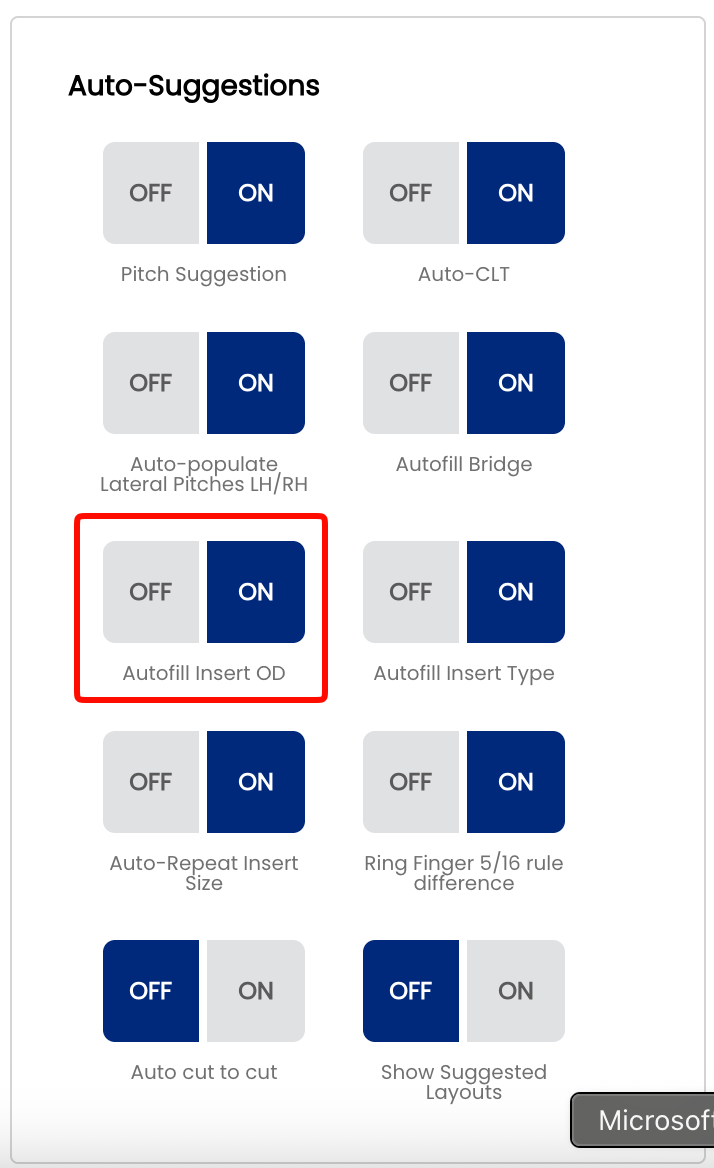
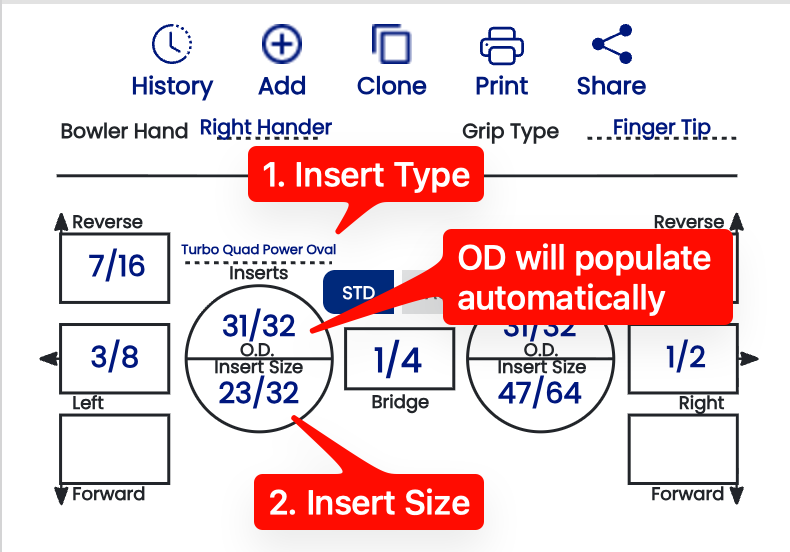
When entering insert details on a spec sheet, always select the **Insert Type** first, then the **Insert Size**. If the **Auto Insert OD** suggestion is enabled in your settings, Spectre will automatically populate the outer diameter field based on the insert type and size selected.

<table border="1" id="bkmrk--1" style="border-collapse: collapse; width: 100%;"><colgroup><col style="width: 35.1786%;"></col><col style="width: 64.9405%;"></col></colgroup><tbody><tr><td>[![image.png](https://wiki.spectrebowling.com/uploads/images/gallery/2026-05/scaled-1680-/gPhimage.png)](https://wiki.spectrebowling.com/uploads/images/gallery/2026-05/gPhimage.png)</td><td>[![image.png](https://wiki.spectrebowling.com/uploads/images/gallery/2026-05/scaled-1680-/L0Oimage.png)](https://wiki.spectrebowling.com/uploads/images/gallery/2026-05/L0Oimage.png)

</td></tr></tbody></table>

## 🖨️ How It Appears on a Spec Sheet

The installation method is recorded on every spec sheet and appears in the insert details section. This ensures your shop's drilling history accurately reflects how each ball was fitted — useful when a bowler returns for an insert replacement or a re-drill.

- ✅ The installation method is saved with the spec sheet and visible in historical records.
- ✅ Printed and exported spec sheets include the installation method field.
- ❌ Changing the shop default does not retroactively update the installation method on existing spec sheets.

**Tip:** If you stock and sell VACU Grip inserts, noting the installation method clearly on printed spec sheets is good practice — bowlers who use VACU inserts often need to know their exact insert size when purchasing replacements.

### Related Sections

- 2.2.2 — Grip Type: Fingertip vs. Conventional as the Default
- 2.2.3 — Display in Decimal vs. Fractional
- 4.1 — Creating a New Spec Sheet
- 4.4 — Insert Fields on a Spec Sheet

# 2.2.6 Vacu Installation Increment from O.D. (1/32, 1/16…)

<span style="font-family: monospace; color: #6b7280;">2.2.6</span> <span style="border: 1px solid #d1d5db; color: #4b5563; padding: 2px 8px; border-radius: 3px; font-size: 0.85em;">default</span>

When fitting a bowler with **VACU Grip inserts**, Spectre Cloud calculates the two hole sizes required for the two-tier drill based on the insert's **outer diameter (O.D.)**. The lower hole matches the insert O.D. so the insert seats and glues at the base. The upper hole is drilled *larger* than the insert O.D. — this is what gives the rubber room to expand when the bowler's finger is inserted. This setting controls the increment used when selecting how much larger that upper hole is drilled above the insert O.D.

**Note:** This setting only applies if your shop uses VACU Grip installation. If your shop drills exclusively STD (glued) inserts, this setting has no effect on your workflow.

**Important:** This setting requires the **Auto Insert OD** auto-suggestion to be enabled in order to work correctly. If Auto Insert OD is turned off, Spectre Cloud will not automatically calculate the upper hole size and this increment setting will have no effect. See **Settings → Auto-Suggestions** to confirm it is enabled.

## 📐 What Is the O.D. Increment?

The **O.D. increment** is the step size used when selecting how much larger the upper hole is drilled relative to the insert O.D. — the amount by which that value increases or decreases with each click or tap. Spectre Cloud offers four options:

- ✅ **1/16"** — the standard increment for VACU installation. Gives the insert a full 1/16" of expansion room per side — for example, a `31/32"` insert O.D. produces a `1 1/32"` upper hole. This is the correct starting point for most bowlers and the increment most shops will use day-to-day.
- ✅ **3/64"** — slightly less expansion room than the standard 1/16". Used for bowlers who want a more controlled feel with less rubber springiness.
- ✅ **1/32"** — reduced expansion room. The insert rubber has less room to flex, producing a firmer, tighter feel when the finger is inserted.
- ✅ **1/64"** — the tightest fit. Minimal expansion room — suited to bowlers who prefer very little springiness from their insert rubber.

## ⚙️ Changing the VACU O.D. Increment

1. Open Spectre Cloud at `cloud.spectrebowling.com` and log in.
2. Select **Settings** from the menu.
3. Navigate to the **System Defaults** section.
4. Locate the **Vacu Installation Increment from O.D.** field and select **1/16"**, **3/64"**, **1/32"**, or **1/64"**.
5. Changes are saved automatically.

[![image.png](https://wiki.spectrebowling.com/uploads/images/gallery/2026-05/scaled-1680-/IxVimage.png)](https://wiki.spectrebowling.com/uploads/images/gallery/2026-05/IxVimage.png)

**Note:** Like all system defaults, this setting controls only the pre-selection on new spec sheets. The increment — and the resulting upper hole size — can always be adjusted on a per-bowler, per-sheet basis directly on the spec sheet, the same way auto-suggestion values can be overridden after they populate.

## 🎳 Which Increment Should You Choose?

<table id="bkmrk-situation-recommende"><thead><tr><th>Situation</th><th>Recommended Increment</th><th>Reason</th></tr></thead><tbody><tr><td>Most bowlers — standard VACU fitting</td><td>1/16"</td><td>The industry standard for VACU installation — full expansion room, natural rubber feel</td></tr><tr><td>Bowler wants slightly less springiness</td><td>3/64"</td><td>Marginally tighter fit with a more controlled feel</td></tr><tr><td>Bowler prefers a firmer insert feel</td><td>1/32"</td><td>Reduced expansion room, noticeably less rubber flex</td></tr><tr><td>Bowler wants minimal rubber springiness</td><td>1/64"</td><td>Tightest fit — the insert has very little room to expand</td></tr></tbody></table>

## 📌 Important: O.D. vs. Hole Size

The insert O.D. and the two drilled hole sizes work together in a VACU fitting:

- The **insert O.D.** is the published outer diameter of the VACU insert — a fixed measurement from the manufacturer.
- The **lower hole** is drilled to match the insert O.D. — this is where the insert seats and is glued at the base.
- The **upper hole** is drilled larger than the insert O.D. by the selected increment — this gives the rubber body room to expand outward when the bowler's finger is inserted.
- The O.D. increment setting controls how finely you can step through that upper hole size in Spectre Cloud.
- ❌ Do not confuse the O.D. increment with the finger hole size itself — they are different measurements.

**Tip:** If you switch insert brands, check the new brand's recommended upper hole size specification. Some brands require more or less expansion room than others — switching brands is a good time to revisit this increment setting.

### Related Sections

- 2.2.5 — Insert Installation: STD vs. VACU Grip as the Default
- 2.2.3 — Display in Decimal vs. Fractional
- 4.4 — Insert Fields on a Spec Sheet
- 6.1 — Drilling Your First Ball: Step-by-Step Overview

# 2.2.7 Display Measurements in — 16S+, 32ND, Decimal options

<span style="font-family: monospace; color: #6b7280;">2.2.7</span> <span style="border: 1px solid #d1d5db; color: #4b5563; padding: 2px 8px; border-radius: 3px; font-size: 0.85em;">display</span>

When entering a span measurement on a spec sheet, Spectre Cloud presents a dropdown list of selectable values. This setting controls the **spacing and precision** of the values in that list — coarser settings show fewer values and less scrolling, finer settings show more values with greater precision. The available options are **16S**, **16S+**, **32ND**, and **64TH**.

**Note:** This setting applies specifically to **span measurements**. It controls what appears in the span dropdown list on a spec sheet — it does not affect how other measurements such as bridge width, oval dimensions, or hole sizes are displayed.

## 📏 Understanding the Four Options

### 16S — Sixteenths

The dropdown lists span values spaced in sixteenth-inch increments (e.g. `4"`, `4 1/16"`, `4 1/8"`, `4 3/16"`, `4 1/4"`…). Values are displayed as simplified fractions. The fewest values in the list — fastest to scroll through. Suitable for shops that measure and record spans to sixteenth precision.

### 16S+ — Sixteenths with half-sixteenth notation

The dropdown lists the same sixteenth-inch values as 16S, but adds a `+` value between each pair — representing a half-sixteenth (one thirty-second). For example: `4 1/16"`, `4 1/16+"`, `4 1/8"` — where `4 1/16+` is a shorthand way of expressing `4 3/32"`. This gives 32nd-level precision in a format that is easier to read and say out loud than a thirty-second fraction.

### 32ND — Thirty-seconds

The dropdown lists pitch values spaced in thirty-second-inch increments — the same resolution as 16S+, but displayed as simplified fractions throughout rather than using the `+` shorthand notation. The list will contain the same number of values as 16S+, just expressed differently. Choose this option if your drillers prefer to read standard 32nd fractions over the `+` notation.

### 64TH — Sixty-fourths

The dropdown lists span values spaced in sixty-fourth-inch increments, again displayed as simplified fractions. The most values in the list, requiring the most scrolling. Best suited to shops that fit to sixty-fourth precision or work with bowlers who require very fine span adjustments.

## ⚙️ Changing the Span Display Format

1. Open Spectre Cloud at `cloud.spectrebowling.com` and log in.
2. Select **Settings** from the menu.
3. Navigate to the **System Defaults** section.
4. Locate the **Display Measurements in** field and select **16S**, **16S+**, **32ND**, or **64TH**.
5. Changes are saved automatically.

[![image.png](https://wiki.spectrebowling.com/uploads/images/gallery/2026-05/scaled-1680-/zlAimage.png)](https://wiki.spectrebowling.com/uploads/images/gallery/2026-05/zlAimage.png)

## 🎳 Which Format Should You Use?

<table id="bkmrk-situation-recommende"><thead><tr><th>Situation</th><th>Recommended Format</th><th>Reason</th></tr></thead><tbody><tr><td>Shop measuring to sixteenth precision, minimal scrolling preferred</td><td>16S</td><td>Fewest values in the list — fast to navigate</td></tr><tr><td>Shop wanting 32nd precision in a readable format</td><td>16S+</td><td>32nd-level precision expressed in a shorthand that is easier to read and communicate than thirty-second fractions</td></tr><tr><td>Shop recording spans in thirty-seconds, prefer standard fractions</td><td>32ND</td><td>32nd increment with values shown as simplified fractions — familiar and clean</td></tr><tr><td>Precision fitting, competitive bowlers, very fine adjustments</td><td>64TH</td><td>Maximum precision — use when sixty-fourth resolution is needed</td></tr></tbody></table>

## 🔄 Relationship to the Global Measurement Format Setting

This setting works alongside the global **Decimal vs. Fractional** display preference set in **2.2.3**. The option you choose here controls the spacing and values in the span dropdown list. If your global format in 2.2.3 is set to **Decimal**, span values will be shown in decimal form regardless of which option is selected here.

- ❌ There is no per-sheet override for this setting — it applies shop-wide to all span dropdowns.
- ✅ Changing this setting is non-destructive — stored span values do not change, only the dropdown list presentation.

**Tip:** If your drillers find the span dropdown list too long to scroll through comfortably, switch to a coarser setting. You can always fine-tune an individual span value on the spec sheet after selecting the nearest available value from the list.

### Related Sections

- 2.2.3 — Display in Decimal vs. Fractional
- 2.2.8 — Display Pitches in
- 4.1 — Creating a New Spec Sheet
- 4.2 — Understanding Span Types

# 2.2.8 Display Pitches in — 16S+, 64TH, Decimal options

<span style="font-family: monospace; color: #6b7280;">2.2.8</span> <span style="border: 1px solid #d1d5db; color: #4b5563; padding: 2px 8px; border-radius: 3px; font-size: 0.85em;">display</span>

When entering a pitch value on a spec sheet, Spectre Cloud presents a dropdown list of selectable values. This setting controls the **spacing and precision** of the values in that list — coarser settings show fewer values and less scrolling, finer settings show more values with greater precision. The available options are **16S+**, **32ND**, **64TH**, and **Decimal**.

**Note:** This setting applies specifically to **pitch measurements** on spec sheets (forward, reverse, lateral, and combination pitches for finger and thumb holes). It does not affect span measurements or any other values. Span measurements have their own display setting — see **2.2.7**.

## 📐 What Is Pitch?

Pitch describes the angular tilt of a drilled hole relative to the centre of the bowling ball. It is expressed as a distance measurement — the amount of offset at the surface — rather than as a degree angle. Pitch values are typically small and must be recorded precisely, since even a small difference in pitch can noticeably affect a bowler's feel and release.

- **Forward pitch** — hole tilts toward the bowler's palm.
- **Reverse pitch** — hole tilts away from the bowler's palm.
- **Lateral pitch** — hole tilts toward or away from the thumb hole.

## 📏 Understanding the Four Options

### 16S+ — Sixteenths with half-sixteenth notation

The dropdown lists pitch values spaced in sixteenth-inch increments, with a `+` value added between each pair representing a half-sixteenth (one thirty-second). For example: `3/16"`, `3/16+"`, `1/4"` — where `3/16+` is a shorthand way of expressing `7/32"`. Values are displayed as simplified fractions. This gives 32nd-level precision in a format that is easier to read and say out loud than a thirty-second fraction.

### 32ND — Thirty-seconds

The dropdown lists pitch values spaced in thirty-second-inch increments — the same resolution as 16S+, but displayed as simplified fractions throughout rather than using the `+` shorthand notation. The list will contain the same number of values as 16S+, just expressed differently. Choose this option if your drillers prefer to read standard 32nd fractions over the `+` notation.

### 64TH — Sixty-fourths

The dropdown lists pitch values spaced in sixty-fourth-inch increments, displayed as simplified fractions. The most values in the list, requiring the most scrolling. Pitch tolerances are finer than span tolerances, which is why 64TH is available here but not for span measurements. Best suited to shops fitting high-performance or highly customised bowlers where small pitch differences are intentional and meaningful.

### Decimal

The dropdown lists pitch values in decimal format (e.g. `0.1875"`). No fractions are used. Preferred by shops using digital pitch gauges or calipers that output decimal readings, and by Canadian and international shops where decimal measurement is standard practice.

## ⚙️ Changing the Pitch Display Format

1. Open Spectre Cloud at `cloud.spectrebowling.com` and log in.
2. Select **Settings** from the menu.
3. Navigate to the **System Defaults** section.
4. Locate the **Display Pitches in** field and select **16S+**, **32ND**, **64TH**, or **Decimal**.
5. Changes are saved automatically.

[![image.png](https://wiki.spectrebowling.com/uploads/images/gallery/2026-05/scaled-1680-/MNbimage.png)](https://wiki.spectrebowling.com/uploads/images/gallery/2026-05/MNbimage.png)

## 🎳 Which Format Should You Use?

<table id="bkmrk-situation-recommende"><thead><tr><th>Situation</th><th>Recommended Format</th><th>Reason</th></tr></thead><tbody><tr><td>Shop wanting 32nd precision in a readable format</td><td>16S+</td><td>32nd-level precision expressed in a shorthand that is easier to read and communicate than thirty-second fractions</td></tr><tr><td>Shop recording pitches in thirty-seconds, prefer standard fractions</td><td>32ND</td><td>32nd increment with values shown as simplified fractions — familiar and clean</td></tr><tr><td>Precision fitting, competitive or high-performance bowlers</td><td>64TH</td><td>Maximum fractional precision — captures intentional small pitch adjustments accurately</td></tr><tr><td>Shop using digital pitch gauges or calipers</td><td>Decimal</td><td>Enter and read the same format your measuring tool outputs — no conversion needed</td></tr></tbody></table>

## 🔄 Relationship to Other Display Settings

This setting works alongside the other measurement display settings in Spectre Cloud but applies only to pitch values on spec sheets:

- ✅ **2.2.3** — sets the global Decimal vs. Fractional preference. If set to Decimal, pitches display in decimal regardless of what is selected here.
- ✅ **2.2.7** — controls span dropdown precision independently. Your pitch and span display formats do not need to match.
- ❌ There is no per-sheet override — this setting applies shop-wide to all pitch dropdowns.
- ✅ Changing this setting is non-destructive — stored pitch values do not change, only the dropdown list presentation.

**Tip:** If your drillers work from a printed pitch reference card or pitch gauge that uses a specific format, match this setting to that format. Eliminating the mental conversion between the card and the screen reduces errors during fitting.

### Related Sections

- 2.2.7 — Display Measurements in
- 2.2.3 — Displ