2.1 — Language
2.1.1 Changing the display language
2.1.1 setting
Spectre Cloud is available in nine display languages. Changing your display language updates all menus, labels, and interface text across the app — your bowler data and spec sheet content are not affected.
🌍 Available Languages
| Language | Code | Coverage |
|---|---|---|
| English | en |
Full interface |
| French | fr |
Full interface |
| Spanish | es |
Full interface |
| German | de |
Full interface |
| Italian | it |
Full interface |
| Japanese | ja |
Full interface |
| Korean | ko |
Full interface |
| Portuguese | pt |
Full interface |
| Simplified Chinese | zh-Hans |
Full interface |
🖥️ Changing the Language — Desktop
- Open Spectre Cloud at
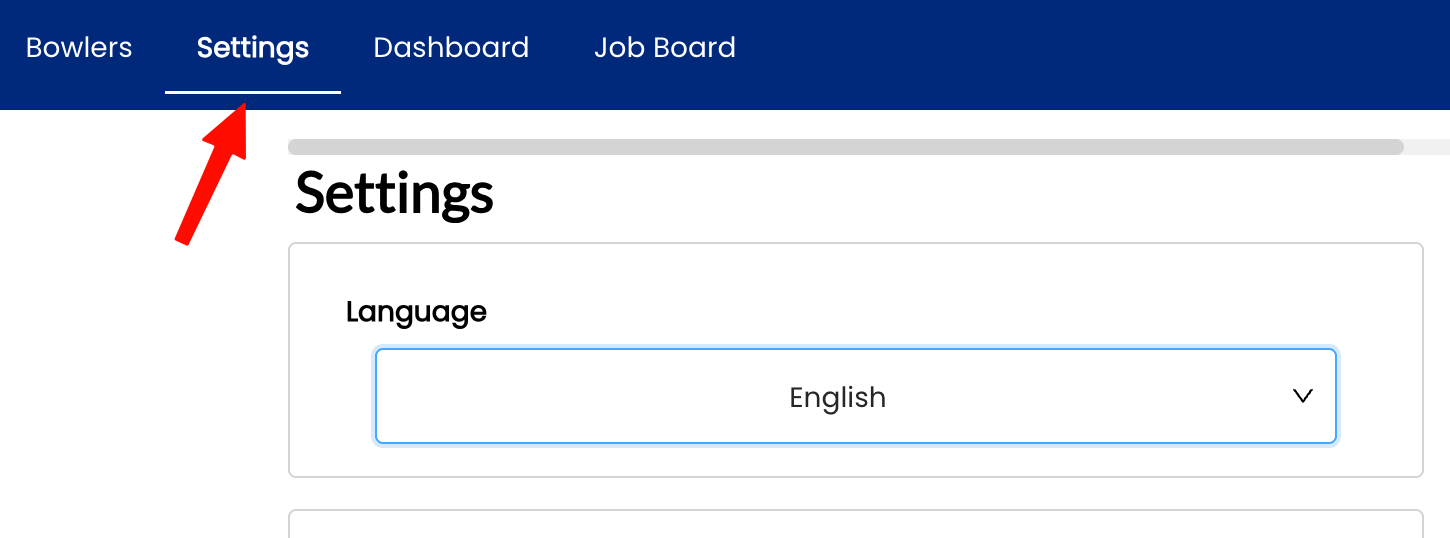
cloud.spectrebowling.comand log in. - Select Settings from the menu.
- Navigate to the System Defaults section.
- Locate the Display Language field and select your preferred language.
- Changes are saved automatically. The interface will reload in the selected language.
📱 Changing the Language — Mobile
- Open Spectre Cloud at
cloud.spectrebowling.comand log in. - Tap the avatar icon in the top-right corner to open the Profile menu.
- Tap Settings.
- Navigate to the System Defaults section.
- Tap the Display Language field and select your preferred language.
- Changes are saved automatically. The app will reload in the selected language.

☁️ Does the Language Setting Sync Across Devices?
Yes — your display language preference is saved to your Spectre Cloud account, so it stays consistent whether you log in from a desktop browser, tablet, or mobile device.
Related Sections
Tip: If a teammate on the same account prefers a different language, each user can set their own language independently — it does not affect other users on the account.
2.1.2 How language affects measurement labels and UI text
2.1.2 setting
When you change the display language in Spectre Cloud, more than just menu text changes. Button labels, field names, span type abbreviations, measurement unit labels, and instructional text throughout the interface all update to reflect the selected language. This page explains exactly what changes — and what stays the same.
🌍 What Changes When You Switch Languages
| UI Element | What changes |
|---|---|
| Navigation menus | All top-menu and sidebar labels translate (e.g. Bowlers → Quilleurs / Bolicheros) |
| Button labels | Save, Cancel, Delete, Edit, Clone, and all action buttons translate |
| Field names & placeholders | Form field labels and input placeholder text translate on spec sheets, bowler profiles, and settings |
| Span type labels | Full Span, Cut to Cut, Oval and their abbreviations (F, C, O) remain consistent across languages — these are industry-standard abbreviations |
| Measurement unit labels | Unit abbreviations (in, mm, oz) do not change — they are universal. Surrounding descriptive text does translate. |
| Error & validation messages | All form validation messages and error alerts translate |
| Tooltips & help text | Inline tips and hover tooltips translate |
| IBPSIA suggestion labels | Suggestion category names translate where applicable |
🔒 What Does NOT Change
- ✅ Bowler names and data — all client records, spec sheet values, and notes you have entered remain exactly as typed.
- ✅ Measurement units — inches, millimeters, ounces, and degrees are universal abbreviations and do not translate.
- ✅ Span type abbreviations — F, C, and O are consistent across all languages.
- ✅ Ball brand and model names — product names from bowlingdatabase.com are displayed as-is.
- ✅ Your pro shop name — displayed exactly as entered in your account settings.
📋 Side-by-Side Label Reference
Key interface terms across all three supported languages:
| English | French | Spanish |
|---|---|---|
| Bowlers | Quilleurs | Bolicheros |
| Spec Sheet | Fiche technique | Hoja de especificaciones |
| Arsenal | Arsenal | Arsenal |
| Settings | Paramètres | Configuración |
| Save Changes | Enregistrer | Guardar cambios |
| Full Span | Envergure complète | Envergadura completa |
| Cut to Cut | Coupe à coupe | Corte a corte |
| Oval | Ovale | Óvalo |
| Clone | Cloner | Clonar |
| Dashboard | Tableau de bord | Panel principal |
📌 Verify with Spectre team: The French and Spanish UI terms above are representative translations. Confirm exact in-app label wording against the live interface at cloud.spectrebowling.com before publishing.
✨ Tips for Multi-Language Shops
- Each user account stores its own language preference — staff members can each work in their preferred language on the same shop account.
- Spec sheets and bowler records entered in one language display the same data regardless of which language a colleague uses — only the surrounding UI labels change.
- If you switch languages mid-session, the page reloads automatically and you will land back on the dashboard.
Related Sections
- 2.1.1 — Changing the display language
- 2.2 — Account & profile settings
- 3.1 — Creating and managing bowler profiles
Tip: Not sure which language a teammate has set? Their language setting is personal to their login and does not affect what you see in your own session.