01 Getting Started
New users · Onboarding
- 1.1 — Introduction
- 1.1.1 What is Spectre Cloud?
- 1.1.2 Who is Spectre Cloud for? (Pro shop operators, fitters, coaches)
- 1.1.3 Minimum requirements & supported devices (desktop, tablet, mobile)
- 1.1.4 Supported browsers and operating systems
- 1.1.5 Overview of key features at a glance
- 1.2 — Creating Your Account
- 1.2.1 How to sign up for Spectre Cloud
- 1.2.2 Choosing your subscription plan
- 1.2.3 Entering a referral code during sign-up
- 1.2.4 Logging in for the first time
- 1.2.5 Resetting your password
- 1.3 — Payment & Billing
1.1 — Introduction
1.1.1 What is Spectre Cloud?
Spectre Cloud Pro Shop Software
Spectre Cloud is a web-based management platform designed specifically for bowling pro shops. It allows operators to manage clients, spec sheets, and bowling ball arsenals from any device with a modern web browser. Positioned as an industry leader in client and spec sheet management, Spectre Cloud is used in over 250 bowling pro shops worldwide, serving everyone from single-location shops to multi-store chains.
Overview
Spectre Pro Shop Software solves a fundamental problem in the pro shop environment: organization. Rather than relying on paper spec sheets, home-made databases, or legacy tools like the Ebonite ProShop Coordinator, Spectre Cloud centralizes all customer data on a secure cloud server. Pro shop operators can log in from any supported device, eliminating the risks of data loss from broken or stolen hardware.
Key Features
- Client and Arsenal Management — Track customers, their bowling balls, and complete drilling history in one place.
- IBPSIA Standard Auto-Suggestions — Industry-standard recommendations built into the workflow.
- Automatic Oval Calculation — Streamlines layout math during drilling.
- Drill Press Calibration — Tether your device to your drill press for live, accurate data entry.
- Spec Sheet Cloning — Quickly duplicate layouts for repeat customers or similar drills.
- Historical Data and Dashboards — Review past work and monitor shop performance.
- Plugins — Optional add-ons such as the Job Board, which tracks services attached to each ball and gives staff a shared to-do list.
Platform and Accessibility
Spectre Cloud runs entirely in the browser and supports Chrome, Firefox, Safari, and Edge. Any device that runs one of these browsers, including smartphones and tablets, can access the platform. Multiple devices can be logged into the same account simultaneously, and all data replicates immediately to the cloud server, removing the need for manual backups.
History
Spectre was originally launched in 2017 as a stand-alone app with data stored locally on each device. After encountering issues with device-related data loss and cross-platform compatibility, the team relaunched the product in 2022 as Spectre Cloud, a fully cloud-based service. The original app version is now end-of-life, and existing users are encouraged to migrate to the cloud platform.
The software was conceived roughly a decade ago at Buffa Distribution's pro shop, where co-founder Mark, then a recent Computer Science graduate from Wichita State University, recognized the need for a digital spec sheet database while working alongside longtime pro shop operator Vince Gaudio. Mark later partnered with Luis, a Montreal-based competitive bowler, to build the platform into what it is today.
Access
Spectre Cloud is available at cloud.spectrebowling.com. Prospective users can request a test account to evaluate the platform before subscribing.
1.1.2 Who is Spectre Cloud for? (Pro shop operators, fitters, coaches)
Who is Spectre Cloud for?
Spectre Cloud is built for anyone who drills bowling balls. The platform is designed to scale with the business, serving operations of every size — from a single operator running a one-person shop to multi-location chains managing staff and inventory across several stores.
Primary Users
- Independent Pro Shop Operators — Single-location shop owners looking to replace paper spec sheets, spreadsheets, or aging home-made databases with a modern, organized system.
- Multi-Location Pro Shop Chains — Larger operations that need consistent client data, spec sheets, and arsenal records accessible across multiple stores and staff members.
- Pro Shop Staff and Technicians — Employees who need quick access to client history, drilling specs, and a shared job board to coordinate work on the shop floor.
- Migrating Users — Operators currently using the legacy Spectre App, the Ebonite ProShop Coordinator, or a custom-built database. Spectre Cloud supports importing existing data from these sources.
- Mobile and On-the-Go Drillers — Technicians who want to enter data directly at the drill press, tethered to a digital readout, or work from a tablet or smartphone anywhere in the shop.
Ideal Fit
Spectre Cloud is the right tool for pro shops that want to:
- Eliminate paper spec sheets and centralize client records.
- Access customer data from any device with a web browser, on any platform.
- Standardize drilling workflows using IBPSIA auto-suggestions and automatic oval calculations.
- Track historical drilling data and review shop performance through dashboards.
- Coordinate staff with a shared job board for services and to-do items.
- Avoid data loss tied to a single device by storing everything on the cloud.
Not Sure if It's for You?
Spectre offers test accounts so prospective users can evaluate the platform before committing to a subscription. If you drill bowling balls professionally — at any volume — Spectre Cloud is built for you.
1.1.3 Minimum requirements & supported devices (desktop, tablet, mobile)
Minimum Requirements & Supported Devices
Spectre Cloud is a fully web-based platform, which means there is no software to install and no operating system lock-in. If your device can run a modern web browser, it can run Spectre Cloud.
Minimum Requirements
- A modern web browser — Chrome, Firefox, Safari, or Edge (latest stable version recommended).
- An active internet connection — required for data replication to and from the cloud server.
- A Spectre Cloud account — sign up at
cloud.spectrebowling.com. - Recommended screen size: 8 inches or larger — for the most comfortable workflow, especially during spec sheet entry and drilling.
Supported Devices
Spectre Cloud runs on essentially any device with a supported browser. Multiple devices can be logged into the same account at the same time, and data syncs immediately across all of them.
🖥️ Desktop & Laptop
- Windows — Chrome, Firefox, or Edge.
- macOS — Safari, Chrome, or Firefox.
- Linux — Chrome or Firefox.
- Chromebook — Chrome.
- Recommended for back-office work, data entry, reports, and administration.
📱 Tablet
- iPad — Safari or Chrome.
- Android tablets — Chrome or Firefox.
- Windows tablets — Edge, Chrome, or Firefox.
- Recommended for shop-floor use, tethering to a drill press, and on-the-go spec sheet entry.
📲 Mobile (Smartphone)
- iPhone — Safari or Chrome.
- Android phones — Chrome or Firefox.
- The interface is mobile-friendly and suitable for quick lookups, on-the-spot client checks, and the Job Board plugin.
Performance Tip
The better the device, the better the performance. While Spectre Cloud will run on virtually any browser-capable device, a tablet or laptop with an 8-inch or larger display offers the best experience — especially for tasks like spec sheet creation, oval input, and arsenal management.
What You Don't Need
- ❌ No app installation or App Store purchase.
- ❌ No manual backups — data is automatically saved to the cloud.
- ❌ No specific operating system — if it runs a modern browser, it runs Spectre.
- ❌ No per-device licensing — log in on as many devices as you need.
1.1.4 Supported browsers and operating systems
Supported Browsers & Operating Systems
Spectre Cloud is a browser-based platform, which means compatibility depends on your web browser, not your operating system. As long as you can run one of the supported browsers, Spectre Cloud will work on your device.
Supported Browsers
Spectre Cloud officially supports all major modern web browsers. For best performance and security, always use the latest stable version.
- Google Chrome — Recommended for the most consistent experience across platforms.
- Mozilla Firefox — Fully supported on desktop and mobile.
- Apple Safari — Recommended for iPhone, iPad, and macOS users.
- Microsoft Edge — Recommended for Windows users.
Other Chromium-based browsers (such as Brave, Opera, or Vivaldi) will generally work since they share Chrome's rendering engine, but they are not officially supported.
Supported Operating Systems
Because Spectre Cloud runs entirely in the browser, it works on virtually any operating system that can run one of the supported browsers above.
🖥️ Desktop & Laptop Operating Systems
- Windows (Windows 10, Windows 11) — Chrome, Firefox, or Edge.
- macOS — Safari, Chrome, or Firefox.
- Linux (Ubuntu, Fedora, and other major distributions) — Chrome or Firefox.
- ChromeOS (Chromebooks) — Chrome.
📱 Mobile & Tablet Operating Systems
- iOS / iPadOS — Safari or Chrome.
- Android — Chrome or Firefox.
- Windows Tablet — Edge, Chrome, or Firefox.
Recommendations for Best Performance
- Always keep your browser updated to the latest stable version.
- Enable cookies and JavaScript — both are required for Spectre Cloud to function.
- Use a wired or strong Wi-Fi connection for instant cloud sync.
- Bookmark
cloud.spectrebowling.comfor quick access. - Save your login credentials in your browser's password manager for easy re-entry.
Not Officially Supported
- ❌ Internet Explorer (deprecated and no longer maintained).
- ❌ Outdated or unsupported browser versions.
- ❌ Browsers on devices that cannot run modern web standards.
Note: If you experience any issues, the first step is usually to update your browser or try a different one from the supported list before contacting support.
1.1.5 Overview of key features at a glance
Overview of Key Features at a Glance
Spectre Cloud brings together everything a bowling pro shop needs to manage clients, drilling specs, and inventory — all in one cloud-based platform. Below is a quick overview of the core features that make Spectre Cloud the industry leader in pro shop management.
👥 Client Management
- Centralized bowler profiles with contact information, email, phone, and full addresses.
- Searchable client database accessible from any device.
- Complete client history at your fingertips — no more digging through paper files.
- Import existing data from home-made databases or the Ebonite ProShop Coordinator.
📋 Spec Sheet Management
- Create detailed spec sheets for every bowler in your shop.
- Spec sheet cloning — duplicate layouts in seconds for repeat customers or similar drills.
- Multiple span types supported: Full span (F), Cut to Cut (C), and Oval (O).
- Historical spec sheet tracking — review every drilling decision over time.
- Print-ready spec sheets for in-shop use.
🎳 Arsenal Management
- Track every bowling ball in each client's arsenal.
- Link spec sheets directly to specific balls.
- Maintain a full drilling history per ball.
- Quickly see what each bowler owns and how each ball was drilled.
🛠️ Drilling Tools & Calculations
- IBPSIA standard auto-suggestions built directly into the workflow.
- Automatic oval calculation for thumb measurements.
- Drill press calibration — tether your device to your drill press for live, accurate input.
- Reference tables and dropdowns optimized for speed and efficiency.
📊 Dashboards & Historical Data
- Visual dashboards to monitor shop activity and performance.
- Full historical data on every client, ball, and spec sheet.
- Quickly review past work to maintain consistency for returning customers.
🔌 Plugins (Optional Add-Ons)
- Job Board — attach services to bowling balls and maintain a global to-do list for staff.
- Bowler Plus — extended bowler profile features.
- Arsenal Plus — enhanced arsenal tracking capabilities, scan barcodes or search the full product catalog.
- New plugins are added regularly, with each subscription customizable to your shop's needs.
☁️ Cloud-Based Architecture
- All data stored securely on the Spectre Cloud server.
- Instant data replication — changes sync across all devices in real time.
- No manual backups required.
- No risk of data loss from broken, lost, or stolen devices.
- Log in on as many devices as you need with a single account.
🌐 Cross-Platform Accessibility
- Works in any modern web browser — Chrome, Firefox, Safari, or Edge.
- Compatible with desktops, laptops, tablets, and smartphones.
- Mobile-friendly interface for on-the-go and shop-floor use.
- No installation, no App Store purchases, no operating system restrictions.
🏢 Multi-Location & Team Support
- Scales from single-operator shops to multi-store chains.
- Share data across locations and staff members.
- Consistent client experience across every location.
🌍 Language Support
- Available in English, French, Spanish and more.
🔄 Continuous Updates
- Regular patch releases with quality-of-life improvements, UI redesigns, and new features.
- Updates roll out automatically — no need to install anything.
- Active development with new plugins and features added on an ongoing basis.
✨ Quick Summary
If it happens in a bowling pro shop, Spectre Cloud helps you manage it — clients, specs, arsenal, drilling, and team coordination — all from any device, all in real time.
1.2 — Creating Your Account
1.2.1 How to sign up for Spectre Cloud
Getting started with Spectre Cloud is quick and simple. Since the platform is entirely web-based, there is no software to download or install — you can be up and running in just a few minutes from any device with a modern web browser.
Before You Begin
Make sure you have the following ready:
- A device with a supported browser (Chrome, Firefox, Safari, or Edge).
- A working email address.
- An active internet connection.
- Your pro shop name and basic business information.
Step-by-Step: Creating a New Account
- Open your web browser on the device you plan to use most often (desktop, laptop, tablet, or smartphone).
- Navigate to
cloud.spectrebowling.com. - Click the "NOT A MEMBER" button on the login screen to begin the registration process.
- Fill out the sign-up form with the required information:
- Email address
- Password (choose a strong, secure password)
- Pro shop name
- Contact details
- Submit the form to create your account. You will be signed in automatically.
- Bookmark
cloud.spectrebowling.comfor quick access in the future. - Save your credentials in your browser's password manager for easy re-entry.
- Go to the Settings section to configure your preferences (language, units, defaults, etc.).
- You're ready to drill! Start adding bowlers, spec sheets, and arsenal data.
Logging In on Additional Devices
One of the biggest advantages of Spectre Cloud is multi-device access. Once your account is created, you can log in on as many devices as you need:
- Open the browser on the new device.
- Go to
cloud.spectrebowling.com. - Enter the same email and password you used during sign-up.
- Your data will sync instantly — no setup or import required.
Want to Try Before You Buy?
When signing up, input the REFERRAL CODE SPECTRETRIAL and get your first month free on a yearly subscription. Cancel anytime within the first month.
Migrating from the Spectre App
If you are currently using the legacy Spectre App, see the Moving from Spectre App to Spectre Cloud section of the wiki for full migration steps.
Importing from Another System
Already using a home-made database or the Ebonite ProShop Coordinator? Spectre Cloud supports data imports from these sources so you don't have to start over. Contact the Spectre team after signing up to coordinate your data migration.
Tips for a Smooth Sign-Up
- ✅ Use an email address you check regularly — it's also your login.
- ✅ Choose a strong password and store it securely.
- ✅ Sign up on the device you plan to use most often, but remember you can log in anywhere afterward.
- ✅ Don't forget to set up your preferences in the Settings section after first login.
Note: Each account is tied to one pro shop. If you operate multiple locations, contact Spectre support to discuss a multi-location setup.
1.2.2 Choosing your subscription plan
Spectre Cloud uses a simple, transparent subscription model. You start with the core Spectre Cloud plan and then add optional plug-ins to customize the platform to your shop's needs. There are no installation fees, no per-device charges, and you can cancel at any time.
💎 Spectre Cloud — Core Subscription
The core plan is what every pro shop needs to get started. It includes everything required to manage clients, spec sheets, and arsenals from any device.
- ✅ All basic Spectre functions you love and adore
- ✅ Data stored securely on the Spectre Cloud server
- ✅ No backups required — no risk of losing your data if a device breaks
- ✅ Multiple devices on the same account
- ✅ Access from any modern web browser (desktop, tablet, mobile)
Price: $29.99 USD / month (yearly pricing also available)
🔌 Cloud Plug-Ins (Optional Add-Ons)
Plug-ins let you tailor Spectre Cloud to your specific workflow. Each plug-in is billed separately and can be added or removed from your subscription at any time. To add a plug-in, simply go to the Settings section in Spectre Cloud and enable the one you want.
👤 Bowler Plus — $5 USD / month
- Adds an image gallery to your bowler profiles.
- Adds full address details to customer profiles.
- Adds client consent signature capture.
Best for: Shops that want richer client records and visual documentation.
🎳 Arsenal Plus — $5 USD / month
- Integrates the full bowlingdatabase.com product list — scan a barcode or search the database to add a ball to a bowler's arsenal.
- Suggested layouts based on your chosen layout style.
- Convert between layout styles (e.g., 2LS to Dual Angle).
- Visualize layouts in 3D rendering.
Best for: Shops that drill a high volume of balls or want advanced layout tools.
📋 Job Board — $15 USD / month
- A curated to-do list of work to be done in the workshop.
- Tags services to a client's ball for full service history per ball.
- Real-time, shared view for staff coordination on the shop floor.
Best for: Multi-staff shops or busy operations that need workflow coordination.
💡 Which Plan is Right for You?
| Shop Type | Recommended Setup |
|---|---|
| Solo operator, low volume | Spectre Cloud (core) |
| Solo operator, high volume | Spectre Cloud + Arsenal Plus |
| Shop with client-heavy workflow | Spectre Cloud + Bowler Plus |
| Multi-staff shop with shop-floor coordination | Spectre Cloud + Job Board |
| Multi-location chain / full-feature setup | Spectre Cloud + All Plug-Ins |
🗓️ Monthly vs Yearly Billing
- Monthly: Pay as you go — ideal if you want flexibility or are testing the platform.
- Yearly: Available for discounted pricing — best for established shops committed to the platform.
❄️ Pausing or Cancelling Your Subscription
You can cancel your Spectre Cloud subscription at any time from the Profile section. Once your account is inactive:
- ✅ You can still log in with read-only access to consult your data at no cost.
- ❌ You cannot create new clients or new spec sheets until you reactivate the subscription.
- ✅ Reactivating restores full functionality immediately — no data loss.
📌 Important Notes
- Prices may vary during the subscription period.
- Plug-ins are sold separately from the core subscription.
- Yearly pricing is available — contact Spectre or check the billing section for current rates.
- You retain the right to cancel at any time.
Tip: Not sure which plug-ins you need? Start with the core Spectre Cloud plan and add plug-ins later as your shop's needs evolve. You can enable or disable add-ons anytime from Settings.
1.2.3 Entering a referral code during sign-up
Spectre Cloud supports referral codes and discount codes that can be applied during the sign-up process to unlock special offers, discounted pricing, or other promotional benefits. If a pro shop owner, distributor, or fellow Spectre user has shared a code with you, this section will walk you through how to apply it correctly.
What is a Referral Code?
A referral code is a unique alphanumeric code typically shared by an existing Spectre Cloud member, a partner organization or the Spectre pro staff team during a promotion. Entering a valid code during sign-up may grant benefits such as:
- A discount on your first month or first year of service.
- Promotional credit applied to your account.
- A free trial period.
- Access to special offers or bundled plug-ins.
Tip: Referral codes are case-sensitive and usually time-limited, so apply your code at sign-up to make sure you don't miss out on the offer.
Step-by-Step: Entering a Referral Code
- Open your web browser and go to
cloud.spectrebowling.com. - Click "NOT A MEMBER" to start the sign-up process.
- Fill out the sign-up form with your pro shop name, email address, password, and other required details.
- Locate the "Referral Code" field on the sign-up form. This is at the bottom of the form, just before the submit button.
- Enter your code exactly as provided, including capitalization and any dashes or special characters. Copy-pasting is recommended to avoid typos.
- Confirm the code is accepted. A valid code will usually display a confirmation message, a discount preview, or an updated price.
- Submit the sign-up form to complete account creation.
- Verify your discount by checking the Profile or Billing section after logging in.
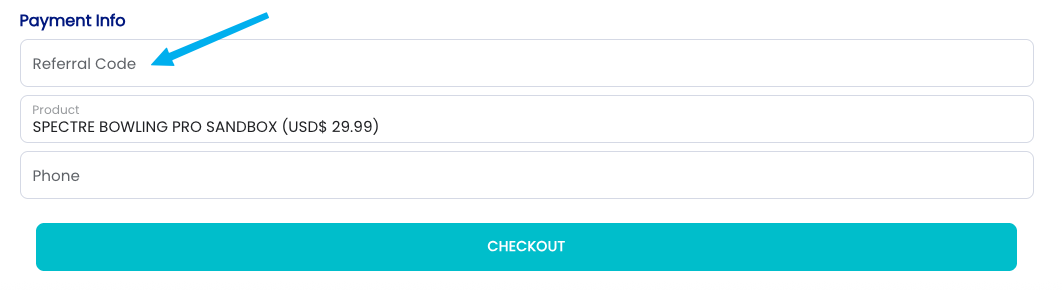
Where to Find a Referral Code
You can obtain a Spectre Cloud referral or discount code from several sources:
- 🤝 Existing Spectre Cloud users — many members have a personal referral code to share.
- 🏢 IBPSIA members and partners — Spectre periodically offers exclusive codes through industry partners.
- 📢 Promotional campaigns — codes are sometimes shared via Spectre's website, social media, or email newsletters.
- 🎓 Trade shows and events — Spectre often distributes special codes at bowling industry events.
- 👥 Distributors and ball reps — some product distributors partner with Spectre to offer codes.
Related Sections
- How to Sign Up for Spectre Cloud
- Choosing Your Subscription Plan
- Discount Codes
- Managing Your Subscription
Note: Promotional terms, eligibility, and discount amounts can change over time. Always read the terms attached to your specific referral or discount code, and apply codes before completing checkout for the best chance of having them honored.
1.2.4 Logging in for the first time
Once you've signed up and chosen your subscription plan, logging in to Spectre Cloud is straightforward. This page walks you through your first login, what to expect on the screen, and how to get your bearings before diving in.
🌐 Accessing Spectre Cloud
Spectre Cloud runs entirely in your web browser — there's nothing to install. To log in, open your browser and navigate to:
cloud.spectrebowling.com
You can bookmark this address or save it to your home screen on mobile for quick access. The login page will load on any supported browser across desktop, tablet, or smartphone.
🔑 Entering Your Credentials
- Go to
cloud.spectrebowling.comin your browser. - Enter the email address you used during sign-up.
- Enter your password.
- Click or tap Log In.
Migrating from the original Spectre app? If you had a PRO account with the legacy Spectre desktop app, use those same credentials here — no new account needed.
🖥️ What You'll See After Logging In
After a successful login, you'll land on your Spectre Cloud dashboard. On your very first visit, the dashboard will be mostly empty — that's completely normal. Here's a quick orientation:
📱 Logging In on Mobile or Tablet
The login experience is the same on mobile and tablet browsers. For the best experience on smaller screens:
- ✅ Use a device with at least an 8-inch screen for full functionality.
- ✅ On iOS/iPadOS, save
cloud.spectrebowling.comto your home screen via the Share menu for an app-like shortcut. - ✅ On Android, use Chrome's "Add to Home screen" option for the same effect.
🌍 Choosing Your Language
Spectre Cloud is available in English, French, and Spanish. If your preferred language isn't set correctly after first login, you can adjust it in Settings. The app will remember your preference across sessions.
🔒 Trouble Logging In?
- If you've forgotten your password, use the Forgot Password link on the login page to receive a reset email.
- Make sure you're using the email address associated with your Spectre Cloud account — not a username.
- If your account is inactive (e.g. subscription lapsed), you'll have read-only access until billing is updated. See the Account & Business section for details.
- If you're experiencing persistent login issues, contact the Spectre support team via
spectrebowling.com.
Related Sections
- How to sign up for Spectre Cloud
- Choosing your subscription plan
- Overview of key features at a glance
- Navigating the dashboard (Book 01)
Tip: Bookmark cloud.spectrebowling.com now — or add it to your home screen on mobile. It's the only URL you'll need for day-to-day use.
1.2.5 Resetting your password
1. Click on your account name
2. Access Change Password Section
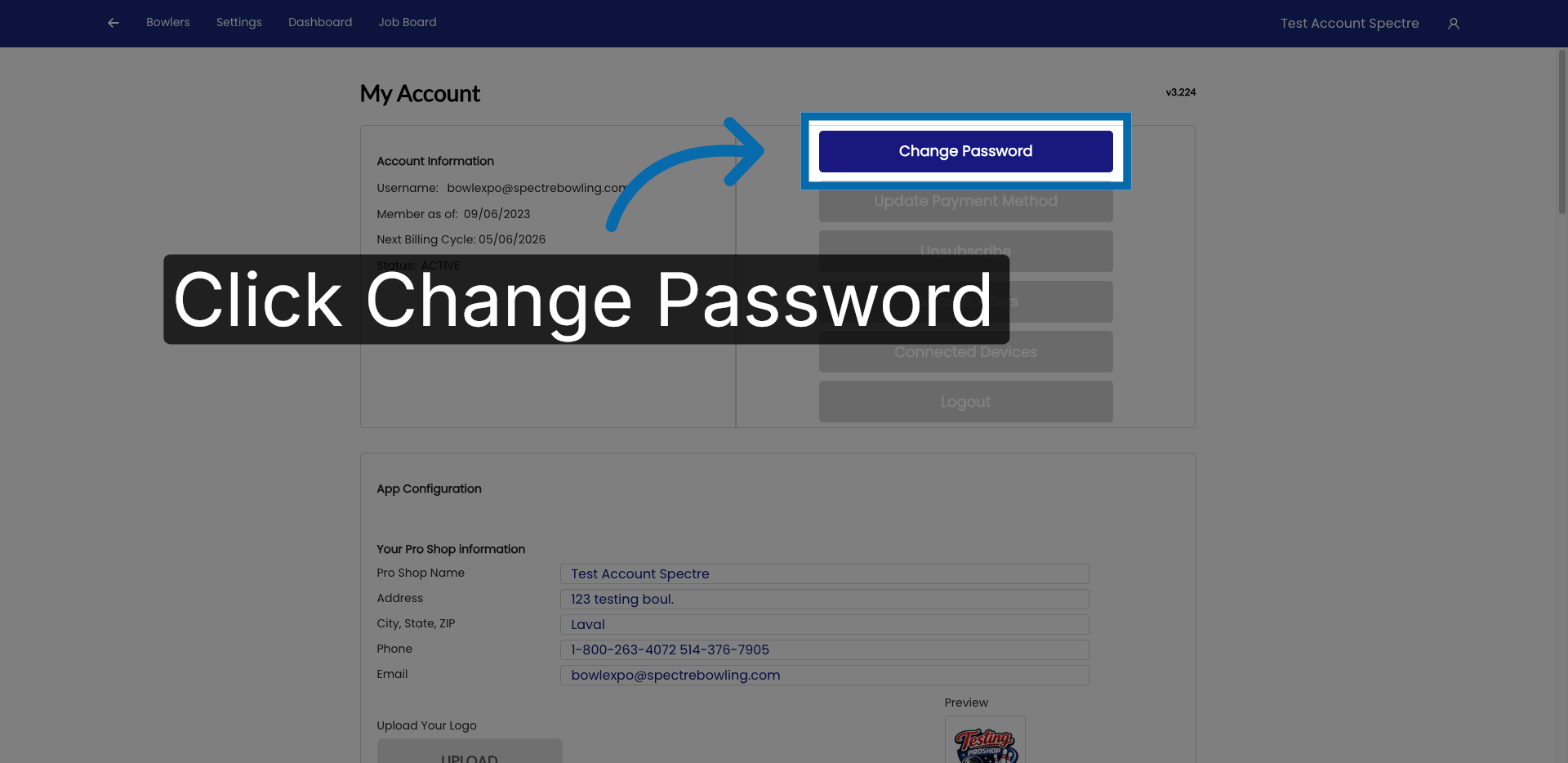
3. Open Password Settings
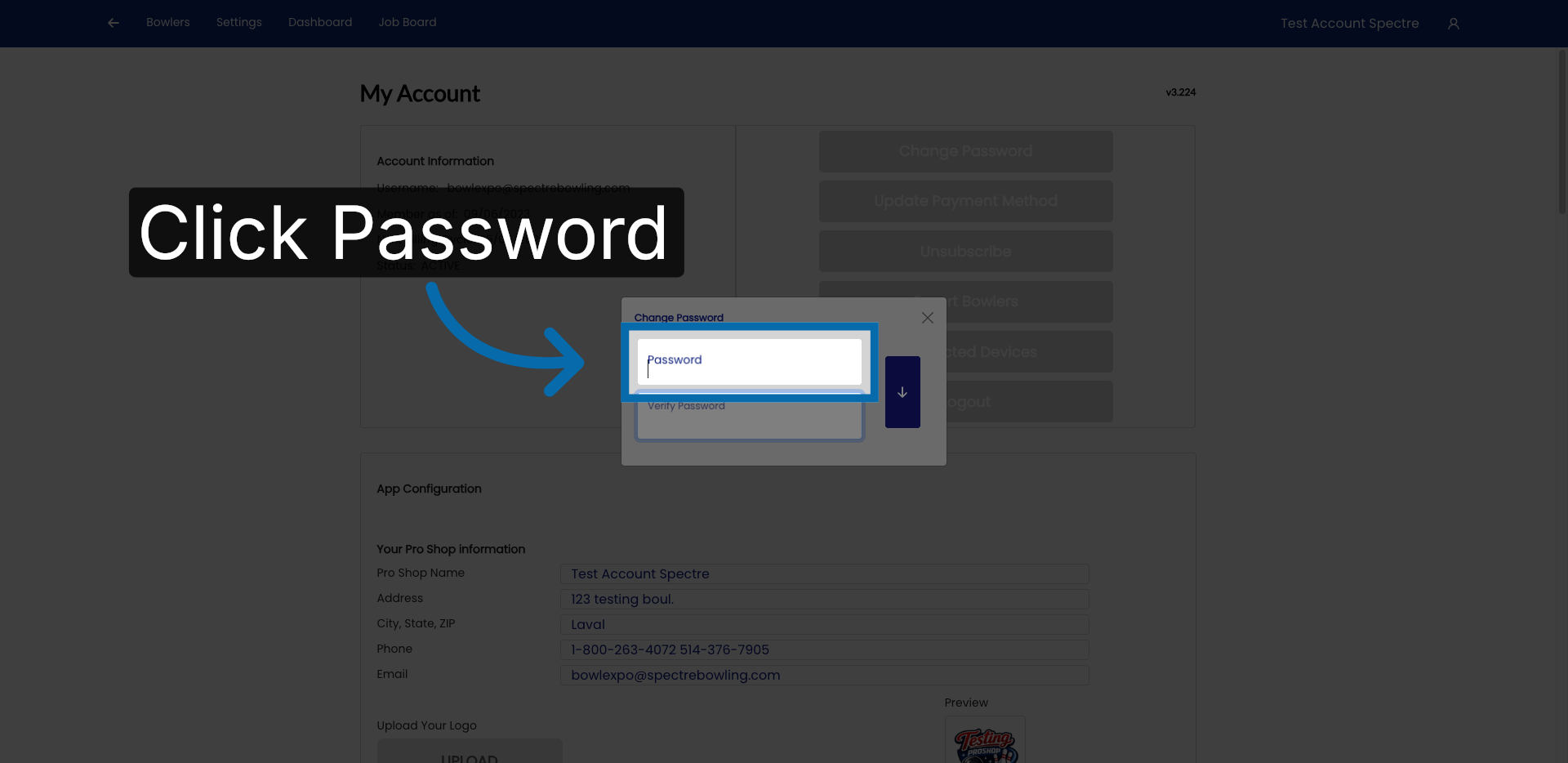
4. Enter New Password
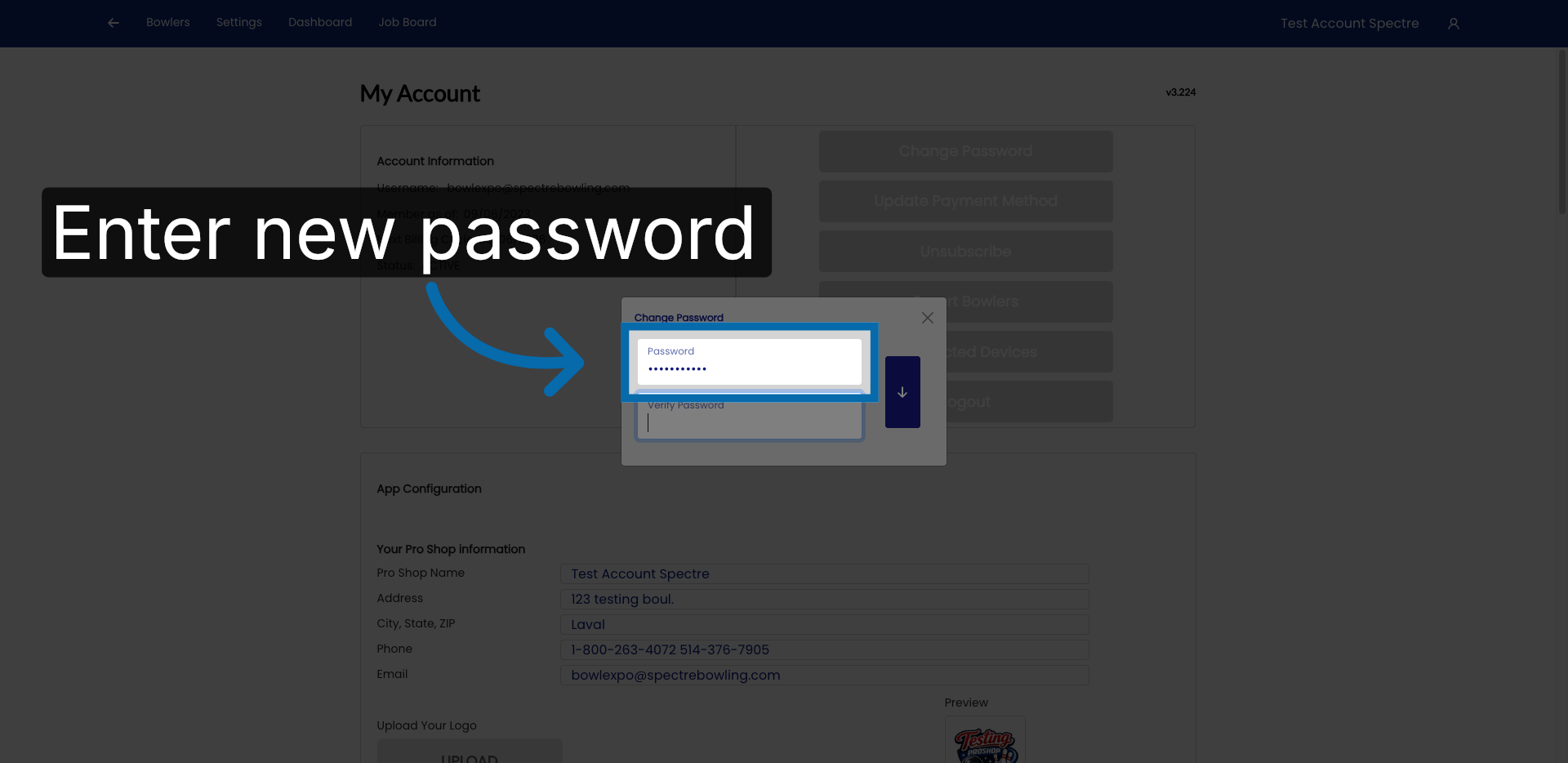
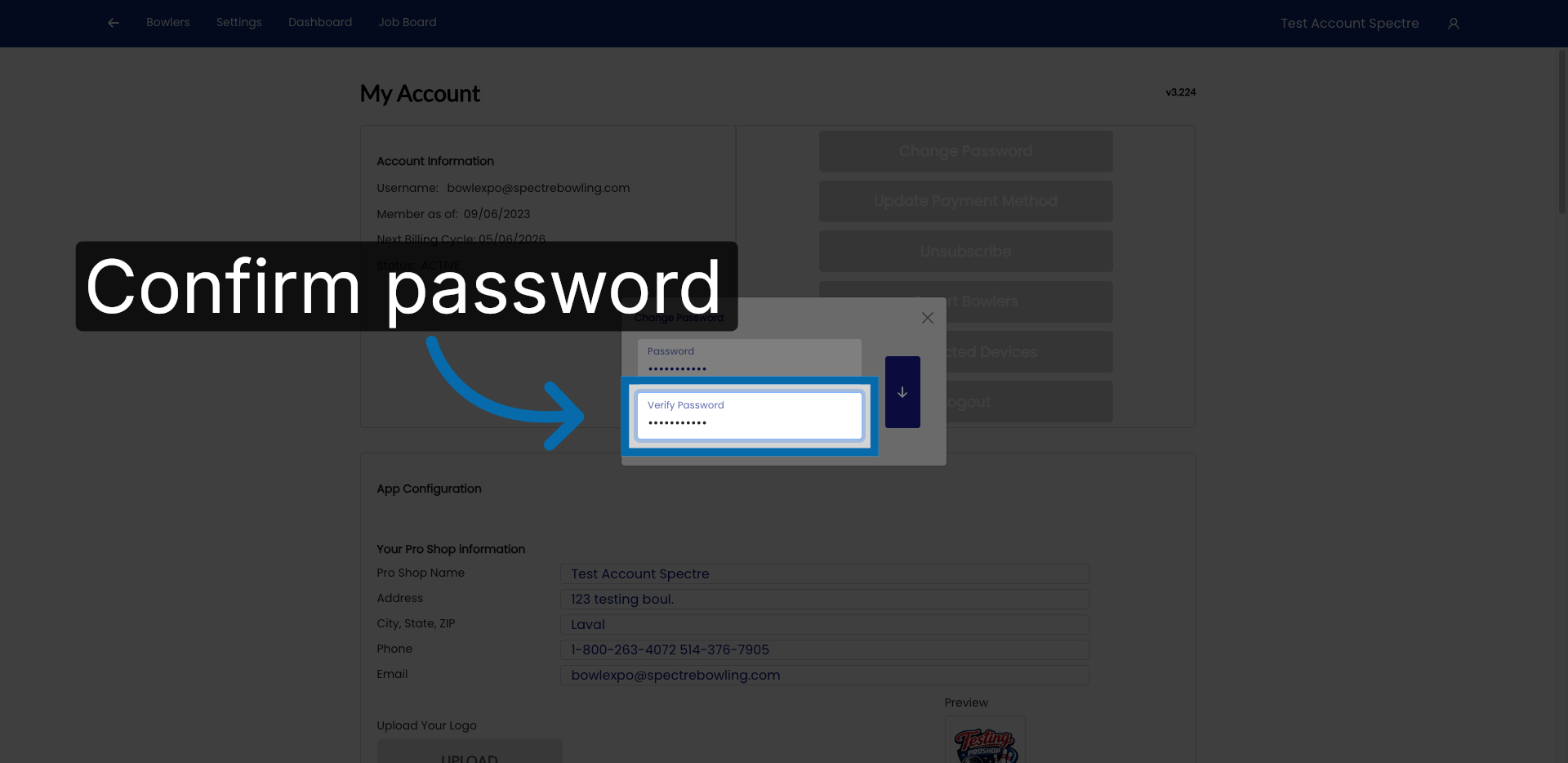
5. Confirm New Password
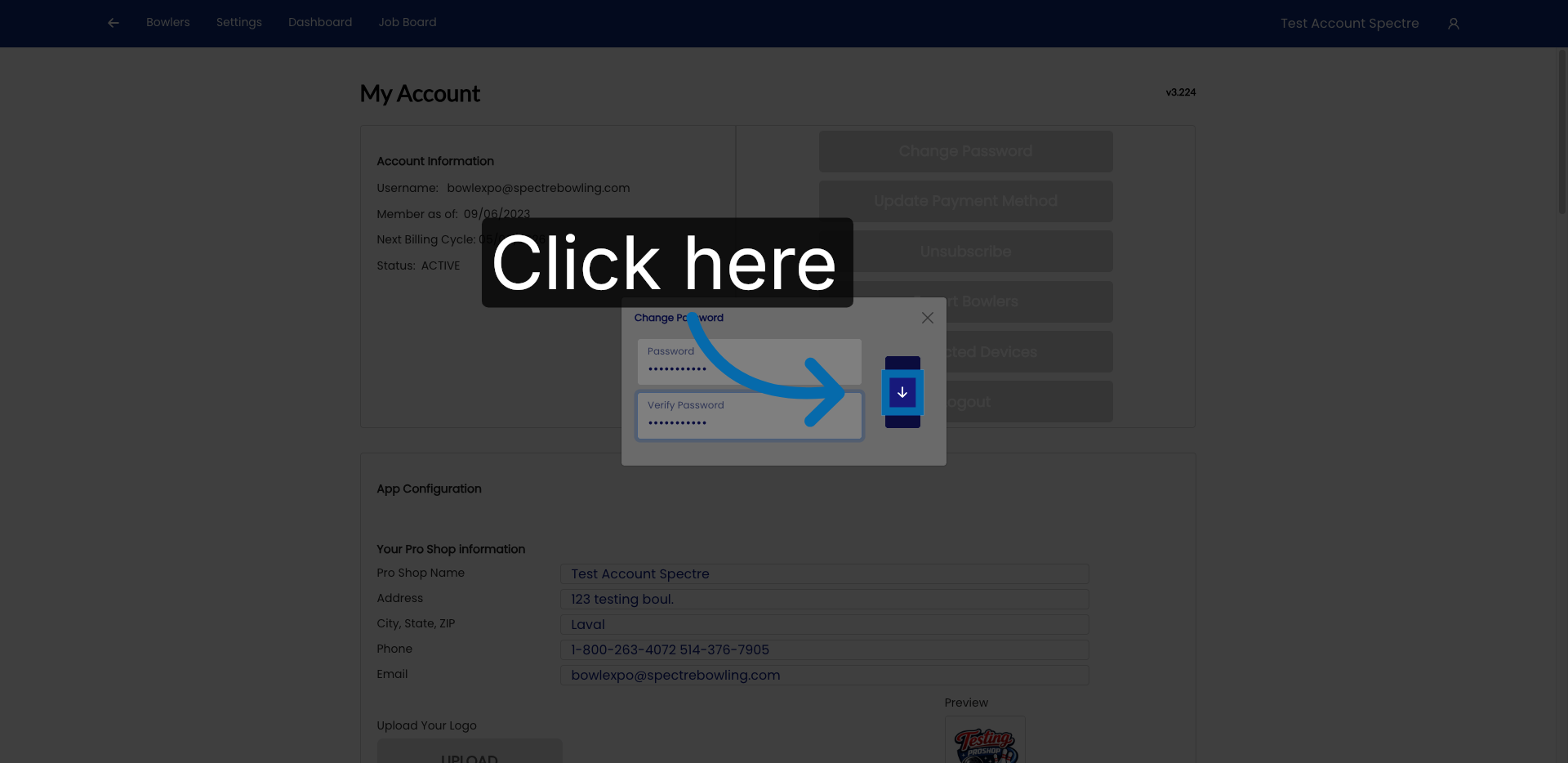
6. Proceed To Next Step
7. Fill Current Password
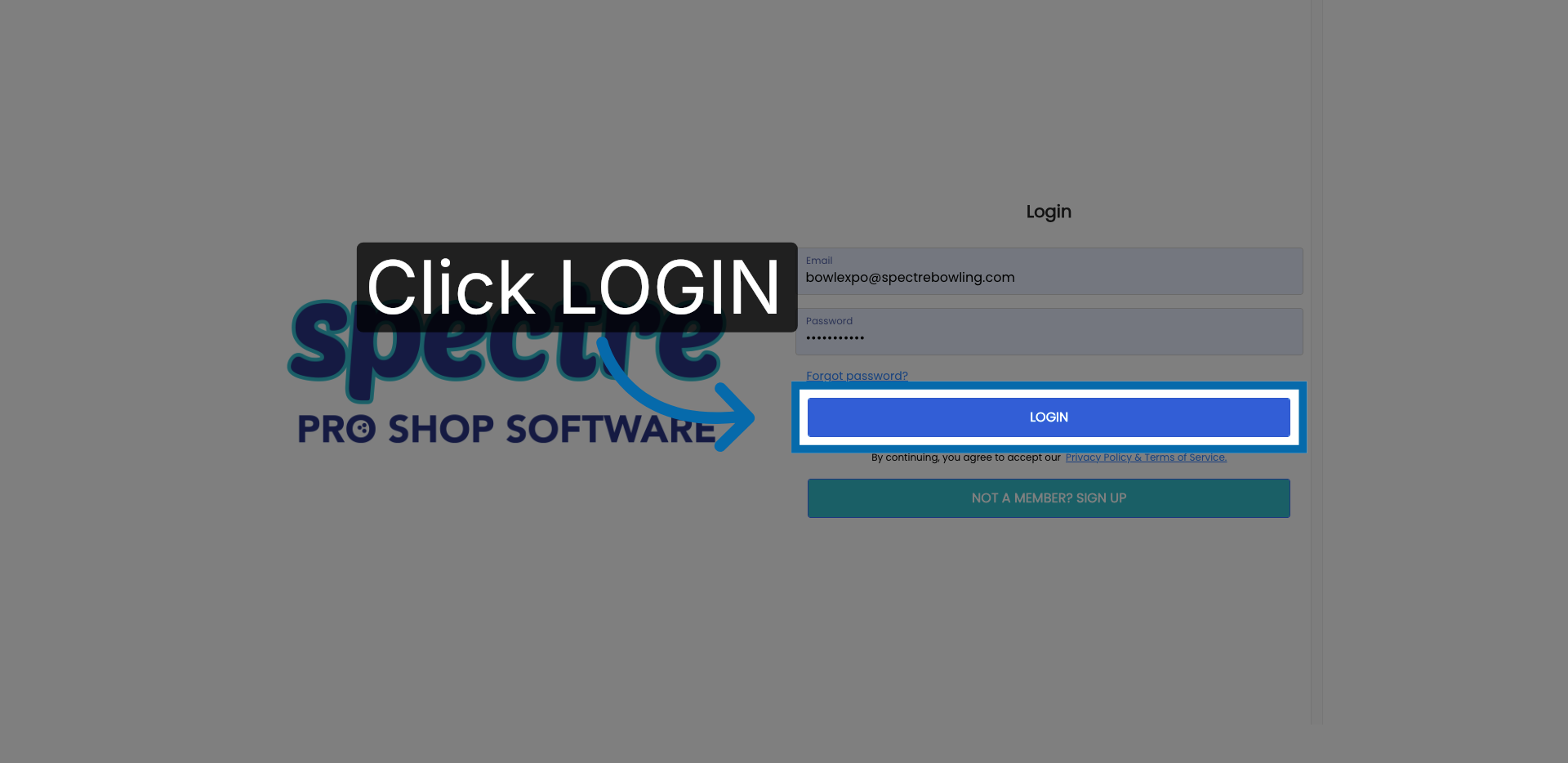
8. Submit Login Credentials
1.3 — Payment & Billing
1.3.1 Adding your payment method
Adding your payment method
1.3.1 KEY billing
TODO — write this page.
1.3.2 Updating your payment profile (card, billing address)
Updating your payment profile (card, billing address)
1.3.2 billing
TODO — write this page.
1.3.3 Understanding your billing cycle and invoices
Understanding your billing cycle and invoices
1.3.3 billing
TODO — write this page.
1.3.4 Upgrading or downgrading your subscription
Upgrading or downgrading your subscription
1.3.4 billing
TODO — write this page.
1.3.5 Cancelling your subscription
Cancelling your subscription
1.3.5 billing
TODO — write this page.