1.2 — Creating Your Account
- 1.2.1 How to sign up for Spectre Cloud
- 1.2.2 Choosing your subscription plan
- 1.2.3 Entering a referral code during sign-up
- 1.2.4 Logging in for the first time
- 1.2.5 Resetting your password
1.2.1 How to sign up for Spectre Cloud
Getting started with Spectre Cloud is quick and simple. Since the platform is entirely web-based, there is no software to download or install — you can be up and running in just a few minutes from any device with a modern web browser.
Before You Begin
Make sure you have the following ready:
- A device with a supported browser (Chrome, Firefox, Safari, or Edge).
- A working email address.
- An active internet connection.
- Your pro shop name and basic business information.
Step-by-Step: Creating a New Account
- Open your web browser on the device you plan to use most often (desktop, laptop, tablet, or smartphone).
- Navigate to
cloud.spectrebowling.com. - Click the "NOT A MEMBER" button on the login screen to begin the registration process.
- Fill out the sign-up form with the required information:
- Email address
- Password (choose a strong, secure password)
- Pro shop name
- Contact details
- Submit the form to create your account. You will be signed in automatically.
- Bookmark
cloud.spectrebowling.comfor quick access in the future. - Save your credentials in your browser's password manager for easy re-entry.
- Go to the Settings section to configure your preferences (language, units, defaults, etc.).
- You're ready to drill! Start adding bowlers, spec sheets, and arsenal data.
Logging In on Additional Devices
One of the biggest advantages of Spectre Cloud is multi-device access. Once your account is created, you can log in on as many devices as you need:
- Open the browser on the new device.
- Go to
cloud.spectrebowling.com. - Enter the same email and password you used during sign-up.
- Your data will sync instantly — no setup or import required.
Want to Try Before You Buy?
When signing up, input the REFERRAL CODE SPECTRETRIAL and get your first month free on a yearly subscription. Cancel anytime within the first month.
Migrating from the Spectre App
If you are currently using the legacy Spectre App, see the Moving from Spectre App to Spectre Cloud section of the wiki for full migration steps.
Importing from Another System
Already using a home-made database or the Ebonite ProShop Coordinator? Spectre Cloud supports data imports from these sources so you don't have to start over. Contact the Spectre team after signing up to coordinate your data migration.
Tips for a Smooth Sign-Up
- ✅ Use an email address you check regularly — it's also your login.
- ✅ Choose a strong password and store it securely.
- ✅ Sign up on the device you plan to use most often, but remember you can log in anywhere afterward.
- ✅ Don't forget to set up your preferences in the Settings section after first login.
Note: Each account is tied to one pro shop. If you operate multiple locations, contact Spectre support to discuss a multi-location setup.
1.2.2 Choosing your subscription plan
Spectre Cloud uses a simple, transparent subscription model. You start with the core Spectre Cloud plan and then add optional plug-ins to customize the platform to your shop's needs. There are no installation fees, no per-device charges, and you can cancel at any time.
💎 Spectre Cloud — Core Subscription
The core plan is what every pro shop needs to get started. It includes everything required to manage clients, spec sheets, and arsenals from any device.
- ✅ All basic Spectre functions you love and adore
- ✅ Data stored securely on the Spectre Cloud server
- ✅ No backups required — no risk of losing your data if a device breaks
- ✅ Multiple devices on the same account
- ✅ Access from any modern web browser (desktop, tablet, mobile)
Price: $29.99 USD / month (yearly pricing also available)
🔌 Cloud Plug-Ins (Optional Add-Ons)
Plug-ins let you tailor Spectre Cloud to your specific workflow. Each plug-in is billed separately and can be added or removed from your subscription at any time. To add a plug-in, simply go to the Settings section in Spectre Cloud and enable the one you want.
👤 Bowler Plus — $5 USD / month
- Adds an image gallery to your bowler profiles.
- Adds full address details to customer profiles.
- Adds client consent signature capture.
Best for: Shops that want richer client records and visual documentation.
🎳 Arsenal Plus — $5 USD / month
- Integrates the full bowlingdatabase.com product list — scan a barcode or search the database to add a ball to a bowler's arsenal.
- Suggested layouts based on your chosen layout style.
- Convert between layout styles (e.g., 2LS to Dual Angle).
- Visualize layouts in 3D rendering.
Best for: Shops that drill a high volume of balls or want advanced layout tools.
📋 Job Board — $15 USD / month
- A curated to-do list of work to be done in the workshop.
- Tags services to a client's ball for full service history per ball.
- Real-time, shared view for staff coordination on the shop floor.
Best for: Multi-staff shops or busy operations that need workflow coordination.
💡 Which Plan is Right for You?
| Shop Type | Recommended Setup |
|---|---|
| Solo operator, low volume | Spectre Cloud (core) |
| Solo operator, high volume | Spectre Cloud + Arsenal Plus |
| Shop with client-heavy workflow | Spectre Cloud + Bowler Plus |
| Multi-staff shop with shop-floor coordination | Spectre Cloud + Job Board |
| Multi-location chain / full-feature setup | Spectre Cloud + All Plug-Ins |
🗓️ Monthly vs Yearly Billing
- Monthly: Pay as you go — ideal if you want flexibility or are testing the platform.
- Yearly: Available for discounted pricing — best for established shops committed to the platform.
❄️ Pausing or Cancelling Your Subscription
You can cancel your Spectre Cloud subscription at any time from the Profile section. Once your account is inactive:
- ✅ You can still log in with read-only access to consult your data at no cost.
- ❌ You cannot create new clients or new spec sheets until you reactivate the subscription.
- ✅ Reactivating restores full functionality immediately — no data loss.
📌 Important Notes
- Prices may vary during the subscription period.
- Plug-ins are sold separately from the core subscription.
- Yearly pricing is available — contact Spectre or check the billing section for current rates.
- You retain the right to cancel at any time.
Tip: Not sure which plug-ins you need? Start with the core Spectre Cloud plan and add plug-ins later as your shop's needs evolve. You can enable or disable add-ons anytime from Settings.
1.2.3 Entering a referral code during sign-up
Spectre Cloud supports referral codes and discount codes that can be applied during the sign-up process to unlock special offers, discounted pricing, or other promotional benefits. If a pro shop owner, distributor, or fellow Spectre user has shared a code with you, this section will walk you through how to apply it correctly.
What is a Referral Code?
A referral code is a unique alphanumeric code typically shared by an existing Spectre Cloud member, a partner organization or the Spectre pro staff team during a promotion. Entering a valid code during sign-up may grant benefits such as:
- A discount on your first month or first year of service.
- Promotional credit applied to your account.
- A free trial period.
- Access to special offers or bundled plug-ins.
Tip: Referral codes are case-sensitive and usually time-limited, so apply your code at sign-up to make sure you don't miss out on the offer.
Step-by-Step: Entering a Referral Code
- Open your web browser and go to
cloud.spectrebowling.com. - Click "NOT A MEMBER" to start the sign-up process.
- Fill out the sign-up form with your pro shop name, email address, password, and other required details.
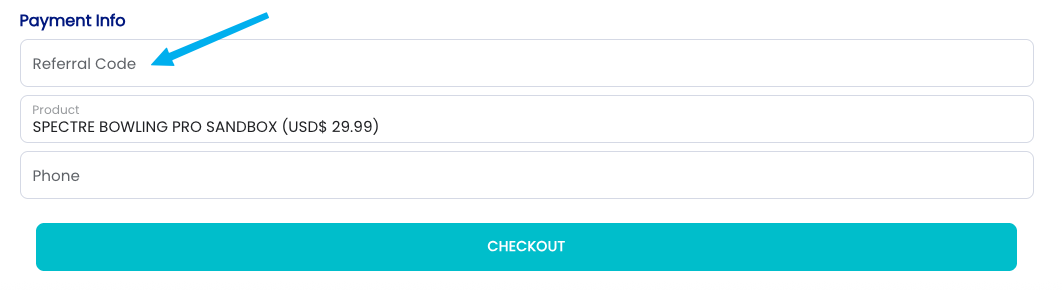
- Locate the "Referral Code" field on the sign-up form. This is at the bottom of the form, just before the submit button.
- Enter your code exactly as provided, including capitalization and any dashes or special characters. Copy-pasting is recommended to avoid typos.
- Confirm the code is accepted. A valid code will usually display a confirmation message, a discount preview, or an updated price.
- Submit the sign-up form to complete account creation.
- Verify your discount by checking the Profile or Billing section after logging in.
Where to Find a Referral Code
You can obtain a Spectre Cloud referral or discount code from several sources:
- 🤝 Existing Spectre Cloud users — many members have a personal referral code to share.
- 🏢 IBPSIA members and partners — Spectre periodically offers exclusive codes through industry partners.
- 📢 Promotional campaigns — codes are sometimes shared via Spectre's website, social media, or email newsletters.
- 🎓 Trade shows and events — Spectre often distributes special codes at bowling industry events.
- 👥 Distributors and ball reps — some product distributors partner with Spectre to offer codes.
Related Sections
- How to Sign Up for Spectre Cloud
- Choosing Your Subscription Plan
- Discount Codes
- Managing Your Subscription
Note: Promotional terms, eligibility, and discount amounts can change over time. Always read the terms attached to your specific referral or discount code, and apply codes before completing checkout for the best chance of having them honored.
1.2.4 Logging in for the first time
Once you've signed up and chosen your subscription plan, logging in to Spectre Cloud is straightforward. This page walks you through your first login, what to expect on the screen, and how to get your bearings before diving in.
🌐 Accessing Spectre Cloud
Spectre Cloud runs entirely in your web browser — there's nothing to install. To log in, open your browser and navigate to:
cloud.spectrebowling.com
You can bookmark this address or save it to your home screen on mobile for quick access. The login page will load on any supported browser across desktop, tablet, or smartphone.
🔑 Entering Your Credentials
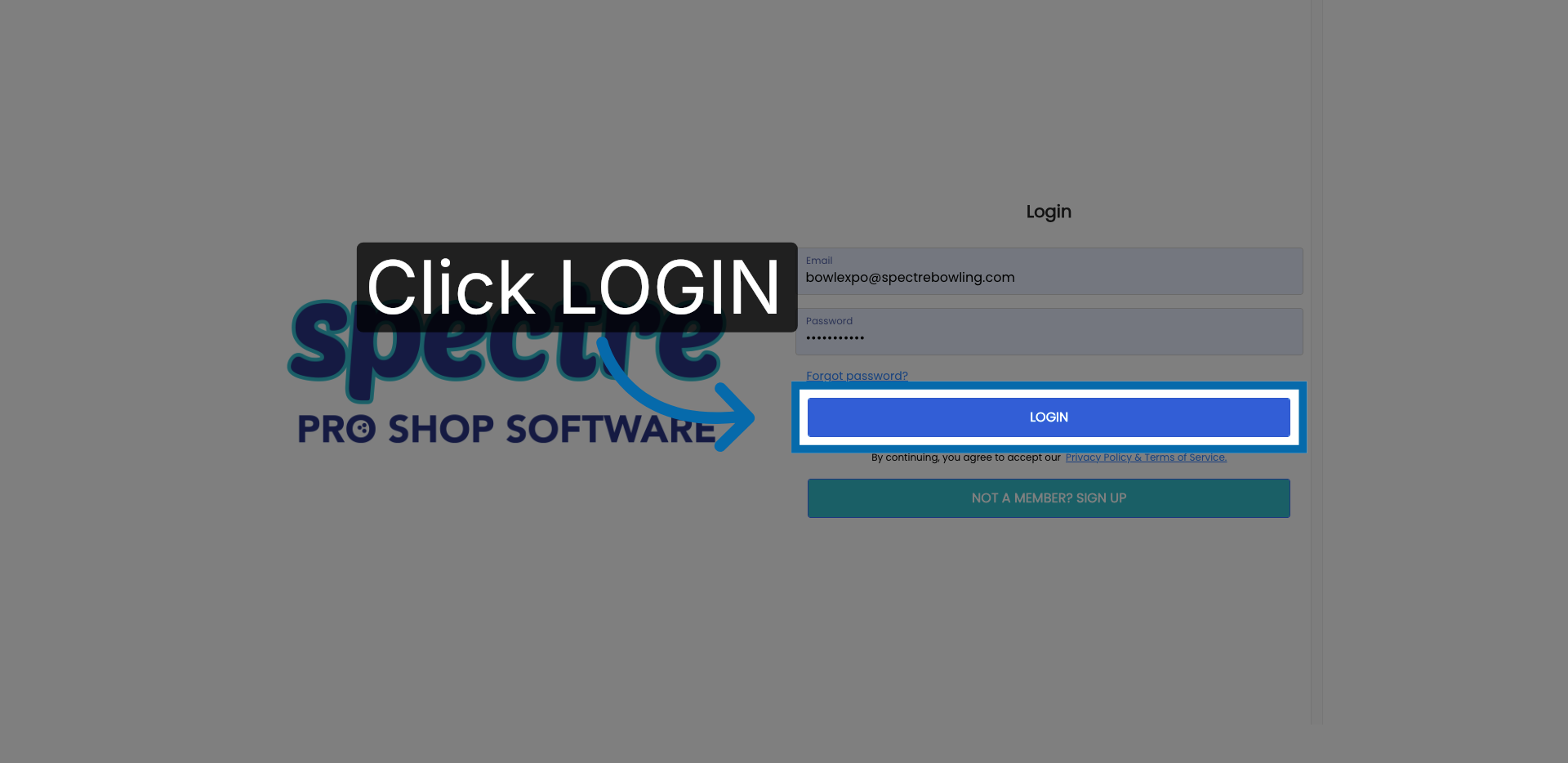
- Go to
cloud.spectrebowling.comin your browser. - Enter the email address you used during sign-up.
- Enter your password.
- Click or tap Log In.
Migrating from the original Spectre app? If you had a PRO account with the legacy Spectre desktop app, use those same credentials here — no new account needed.
🖥️ What You'll See After Logging In
After a successful login, you'll land on your Spectre Cloud dashboard. On your very first visit, the dashboard will be mostly empty — that's completely normal. Here's a quick orientation:
📱 Logging In on Mobile or Tablet
The login experience is the same on mobile and tablet browsers. For the best experience on smaller screens:
- ✅ Use a device with at least an 8-inch screen for full functionality.
- ✅ On iOS/iPadOS, save
cloud.spectrebowling.comto your home screen via the Share menu for an app-like shortcut. - ✅ On Android, use Chrome's "Add to Home screen" option for the same effect.
🌍 Choosing Your Language
Spectre Cloud is available in English, French, and Spanish. If your preferred language isn't set correctly after first login, you can adjust it in Settings. The app will remember your preference across sessions.
🔒 Trouble Logging In?
- If you've forgotten your password, use the Forgot Password link on the login page to receive a reset email.
- Make sure you're using the email address associated with your Spectre Cloud account — not a username.
- If your account is inactive (e.g. subscription lapsed), you'll have read-only access until billing is updated. See the Account & Business section for details.
- If you're experiencing persistent login issues, contact the Spectre support team via
spectrebowling.com.
Related Sections
- How to sign up for Spectre Cloud
- Choosing your subscription plan
- Overview of key features at a glance
- Navigating the dashboard (Book 01)
Tip: Bookmark cloud.spectrebowling.com now — or add it to your home screen on mobile. It's the only URL you'll need for day-to-day use.
1.2.5 Resetting your password
1. Click on your account name
2. Access Change Password Section
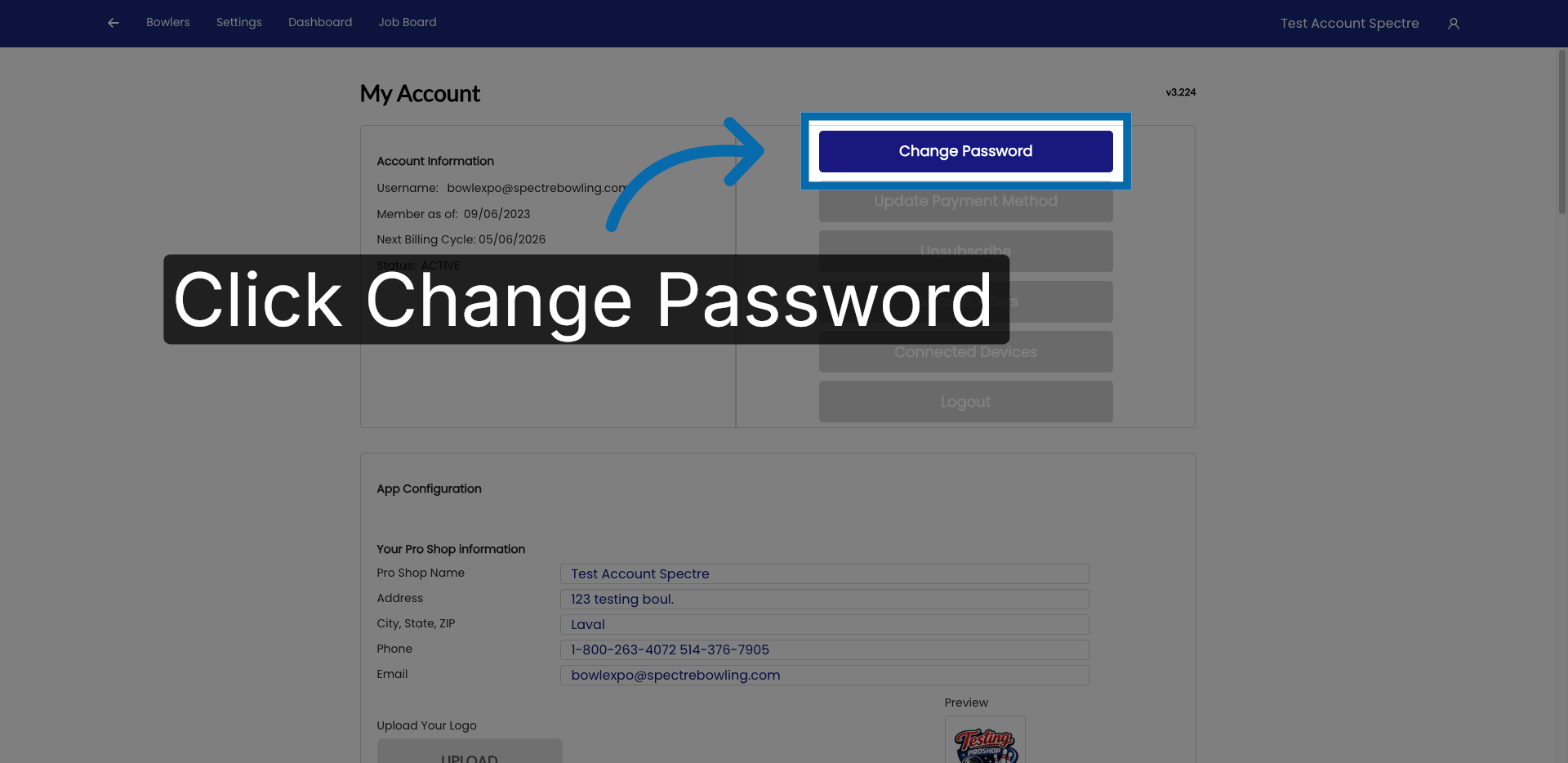
3. Open Password Settings
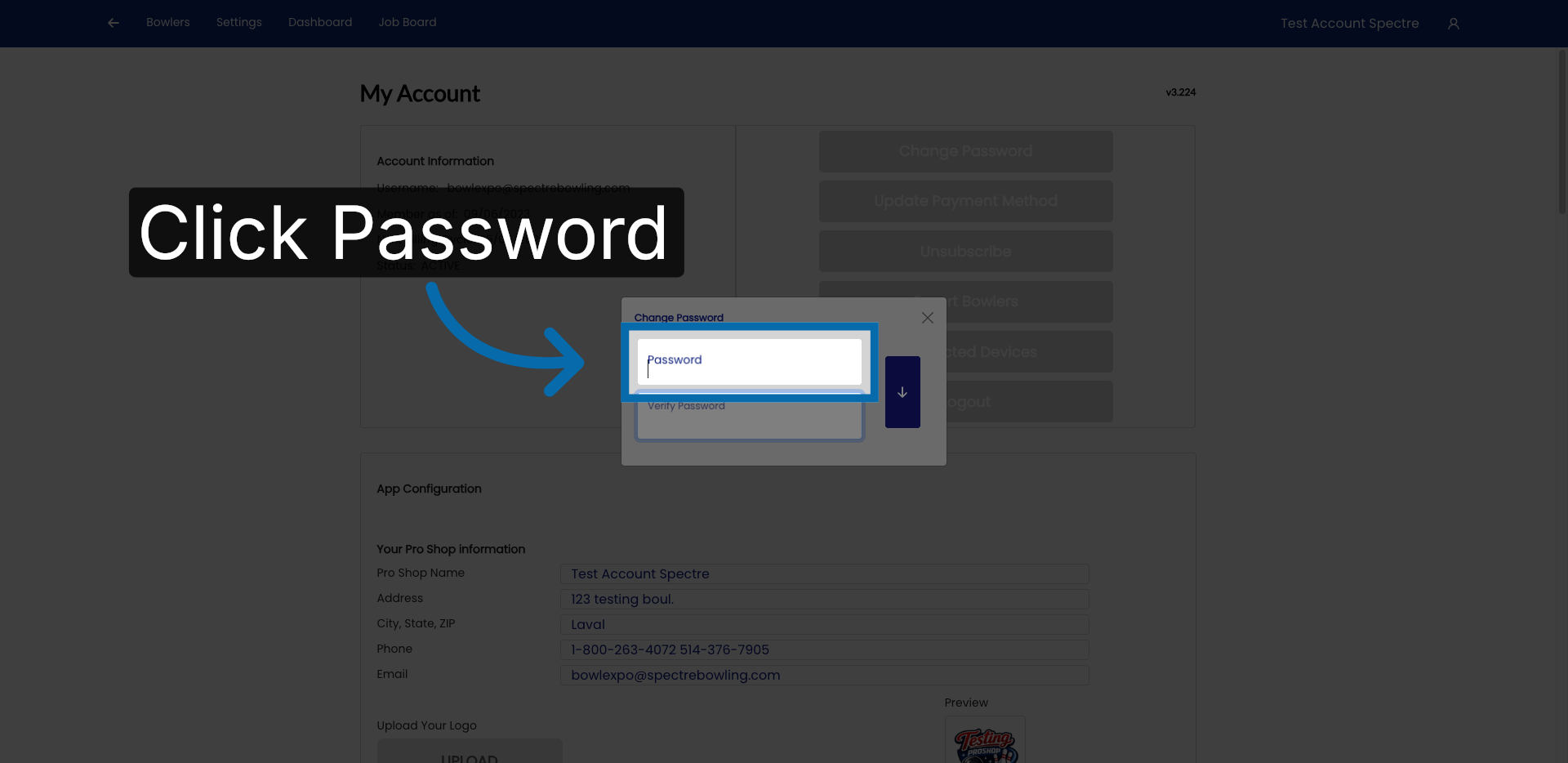
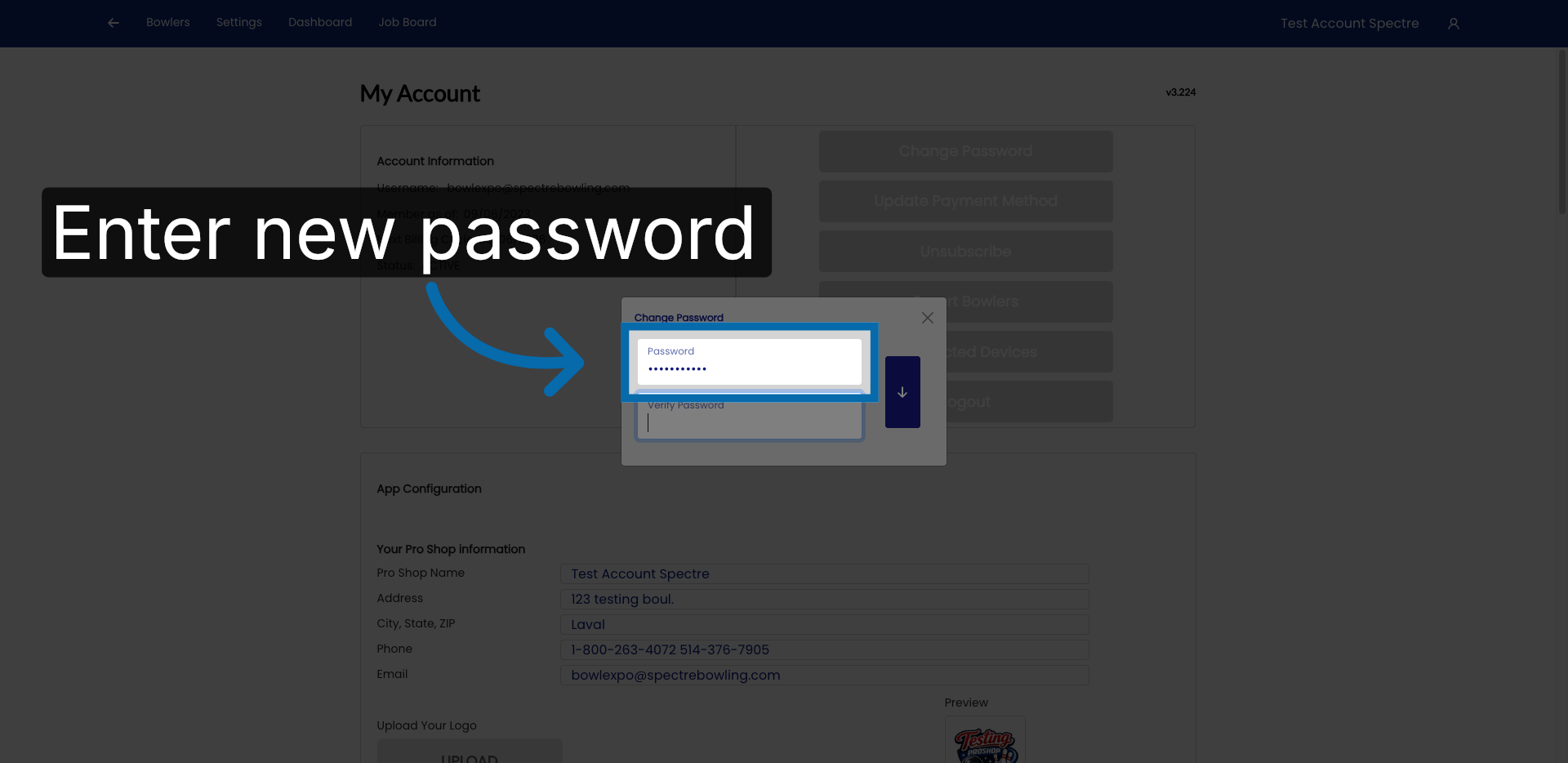
4. Enter New Password
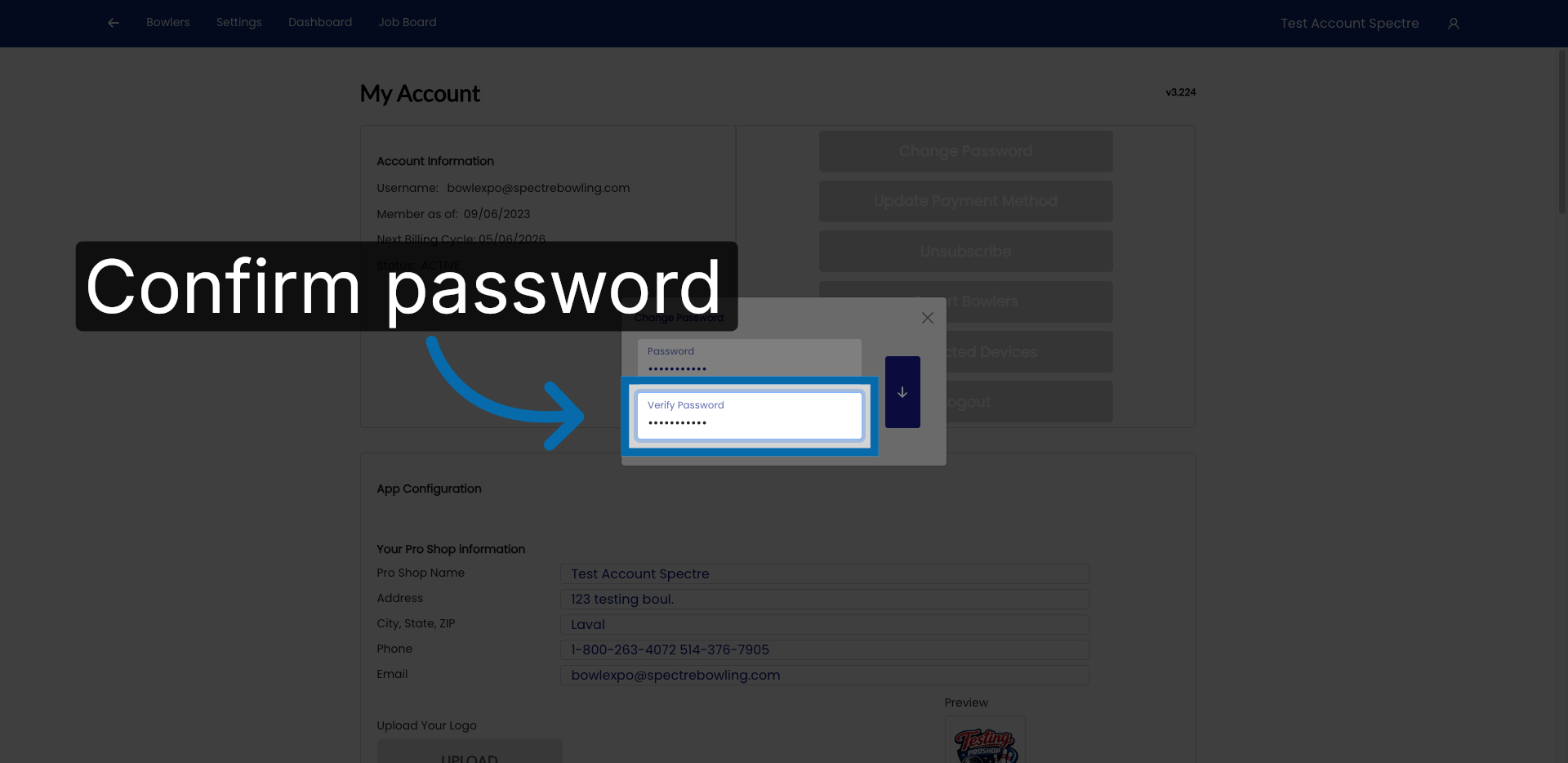
5. Confirm New Password
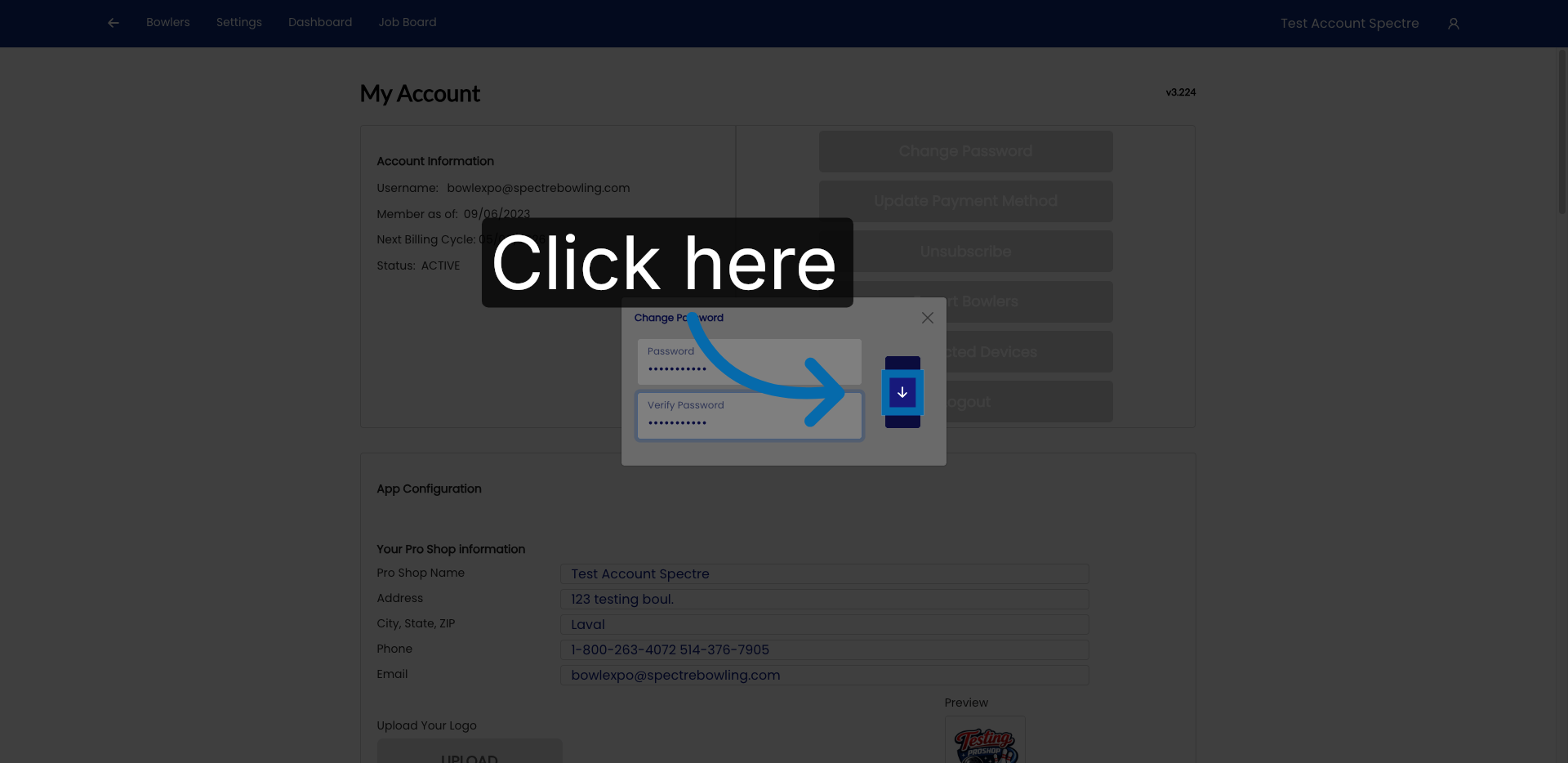
6. Proceed To Next Step
7. Fill Current Password
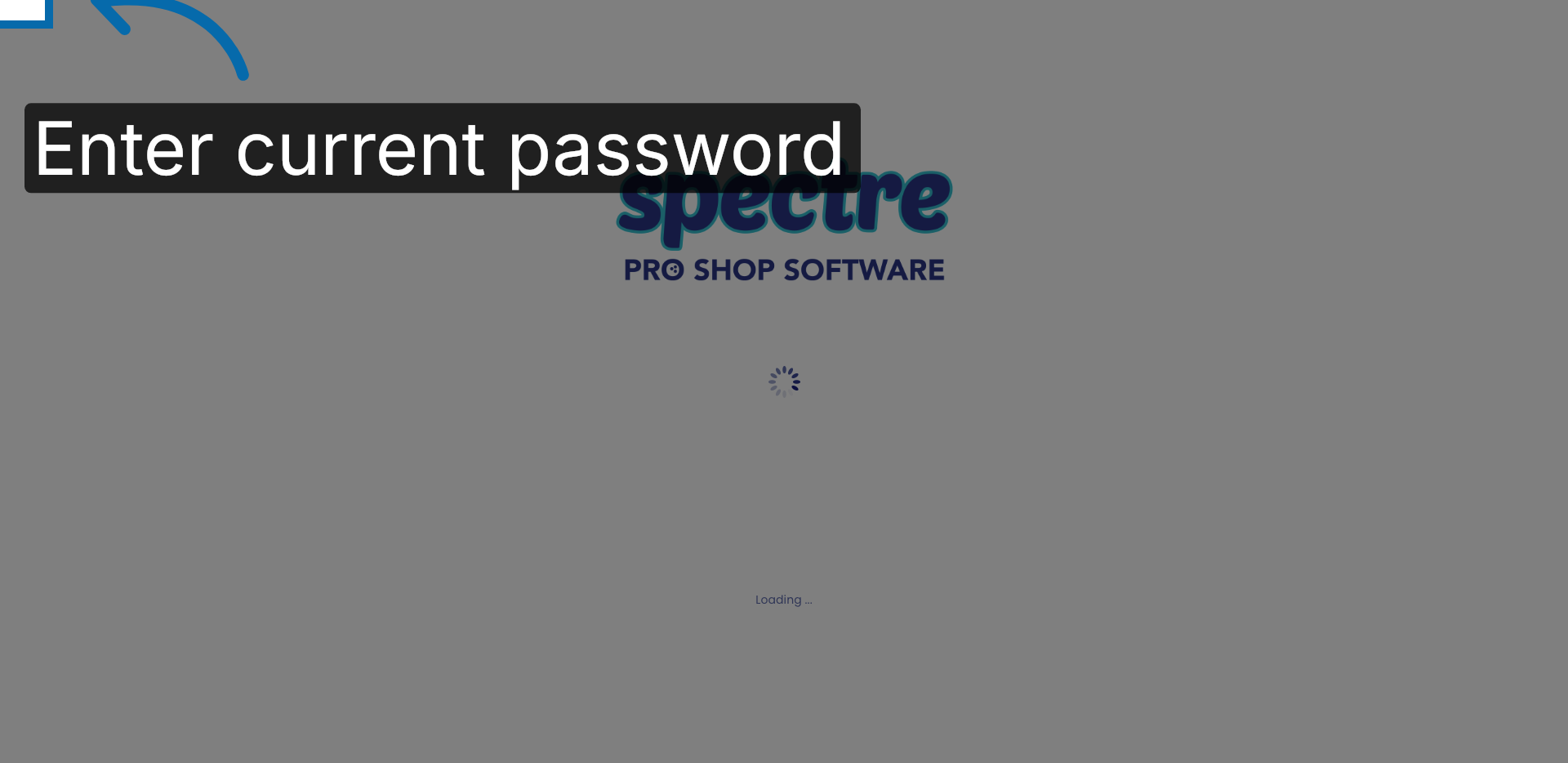
8. Submit Login Credentials